


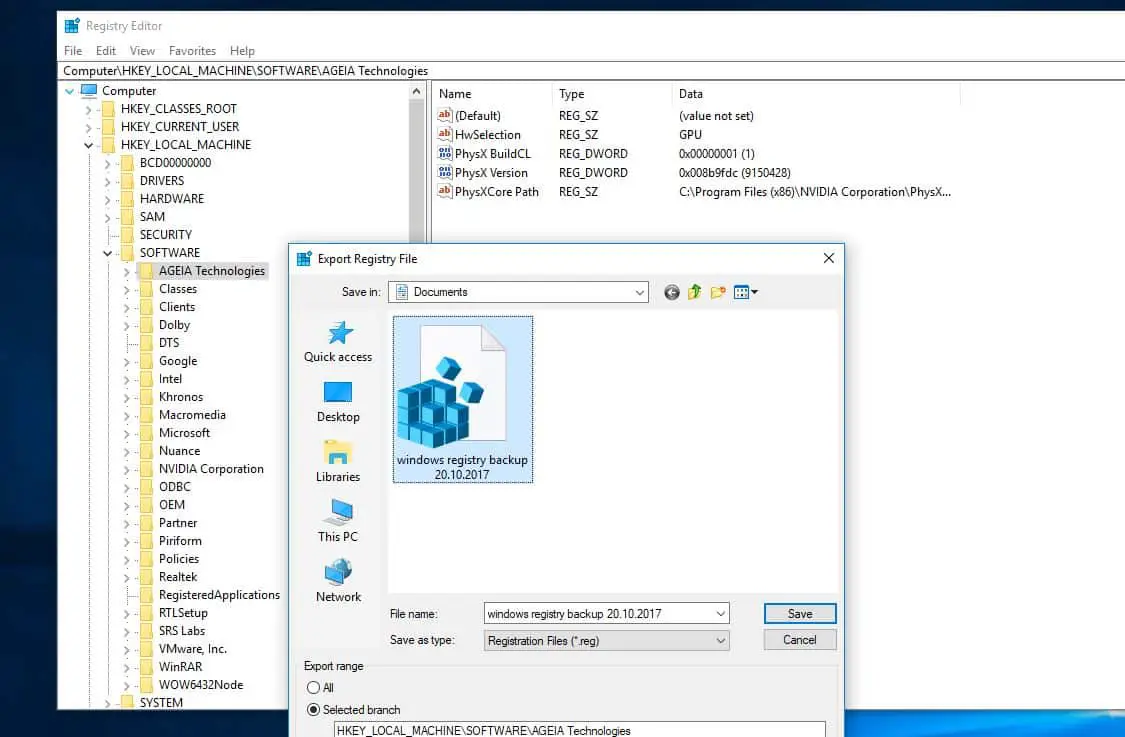
On Windows, Registry Are Act like a Brain To your computer, Which contains all configurations and settings used by components, services, applications, and almost everything. It also stores other third-party applications’ settings. Windows Registry has Two Basic Concepts keys And Values, Registry Keys are objects that are folders, Values are a bit like the files in the folders, and they contain the actual settings.
Some Times We tweak Windows registry Editor To fix Different Windows problems. As windows registry, the essential part of windows Takes Backup is very important before making any changes So that if anything goes while registry modification we can perform restore to recover the changes. Let’s See How To Take Backup and Restore Windows registry on Windows 10.
Backup And Restore Windows Registry
Also, Some Times Corrupted registry Entries cause Different problems on Windows. It can be Corrupted by third party applications, services, Virus / Malware infection etc. So That if you have Created a backup copy of the windows registry then you can restore when you need. Let’s discuss how to manually back up and restore the Windows Registry.
How To Backup Windows Registry
- To Take Backup manually First Open Windows registry Editor.
- You can do this by press Windows + R, Type regedit and hit enter key.
- Or you can click on Start menu search type regedit and select it from search results.
Now To backup, the entire registry, navigate the Computer located at the top left-hand side of the registry.
Here Click on file And select Export As shown below image.
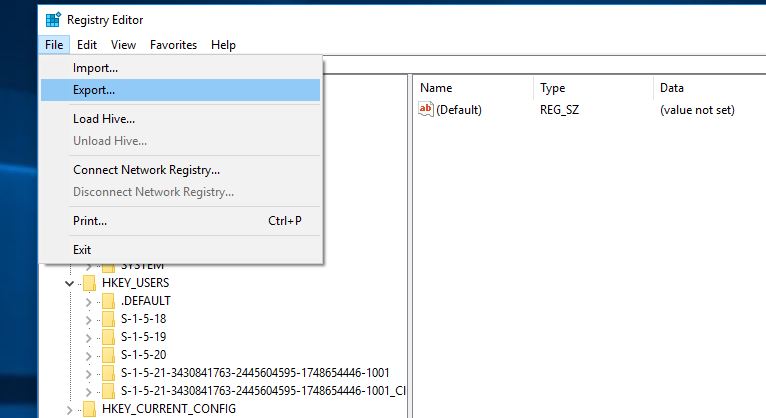

Note: If you look for Backup only a specific registry key Then drill down to the folder, Right click on it and select Export.
- Here windows Ask for the location, Where to save the registry export ( Backup ) File.
- Select the drive location Where you want to save the file,
- Type A file name then, Change the export range selected branch to all the click on save button.
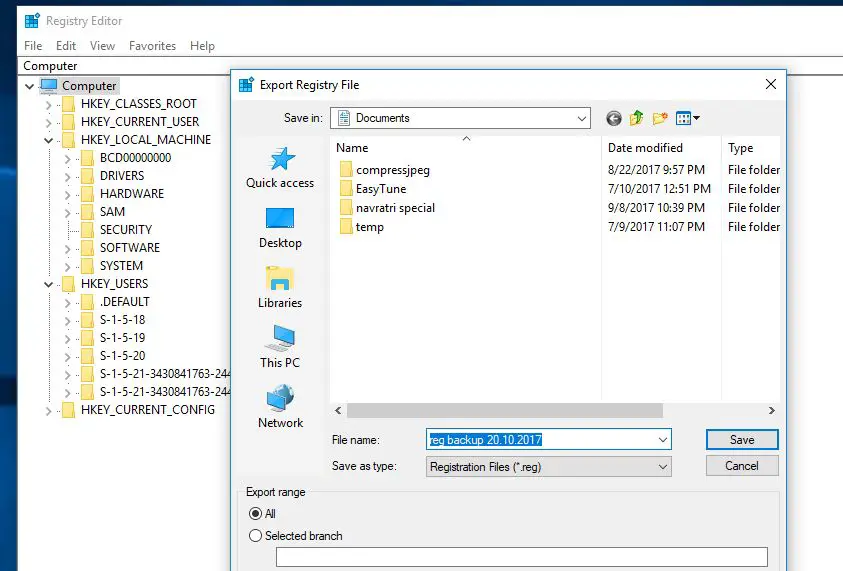

That’s all You have successfully Created A Backup Copy of your Windows registry. you can open the desired file location where you save the registry backup to get the backup copy.
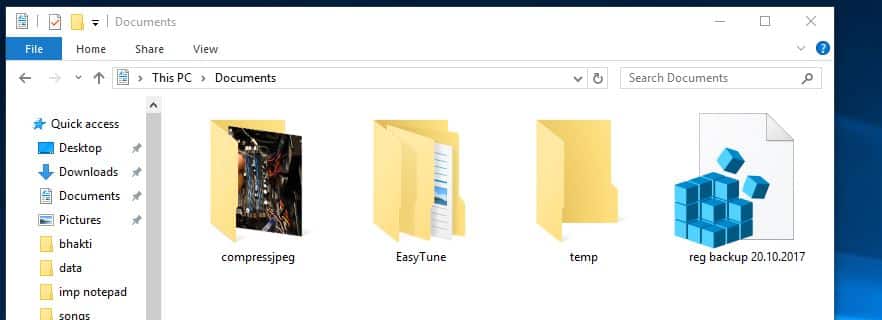

Once you have done with Backup you are free to Tweak and modify windows registry values etc. If any of time you feel after modify or delete any registry key, windows not function properly you can perform registry restore to get back the previous settings.
Restore Windows Registry
As discussed Before, While modifying registry if something went wrong, Of due To registry Corruption windows not perform well then You can easily Restore the windows registry settings to a previous working state with the backup copy which you created previously.
Restoring the registry files is an very easy task, first close if any application running then Simply open the location where you save the Backup copy And double click on it.
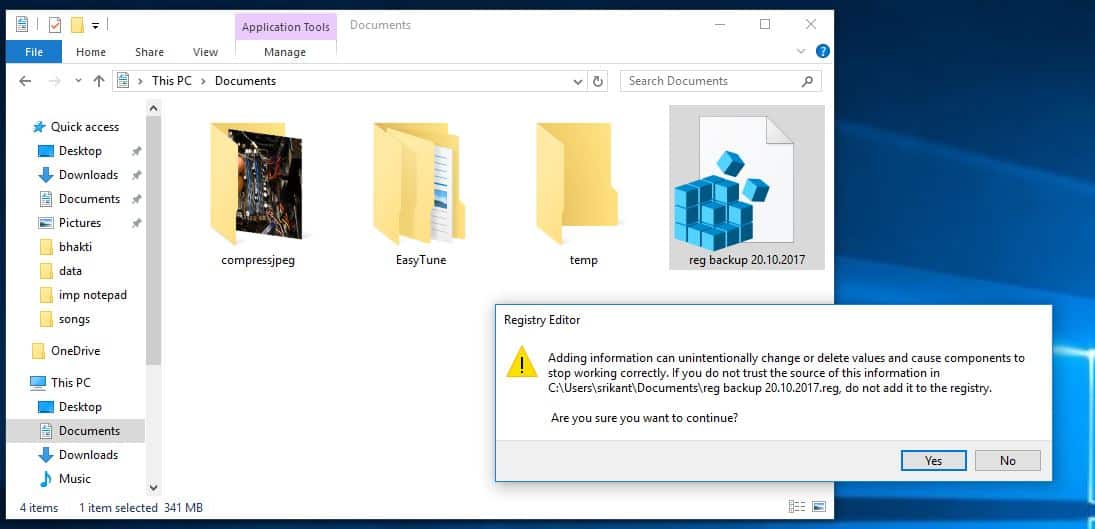

This will prompt Warning Message :
“Adding information can unintentionally change or delete values and cause components to stop working correctly. If you do not trust the source of this information in [REG file], do not add it to the registry. Are you sure you want to continue?”
Here Click Yes to continue. When the registry key import was successful, you will get the following message:
“The keys and values contained in [REG file name] have been successfully added to the registry.”
Click OK button, then Restart the computer to make sure the changes added are implied.
Also, you can open Windows registry -> file -> import Navigate to the backed up file. Click OK to the confirmation prompt. This will import the settings from old backup.
That’s all You have successfully added the Missing registry keys from Reg file have been restored or added to the Windows Registry.
Registry Restore Optional
If some time You already modified the windows registry and You don’t have any registry backup copy ( You didn’t take any backup before ) And come here for solution. Then Don’t worry if you don’t have old backup copy of registry copy then you can use the Windows system restore feature which reverts back windows to previous working settings. Where windows registry changes also get restored. Check how to perform system restore in windows 10.
This way you can take a backup and restore the Windows Registry. I hope after reading this post before plan to make any changes on the windows registry You can easily take backup and restore the windows registry when it needed. Try it and let us know if you have any queries, Suggestion On Comments Bellow. Also, Read form our blog :


