


Blue Snowball microphones are one of the most popular mics on the market, and it’s great for entry-level streamers, YouTubers and content creators. However, a number of users reporting issues occurring while using the Blue Snowball microphone on their windows computer, Blue Snowball mic Not Working after Windows update. If you are also experiencing Blue Snowball Not Working on Windows 10, you are in the right place. Here in this post, we have some of the most working solutions to fix Microphone problems on windows 10.
Why does my Blue Snowball not work?
There are several different reasons why the microphone fails to work properly in Windows 10, Incorrect configuration settings, corrupted microphone drivers are most common. Switch to different USB ports, changing privacy settings and re-install your audio driver are some common solutions that help fix Blue Snowball Not Working on Windows 10.
Switch to a different USB port
The first thing we recommend, to reboot your PC and the Blue snowball device.
Make sure the blue snowball device power on, And the USB cable connected properly between the computer and the blue snowball device.
Several users report, connecting the Blue snowball mic to different USB port help them resolve the issue. In addition, you will get great results if you connect the device to USB 3.0 port on your Laptop or computer.
USB 3.0 isn’t necessary to run Blue Snowball Mic. However, sometimes, switching ports can fix the issue due to the reinitialization of certain configurations. Always a good idea to switch ports if you are facing issues with a certain device.
Changing Windows Privacy Settings for Microphone
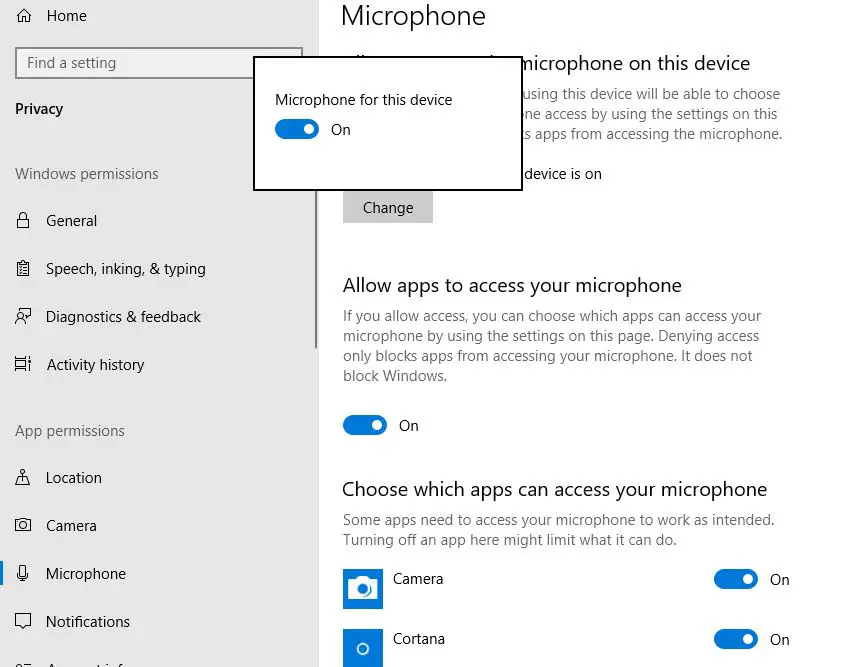
If the problem started after a recent windows 10 20H2 update or upgrade, there are chances the Privacy settings were automatically changed and some apps were not allowed to use the microphone. Change those settings following the steps below to help fix the issue.
- Press Windows key + I to open the settings app,
- Go to privacy settings, then Click on Microphone,
- Under allow access to the microphone on this device, click on change and make sure this option is enabled,
- Also, Make Sure the Apps that you use have the Permissions enabled too,
“If you want to use an app for the microphone, make sure you enable it by toggling on the switch.”
- Now check if the problem resolved or not.

Disable and Reconnect Blue Snowball Mic
Also try to manually disable the audio devices and reconnect Blue Snowball Mic again following steps below.
- First Disconnect the Blue Snowball Mic from any USB ports on your computer.
- Press Windows key + R, type devmgmt.msc and click ok to open device manager,
- This will display all installed device driver list, locate and Expand the Sound, video and games controller section,
- Now right-click the connected microphone from the list and click on Disable device.
- Once the device is disabled, reboot your computer and reconnect the Blue Snowball Mic to a USB port.
- Now check if the problem resolved or not.
Run the troubleshooter
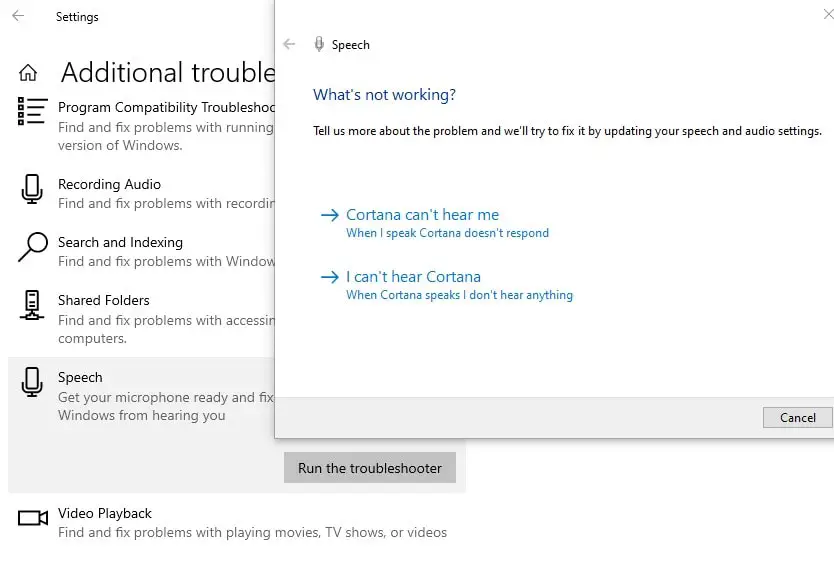
Run the build-in mic troubleshooter that automatically diagnoses and fixes problems that prevent Blue Snowball mic work properly.
- Press Windows key + S, type troubleshoot then select troubleshoot settings,
- Go to additional troubleshooter scroll down to locate and select speech,
- Click on Run troubleshooter and follow on screen instructions that help get your Blue snowball mic ready and fix problems that may prevent windows from hearing you.

Reinstall the Audio Device Driver
As discussed, corrupted or improper device driver also responsible for Blue Snowball not working on windows 10. Reinstalling the driver software for blue Snowball help fix the issue. To do this
- Press Windows key + X select device manager,
- This will display all installed device driver list, expand Audio Inputs and Outputs section,
- Right-click the Blue Snowball Microphone and select Uninstall device. Then follow the on-screen prompts to complete the process.
- Now locate and Expand the Sound, video and games controller section, and uninstall the Blue Snowball Drivers from here.
Disconnect the blue snowball device from your computer and reboot windows 10. Now, you can re-plug the Blue Snowball microphone into your computer and see if it can be recognized.
In addition, you can download the latest driver for the Blue snowball device from its official site here and install it.
Set Sound Settings to Default
In addition resetting the sound settings also help fix the issue, if improper sound settings causing the Blue Snowball not showing up or working on windows 10.
- Right-click the Sound icon from the right bottom of the taskbar and select Sound
- In the pop-up window, navigate to the Recording tab and you will found the Blue Snowball microphone along with other recorders.
- Step 4. Disable all other devices other than the Blue Snowball Mic by right-clicking them and selecting Disable.
- Step 5. Select the Blue Snowball Mic and click on the Set default button.
- Now, you can check if the Blue Snowball not recognized or not working issue is resolved or not.
Also read:


