
A computer is an electronic machine that can perform multiple arithmetic and logical operation. To perform all the advanced functions, computers need the strength of the processing units that can handle all the complicated functions performed by the user. So, if you are going to get a new computer system and wondering which Central Processing Unit will be good for your device, then we recommend you read out about CPUs and what are the uses of CPU.
What is the CPU (Central Processing Unit)?
Alternately referred to as a processor, central processor, or microprocessor, the CPU is the main processor of the computer. The responsibility of the computer’s CPU is to smoothly run the instructions between hardware and software so that they can function without any problem. It is also referred to as the brain of the computer system because all the important functions like performing calculations, running programs and handling multiple activities are managed by the CPU.
The processor acts as the computer’s brain, running programs and sending and receiving signals to attached devices to keep the computer running.
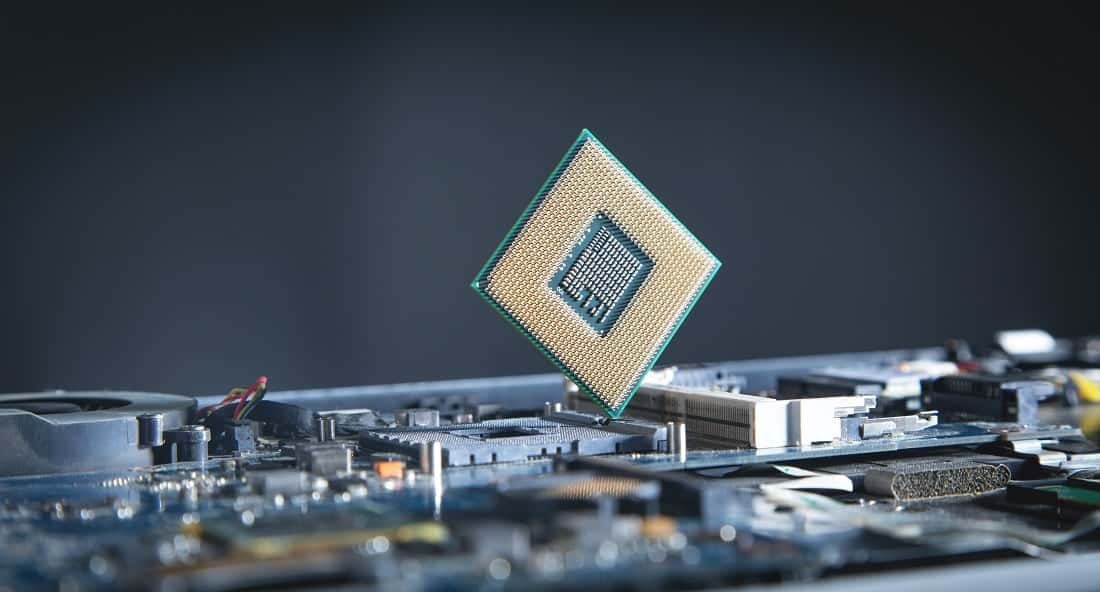
The processor is placed and secured into the compatible CPU socket stored in the motherboard. The heat is produced by the processor that’s why they are covered with the heat sink to protect the emission of the heat. A CPU chip is rectangular so that it can be easily stored in the socket. On the bottom of the chip are hundreds of connector pins that plug into each of the corresponding holes in the socket.
Today, all the CPUs are very similar in design and functionality. However, Intel and AMD have larger chips that can be stored on the motherboard. Moreover, there are plenty of different sockets available on the motherboard and each socket has its different being layout and has a specific function to store the processor.
Components of CPU
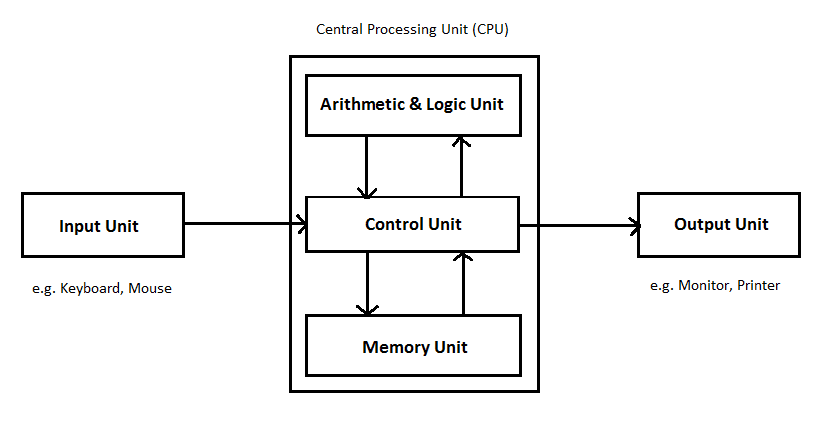
The first computer processor was introduced by intel designer named Ted Hoff in the 1970s. The first processor was called 4004 by Intel. Mainly, a computer processor consists of the following different components –
- Memory or Storage Unit
- Control Unit
- ALU(Arithmetic Logic Unit)
Arithmetic Logic Unit (ALU)
The arithmetic logic unit performs mathematical functions, and logic and helps in the decision-making process. This unit consists of two subsections namely,
- Arithmetic Section: The function of the arithmetic section is to perform arithmetic operations like addition, subtraction, multiplication, and division. All complex operations are done by making repetitive use of the above operations.
- Logic Section: The function of the logic section is to perform logic operations such as comparing, selecting, matching, and merging data.
The control unit (CU)
The control unit extracts instructions from memory and decodes and executes them, calling on the ALU when necessary.
The functions of this unit are −
- It is responsible for controlling the transfer of data and instructions among other units of a computer.
- It manages and coordinates all the units of the computer.
- It obtains the instructions from the memory, interprets them, and directs the operation of the computer.
- It communicates with Input/Output devices for the transfer of data or results from storage.
- It does not process or store data.
Memory or Storage Unit
This unit can store instructions, data, and intermediate results. This unit supplies information to other units of the computer when needed. It is also known as the internal storage unit or the main memory or the primary storage or Random Access Memory (RAM).
Its size affects speed, power, and capability. Primary memory and secondary memory are two types of memories in the computer. Functions of the memory unit are −
- It stores all the data and the instructions required for processing.
- It stores intermediate results of processing.
- It stores the final results of processing before these results are released to an output device.
- All inputs and outputs are transmitted through the main memory.
History of CPU
In the due course of history, the speed and performance of the central processing unit have evolved dramatically. The first CPU which was introduced by Intel 4004 that was released on November 15, 1971, had 2,300 transistors and performed 60,000 operations per second. And, the latest Intel platinum is today offering 3,300,000 transistors and performs around 188,000,000 instructions per second. You can easily compare the difference between the performance and speed of both the CPU units.
Who is the founder of CPU?
The first CPU was the Intel 4004 released by Intel in 1971. Federico Faggin was the lead designer of the first commercial CPU. He is one of the main people credited with the invention of the CPU.
| Year | Computer processor introduced |
| 1823 | Baron Jons Jackob Berzelius discovers silicon (Si), which today is the basic component of processors. |
| 1903 | Nikola Tesla patented electrical logic circuits called “gates” or “switches” in 1903. |
| 1947 | John Bardeen, Walter Brattain, and William Shockley invent the first transistor at the Bell Laboratories on December 23, 1947. |
| 1948 | John Bardeen, Walter Brattain, and William Shockley patent the first transistor in 1948. |
| 1956 | John Bardeen, Walter Brattain, and William Shockley were awarded the Nobel Prize in physics for their work on the transistor. |
| 1958 | The first integrated circuit was first developed by Robert Noyce of Fairchild Semiconductor and Jack Kilby of Texas Instruments. The first IC was demonstrated on September 12, 1958. |
| 1960 | IBM developed the first automatic mass-production facility for transistors in New York in 1960. |
| 1968 | Intel Corporation was founded by Robert Noyce and Gordon Moore in 1968. |
| 1969 | AMD (Advanced Micro Devices) was founded on May 1, 1969. |
| 1971 | Intel with the help of Ted Hoff introduced the first microprocessor, the Intel 4004 on November 15, 1971. The 4004 had 2,300 transistors, performed 60,000 OPS (operations per second), addressed 640 bytes of memory, and cost $200.00. |
| 1972 | Intel introduced the 8008 processor on April 1, 1972. |
| 1974 | Intel’s improved microprocessor chip was introduced on April 1, 1974; the 8080 became a standard in the computer industry. |
| 1976 | Intel introduced the 8085 processor in March 1976. |
| 1976 | The Intel 8086 was introduced on June 8, 1976. |
| 1979 | The Intel 8088 was released on June 1, 1979. |
| 1979 | The Motorola 68000, a 16/32-bit processor was released and was later chosen as the processor for the Apple Macintosh and Amiga computers. |
| 1982 | The Intel 80286 was introduced on February 1, 1982. |
| 1985 | Intel introduced the first 80386 in October 1985. |
| 1987 | The SPARC processor was first introduced by Sun. |
| 1988 | Intel 80386SX was introduced in 1988. |
| 1991 | AMD introduced the AM386 microprocessor family in March 1991. |
| 1991 | Intel introduced the Intel 486SX chip in April in efforts to help bring a lower-cost processor to the PC market selling for $258.00. |
| 1992 | Intel released the 486DX2 chip on March 2, 1992, with a clock doubling ability that generates higher operating speeds. |
| 1993 | Intel released the Pentium processor on March 22, 1993. The processor was a 60 MHz processor, incorporates 3.1 million transistors and sells for $878.00. |
| 1994 | Intel released the second generation of Intel Pentium processors on March 7, 1994. |
| 1995 | Intel introduced the Intel Pentium Pro in November 1995. |
| 1996 | Intel announced the availability of the Pentium 150 MHz with 60 MHz bus and 166 MHz with 66 MHz bus on January 4, 1996. |
| 1996 | AMD introduced the K5 processor on March 27, 1996, with speeds of 75 MHz to 133 MHz and bus speeds of 50 MHz, 60 MHz, or 66 MHz. The K5 was the first processor developed completely in-house by AMD. |
| 1997 | AMD released their K6 processor line in April 1997, with speeds of 166 MHz to 300 MHz and a 66 MHz bus speed. |
| 1997 | Intel Pentium II was introduced on May 7, 1997. |
| 1998 | AMD introduced their new K6-2 processor line on May 28, 1998, with speeds of 266 MHz to 550 MHz and bus speeds of 66 MHz to 100 MHz. The K6-2 processor was an enhanced version of AMD’s K6 processor. |
| 1998 | Intel released the first Xeon processor, the Pentium II Xeon 400 (512 K or 1 M cache, 400 MHz, 100 MHz FSB) in June 1998. |
| 1999 | Intel released the Celeron 366 MHz and 400 MHz processors on January 4, 1999. |
| 1999 | AMD released its K6-III processors on February 22, 1999, with speeds of 400 MHz or 450 MHz and bus speeds of 66 MHz to 100 MHz. It also featured an on-die L2 cache. |
| 1999 | The Intel Pentium III 500 MHz was released on February 26, 1999. |
| 1999 | The Intel Pentium III 550 MHz was released on May 17, 1999. |
| 1999 | AMD introduced the Athlon processor series on June 23, 1999. The Athlon would be produced for the next six years in speeds ranging from 500 MHz up to 2.33 GHz. |
| 1999 | The Intel Pentium III 600 MHz was released on August 2, 1999. |
| 1999 | The Intel Pentium III 533B and 600B MHz was released on September 27, 1999. |
| 1999 | The Intel Pentium III Coppermine series was first introduced on October 25, 1999. |
| 2000 | On January 5, 2000, AMD released the 800 MHz Athlon processor. |
| 2000 | Intel released the Celeron 533 MHz with a 66 MHz bus processor on January 4, 2000. |
| 2000 | AMD first released the Duron processor on June 19, 2000, with speeds of 600 MHz to 1.8 GHz and bus speeds of 200 MHz to 266 MHz. The Duron was built on the same K7 architecture as the Athlon processor. |
| 2000 | Intel announces on August 28th that it will recall its 1.3 GHz Pentium III processors due to a glitch. Users with these processors should contact their vendors for additional information about the recall. |
| 2001 | On January 3, 2001, Intel released the 800 MHz Celeron processor with a 100 MHz bus. |
| 2001 | On January 3, 2001, Intel released the 1.3 GHz Pentium 4 processor. |
| 2001 | AMD announced a new branding scheme on October 9, 2001. Instead of identifying processors by their clock speed, the AMD Athlon XP processors will bear monikers of 1500+, 1600+, 1700+, 1800+, 1900+, 2000+, etc. Each higher model number will represent a higher clock speed. |
| 2002 | Intel released the Celeron 1.3 GHz with a 100 MHz bus and 256 kB of level 2 cache. |
| 2003 | Intel Pentium M was introduced in March 2003. |
| 2003 | AMD released the first single-core Opteron processors, with speeds of 1.4 GHz to 2.4 GHz and 1024 KB L2 cache, on April 22, 2003. |
| 2003 | AMD released the first Athlon 64 processors, the 3200+, and the first Athlon 64 FX processor, the FX-51, on September 23, 2003. |
| 2004 | AMD released the first Sempron processor on July 28, 2004, with a 1.5 GHz to 2.0 GHz clock speed and 166 MHz bus speed. |
| 2005 | AMD released their first dual-core processor, the Athlon 64 X2 3800+ (2.0 GHz, 512 KB L2 cache per core), on April 21, 2005. |
| 2006 | Intel released the Core 2 Duo processor E6320 (4 M cache, 1.86 GHz, 1066 MHz FSB) on April 22, 2006. |
| 2006 | Intel introduced the Intel Core 2 Duo processors with the Core 2 Duo processor E6300 (2 M cache, 1.86 GHz, 1066 MHz FSB) on July 27, 2006. |
| 2006 | Intel introduced the Intel Core 2 Duo processor for the laptop computer with the Core 2 Duo processor T5500, as well as other Core 2 Duo T series processors, in August 2006. |
| 2007 | Intel released the Core 2 Quad processor Q6600 (8 M cache, 2.40 GHz, 1066 MHz FSB) in January 2007. |
| 2007 | Intel released the Core 2 Duo processor E4300 (2 M cache, 1.80 GHz, 800 MHz FSB) on January 21, 2007. |
| 2007 | Intel released the Core 2 Quad processor Q6700 (8 M cache, 2.67 GHz, 1066 MHz FSB) in April 2007. |
| 2007 | Intel released the Core 2 Duo processor E4400 (2 M cache, 2.00 GHz, 800 MHz FSB) on April 22, 2007. |
| 2007 | AMD renamed the Athlon 64 X2 processor line to Athlon X2 and released the first in that line, the Brisbane series (1.9 to 2.6 GHz, 512 KB L2 cache) on June 1, 2007. |
| 2007 | Intel released the Core 2 Duo processor E4500 (2 M cache, 2.20 GHz, 800 MHz FSB) on July 22, 2007. |
| 2007 | Intel released the Core 2 Duo processor E4600 (2 M cache, 2.40 GHz, 800 MHz FSB) on October 21, 2007. |
| 2007 | AMD released the first Phenom X4 processors (2 M cache, 1.8 GHz to 2.6 GHz, 1066 MHz FSB) on November 19, 2007. |
| 2008 | Intel released the Core 2 Quad processor Q9300 and the Core 2 Quad processor Q9450 in March 2008. |
| 2008 | Intel released the Core 2 Duo processor E4700 (2 M cache, 2.60 GHz, 800 MHz FSB) on March 2, 2008. |
| 2008 | AMD released the first Phenom X3 processors (2 M cache, 2.1 GHz to 2.5 GHz, 1066 MHz FSB) on March 27, 2008. |
| 2008 | Intel released the first of the Intel Atom series of processors, the Z5xx series, in April 2008. They are single-core processors with a 200 MHz GPU. |
| 2008 | Intel released the Core 2 Duo processor E7200 (3 M cache, 2.53 GHz, 1066 MHz FSB) on April 20, 2008. |
| 2008 | Intel released the Core 2 Duo processor E7300 (3 M cache, 2.66 GHz, 1066 MHz FSB) on August 10, 2008. |
| 2008 | Intel released several Core 2 Quad processors in August 2008: the Q8200, the Q9400, and the Q9650. |
| 2008 | Intel released the Core 2 Duo processor E7400 (3 M cache, 2.80 GHz, 1066 MHz FSB) on October 19, 2008. |
| 2008 | Intel released the first Core i7 desktop processors in November 2008: the i7-920, the i7-940, and the i7-965 Extreme Edition. |
| 2009 | AMD released the first Phenom II X4 (quad-core) processors (6 M cache, 2.5 to 3.7 GHz, 1066 MHz or 1333 MHz FSB) on January 8, 2009. |
| 2009 | Intel released the Core 2 Duo processor E7500 (3 M cache, 2.93 GHz, 1066 MHz FSB) on January 18, 2009. |
| 2009 | AMD released the first Phenom II X3 (triple core) processors (6 M cache, 2.5 to 3.0 GHz, 1066 MHz or 1333 MHz FSB) on February 9, 2009. |
| 2009 | Intel released the Core 2 Quad processor Q8400 (4 M cache, 2.67 GHz, 1333 MHz FSB) in April 2009. |
| 2009 | Intel released the Core 2 Duo processor E7600 (3 M cache, 3.06 GHz, 1066 MHz FSB) on May 31, 2009. |
| 2009 | AMD released the first Athlon II X2 (dual-core) processors (1024KB L2 cache, 1.6 to 3.5 GHz, 1066 MHz or 1333 MHz FSB) in June 2009. |
| 2009 | AMD released the first Phenom II X2 (dual-core) processors (6 M cache, 3.0 to 3.5 GHz, 1066 MHz or 1333 MHz FSB) on June 1, 2009. |
| 2009 | AMD released the first Athlon II X4 (quad-core) processors (512 KB L2 cache, 2.2 to 3.1 GHz, 1066 MHz or 1333 MHz FSB) in September 2009. |
| 2009 | Intel released the first Core i7 mobile processor, the i7-720QM, in September 2009. It uses the Socket G1 socket type, runs at 1.6 GHZ, and features 6 MB L3 cache. |
| 2009 | Intel released the first Core i5 desktop processor with four cores, the i5-750 (8 M cache, 2.67 GHz, 1333 MHz FSB), on September 8, 2009. |
| 2009 | AMD released the first Athlon II X3 (triple-core) processors in October 2009. |
| 2010 | Intel released the Core 2 Quad processor Q9500 (6 M cache, 2.83 GHz, 1333 MHz FSB) in January 2010. |
| 2010 | Intel released the first Core i5 mobile processors, the i5-430M and the i5-520E in January 2010. |
| 2010 | Intel released the first Core i5 desktop processor over 3.0 GHz, the i5-650 in January 2010. |
| 2010 | Intel released the first Core i3 desktop processors, the i3-530, and i3-540 on January 7, 2010. |
| 2010 | Intel released the first Core i3 mobile processors, the i3-330M (3 M cache, 2.13 GHz, 1066 MHz FSB) and the i3-350M, on January 7, 2010. |
| 2010 | AMD released the first Phenom II X6 (hex/six core) processors on April 27, 2010. |
| 2010 | Intel released the first Core i7 desktop processor with six cores, the i3-970, in July 2010. It runs at 3.2 GHz and features 12 MB L3 cache. |
| 2011 | Intel released seven new Core i5 processors with four cores, the i5-2xxx series in January 2011. |
| 2011 | AMD released the first mobile processors in their A4 line, the A4-3300M and the A4-3310MX on June 14, 2011. |
| 2011 | AMD released the first mobile processors in their A6 line, the A6-3400M and the A6-3410MX on June 14, 2011. |
| 2011 | AMD released the first mobile processors in their A8 line, the A8-3500M,the A8-3510MX, and the A8-3530MX on June 14, 2011. |
| 2011 | AMD released the first desktop processor in their A6 line, the A6-3650 (4 M L2 cache, 2.6 GHz, 1866 MHz FSB) on June 30, 2011. |
| 2011 | AMD released the first desktop processor in their A8 line, the A8-3850 (4 M L2 cache, 2.9 GHz, 1866 MHz FSB) on June 30, 2011. |
| 2011 | AMD released the first desktop processors in their A4 line, the A4-3300 and the A4-3400 on September 7, 2011. |
| 2012 | AMD released the first desktop processors in their A10 line, the A10-5700 and the A10-5800K on October 1, 2012. |
| 2013 | AMD released one of their fastest desktop processors to date, the Athlon II X2 280, on January 28, 2013. It has two cores and runs at 3.6 GHz. |
| 2013 | Intel released their first processor to utilize the BGA-1364 socket and feature an Iris Pro Graphics 5200 GPU. Released in June 2013, it runs at 3.2 GHz and has 6 MB of L3 cache. |
| 2014 | AMD introduced the socket AM1 architecture and compatible processors, like the Sempron 2650, in April 2014. |
| 2014 | AMD released their first Pro A series APU processors, the A6 Pro-7050B, A8 Pro-7150B, and A10 Pro-7350B, in June 2014. They feature on or two cores and run at 1.9 GHz to 2.2 GHz. |
| 2017 | AMD released their first Ryzen 7 processors, 1700, 1700X, and 1800X models, on March 2, 2017. They have eight cores, run at 3.0 to 3.6 GHz, and feature 16 MB L3 cache. |
| 2017 | AMD released their first Ryzen 5 processors, 1400, 1500X, 1600, and 1600X models, on April 11, 2017. They have four to six cores, run at 3.2 to 3.6 GHz, and feature 8 to 16 MB L3 cache. |
| 2017 | Intel released the first Core i9 desktop processor, the i9-7900X, in June 2017. It uses the LGA 2066 socket, runs at 3.3 GHZ, has 10 cores, and features 13.75 MB L3 cache. |
| 2017 | AMD released their first Ryzen 3 processors, the Pro 1200 and Pro 1300 models, on June 29, 2017. They have four cores, run at 3.1 to 3.5 GHz, and feature 8 MB L3 cache. |
| 2017 | Intel released the first desktop processor with 12 cores, the Core i9-7920X, in August 2017. It runs at 2.9 GHZ and features 16.50 MB L3 cache. |
| 2017 | AMD released their first processor with 16 cores, the Ryzen Threadripper 1950X, on August 10, 2017. It runs at 3.4 GHz and features 32 MB L3 cache. |
| 2017 | Intel released the first desktop processor with 14 cores, the Core i9-7940X, in September 2017. It runs at 3.1 GHZ and features 19.25 MB L3 cache. |
| 2017 | Intel released the first desktop processor with 16 cores, the Core i9-7960X, in September 2017. It runs at 2.8 GHZ and features 22 MB L3 cache. |
| 2017 | Intel released the first desktop processor with 18 cores, the Core i9-7980X, in September 2017. It runs at 2.6 GHZ and features 24.75 MB L3 cache. |
| 2018 | Intel released the first Core i9 mobile processor, the i9-8950HK, in April 2018. It uses the BGA 1440 socket, runs at 2.9 GHZ, has six cores, and features 12 MB L3 cache. |
Source: Computerhope
What Are the Main Functions of a CPU?
There is no doubt that the performance of the CPU has improved dramatically in the past few years, but the basic functionality of the CPU remains the same. The uses of the CPU revolve around the same three functions for which they have been earlier created. The basic functions of the CPU are –
Fetching
It is clear to understand that the main use of the central processing unit is to receive instructions. The instructions are received in the series of numbers that are transferred from CPUs to the RAMs. Each part of the information is divided into small units, that’s why the CPU needs to know which information is coming next. The instructions are located at the program counter. But, as the instructions move, then they are replaced in an Instruction Register (IR) so that the program counter can store the next set of instructions.
Decode
Once the instructions are stored in the instruction register, the CPU transfers instructions to the circuit called instructor decode. In this circuit, instructions are converted into signals which can be easily understood by the other part of the computer. This is a very important use of the CPU because if other parts of the computer don’t understand the instructions given to them, then they won’t be able to perform the functions for which they are designed. It is similar to the function of the brain when the brain provides a signal to other body parts to perform their duty.
Execute
Now, the last important use of the CPU is to execute the instructions which are earlier fetch and decoded by the processor. This will instruct other computer parts to perform their designated functions. The results are usually written to a CPU register, where they can be referenced by later instructions. Think of it as the memory function on your calculator. This means that the executed instructions are later stored in the memory of the central processing unit so that the next instruction can work according to the previous instruction as we already have discussed that instructions are divided into a small number of series.
Store
The CPU must give feedback after executing an instruction, and the output data is written to the memory.
The uses of the CPU are very clear and simple to understand, it is the responsibility of the CPU to fetch instructions from the user, decode the instructions into signals which can be understood by other parts of the computer and make sure that the function is executed in the right manner. CPU also must make sure that the next instructions are relevant to the instruction which are already under process.
What are the different types of CPUs?
There are two primary manufacturers of computer microprocessors. Intel and Advanced Micro Devices (AMD) lead the market in terms of speed and quality. Intel’s desktop CPUs include Celeron, Pentium and Core. AMD’s desktop processors include Sempron, Athlon, and Phenom. Read Which processor is best Intel’s Core i7 vs AMD’s Ryzen? (choose the Right processor for your Desktop/Laptop)
So, the CPU is indeed one of the main processors of the computer as the functioning of the other processor depends upon it.
Also read:
- Which Intel processor is Best for You? Intel Core i5, i7 or i9 explained
- Difference Between CPU (Central Processing Unit) and RAM (Random Access Memory)
- What is the Difference Between 32-Bit and 64-Bit Windows 10 and Processor (CPU)
- SSD vs HDD Speed and Performance Comparison
- Integrated vs Dedicated Graphics Card Which to Use and Why?
- Complete Laptop Buying Guide 2020 – Specifications of a Good Laptop


 of a computer is a piece of hardware that carries out the instructions of a computer program. It performs the basic arithmetical, logical, and input/output operations of a computer system)