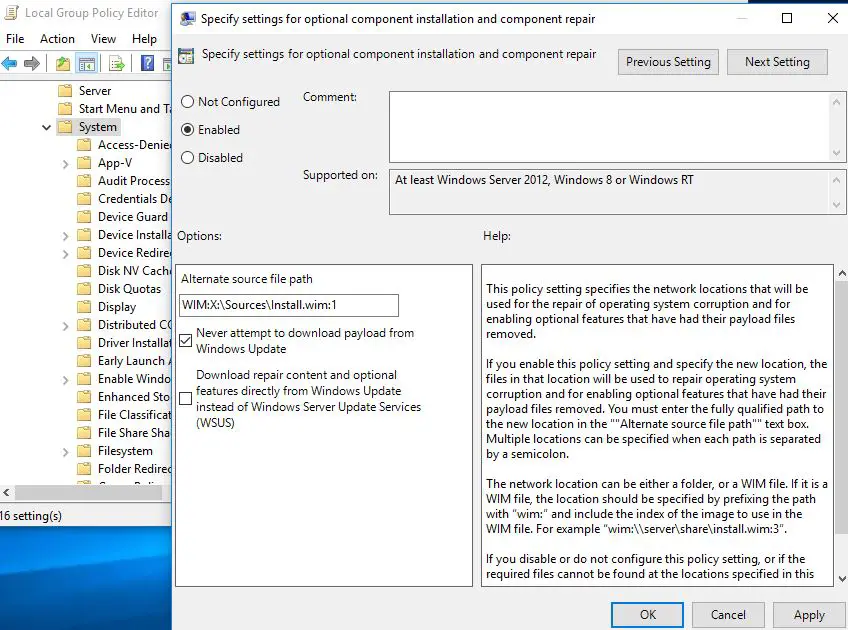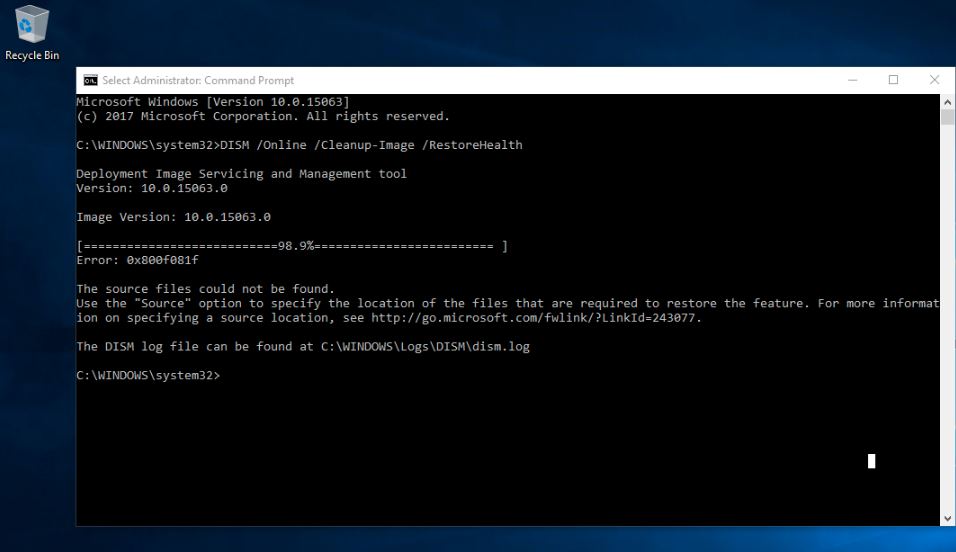
When you run the DISM /Online /Cleanup-Image /RestoreHealth command to repair Windows, the process may stop with Error: 0x800f081f and the message “The source files could not be found.” This means DISM could not locate the Windows files it needs to complete the repair. This can happen when Windows Update cannot provide the required repair files, the component store is damaged, or the available repair source doesn’t match your installed Windows version and edition. Let’s take a look at why DISM error 0x800f081f occurs and the practical ways to fix it in Windows 11 and Windows 10.

Why Does DISM Error 0x800f081f Occur?

The source files could not be found — Error 0x800f081f

DISM shows error 0x800f081f when it cannot find the Windows component files required to complete the repair. This can happen for several reasons:

  • Windows Update cannot provide the required files — DISM normally uses Windows Update as a repair source, but the required files may be unavailable or Windows Update itself may have problems.
  • The component store is damaged — Windows may be missing or unable to access files that DISM needs for the repair.
  • The repair source does not match your Windows installation — A Windows ISO or installation source from a different version, build, edition, or architecture may not contain the correct files.
  • Windows Update components are corrupted — Problems with the update cache or related services can prevent DISM from downloading the required repair files.
  • The specified repair source is incomplete or incorrect — If you manually provide a source, DISM may fail when the required files are not available at the specified location.

The exact cause is not always obvious. For that reason, start with basic fixes before manually specifying a Windows installation source.

1. Run DISM StartComponentCleanup

Windows stores different component versions in the WinSxS component store. If the component store contains unnecessary or outdated components, cleaning it up can sometimes resolve servicing problems before you attempt the main DISM repair.

Open Command Prompt as administrator and run:

DISM /Online /Cleanup-Image /StartComponentCleanup
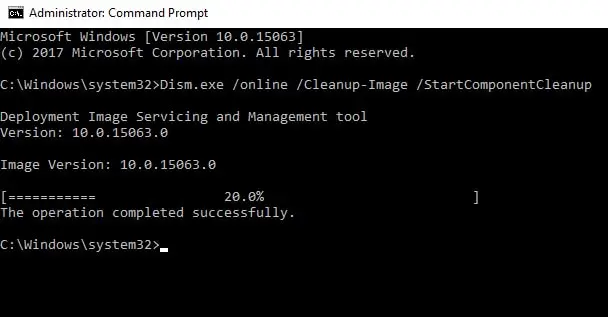
Wait for the operation to complete. It may take several minutes depending on the condition of the component store.

Once it finishes, run the DISM repair command again:

DISM /Online /Cleanup-Image /RestoreHealth

If DISM still returns Error 0x800f081f: The source files could not be found, move to the next method. Windows may not be able to download the required repair files from Windows Update, so you may need to specify a separate repair source.

2. Install the Latest Windows Updates

DISM can use Windows Update to download the files it needs for a repair. If your PC is missing a required update or the repair files available through Windows Update are outdated, installing the latest updates may resolve the problem.

  • Open Settings > Windows Update.
  • Select Check for updates.
  • Install all available updates.
  • Restart your PC to apply latest Windows updates

Open Command Prompt as administrator and run:

DISM /Online /Cleanup-Image /RestoreHealth

Note: Keep your PC connected to a stable internet connection while DISM runs. It may need to download repair files from Windows Update.

If you still get Error 0x800f081f, try the next method: repair Windows using a local installation source.

3. Reset Windows Update Components

If DISM still reports 0x800f081f, Windows Update may be unable to download or provide the repair files required by DISM. Resetting these components can clear a damaged update cache and rebuild the files Windows uses for servicing.

Open Command Prompt as administrator and run these commands one at a time:

net stop wuauserv
net stop bits
net stop cryptsvc
net stop msiserver

Rename the Windows Update cache folders:

ren C:\Windows\SoftwareDistribution SoftwareDistribution.old
ren C:\Windows\System32\catroot2 catroot2.old

Start the services again:

net start wuauserv
net start bits
net start cryptsvc
net start msiserver

Restart your computer and ensure you have a stable internet connection. Then run:

DISM /Online /Cleanup-Image /RestoreHealth

If the error disappears, DISM could obtain the required repair files after you rebuilt the Windows Update components.

If you still get Error 0x800f081f, Windows may need a local repair source. In that case, use the next method to repair the component store with a matching Windows ISO.

4. Use a Windows ISO as the DISM Repair Source

If DISM still shows Error 0x800f081f, you can provide the Windows installation files it needs instead of relying on Windows Update.

A Windows ISO contains the files required to repair the Windows component store. However, the ISO should match your installed Windows version, edition, and system architecture as closely as possible. Using an incompatible source can cause DISM to fail or report that the source files are unavailable.

Download a Matching Windows ISO

Download the Windows ISO that matches the version of Windows installed on your PC. After downloading it, right-click the ISO file and select Mount.

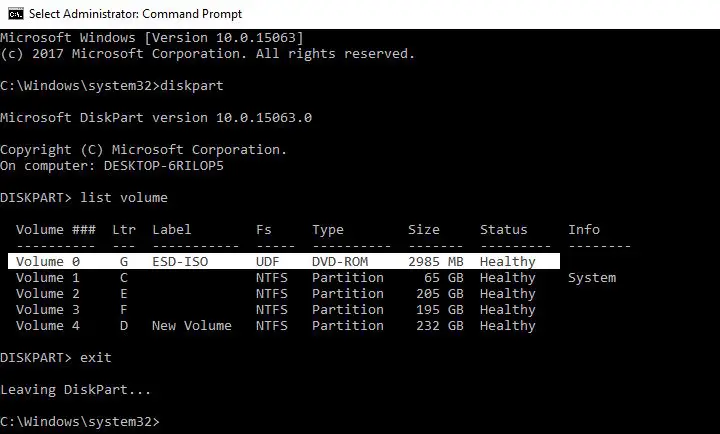
Windows will assign the mounted ISO a drive letter, such as D:.

Open Command Prompt as administrator and first check which image indexes are available in the ISO:

DISM /Get-WimInfo /WimFile:D:\sources\install.wim

If the ISO contains install.esd instead, use:

DISM /Get-WimInfo /WimFile:D:\sources\install.esd

Review the output and find the index number that matches your installed Windows edition, such as Windows 11 Home or Windows 11 Pro.

Once you know the correct index (For me, it’s Windows 11 Pro index: 6), run the repair command using that source.

For an install.wim source:

DISM /Online /Cleanup-Image /RestoreHealth /Source:wim:D:\sources\install.wim:6 /LimitAccess

For an install.esd source:

DISM /Online /Cleanup-Image /RestoreHealth /Source:esd:D:\sources\install.esd:6 /LimitAccess

Replace D: with the drive letter assigned to your mounted ISO and replace 6 with the correct index for your Windows edition.

The /LimitAccess option tells DISM to use the specified local source instead of trying to contact Windows Update.

After DISM completes successfully, restart your PC and run:

sfc /scannow

This lets System File Checker check protected Windows system files after DISM repairs the component store.

5. Try “Reinstall Now” in Windows 11

If DISM still returns 0x800f081f after using a matching Windows ISO, Windows 11 provides another recovery option that can repair the current installation.

The Reinstall now option under Fix problems using Windows Update reinstalls the same Windows version while keeping your personal files, installed apps, and settings. Windows downloads the installation files through Windows Update and uses them to repair the current installation.

To use it:

  1. Open Settings.
  2. Go to System > Recovery.
  3. Find Fix problems using Windows Update.
  4. Click Reinstall now.
  5. Follow the on-screen instructions.

Keep your PC connected to the internet while Windows downloads and installs the required files.

Once the process is complete, restart your PC if prompted and try the DISM command again:

DISM /Online /Cleanup-Image /RestoreHealth

Note: The Reinstall now option is not available on every Windows 11 installation. If you don’t see it under Recovery, you can continue using the Windows ISO method or move to a repair installation.

If DISM completes successfully, run System File Checker (SFC) to check and repair protected Windows system files.

Frequently Asked Questions

What does DISM error 0x800f081f mean?

DISM error 0x800f081f means Windows can’t find the source files needed to complete the repair. DISM may be unable to obtain them from Windows Update or the specified local repair source.

How do I fix DISM error 0x800f081f?

Start by running DISM /Online /Cleanup-Image /StartComponentCleanup, installing pending Windows updates, and then running DISM /Online /Cleanup-Image /RestoreHealth. If the error remains, use a matching Windows ISO as the DISM repair source.

Can I fix error 0x800f081f without an ISO?

Yes. DISM can sometimes obtain the required files through Windows Update. Installing the latest updates and resetting Windows Update components may resolve the problem. However, if Windows Update cannot provide the required files, a matching ISO is usually the more useful repair source.

Why does DISM say the source files could not be found?

The required Windows component files may be missing, corrupted, or unavailable through Windows Update. The error can also occur when the repair source does not match your installed Windows version or edition.

Does DISM error 0x800f081f delete my files?

No. Running DISM repair commands does not delete your personal files, installed programs, or settings. If you use a Windows recovery or reinstallation option, always check the available options before proceeding.

With over 7 years of experience in the IT industry, I have experience in IT support, helpdesk, sysadmin, network admin, and cloud computing. Certified in Microsoft Technologies (MCTS and MCSA) and also Cisco Certified Professional in Routing and Switching.