


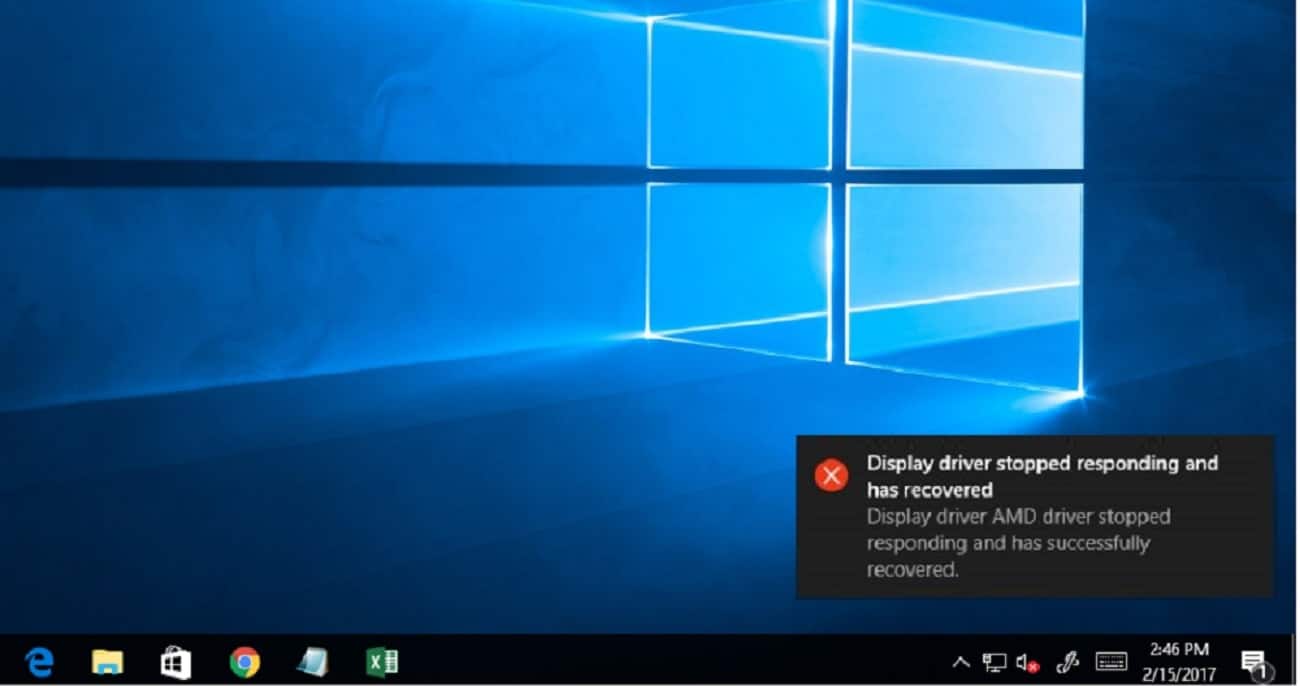
Sometimes you may notice windows display suddenly blink and get unresponsive for a second. And a popup will Show Display driver stopped responding and has recovered. Especially after windows 10 1809 upgrade or working with heavy graphics applications like 3D Max, Photoshop and playing games. This problem “display driver stopped working’ mostly occurs when the Timeout Detection and Recovery (TDR) feature detects that the Graphics card has not responded within the permitted time. Then the display driver is restarted to prevent the need to reboot that results:
Display driver nvlddmkm stopped responding and has successfully recovered windows 10
If you are also struggling form this error “Display driver stopped responding and has recovered”, your PC may temporarily hang and become unresponsive, Here some effective solutions you may apply.
Display driver stopped responding and has recovered
First of all check and make sure your PC has installed the latest windows updates, and that may contain the bug fix for this problem. To check and install the latest updates open Settings, Update and Security click Check for updates button.
Temporarily disable security software (antivirus) if installed.
Perform Windows clean boot and check if there is no more “display driver stopped working” popup appears, then any third party conflict causing the problem for you.
- Open the control panel
- Then Power Options
- on your left: Choose when to turn off the display
- Change advanced power settings
- PCI EXPRESS: set it to OFF (previously on Maximum power saving probably)
Reinstall Display driver
This problem is most probably related to display driver, If Installed display driver corrupted while windows 1809 upgrade or not computable with current windows version this causes different problems include display driver stopped working reinstall the display driver with the latest version and check this help to fix the problem for you.
- Press Windows + R, type devmgmt.msc and click OK to open Device Manager Window.
- Expand the Display adapters branch.
- Right-click the display driver and click Uninstall.
- After uninstalling the driver, restart your PC
- Now visit the device manufacturer website and download the latest display driver software for your PC.
- Install the installed display driver, Restart windows and check the problem resolved.
Note: if the problem not resolved, try to install the drivers in compatibility mode by downloading it from the manufacturer’s website:
- Right click on the setup file.
- Click on Properties.
- Click on the Compatibility tab.
- Put a checkmark on Run this program in compatibility mode for.
- Select Windows 8.
- Put a checkmark on Run this program as an administrator under PrivilegeLevel.
Restart windows and check the problem resolved.
Increase GPU processing time
Timeout Detection and Recovery is a Windows feature that can detect when the video adapter hardware or a driver on your computer has taken longer than expected to complete an operation. When this occurs, Windows attempts to recover and reset the graphics hardware. If the GPU is unable to recover and reset the graphics hardware in the time permitted (two seconds), your system may become unresponsive, and display the error message “Display driver stopped responding and has recovered.” Giving the Timeout Detection and Recovery feature more time to complete this operation by adjusting the registry value may resolve this issue.
To do this, follow these steps:
- Press Windows + R, type regedit and ok to open the windows registry editor.
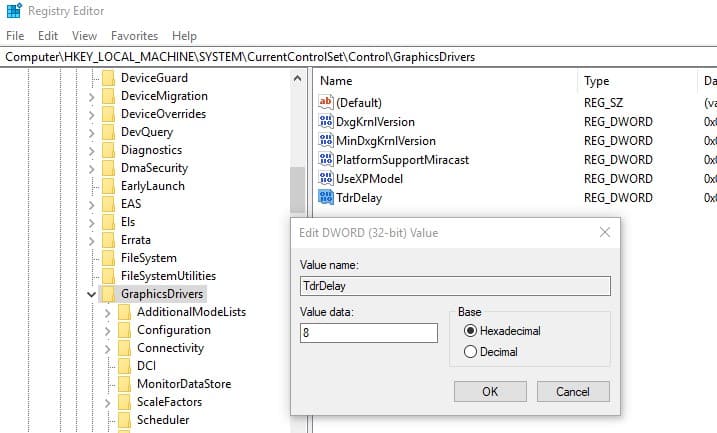
- Backup registry database and Locate to the following registry subkey:
HKEY_LOCAL_MACHINE\SYSTEM\CurrentControlSet\Control\GraphicsDrivers - On the Edit menu, select New, and then select the following registry value from the drop-down menu specific to your version of Windows (32 bit, or 64 bit):
For 32 bit Windows
- Select DWORD (32-bit)
- Type TdrDelay as the Name and then select
- Double-click TdrDelayand add 8 for the Value data and then select
For 64 bit Windows
- Select QWORD (64-bit)
- Type TdrDelay as the Name and then select
- Double-click TdrDelayand add 8 for the Value data and then select OK.
- Close Registry Editor and then restart your computer for the changes to take effect.

Restart windows and check the problem resolved.
Disable visual effects
You can also adjust your PC for better performance by disabling some of the visual effects. Here’s how to adjust all visual effects for best performance:
- Press Windows Key + X key and click Control Panel.
- In the search box, type Performance Information and Tools, and then, in the list of results, click Performance Information and Tools.
- Click Adjust visual effects, if you are prompted for an administrator password or confirmation, type the password or provide confirmation.
- Click the Visual Effects tab, click Adjust for best performance, and then click OK.
Note: For a less drastic option, select Let Windows choose what’s best for my computer.
Did these solutions help to fix the “display driver stopped responding and has successfully recovered windows 10”? Let us know on comments below, Also read:
- Solved: System Thread Exception Not Handled Windows 10 BSOD Error
- How To fix Devices and Printers not Loading on Windows 10 Version 1809
- Fix VIDEO DXGKRNL FATAL ERROR BSOD On Windows 10
- Fix WiFi doesn’t have a valid IP configuration Windows 10, 8.1 and 7
- Top 10 Tweaks to make windows 10 run faster on old computer


