
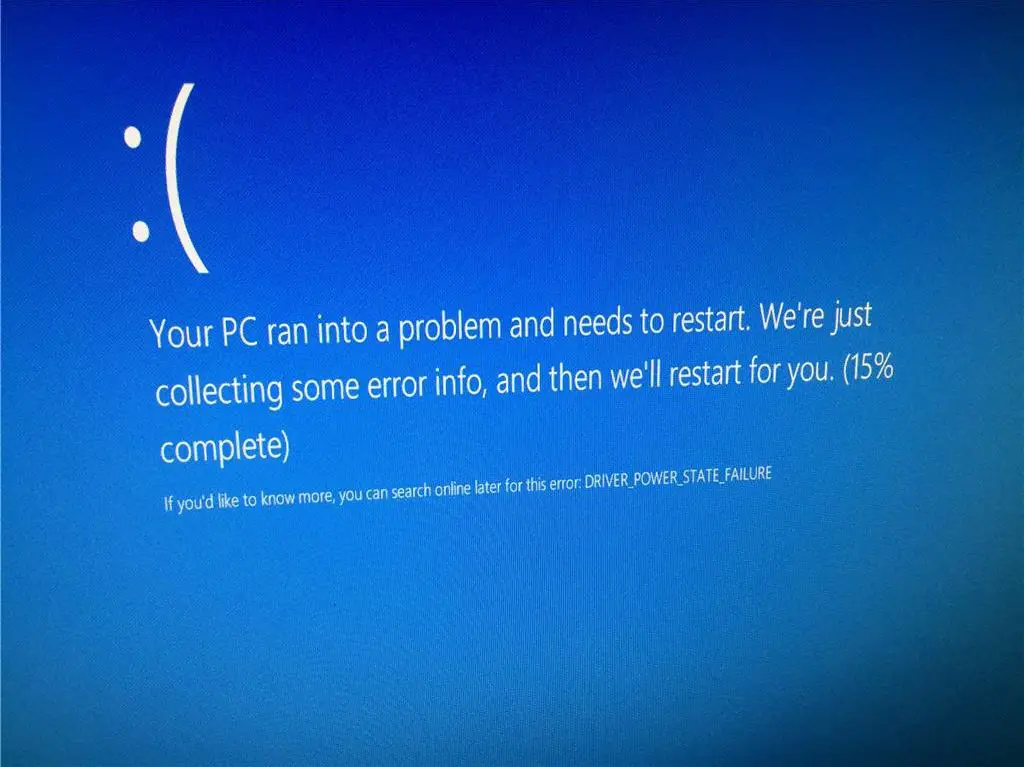
Sometimes you may come across blue screen error driver power state failure when shutting down or restart your computer. The detailed error message of this issue is ‘Your PC ran into a problem and needs to restart. We’re just collecting some error info, and then we’ll restart for you. This post is just the right one to help you solve the windows 10 blue screen error driver_power_state_failure.
Driver power state failure Windows 10
Windows 10 blue screen error Driver power state failure could occur due to one or more reasons, such as outdated drivers or drivers that are not compatible with the system. Again malicious software or virus overwrite or corrupt the drivers, power setting failures, disk drive error or corrupted system files also cause this Windows 10 BSOD error. Apply the solutions listed below to fix the blue screen error.
Remove external hardware
Whenever you encounter Blue screen error the first thing we recommend to disconnect newly installed hardware (example Graphics Card) or all external devices such as external HDD, SD card, Printer etc, and restart your PC. Check the status of the error, if the problem resolved reinstall each device back into your computer and test them each time.
Boot into safe mode
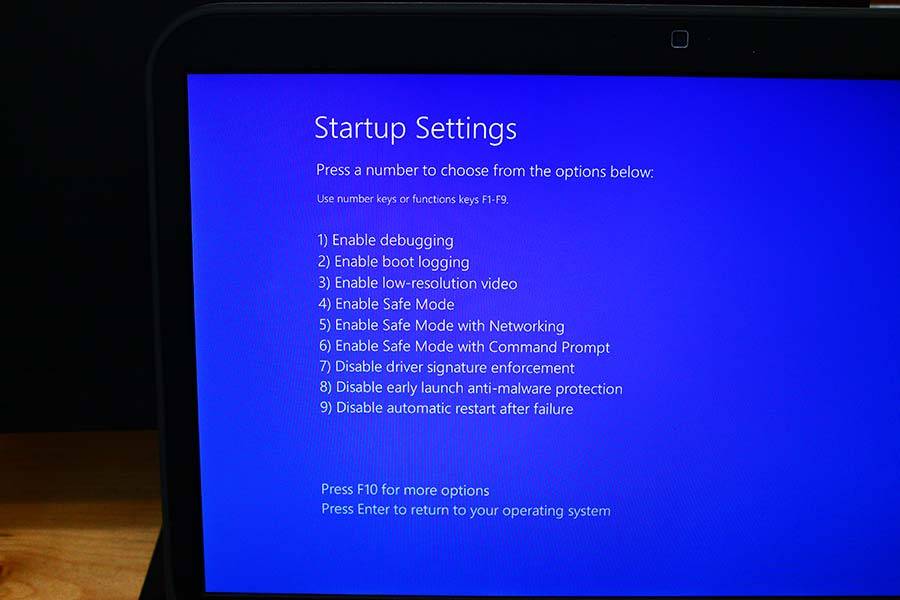
If you encounter this problem frequently, or unable to perform any task then we recommend boot into safe mode. Safe mode is a diagnostic mode of a computer operating system, enables to access an altered version of Windows and correct any problems that prevent windows from booting up normally. Here different ways to start Windows 10 into safe mode.
Remove recently installed drivers
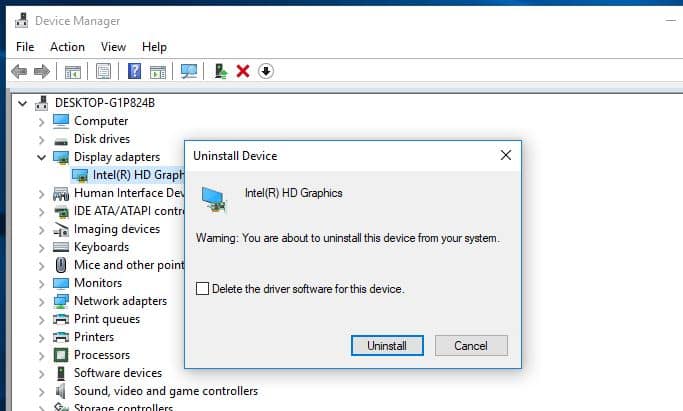
We have already discussed, the main reason for this blue screen error, stop code driver power state failure are the driver errors. And we need to focus on installed drivers to fix the problem. If the problem started after installing new hardware or driver (such as Graphics driver or printer) we recommend remove the recently installed drivers and check the status of the problem.
- Press Windows key + R, type devmgmt.msc and click ok,
- This will open the device manager and display all installed driver list,
- Locate the newly installed driver, for example, graphics driver,
- Now uninstall the last drivers you installed recently by right-clicking on them and choosing the Uninstall device option.
Update your drivers
Device drivers are essential part of your computer, and they must have up to date for smooth function. There are chances incompatible or outdated driver causing this blue screen error driver_power_state_failure. check and update driver software following the steps below.
Check for windows updates
When you install the latest windows updates Microsoft ship the latest driver updates as well.
- Open settings using windows key + I,
- Click on Update & security then check for updates,
- This will start to download and install the latest windows update or driver update from the Microsoft server.
- Once done reboot your PC to apply them.
Manually update the driver on your computer
- Press Windows key + X select device manager,
- This will display all installed device driver list,
- Expand them one by one and look if any driver listed with yellow exclamation mark
- Right-click on that driver select uninstall and reboot your PC
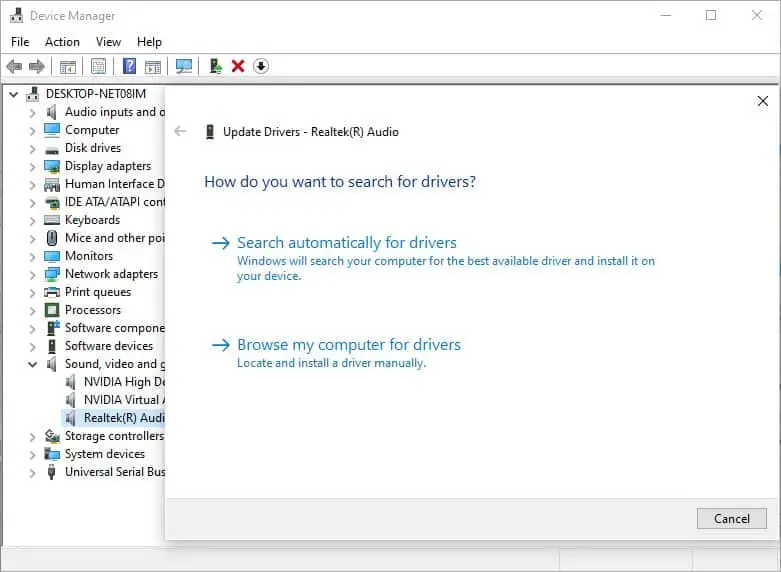
- Also, you can right-click any driver select update driver software,
- Click on search automatically for driver and follow on screen instructions to install the latest driver software on your computer.
Change your Power settings
Sometimes Blue screen error Driver Power State Failure can appear due to your power settings. Disabling certain power settings help few users to fix the problem as well.
Disable Fast startup
- Open control pane then power options,
- Click on Choose what the power button does.
- Now click on Change settings that are currently unavailable
- uncheck Turn off fast startup (recommended) then click on Save changes
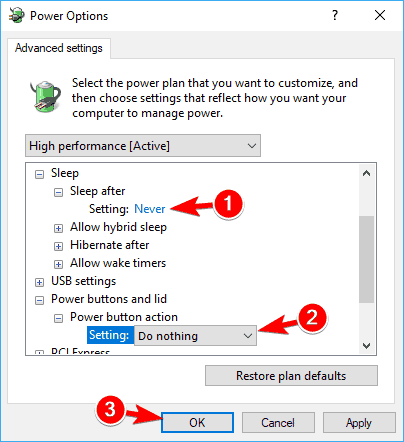
Change your Power Plan Settings
- Open control panel, and Navigate to Power options.
- Locate your currently selected plan and click on Change plan settings.
- Click on Change advanced power settings link,
- expand Sleep section and make sure that Sleep and Hibernation are set to Never
Run System File Checker
Also, you need to run the System File Checker utility to check whether there is a corrupted files system that leads to the issue of driver_power_state_failure. Running Sfc utility scan for and restore corrupted system files with correct ones.
- Open the command prompt as administrator,
- Type command sfc /scannow and press the enter key
- this will start scanning the system for corrupted system files.
- Let the scanning process complete 100% once done restart your computer.
In addition, run DISM restore health command DISM.exe /Online /Cleanup-image /Restorehealth that help check the system image health.
Disable Sleep Option
Several windows users mention, they are able to fix the driver_power_state_failure error by Disable the Sleep Option on windows 10.
- Press Windows key + S type control panel and select the first result,
- locate power options then click Choose what the power button do link,
- Click on Change Settings that are currently unavailable then uncheck the Sleep and Hibernate option
Uninstall third-party software
Again if the problem started after installing third-party software or Game we recommend remove or temporarily uninstall the same following steps below.
- Press Windows key + R, type appwiz.cpl and click ok,
- This will open programs and features window,
- locate recently installed programs or installed antivirus software,
- Right-click then select uninstall and follow on-screen instructions to remove the software from your PC.
- Reboot your PC and check the status of the blue screen error.
Did these solutions help fix the Blue screen error driver power state failure in windows 10? Let us know in the comments below.
Also read:
- Troubleshoot blue screen errors on Windows 10 (Updated)
- Solved: Kernel Security Check Failure Windows 10 Blue Screen Error
- How to Fix Printer in Error State on Windows 10
- Solved: Computer restarts randomly while playing games windows 10
- How to fix Discord Screen Share No Audio problem? Apply these 7 solutions


