Windows update

Microsoft regularly releases Windows updates to address security vulnerabilities introduced by third-party applications, as well as security improvements and bug fixes. Windows 10 is designed to download and install updates automatically to keep your PC secure and stable. However, sometimes you may notice Windows Update gets stuck on “Checking for updates” for hours, or the feature update (like version 22H2) remains stuck at a certain percentage (e.g. 48%, 61%, 99%) and never finishes. It could be due to several reasons, including Corrupted Windows Update cache files, slow Internet speed, Corrupt system files, Insufficient disk space, and more. Here are the troubleshooting steps to apply so you can install the latest security patches and feature updates without issues.

Why is Windows 10 update stuck on download?

Windows updates can get stuck download or installation for several reasons, including corrupted files, low disk space, or a slow internet connection. Again, software conflicts, particularly with third-party applications or antivirus programs, may interfere with the update process.

  • Corrupted Files: Damaged update files or system files (like the component store) can halt installation.
  • Software Conflicts: Antivirus programs, VPNs, or other apps can block the update process.
  • Insufficient Disk Space: Updates need significant free space (10-15GB is a good rule of thumb).
  • Connectivity Issues: A slow or unstable internet connection can cause download failures.
  • Update Dependencies: Multiple updates trying to install simultaneously can get confused.
  • Hardware/Driver Issues: Outdated drivers or hardware compatibility problems can cause freezes.
  • External Devices: Connected USB drives, printers, or other peripherals can interfere.

Quick checks before you start

First of all, check and make sure you have a stable internet connection to download updated files from the Microsoft server.

  • Avoid using mobile hotspots if possible.
  • Prefer a wired Ethernet connection or a strong Wi‑Fi signal.

Third‑party security suites and VPN clients can block Windows Update. Disable or exit them temporarily.

Check that you have enough free disk space on drive C:; if not, delete temporary files, old downloads, or uninstall unused apps to free up space.

A simple reboot often fixes temporary glitches with update services.

Run the Windows Update Troubleshooter

Windows 10 includes a built‑in troubleshooter that automatically finds and fixes common update issues.

  • Press Windows + I to open Settings.
  • Go to Update & Security > Troubleshoot.
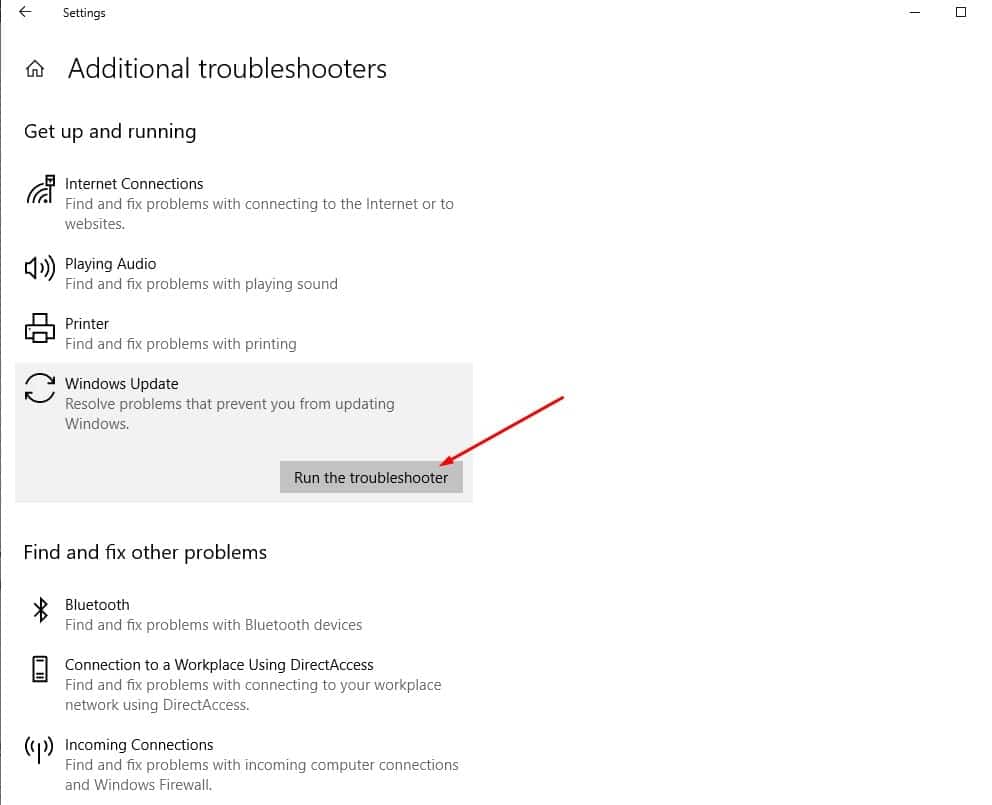
  • Click Additional troubleshooters (if visible).
  • Select Windows Update and click Run the troubleshooter.
  • Wait while it detects problems and applies fixes.
  • When it finishes, restart your PC.

Run Windows update troubleshooter

  • After restart, go to Settings > Update & Security > Windows Update and click Check for updates again.

If the troubleshooter reports that issues have been fixed but Windows Update still gets stuck, proceed to the next method.

 Reset the Windows Update cache

One of the most effective fixes for Windows 10 updates that get stuck at checking for updates is to clear the Windows Update cache. This forces Windows to download fresh update files from Microsoft’s servers.

Step 1: Stop the Windows Update service

  • Type cmd in the Start menu search box.
  • Right‑click Command Prompt and select Run as administrator.
  • You need to enter net stop wuauserv to stop the Windows update service.
  • Then stop the Background Intelligent Transfer Service (BITS): net stop bits

These commands stop the services that manage the download and installation of updates.

Step 2: Delete Windows Update cache files

  • Press Windows + E to open File Explorer.
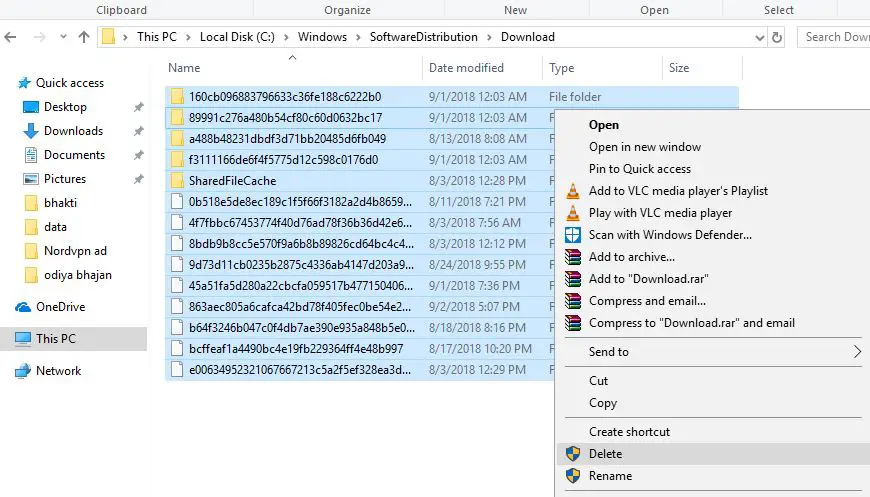
  • Navigate to C:\Windows\SoftwareDistribution\Download
  • Inside the Download folder, press Ctrl + A to select all files and folders.
  • Press the Delete key and confirm.

Delete Windows update cache

Tip: If you can’t delete some files, restart your PC and repeat the steps above. After the reboot, the files should be deleted without issues.

Step 3: Start the services again

  • Open Command Prompt as administrator again (if closed).
  • Type the following commands one by one and press Enter after each:

net start wuauserv

net start bits

The Windows Update services are now running with a clean cache.

Step 4: Check for updates again

  • Press Windows + I to open Settings.
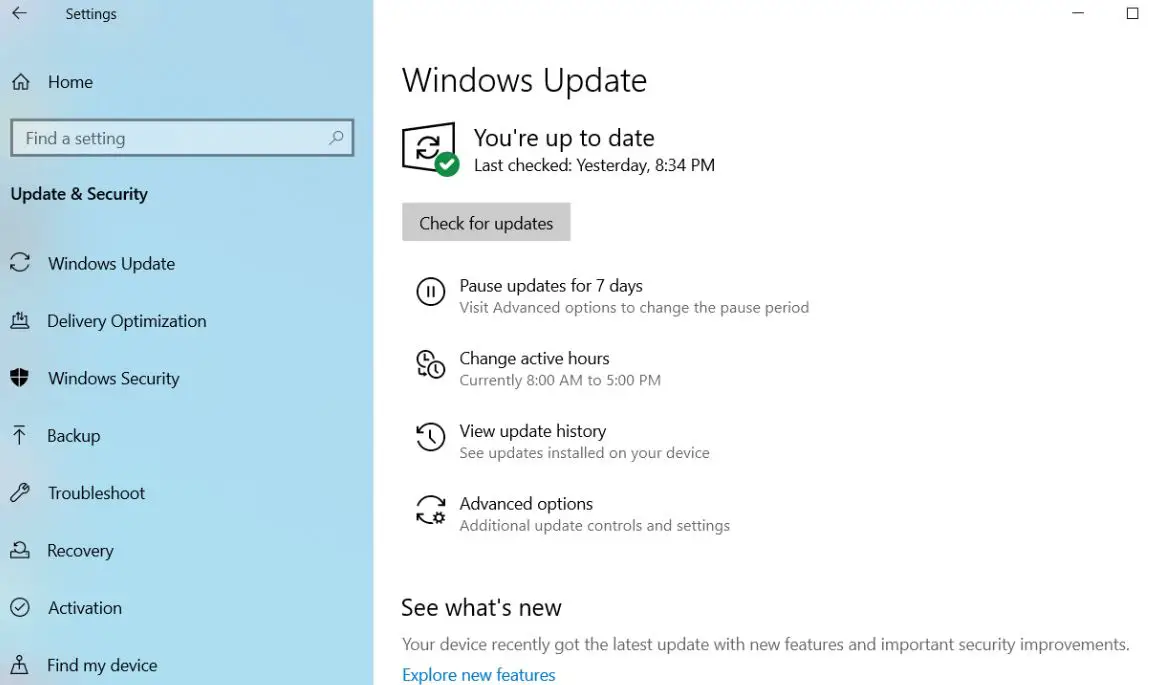
  • Go to Update & Security > Windows Update.
  • Click Check for updates.

Windows update

In most cases, Windows Update will now move past “Checking for updates” and begin downloading normally.

Run System File Checker (SFC) to repair corrupted system files

Corrupted or missing system files can also cause Windows 10 updates to hang or fail. The System File Checker (SFC) tool scans for and repairs such files.

To run the system file checker utility

  • Type cmd in the Start menu search.
  • Right‑click Command Prompt and choose Run as administrator.
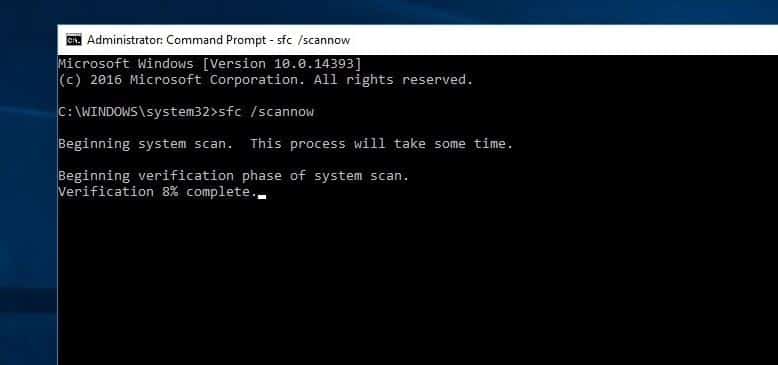
  • In the Command Prompt window, type: sfc /scannow
  • Press Enter and wait. The scan may take 10–20 minutes.

system file checker utility Windows 10

SFC will automatically repair any damaged system files it finds, using a cached copy stored in: %WinDir%\System32\dllcache

  • When the scan reaches 100% and completes, restart your PC
  • After restart, open Settings > Update & Security > Windows Update and click Check for updates.

If SFC reports it couldn’t fix everything, you may also run a DISM repair (optional but helpful): dism /online /cleanup-image /restorehealth

Run this in an elevated Command Prompt, let it finish, restart, and then run sfc /scannow again.

Perform a Clean Boot and try updating again

Sometimes, third‑party services, drivers, or startup programs conflict with Windows Update and cause it to stay stuck at checking for updates.

A Clean Boot starts Windows with a minimal set of drivers and startup programs.

  • Press Windows + R, type msconfig and press Enter.
  • In the System Configuration window, go to the Services tab.
  • Check Hide all Microsoft services at the bottom. Click Disable all.
  • Go to the Startup tab and click Open Task Manager.
  • In Task Manager, disable all Startup items (right‑click > Disable).
  • Close Task Manager and click OK in System Configuration.
  • Restart your PC. Your system is now in a Clean Boot state.

Go to Settings > Update & Security > Windows Update and click Check for updates.

If updates install successfully in Clean Boot mode, one of the disabled services/startup items was causing the conflict. You can enable them later, one by one, to identify the culprit.

Frequently Asked Questions

Why is Windows 10 stuck on “Checking for updates”?
Windows 10 usually gets stuck on “Checking for updates” due to corrupted update cache, slow or unstable internet, third‑party antivirus/VPN interference, or damaged system files. Clearing the SoftwareDistribution folder and running the Windows Update Troubleshooter often fixes it.

How long should Windows 10 “Checking for updates” take?
On a healthy system, checking for updates typically takes from a few seconds to a couple of minutes. If it’s been more than 20–30 minutes with no progress, Windows Update is likely stuck and you should start troubleshooting.

Is it safe to stop Windows Update when it’s stuck?
If Windows is only checking for updates (not installing them), it’s generally safe to restart your PC or stop the Windows Update service from Command Prompt. Avoid powering off your PC while it is installing updates, as this can corrupt system files.

How do I manually reset Windows Update in Windows 10?
To manually reset Windows Update, stop the wuauserv and BITS services, delete the contents of C:\Windows\SoftwareDistribution\Download, then start the services again. After that, open Settings > Update & Security > Windows Update and click Check for updates.

Will I lose my files if I fix Windows Update this way?
No. Running the troubleshooter, clearing the update cache, using SFC/DISM, or performing a Clean Boot does not delete your personal files. Still, it’s always recommended to keep a recent backup of important data before major updates or repairs.

Also read:

Steve Ballmer
With over 7 years of experience in the IT industry, I have experience in IT support, helpdesk, sysadmin, network admin, and cloud computing. Certified in Microsoft Technologies (MCTS and MCSA) and also Cisco Certified Professional in Routing and Switching.

3 COMMENTS

  1. No difference at all, have done this before, did it again, no difference at all.
    The major Windows updates are in. Its the daily Windows 10 updates that take about 30 minutes. Once updated, a Recheck still takes about 30 minutes. My other PC only take about 60 to 120 seconds if it isn’t one of those large updates.
    This computer has an i7 with 12GB RAM – 2,200GB hard drive and gigbyte internet.
    The only hardware that has not had an update in years is the AMD Radeon HD 7670
    I think that Windows fails to find a problem with the graphics driver.
    The HP Envy desktop is probably not providing updates to Microsoft?

  2. “Windows Resource Protection found corrupt files but was unable to fix some of them. For online repairs, details are included in the CBS log file located at windir\Logs\CBS\CBS.log. For example C:\windows\logs\cbs\cbs.log. For offline repairs, details are included in the log file provided by the /OFFLOGFILE flag.”

Comments are closed.