
Windows updates bring security fixes, bug fixes, and improvements to keep your PC running smoothly. However, sometimes it can cause unexpected problems, such as when you restart your computer after an update and find that the internet has stopped working. Your PC might connect to Wi-Fi but show “No Internet,” websites may fail to load, or your Ethernet connection may stop working altogether. This can happen because of an incompatible network adapter driver, incorrect network settings, DNS issues, or a temporary glitch caused by the update. VPN software or third-party security programs can also interfere with your connection. If you can’t access the internet after a Windows 10 update, try these practical solutions to restore internet access on your PC.
Why Is the Internet Not Working After a Windows 10 Update?
If your internet connection stopped working immediately after installing a Windows 10 update, the update may have affected your network configuration or device drivers. However, the problem can also come from your router, DNS settings, or other software on your PC.
- Incompatible network drivers: A Windows update may cause compatibility problems with your Wi-Fi or Ethernet adapter driver.
- Incorrect network settings: Changes to IP configuration or other network components can prevent your PC from connecting properly.
- DNS problems: Your computer may be connected to the network but unable to resolve website addresses.
- VPN or firewall interference: VPN applications or third-party security software may block the connection after an update.
- Temporary network glitches: Windows or your router may need a restart to restore normal connectivity.
- Router or ISP problems: Sometimes the internet outage happens around the same time as a Windows update but isn’t related to the update.
1. Restart Your PC and Router
If your internet stopped working after a Windows 10 update, start with a simple restart. Installing updates can change system settings or require background services to restart properly. A temporary glitch in your router or network connection can also prevent your PC from accessing the internet.
- Restart your PC: Click Start, select Power, and choose Restart. Once Windows loads, check whether your internet connection is working.
- Restart your router and modem: Unplug them, wait about 30 seconds, then plug them back in. Allow a few minutes for the connection to return.
- Check other devices: Connect your phone or another computer to the same network and try opening a website. If those devices also have no internet, the issue may be with your router or internet service provider.
- Check your Ethernet cable: If you use a wired connection, make sure the cable is securely connected to your PC and router. Try another cable or, if available, another router port.
- Reconnect to Wi-Fi: Click the network icon in the taskbar, disconnect from your Wi-Fi network, and reconnect by entering the password if prompted.
After completing these checks, open a browser and visit a few websites.
Quick Insight: If other devices can access the internet but your Windows 10 PC cannot, the problem is more likely related to your computer’s network settings or driver.
2. Run the Network Troubleshooter
Windows 10 includes a built-in network troubleshooter that can detect common connection problems and suggest fixes. If your internet stopped working after an update, run this tool before manually changing your network settings.
- Press Windows + I to open Settings.
- Go to Network & Internet and click Network troubleshooter
- Select the network adapter you want to troubleshoot, such as Wi-Fi or Ethernet, and follow the on-screen instructions.
- Apply any recommended fixes and restart your PC if prompted.

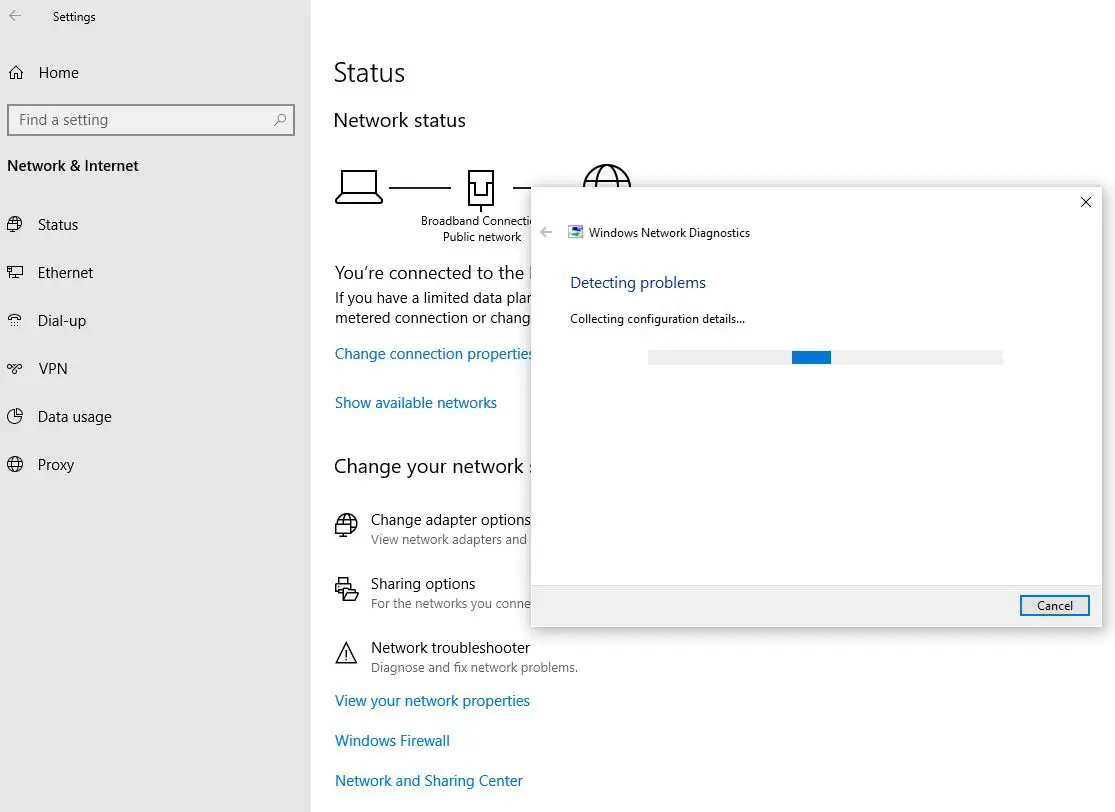
Once the troubleshooting process finishes, open your browser and check whether you can access the internet.
Quick Insight: The troubleshooter can identify common network configuration problems, but it may not resolve driver compatibility issues caused by a recent Windows update.
3. Disable and Re-Enable Your Network Adapter
A Windows update can sometimes leave your Wi-Fi or Ethernet adapter in an unstable state. Disabling and re-enabling the adapter can refresh the connection without uninstalling its driver.
- Press Windows + R to open the Run dialog box.
- Type
ncpa.cpland press Enter. - In the Network Connections window, right-click your active Wi-Fi or Ethernet adapter.
- Select Disable and wait about 10 seconds.
- Right-click the same adapter and select Enable.
- Wait for Windows to reconnect, then open a website to check whether the internet works.


4. Flush DNS and Reset Network Components
Windows uses DNS to translate website names into IP addresses. If the DNS cache becomes outdated or network components develop configuration problems, your computer may connect to Wi-Fi or Ethernet but fail to access websites.
Flushing the DNS cache and resetting Winsock can help resolve certain connection issues.
- Press Windows + S, type
cmd, and select Run as administrator. - Enter the following command and press Enter:
ipconfig /flushdnsThis clears the stored DNS resolver cache. - Next, run these commands one at a time:
ipconfig /releaseandipconfig /renewThese commands release and request a new IP address. Your connection may temporarily disconnect while Windows renews the address. - Reset Winsock by entering:
netsh winsock reset - Reset the TCP/IP stack by running:
netsh int ip reset - Restart your computer and check whether your internet connection works.


If you use a manually assigned IP address or a special network configuration, check those settings before running the commands that release or reset network settings.
Quick Insight: These commands address different network problems, including DNS cache issues and damaged network configuration. If websites still won’t load, try changing your DNS server.
5. Change DNS Server Addresses
Sometimes your Windows 10 PC connects to the internet, but websites fail to load because the configured DNS server isn’t responding correctly. Switching to a reliable public DNS service can help determine whether DNS is causing the problem.
You can try Google DNS or Cloudflare DNS.
Follow these steps:
- Press Windows + R, type
ncpa.cpl, and press Enter. - Right-click your active Wi-Fi or Ethernet connection and select Properties.
- Select Internet Protocol Version 4 (TCP/IPv4) and click Properties.
- Select Use the following DNS server addresses.
- Enter one of these DNS server pairs:
| DNS provider | Preferred DNS | Alternate DNS |
|---|---|---|
| Google DNS | 8.8.8.8 | 8.8.4.4 |
| Cloudflare DNS | 1.1.1.1 | 1.0.0.1 |

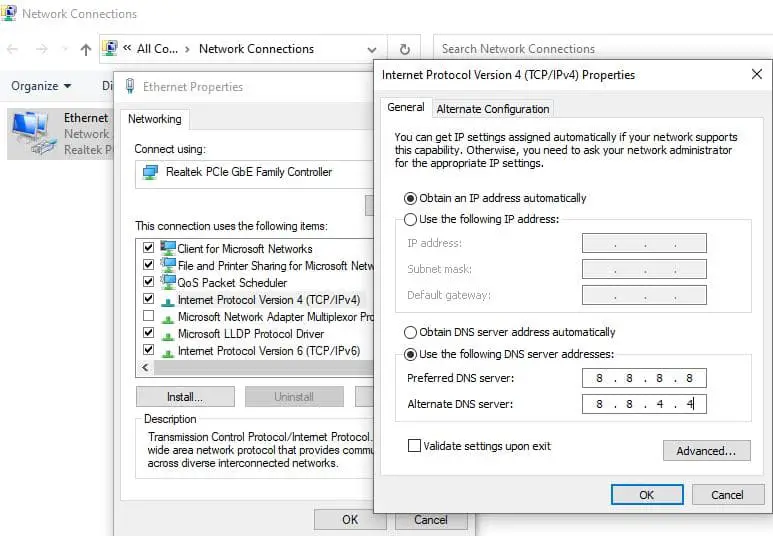
- Click OK, then close the remaining windows.
- Open your browser and check whether websites load correctly.
If changing DNS makes no difference, return to the IPv4 properties and select Obtain DNS server address automatically to restore your previous configuration.
Quick Insight: Changing DNS can help when website addresses aren’t resolving correctly. However, it won’t fix a disconnected router, an ISP outage, or a faulty network adapter.
6. Update or Reinstall the Network Adapter Driver
A Windows 10 update can sometimes cause compatibility issues with your Wi-Fi or Ethernet adapter driver, leaving your PC unable to connect to the internet. Updating or reinstalling the driver may help restore the connection.
Update the network adapter driver
- Press Windows + X and select Device Manager.
- Expand Network adapters.
- Right-click your Wi-Fi or Ethernet adapter and select Update driver.
- Choose Search automatically for drivers and follow any on-screen instructions.
- Restart your PC if a new driver is installed, then check whether the internet works.
If Windows cannot find a suitable driver, visit your PC manufacturer’s official website to check for a compatible network driver. If your PC has no internet access, download the driver using another device and transfer it using a USB drive.
Reinstall the network adapter driver
If updating the driver doesn’t help, reinstalling it may resolve problems caused by a corrupted or faulty driver.
- Open Device Manager and expand Network adapters.
- Right-click your Wi-Fi or Ethernet adapter and select Uninstall device.
- If an option to remove the driver package appears, leave it unchecked unless you already have a replacement driver available.
- Click Uninstall and restart your PC.
- After restarting, Windows may automatically detect the network adapter and reinstall its driver.
- Check your internet connection. If the adapter still doesn’t work, install the compatible driver you downloaded from the manufacturer’s website.
Note: If the problem started after a network driver update, open the adapter’s Properties > Driver tab in Device Manager and select Roll Back Driver, if available. This restores the previous driver version and may fix compatibility problems.
7. Disable VPN and Check Firewall Settings
VPN applications, third-party firewalls, and security software can sometimes interfere with internet access. If the connection stopped working after a Windows update, a VPN or security application may no longer be working correctly with your network configuration.
Temporarily disconnect your VPN and check your security settings to help identify the cause.
- Disconnect your VPN: Open your VPN application and disconnect from the server. Test whether you can access websites.
- Check Windows VPN settings: Open Settings, select Network & Internet, and click VPN. Disconnect any active VPN connection if necessary.
- Check third-party security software: If you use a third-party firewall or antivirus, review its network protection settings and check whether it has blocked your browser or network connection.
- Temporarily test the firewall if necessary: If you suspect a third-party firewall is responsible, briefly disable the relevant protection to test the connection. Avoid browsing or downloading files while protection is disabled, and turn it back on immediately afterward.
- Restart your PC: If disconnecting the VPN or correcting a security setting restores internet access, update the affected application or contact its support team.
If the problem persists, reconnect your VPN and restore your usual security settings before moving on.
Quick Insight: If disconnecting the VPN restores your internet connection, the VPN application or its network configuration is a likely cause. If nothing changes, continue to the final solution.
8. Reset Network Settings in Windows 10
If none of the previous solutions work, a network reset may help restore internet access. This feature removes and reinstalls network adapters and restores network settings to their defaults.
Because it can remove saved network configurations, use this option as a last resort.
- Press Windows + I to open Settings.
- Select Network & Internet.
- Click Status in the left sidebar.
- Scroll down and select Network reset link.

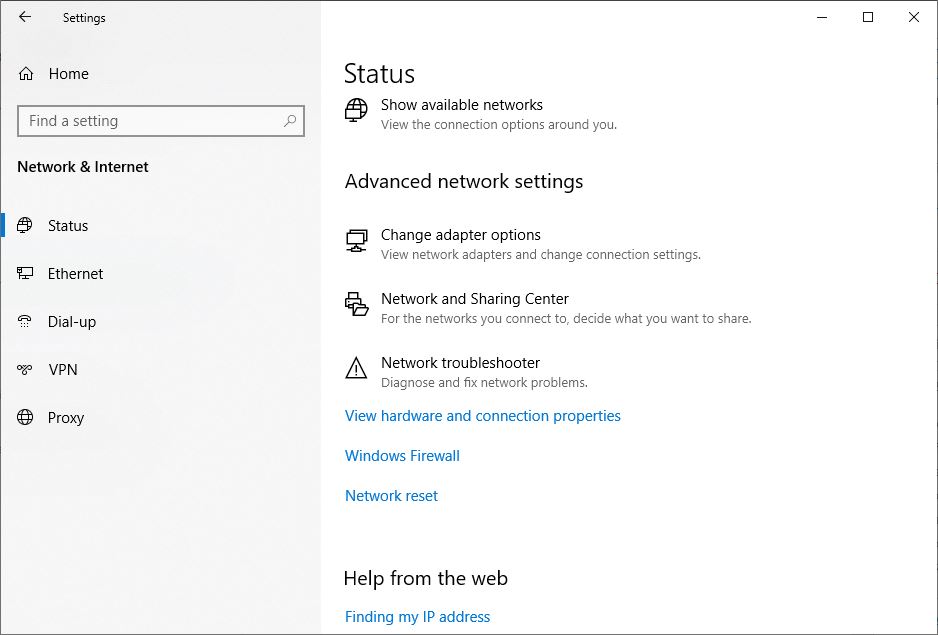
- Click Reset now, then confirm your choice.
- Restart your computer if prompted.
- Reconnect to your Wi-Fi network or reconnect your Ethernet cable, then test the internet connection.

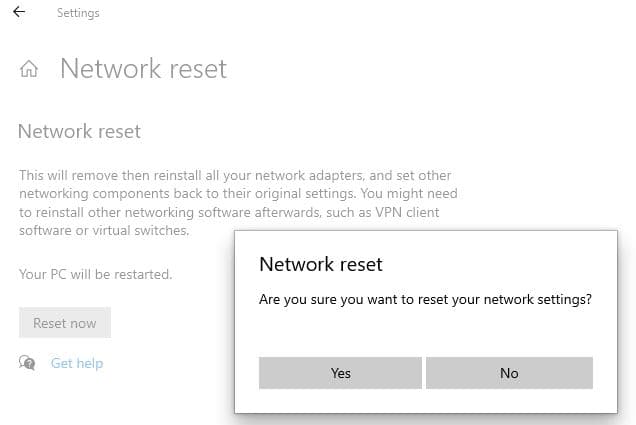
After the reset, you may need to reconnect to Wi-Fi, reinstall VPN software, or reconfigure custom IP and DNS settings. If you use virtual network adapters or specialized networking software, check their settings after Windows restarts.
If your internet still doesn’t work, check whether other devices can access the same network. If none can connect, contact your internet service provider. If the problem affects only your PC, investigate the network adapter driver or contact your computer manufacturer’s support team.
Frequently Asked Questions
A Windows 10 update can sometimes cause network adapter driver compatibility issues or change network settings. Router issues, DNS errors, VPN software, and third-party firewalls can also interrupt connectivity. Start by restarting your PC and router, then check your network adapter driver if the problem continues.
Restart your router, check whether other devices can access the internet, and run the Network Adapter troubleshooter. If the issue affects only your PC, try flushing DNS, changing DNS servers, or updating the Wi-Fi adapter driver.
Yes. An update can occasionally introduce compatibility issues with a network adapter driver. If your internet stopped working immediately after installing an update, open Device Manager and check whether the Roll Back Driver option is available for your Wi-Fi or Ethernet adapter.
No. A network reset does not delete personal files, photos, or documents. However, it removes and reinstalls network adapters and resets network settings. You may need to reconnect to Wi-Fi and reconfigure VPN or custom network settings.
First, restart your router and check whether other devices can connect. If the problem affects only your Windows 10 PC, run the network troubleshooter, check the network adapter driver, and reset network components if necessary. If the issue began immediately after a driver update, try rolling back the driver.