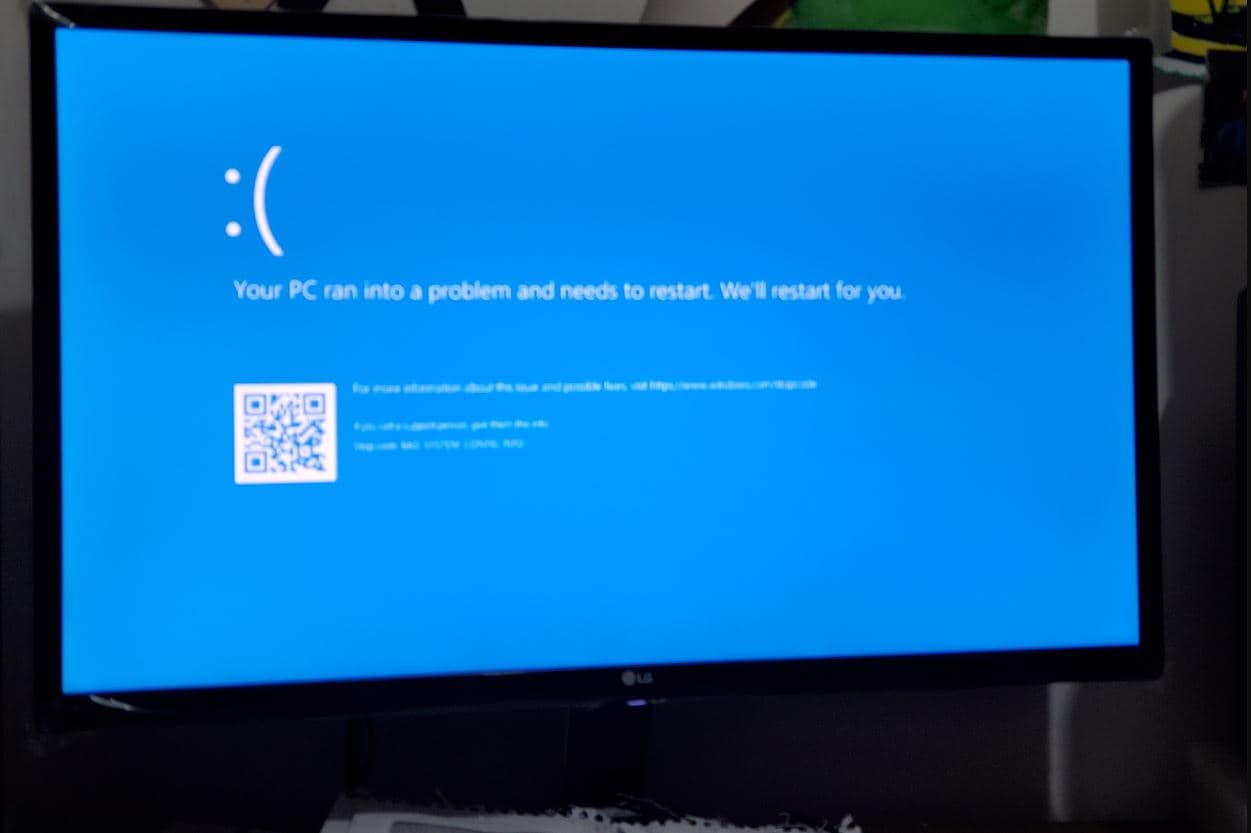
If your Windows 11 PC keeps crashing with a blue screen that mentions MEMORY_MANAGEMENT or a memory management error, you’re not alone. Many users see this BSOD (Blue Screen of Death) while gaming, after a major Windows update, or even during normal everyday tasks like browsing or watching videos. The memory management error is directly related to how Windows handles your system memory (RAM and virtual memory). When something goes wrong at this level due to faulty RAM, corrupt system files, bad drivers, or unstable settings, Windows 11 responds by stopping everything and showing a Memory Management BSOD to protect your data.

In this article, you’ll learn:

  • What the Memory Management error on Windows 11 actually means
  • The most common causes of the Memory Management BSOD
  • Proven fixes you can follow to fix the Memory Management BSOD
  • When it’s time to suspect faulty RAM or hardware

What Is the Memory Management Error in Windows 11?

Memory Management is the function in Windows that tracks every memory location on your system and controls how memory is used by apps, processes, and the operating system itself.

It decides:

  • Which program gets how much RAM
  • When to move data between RAM and the page file (virtual memory)
  • How to protect one program’s memory from another

Memory Management is a function that controls and manages memory usage in your computer.

When Windows 11 displays a MEMORY_MANAGEMENT stop code or a memory management error, it indicates a serious problem with how memory is allocated, accessed, or managed. To avoid data corruption, it crashes with a blue screen and restarts.

Common symptoms include:

  • Blue screen with MEMORY_MANAGEMENT as the stop code
  • Crashes while gaming or using heavy apps
  • BSOD after installing new hardware or drivers
  • Random freezes followed by restart

“You can also check Microsoft’s official documentation on Windows stop errors for more technical details.”

What causes Memory Management BSOD on Windows 11

The Memory Management error can be triggered by several underlying issues. The most frequent ones on Windows 11 are:

  • Faulty or failing RAM (memory modules)
  • Corrupt system files or damaged Windows image
  • Outdated, corrupt, or incompatible drivers (especially graphics drivers)
  • Changes to virtual memory (page file) or low disk space
  • Recent Windows updates are causing instability on specific hardware
  • Overclocking or unstable hardware settings in BIOS/UEFI
  • Software conflicts (security tools, “optimizer” software, or buggy apps)

However, in many cases, you can fix the Memory Management BSOD with software‑level troubleshooting before you need to replace any hardware.

Before You Start: Basic Checks

Before jumping into advanced fixes, take a moment to do some quick checks that can sometimes resolve the problem right away.

  1. Disconnect unnecessary external devices
    Remove USB drives, external hard disks, printers, and other peripherals. A faulty device or driver can sometimes trigger BSODs.
  2. Perform a full restart
    Don’t just close the lid or use Sleep/Hibernate. Click Start → Power → Restart and see if the issue repeats.
  3. Check for overheating or dust
    If your PC is very hot, or the fans are clogged with dust, hardware can misbehave. Clean vents and ensure proper airflow.

If the memory management error keeps coming back, follow the fixes below in order. You don’t have to do everything at once. Test your system after each major fix to see if the Memory Management BSOD disappears.

Boot Windows 11 into Safe Mode

If your PC restarts frequently with the Memory Management BSOD, it can be hard to apply fixes. Safe Mode loads Windows 11 with only essential drivers and services, which often stops the BSOD long enough to troubleshoot.

To boot into Safe Mode from Windows:

  • Press Windows + I to open Settings.
  • Go to System → Recovery.
  • Under Recovery options, next to Advanced startup, click Restart now.

Reset this PC windows 11

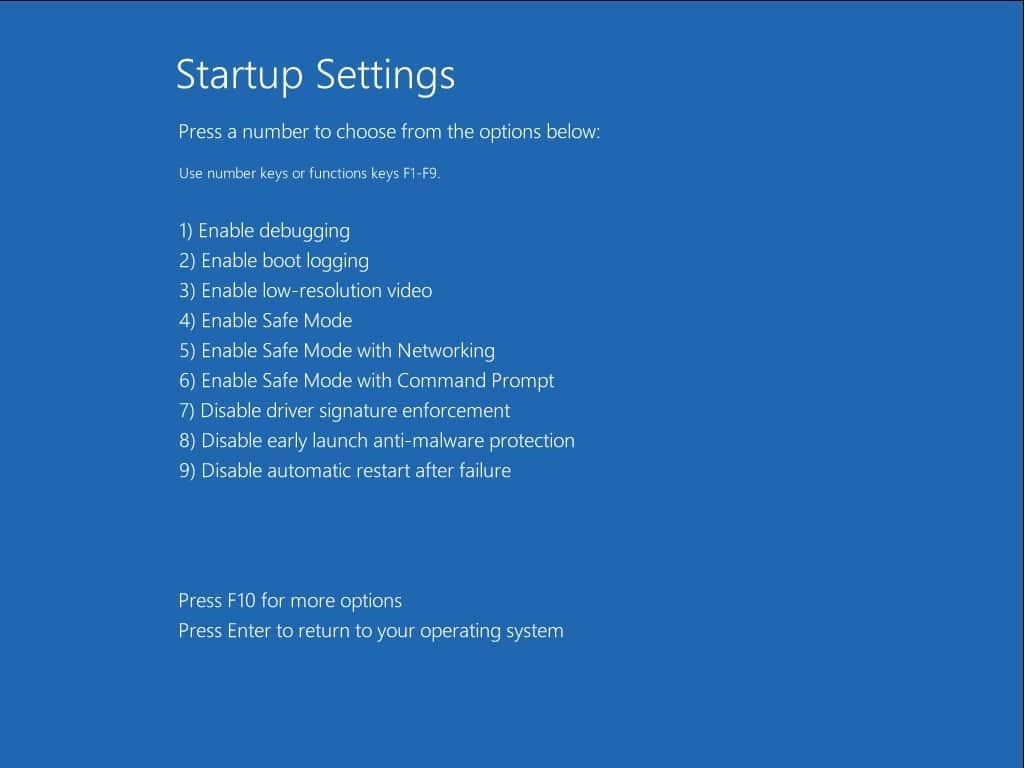
  • On the Choose an option screen, click TroubleshootAdvanced optionsStartup SettingsRestart.

  • After restart, press 4 or F4 to enable Safe Mode, or 5 / F5 to enable Safe Mode with Networking.


Once in Safe Mode, try using your PC for a while. If the Memory Management error does not appear in Safe Mode, it’s a strong sign that a driver or third‑party software is causing the problem.

You can now continue with the next steps from Safe Mode or normal mode, depending on what’s stable.

Run Windows Memory Diagnostic (Check for RAM Problems)

Because the Memory Management BSOD is closely tied to your system’s RAM, your first detailed test should be to check whether the memory modules themselves are faulty.

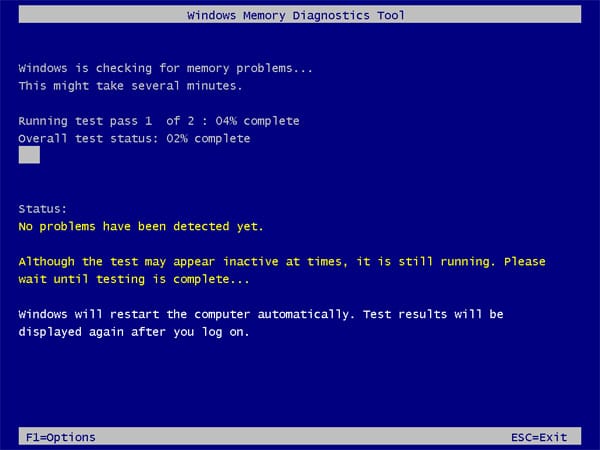
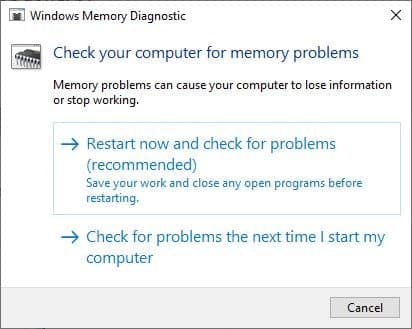
To run Windows Memory Diagnostic on Windows 11:

  • Press Windows + R to open Run.
  • Type mdsched.exe and click OK.
  • In the Windows Memory Diagnostic window, click Restart now and check for problems (recommended).
  • Your PC will restart and the test will automatically run. This may take several minutes.
  • After Windows 11 loads again, the results should appear in a notification. If you miss it, you can check the results in Event Viewer → Windows Logs → System and filter for MemoryDiagnostics-Results.

  • If no errors are reported, your RAM is likely okay and you should continue with the next steps.
  • If errors are detected, there’s a strong chance one or more RAM sticks are faulty. You may need to:
    • Power off the PC
    • Reseat the RAM (remove and reinsert)
    • Test each RAM module one by one
    • Replace the faulty module

A bad RAM stick is one of the most common hardware causes of the Memory Management BSOD.

For an even more thorough RAM test, you can use a dedicated tool like MemTest86 (third‑party) and run multiple passes.

Repair System Files with DISM and SFC

Corrupt or missing system files can easily trigger memory management errors in Windows 11. Microsoft includes built‑in tools to repair the Windows image and system files:

  • DISM (Deployment Image Servicing and Management) – fixes the underlying Windows image
  • SFC (System File Checker) – scans and repairs system files

It’s best to run DISM first, then SFC.

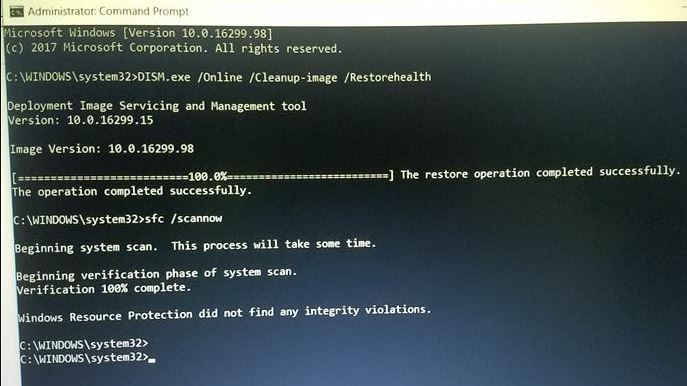
Step 1: Run DISM (Restore Health)

  1. Click Start, type cmd.
  2. Right‑click Command Prompt and choose Run as administrator.
  3. In the Command Prompt window, type the following command and press Enter:
DISM /Online /Cleanup-Image /RestoreHealth
  1. Wait patiently while DISM scans and repairs the Windows image. This can take some time and may appear stuck at certain percentages – let it complete.

Step 2: Run System File Checker (SFC)

After DISM finishes:

  1. In the same elevated Command Prompt, type the following and press Enter:
sfc /scannow
  1. Allow SFC to reach 100%. It will automatically repair any corrupted system files it finds.
  2. When the scan completes, restart your PC.


Now use your computer as usual and check if the Memory Management BSOD still appears. If it does, continue to the next fix.

Reset Virtual Memory (Page File) to Automatic

Many users tweak virtual memory, or the page file, to speed up Windows. However, incorrect settings can sometimes lead to memory management errors, especially on Windows 11.

By default, Windows 11 is very good at managing the page file automatically. Resetting it back to automatic can fix BSODs caused by misconfigured virtual memory.

To reset virtual memory to automatic in Windows 11:

  1. Press Windows + R, type sysdm.cpl and click OK. This opens System Properties.
  2. Go to the Advanced tab.
  3. Under Performance, click Settings.
  4. In the Performance Options window, go to the Advanced tab.
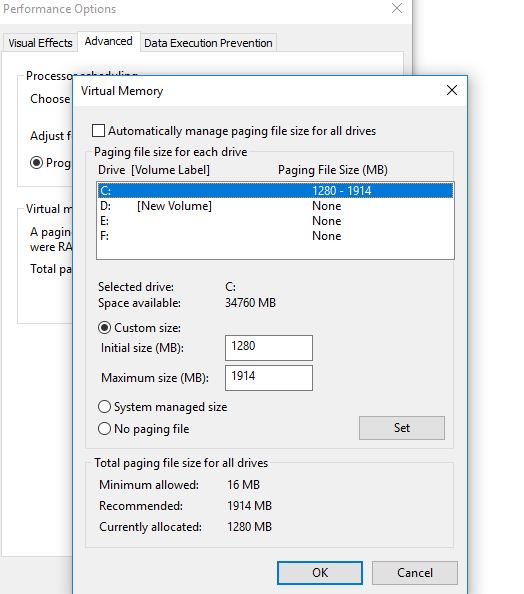
  5. Under Virtual memory, click Change….
  6. Make sure Automatically manage paging file size for all drives is checked.
    • If it is not checked, select it and click OK.
  7. Click Apply, then OK on all open windows.
  8. Restart your PC for the changes to take effect.


After reboot, Windows 11 will manage the page file size automatically. If your memory management error was caused by manual or incorrect virtual memory settings, this alone may resolve the BSOD.

Install the Latest Windows 11 Updates

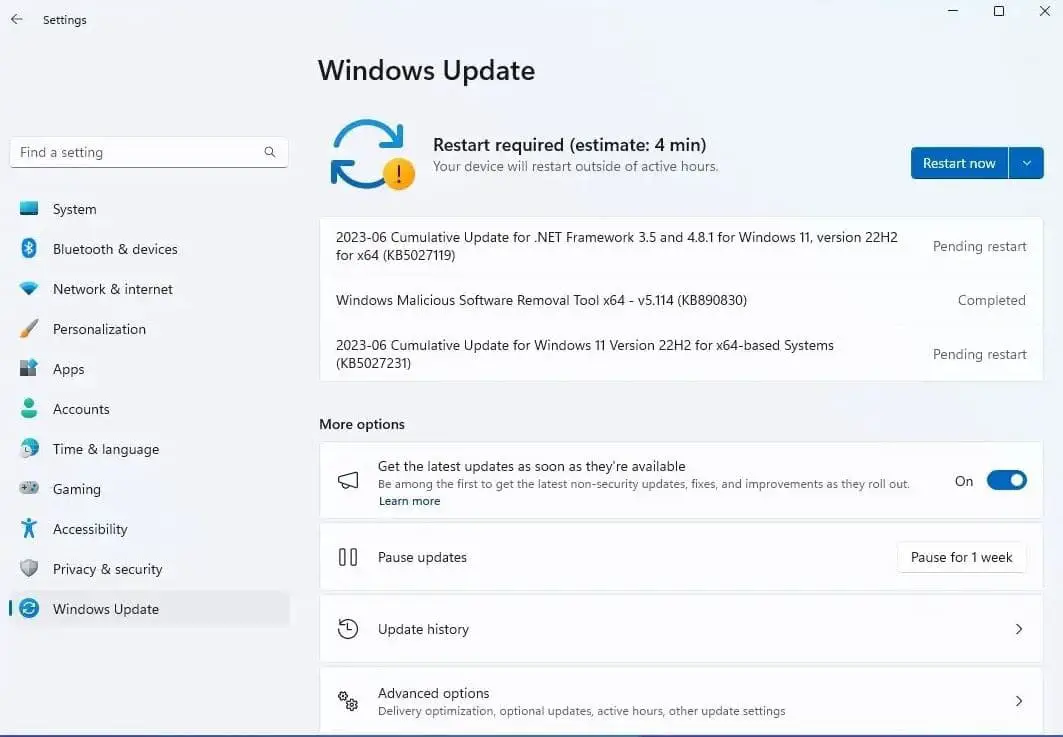
Microsoft regularly releases updates that fix stability issues, driver problems, and BSOD bugs, including memory‑related errors. If you’re running an outdated build of Windows 11, updating can often resolve the Memory Management BSOD.

To check for and install updates in Windows 11:

  1. Press Windows + I to open Settings.
  2. Go to Windows Update from the left sidebar.
  3. Click Check for updates.
  4. If updates are available, allow them to download and install.
  5. Restart your computer when prompted.


Also check for optional updates:

  1. In Settings → Windows Update, click Advanced options.
  2. Scroll down to Optional updates.
  3. Install any recommended driver or firmware updates that appear there.

Once everything is installed, observe your system for a while. If the BSOD only started after a specific update, you can also consider rolling back that update, but in most cases staying current is the better long‑term fix.

Update or Reinstall Device Drivers (Especially Graphics)

Bad or outdated drivers, especially graphics drivers, are a frequent cause of the Memory Management BSOD on Windows 11. If you notice Windows crashes mostly while gaming, editing video, or using GPU‑intensive applications, focus on your GPU driver first.

There are two main approaches:

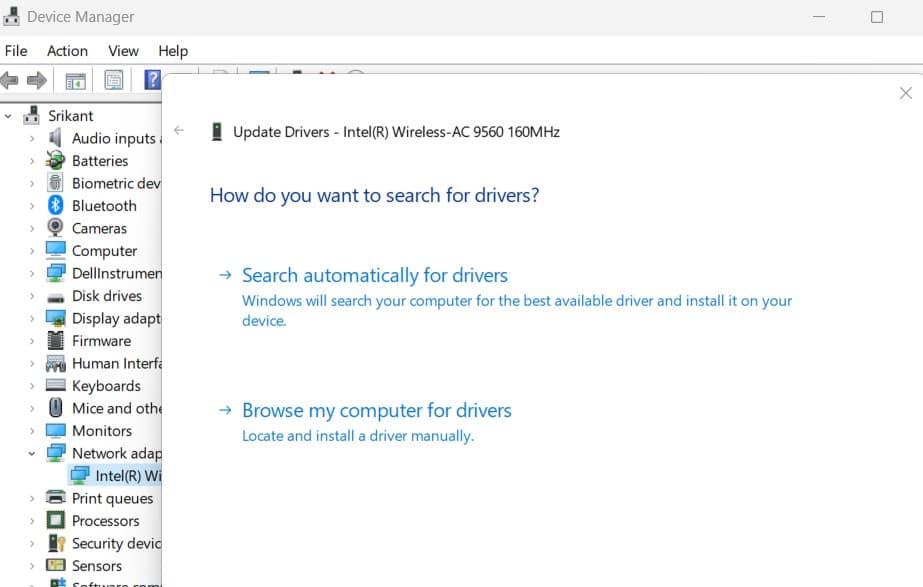
Option A: Update Drivers via Device Manager

  1. Press Windows + X and select Device Manager.
  2. Look for any devices with a yellow warning icon – these often indicate driver problems.
  3. Pay special attention to:
    • Display adapters (graphics card)
    • Network adapters
    • Storage controllers
  4. Right‑click the device and choose Update driver.
  5. Click Search automatically for drivers and follow the prompts.

Repeat this for any device that looks problematic.

Option B: Get the Latest Graphics Driver from the Manufacturer
For best stability, download the latest Windows 11‑compatible driver directly from your GPU manufacturer:

  • Intel: Intel Driver & Support Assistant
  • NVIDIA: GeForce Experience or NVIDIA driver download page
  • AMD: Radeon Software / Adrenalin driver page

After installing the new driver, restart your PC and test again. If you recently updated a driver and the Memory Management error started afterwards, try rolling back that driver from Device Manager → Properties → Driver → Roll Back Driver (if available).

Check for Software Conflicts and Overclocking

Sometimes the Memory Management error is not caused by hardware or Windows itself, but by problematic software or aggressive settings.

Common culprits include:

  • Third‑party antivirus or security suites
  • “Optimizer” or system cleaning tools that hook deeply into the OS
  • Overclocking utilities (CPU, GPU, or RAM overclock)
  • Recently installed apps or games

Try the following:

  • Uninstall recently installed software
    • Press Windows + I → Apps → Installed apps.
    • Sort by Install date and uninstall anything you installed around the time the BSOD started.
  • Disable or uninstall third‑party antivirus temporarily
    • Many Windows 11 systems run well with Windows Security only.
    • If the BSOD stops after removing a third‑party antivirus, consider switching permanently.
  • Turn off overclocking
    • If you overclock your CPU, RAM, or GPU via BIOS/UEFI or software, revert back to default (stock) settings.
    • Unstable overclocks often show up as memory management BSODs under load.

Use the system for some time after making these changes. If the error disappears, you’ve likely found the cause.

Check Your Disk and Hardware Health

While the MEMORY_MANAGEMENT stop code points to RAM and memory handling, problems with your storage drive or motherboard can also cause corruption that leads to BSODs.

Run CHKDSK on Your System Drive

  1. Click Start, type cmd.
  2. Right‑click Command Prompt and choose Run as administrator.
  3. Type the following command and press Enter:
chkdsk C: /f /r
  1. You’ll likely be asked to schedule the check for the next restart. Type Y and press Enter.
  2. Restart your PC to allow CHKDSK to scan and repair disk errors.

Note: This scan can take a while. Make sure you don’t interrupt it.

Check for Obvious Hardware Issues

  • Inspect RAM modules and slots for dust or physical damage.
  • Check your motherboard for any burnt components or bulging capacitors (if you’re comfortable opening your case).
  • Make sure all internal cables and cards are securely seated.

If you suspect a deeper hardware issue, consider running manufacturer‑specific diagnostics or consulting a professional technician.

When to Replace RAM or Seek Professional Help

If you’ve:

  • Run Windows Memory Diagnostic and it reported errors
  • Tried reseating the RAM and testing each module individually
  • Followed all the steps above (drivers, SFC/DISM, updates, virtual memory, software conflicts)

…and you still get the Memory Management BSOD, it’s time to seriously consider faulty hardware.

Most commonly, this means:

  • Defective RAM module that needs to be replaced
  • In rarer cases, a failing motherboard or memory controller

If your PC is under warranty, contact the manufacturer or seller and describe the diagnostics you’ve already run. If not, replacing the RAM with new, compatible modules is often the most cost‑effective next step.

Frequently Asked Questions

What causes the Memory Management error on Windows 11?
The Memory Management error (MEMORY_MANAGEMENT stop code) on Windows 11 is usually caused by:

  • Faulty or failing RAM
  • Corrupt system files or damaged Windows image
  • Outdated or buggy drivers (especially graphics drivers)
  • Incorrect virtual memory (page file) settings
  • Overclocking or unstable BIOS/UEFI settings
  • Conflicts with third‑party security or optimization software

The steps in this guide are designed to address each of these potential causes.

Is the Memory Management BSOD always a RAM problem?
No. While bad RAM is a common cause of the Memory Management BSOD, it’s not the only one. Many users fix the error by:

  • Repairing system files with SFC and DISM
  • Updating or reinstalling graphics and chipset drivers
  • Resetting virtual memory to automatic
  • Removing problematic software or overclocks

You should always test RAM, but don’t assume it’s the only cause.

How do I fix the Memory Management error while gaming?
If the Memory Management BSOD appears mostly while gaming:

  • Update your graphics driver (NVIDIA, AMD, or Intel)
  • Make sure Windows 11 is fully updated
  • Disable any GPU/CPU overclocking
  • Check for game updates or known issues
  • Run Windows Memory Diagnostic to rule out faulty RAM

Games push your hardware harder, so any underlying instability (drivers, RAM, overclock) often shows up there first.

Can outdated drivers cause a Memory Management BSOD?
Yes. Outdated or corrupt drivers, especially for graphics, storage, or chipset, can easily trigger memory management errors. Updating drivers via Device Manager, Windows Update (Optional updates), or the manufacturer’s website is one of the most effective fixes.

Can I prevent Memory Management errors in the future?
You can reduce the chances of seeing a memory management error again by:

  • Keeping Windows 11 and drivers up to date
  • Avoiding unnecessary overclocking unless you know what you’re doing
  • Not using aggressive “optimizer” or registry cleaning tools
  • Making sure you have enough physical RAM for your workload
  • Using reliable, compatible RAM modules and hardware
With over 7 years of experience in the IT industry, I have experience in IT support, helpdesk, sysadmin, network admin, and cloud computing. Certified in Microsoft Technologies (MCTS and MCSA) and also Cisco Certified Professional in Routing and Switching.