


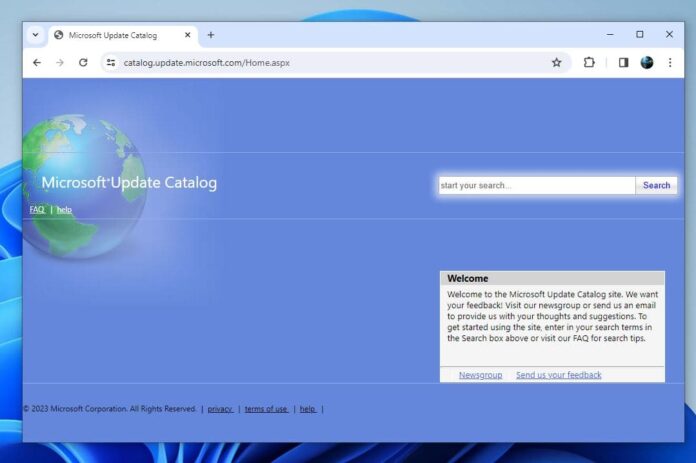
If you are a Windows user, you probably know that keeping your system up to date is essential for security, performance and compatibility. However, sometimes the automatic update feature may not work properly, or you may want to install a specific update that is not available through Windows Update. In such cases, you can use the Microsoft Windows Update Catalog, a website that contains a large collection of updates for all versions of Windows. This article explains What is the Microsoft Update Catalog and what does it offer?
What is the Windows Update Catalog?
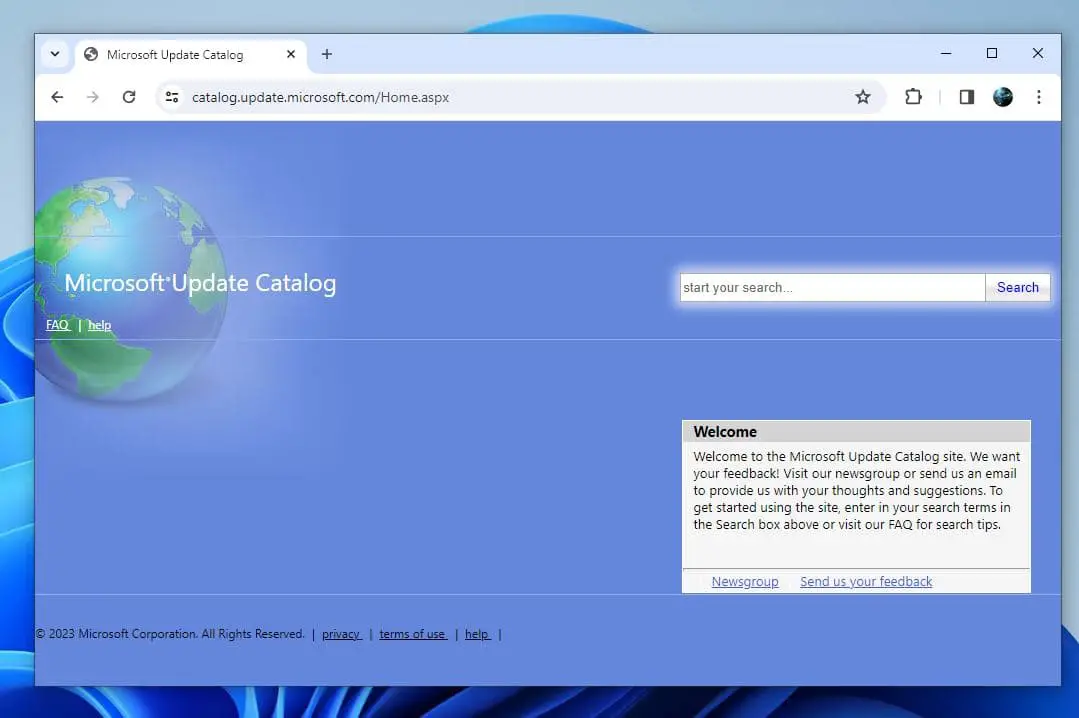
The Windows Update Catalog is an online repository provided by Microsoft allows users to manually search and download Windows updates, drivers, and hotfixes for the Windows operating system. It is also known as the Microsoft Update Catalog or the Windows catalog, particularly useful when standard updates via Windows Update face challenges, such as slow internet connections or update failures. You can use the Windows Update Catalog to search for specific updates by their name, KB (knowledge base) number, or category, and download them as standalone installer files. The Microsoft Update Catalog provides direct links to download the update files, which are usually in the form of .msu or .cab files.
You can use the Microsoft Update Catalog to find and download the update you need.

Why Use Windows Update Catalog?
There are several reasons why you might want to use the Windows Update Catalog instead of the automatic Windows Update feature.
Offline Installation: One of the primary advantages of the Microsoft update catalog is the ability to download updates offline. This is beneficial for users with limited bandwidth or those who prefer to keep an offline archive of essential updates.
Troubleshooting Failed Updates: In cases where Windows Update encounters errors or fails to install certain updates, the Microsoft Update Catalog provides an alternative method for users to obtain and apply updates, bypassing potential issues in the standard update process.
It is also useful if you have a slow or unreliable internet connection and you want to download updates once and install them on multiple computers offline.
You encounter an error or a problem with Windows Update and you need to troubleshoot it by installing specific updates manually.
How to Use Windows Update Catalog
To use Windows Update Catalog, you need to have a web browser that supports HTML5, such as Microsoft Edge, Google Chrome or Mozilla Firefox. You cannot use Internet Explorer because it requires ActiveX controls, which are no longer supported by the catalog. You also need to have administrator privileges on your PC to run and apply the offline installer.
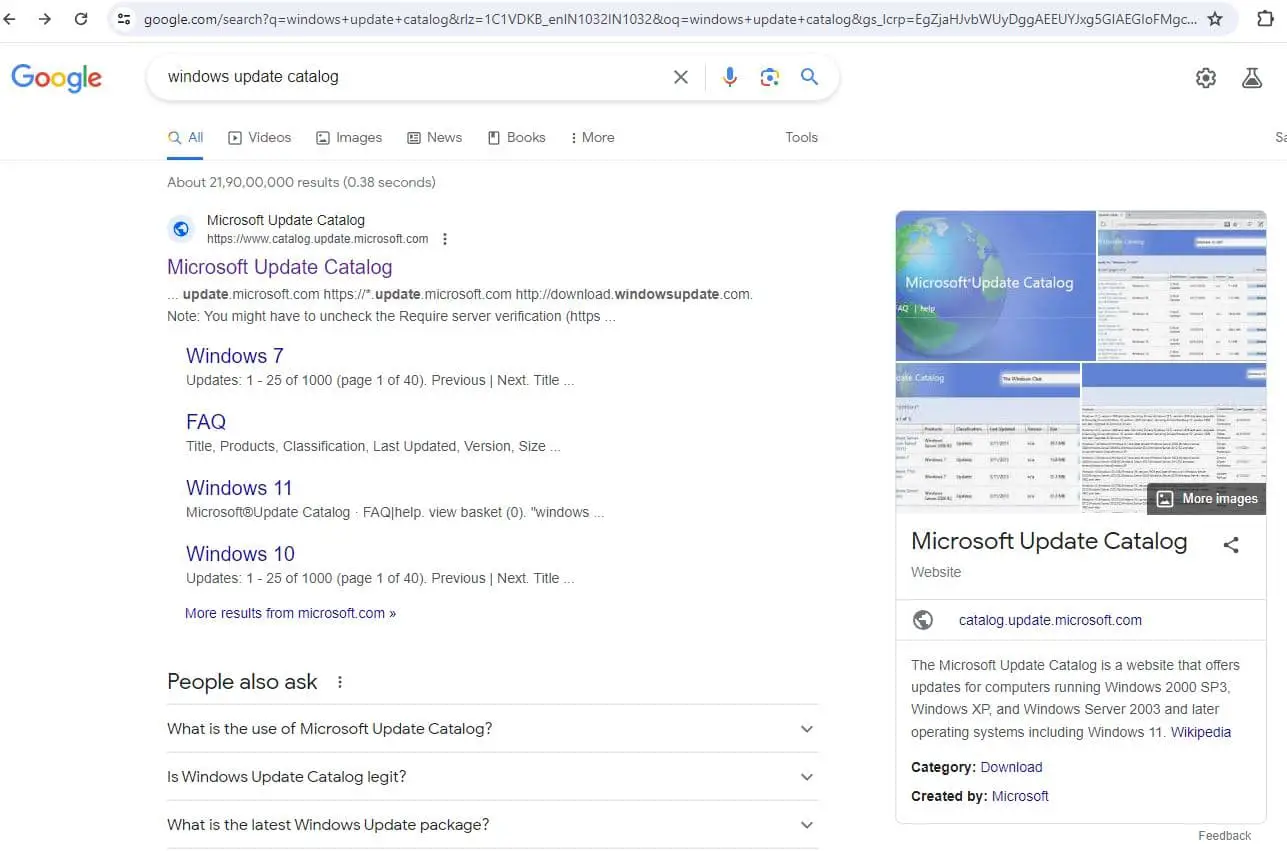
First Visit the official Windows Update Catalog website, you can either visit its website at https://www.catalog.update.microsoft.com/Home.aspx or search for it on Bing or Google.

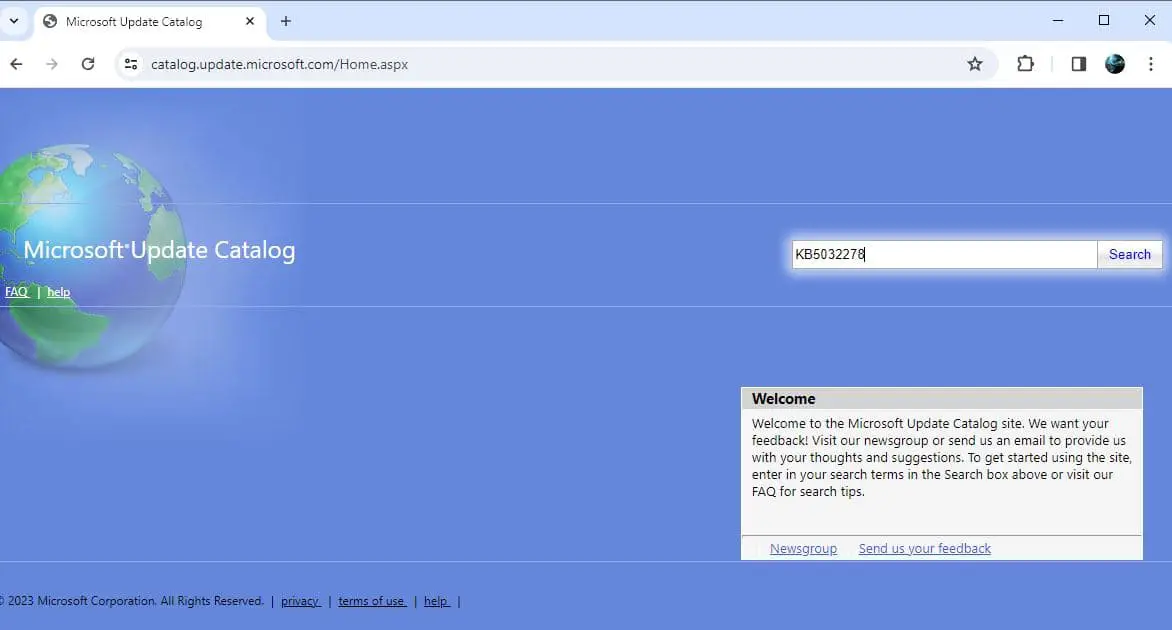
Once you are on the catalog page, you can enter your search terms in the search box and click on the magnifying glass icon. You can search by update name, KB number, product name, classification or hardware ID.
Note: You can get the latest KB number for Windows 10 Here and for Windows 11 Here.

The catalog will display a list of matching updates with their details, such as title, description, size, date and supported operating systems. You can sort the list by clicking on the column headers or filter it by using the drop-down menus on the left side.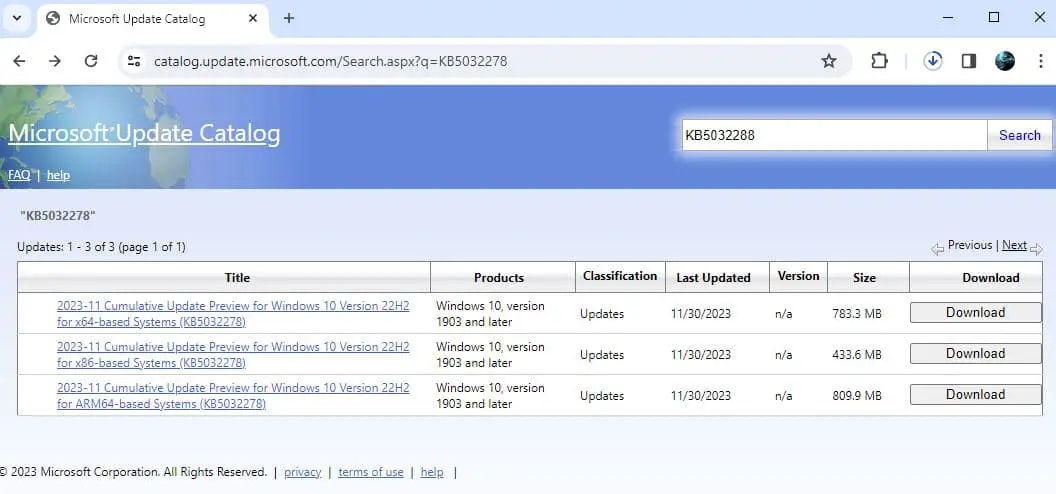

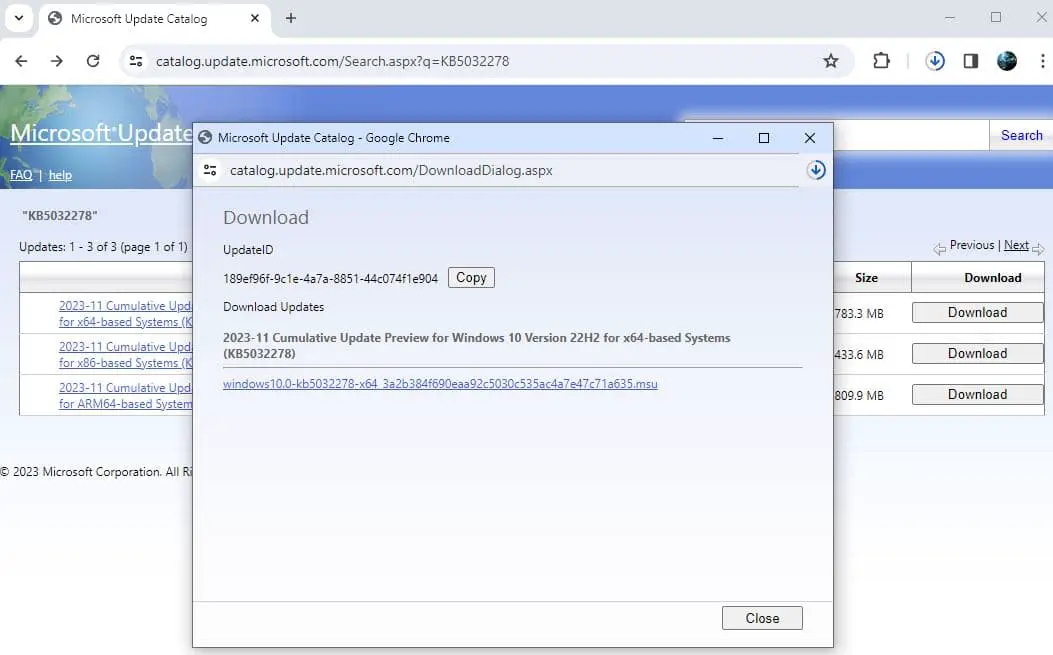
To download an update, you need to click on the Download button next to it. A pop-up window will appear with a link to the update file. You can either click on the link to download it directly or right-click on it and choose Save link as to save it to a location of your choice.

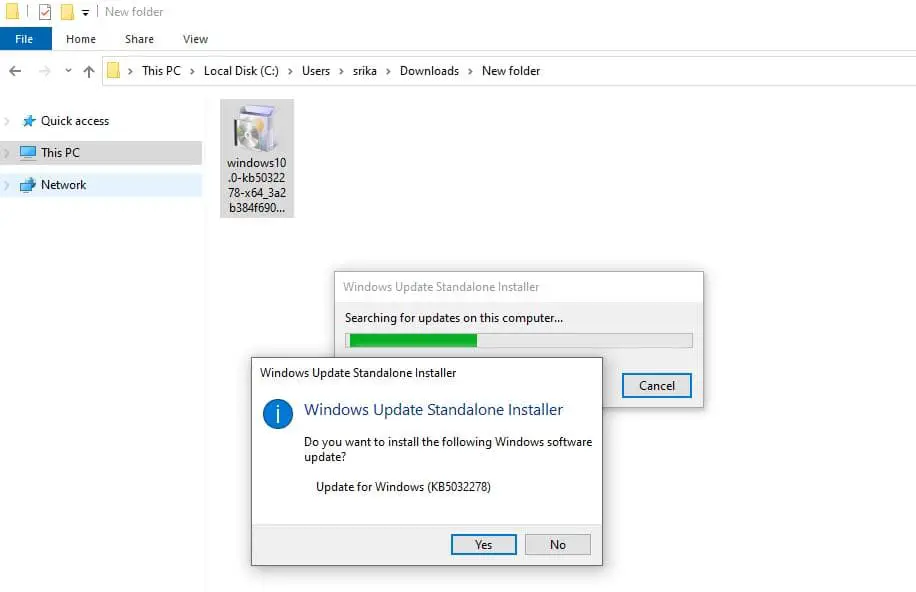
After downloading the updates, manually install them by double-clicking on the downloaded file and follow the instructions on the screen. Depending on the update, you might need to restart your computer for the changes to take effect.

Additional Tips for Using the Windows Update Catalog
You can use advanced search operators to refine your search results. For example, you can use quotation marks to search for an exact phrase, such as “Windows 11 version 23H2”. You can also use AND, OR and NOT operators to combine multiple terms, such as “Windows 10 AND driver NOT printer”.
You can use the Add button to add multiple updates to a download basket. This way, you can download them all at once instead of one by one. To access your download basket, click on the View Basket link at the top right corner of the catalog page.
Did you know, You can use the Import and Export buttons to import or export a list of updates from or to a text file? This can be useful if you want to share your update list with others or save it for future reference.
Also, You can use the Feedback link at the bottom of the catalog page to provide your suggestions or report any issues with the catalog. You can also visit the Microsoft Update Catalog newsgroup at https://social.technet.microsoft.com/Forums/en-US/home?forum=mscomcatalog to join the discussion with other users and experts
Always make sure that you download and install only the updates that are compatible with your device and software version. Also, back up your important data before installing any updates in case something goes wrong.
Also read:
- How to install Windows 11 updates on your computer
- Find and Save Windows Spotlight Lock Screen Images in Windows
- What is the relationship between the internet and network (Network vs. Internet)?
- Windows 11 Widgets Not Working and Displaying Blank Content (Solved)
- How to Repair or reset the Photos app Windows 11


