
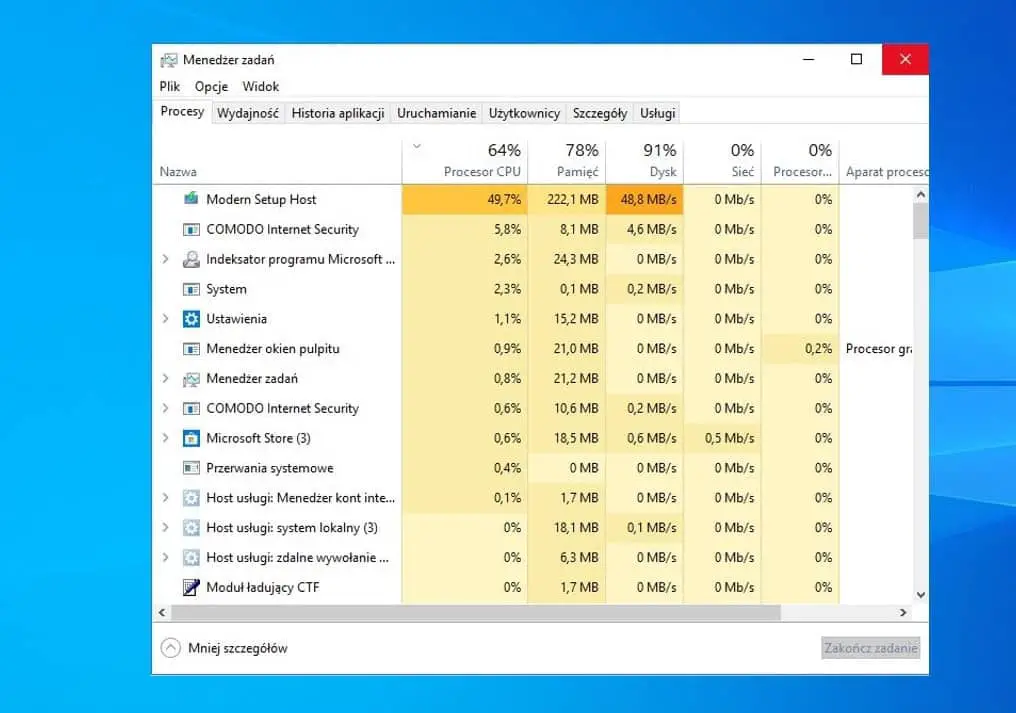
If you have noticed on task manager a process called Modern Setup Host eating up almost 100% CPU or memory on your computer or see error Modern Setup Host has stopped working on Windows 10 here this post is helpful for you. The Modern Setup Host also knows as SetupHost.exe is a windows component that usually runs itself in the background when an important update is being installed. That means, Modern Setup Host process is responsible for Windows Update, and running windows update troubleshooter is probably the best solution to fix modern setup host high CPU usage windows 10.
Modern Setup Host high CPU usage
If this is the first time you have noticed modern setup host high CPU usage, then restart your PC probably help if a temporary glitch causing the issue.
Perform a full system scan with the latest antivirus software to make sure virus malware infection not causing the issue.
One Taskmanager, under the process tab, locates SetupHost.exe, Right-click on it select stop.
Sometimes windows 10 High CPU usage can appear due to a driver or software compatibility Start Windows 10 clean boot state and check if this helps.
- Press “Windows” + “I” buttons simultaneously to open settings.
- Select the “System” and click on “Notifications and Actions” from the left pane.
- Turn the “Get Tips, Tricks, and Suggestions as you use Windows” option off by unchecking the box or pressing the toggle.
Run Windows Update Troubleshooter
Run the windows update troubleshooter following the steps below that fix typical Windows update-related problems within moments.
- On the start menu search for troubleshooting and select troubleshoot settings from search results,
- On the right-hand side Click Windows Update, then Run the troubleshooter.
- Check if the troubleshooter detects and fixes all the problems.
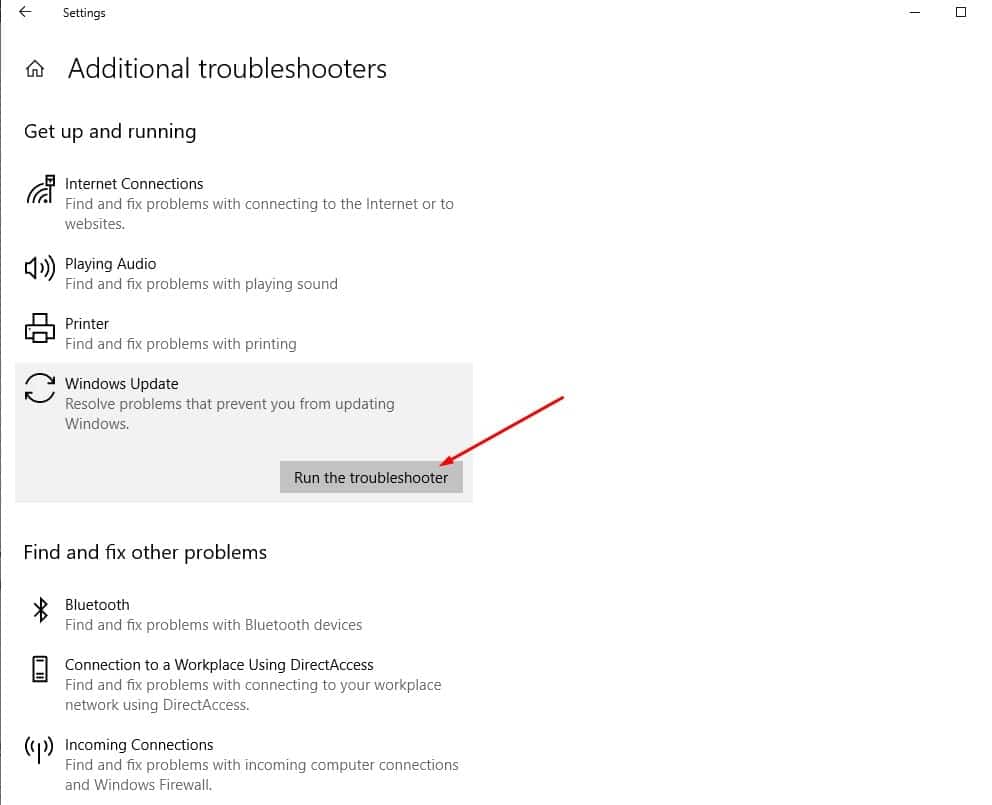
If you’re on Windows 7 or 8, Download the troubleshooter from Microsoft. Next double-click the downloaded file to run it Select Windows Update, then Next.
Clear SoftwareDistribution folder
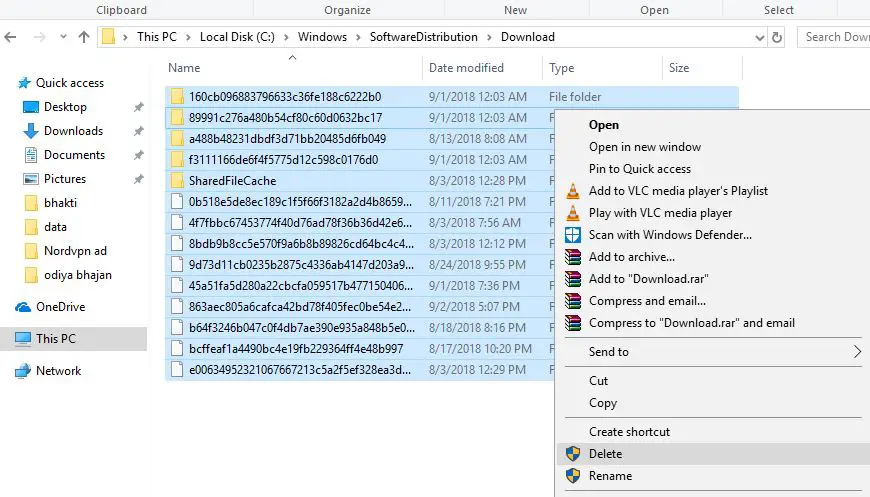
SoftwareDistribution is the folder where all Windows Update-related files are stored temporarily before installation. Modern Setup Host is related to windows update and if these files are corrupted you might face a problem, you should clear the SoftwareDistribution folder to fix the problem.
- Open services console using services.msc
- Scroll down and locate windows update, right-click, and select stop,
- Now open windows explorer and navigate C:\Windows\SoftwareDistribution\Download
- Delete all files and folders inside the download folder, To do this use the keyboard shortcut Windows + A to select all and press the del key,
- Now again open the windows service console and start the windows update service.
- Check the CPU usage goes to normal.
Disable Windows Update Service
Still need help, Disable Windows Update Service temporarily As mentioned earlier, this program is connected to Windows Update and upgrade. Therefore, if you have already installed the update and you do not need it anymore, you can temporarily turn off the Windows Update and check if it solves the issue.
- Press keyboard shortcut Windows + R, type services.msc and click ok
- This will opens windows services console, scroll down and locate windows update service,
- Right-click on windows update service select properties,
- Here change startup type disable then stop the service next to service status
- Click apply and ok to make save changes.
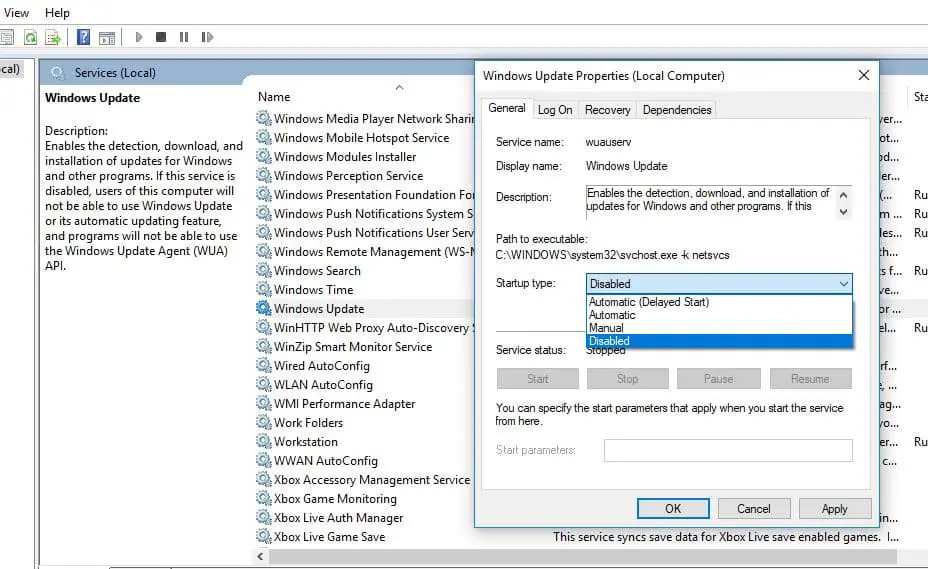
Note: We recommended re-enable the windows update service again after a few days so you can continue to get security and performance updates.
Also, run DISM restore health command DISM.exe /Online /Cleanup-image /Restorehealth and system file checker utility that helps with repair windows system image and restores missing corrupted system files with correct one. That only fixes Windows 10 High CPU usage but also optimizes windows system performance as well.
Also read:


