
Ntoskrnl.exe, also known as the Windows NT Operating System Kernel, is a core Windows 11 process that performs critical system functions. It handles essential system services such as memory management, process scheduling, and hardware interactions. It is a critical system file located in the C:\Windows\System32 folder and is not a virus. However, malware can sometimes be associated with it. However, if you notice High CPU usage by ntoskrnl.exe it can be due to outdated or corrupted device drivers, which can lead to poor communication between hardware and the operating system. Malware or spyware infections, insufficient RAM, and corrupt system files can also cause high CPU usage in Windows 11. Whatever the cause, here is how to fix high Ntoskrnl.exe CPU usage on a Windows PC.
What causes Ntoskrnl.exe High CPU Usage?
Ntoskrnl.exe is a core component responsible for essential low-level operating system functions, including hardware abstraction, process and memory management, interrupt handling, and security reference monitoring. There are various factors that can cause the Ntoskrnl high CPU usage. Some of the common ones include:
- Faulty, outdated, or incompatible drivers (especially for GPU, network adapters, or storage controllers) can cause the kernel to work overtime, leading to high CPU usage.
- Failing hardware, such as a malfunctioning hard drive, RAM, or overheating CPU, can trigger constant interrupts, forcing ntoskrnl.exe to respond repeatedly.
- Large system updates, disk indexing, or antivirus scans can temporarily increase kernel activity.
- Some advanced malware operates at the kernel level and may hijack or mimic ntoskrnl.exe, leading to abnormal CPU usage.
- Incorrect power management settings or outdated BIOS firmware can cause devices to send unnecessary wake signals, increasing kernel workload.
Update Drivers (Graphics, Network, Storage)
Outdated or corrupted drivers often cause ntoskrnl.exe to use excessive CPU resources because the kernel struggles to communicate with hardware properly. For example, an incompatible graphics or network driver may cause ntoskrnl.exe to overload the CPU. Updating drivers with the latest version ensures compatibility with Windows 11 and fixes resource usage issues.
- Press Windows + X and select Device Manager.
- Expand categories such as Display adapters, Network adapters, or Sound, video, and game controllers.
- Right-click the device and choose Update driver.
- Select Search automatically for drivers.
- Repeat this process for all major drivers, especially GPU, network, and chipset drivers.
- Restart your PC and check if CPU usage is stable.


Alternatively, visit your device manufacturer’s official website and manually install the latest drivers.
Install Windows 11 Update
Running an outdated version of Windows can trigger kernel-related CPU problems. Microsoft frequently releases patches to improve performance and stability. Install the latest Windows 11 updates and see if this fixes the issue.
- Press Windows + I to open Settings.
- Go to Windows Update from the left sidebar.
- Click Check for updates.
- Download and install all available updates.
- Restart your PC.


Scan and Repair Corrupted System Files
Corrupted or missing system files can cause the Windows kernel (ntoskrnl.exe) to misbehave and consume excessive CPU resources. Running built-in repair tools ensures system files are intact.
- Press Windows + S, type cmd, right-click Command Prompt, and select Run as administrator.
- Then type sfc /scannow and hit the Enter key. This will scan for missing system files. If it finds errors, Windows will automatically repair them.
- Wait until the scan completes, then run DISM command DISM /Online /Cleanup-Image /RestoreHealth


This will scan and repair corrupted Windows system image files by comparing them to known good copies
Disable Unnecessary Startup Programs
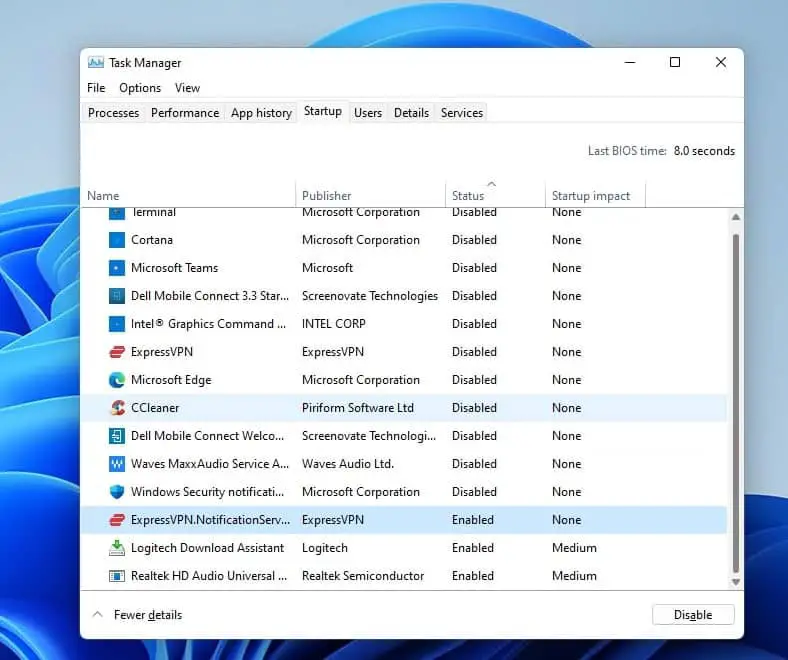
Again, too many startup apps increase background processes and force ntoskrnl.exe to handle extra tasks, which raises CPU usage. Disabling unwanted startup programs reduces strain on the kernel.
- Press Ctrl + Shift + Esc to open Task Manager.
- Go to the Startup apps tab.
- Right-click any unnecessary program and select Disable.
- Restart your PC to see improvements.

Adjust Virtual Memory Settings
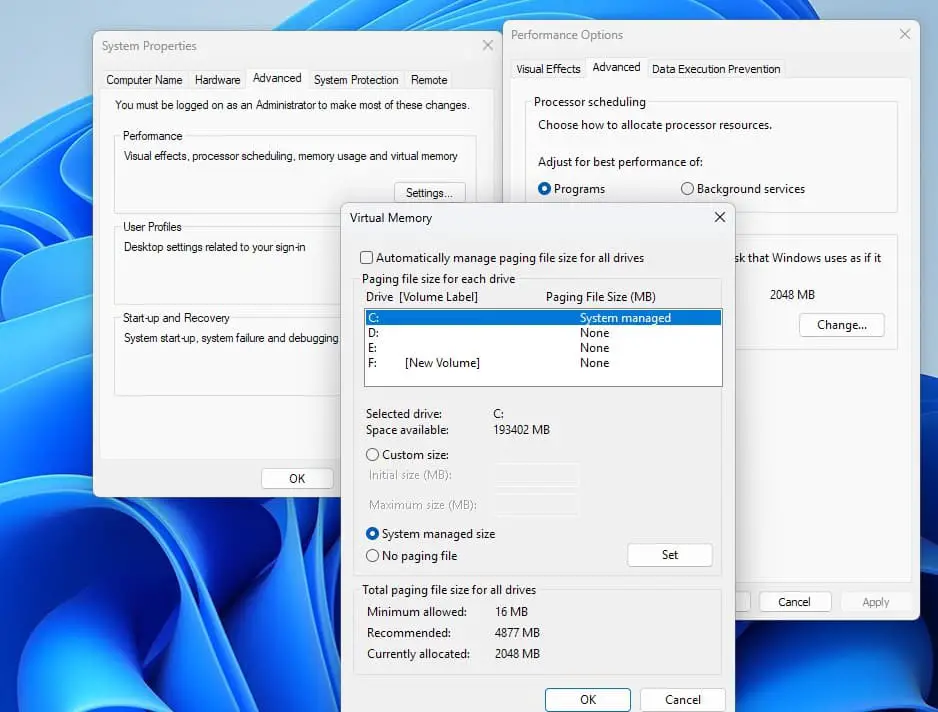
Windows uses virtual memory when physical RAM runs out. If incorrectly configured, ntoskrnl.exe may overuse CPU resources while managing memory paging.
- Press Win + R, type sysdm.cpl, and press Enter.
- Go to Advanced → Performance Settings.
- Under the Advanced tab → Click Change under Virtual memory.
- Select the System managed size for your C: drive.
- Click Set → OK → Restart your PC.

Scan for Malware and Viruses
Although ntoskrnl.exe is a legitimate Windows process, malware sometimes disguises itself using this name. A deep scan ensures your system isn’t infected.
- Press Windows + I → Privacy & Security → Windows Security.
- Click Virus & threat protection.
- Select Scan options → choose Full scan.
- Run the scan and remove any threats it detects.
You can also use trusted third-party antivirus software to perform a full system scan and remove malware.
Perform a Clean Boot
Background services and third-party applications may conflict with Windows kernel processes, causing high CPU usage. A clean boot helps identify whether a third-party app is the culprit.
- Press Windows + R, type msconfig, and press Enter.
- Go to the Services tab, check Hide all Microsoft services, then click Disable all.
- Switch to the Startup tab and click Open Task Manager.
- Disable all startup items and restart your PC.

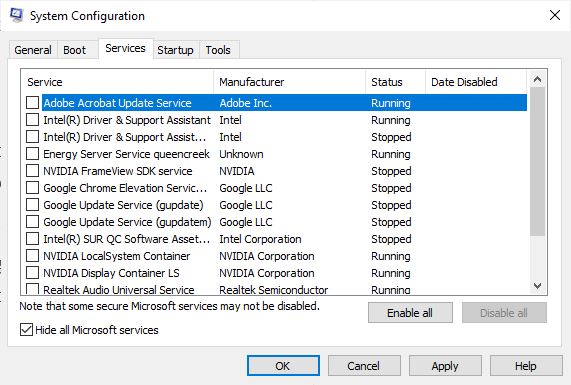
If CPU usage drops, re-enable services one by one to find the problematic application.
Frequently Asked Questions (FAQ)
It’s the Windows NT Operating System Kernel, responsible for process management, memory handling, and hardware virtualization.
Not usually. It’s a legitimate Windows process, but malware can mimic it. Running a scan helps confirm.
No. It’s a core Windows file. Disabling it will crash your system. Instead, fix the underlying issue causing high CPU usage.
Yes. More RAM reduces reliance on virtual memory, easing the load on ntoskrnl.exe.
If corrupted files or misconfigurations persist after troubleshooting, a clean reinstall can fix it.