
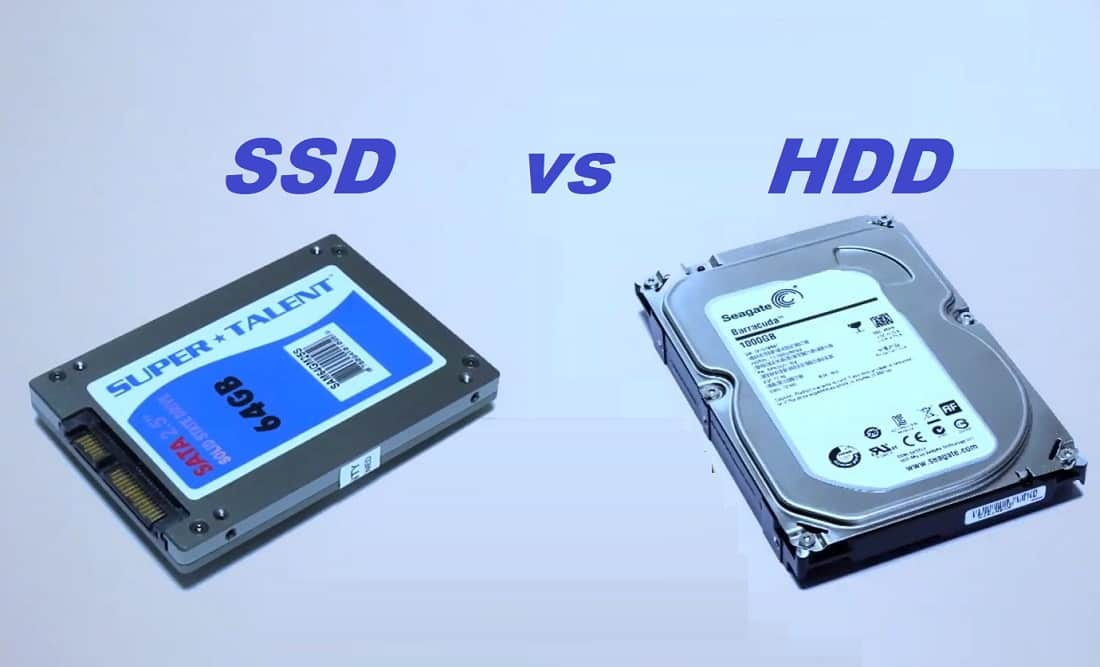
While purchasing a new Laptop or Desktop Getting confused between SSD and HDD which should I buy and how it is going to affect the overall performance of the laptop. Can’t decide SSD or HDD Which is Better for You? Here is a brief description of SSD vs HDD, advantages, and disadvantages which help to decide on which type is right for you comes down to what you use your computer for.
The difference between hard drives and solid-state drives is in the technology used to store and retrieve data.
Solid-state drives (SSD) and hard disk drives (HDD) are similar in their physical specifications, but they store data very differently. HDD utilizes a magnetic disk as storage, whereas SSD utilizes memory. HDDs are cheaper and you can get more storage space. SSDs however are faster, lighter, more durable, and use less energy. Your needs will dictate which storage drive will work best for you.
| Cost | Speed | Durability | Highest capacity | Energy efficiency | |
|---|---|---|---|---|---|
| HDD | Cheaper | Slower | Less Durable | 10TB | Use more energy |
| SSD | More expensive | Faster | More Durable | 4TB | Use less energy |
What is HDD ( Hard Disk Drive)?
HDD stands for hard disk drive. The hard disk drive is invented by IBM [International Business Machines] in 1956. When it launched it got very popular and it became the preferred storage drive in the 1960s. When it first launched, it was larger in size but sometimes when it got very popular among computer companies, it gets smaller in size and increases its capacity. Now, you will get HDD in a very small size with a large amount of storage space.
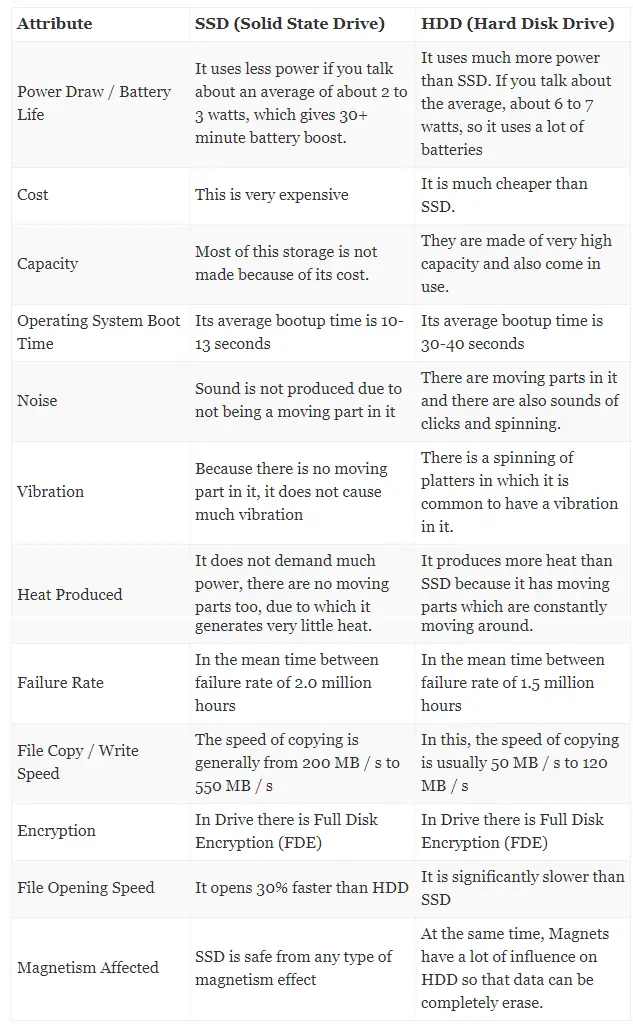
The hard drive is a mechanical device and moving parts has some friction loss because of that it produced noise when it’s running. The read write speed of HDD is around 40-50mbps. So, if you have more data backup then it takes more time to copy into the hard drive.
Standard hard drive (HDD)
- Uses moving mechanical parts to transfer data onto disks
- Speed measured by RPMs
- Generates heat
- Sensitive to shock and vibration, prone to damage
Benefits of a standard hard drive
- The more hard drive storage your computer has, the more files, pictures, and documents it can store
- Higher RPMs read and write data faster
How hard drives work
Hard disk drives consist of one or more magnetically sensitive platters, an actuator arm with a read/write head on it for each platter, and a motor to spin the platters and move the arms. There is also an I/O controller and firmware that tells the hardware what to do and communicates with the rest of the system.
Each platter is organized into concentric circles, called tracks. Tracks are divided into logical units called sectors. Each track and sector number results in a unique address that can be used to organize and locate data. Data is written to the nearest available area. There is an algorithm that processes the data before it’s written, allowing the firmware to detect and correct errors.
The platters spin at preset speeds (4200 rpm to 7200 rpm for consumer computers), those speeds correlate to read/write rates. The higher the preset speed, the faster a hard drive will be able to read and write data.
What is SSD [Solid State Drive]?
SSD stands for solid-state drive, based on a microchip, this is a very fast and secure drive. These storage devices were invented in the 1970s but these drives are comparatively expensive. When it was invented, some of the companies use SSD as RAM which is used for quick access for temporary use. But when SSD size is an increase, the companies sell it as permanent storage drives. Nowadays SSD competes for HDD on each and every function.
SSD uses flash memory instead of moving parts. SSD hasn’t any moving parts so there is no type of data loss problem or drive corrupt problem. The best part of SSD is, the read/write speed of SSD is 250mbps-500mbps which is way more than HDD drives. But SSD drives are more expensive with less storage space compared to HDD.
Solid-state drive (SSD)
An SSD is available in two different interfaces: SATA or PCIe. PCIe has up to 4 times the theoretical bandwidth of SATA and is supported by the NVMe host protocol.
- No moving parts
- Similar to flash-based memory found in USBs
- More secure and less prone to failure
- Fast data transfer speeds and load times
- Runs quiet and cool
- Consumes less energy
- Outperforms 10,000 rpm HDDs in read/write speeds
- Provides longer battery life and improved shock resistance
Benefits of a solid-state drive
- Better for mobile users
- Improved performance
- Durability
- Lightweight and cooler than standard hard drives
Comparison between HDD Vs. SSD
After understand let’s compare both drives about architecture, Speed, Storage type, Storage capacity, performance, price etc.
Architecture
HDDs: HDDs consists of a head and a revolving disk. The data is written by the head on the revolving disk
SSDs: In the Architecture of the SSDs basically there are Semiconductor flash chips also called as Integrated circuit assembly. The data is stored in that Semiconductor Flash Chips instead a revolving disk.
Components
HDD contains moving parts – a motor-driven spindle that holds one or more flat circular disks (called platters) coated with a thin layer of magnetic material. read-and-write heads are positioned on top of the disks; all this is encased in a metal case.
SSD has no moving parts; it is essentially a memory chip. It is interconnected, integrated circuits (ICs) with an interface connector. There are three basic components – controller, cache and capacitor.
Speed
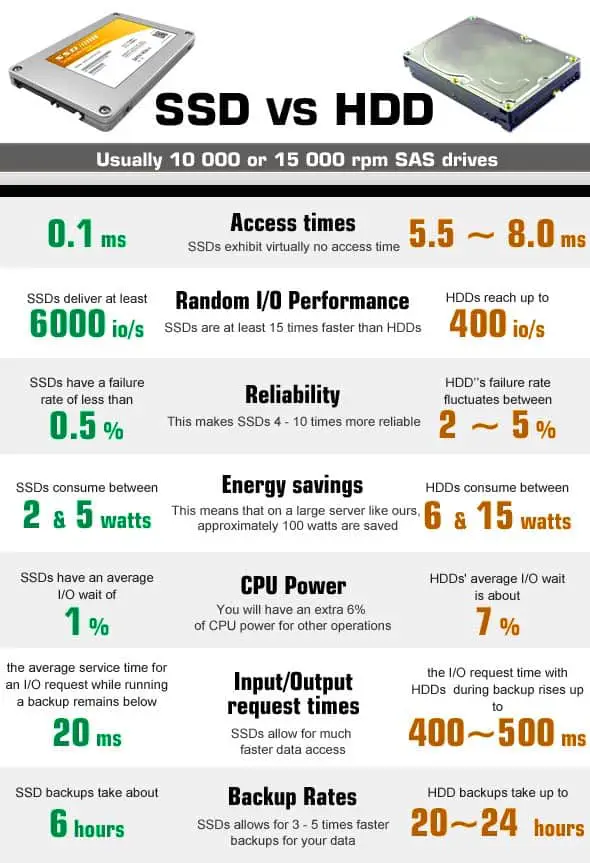
HDDs: As HDDs are the mechanical Drive the flow of data depends on the rpm of the disk. But if we compare with the New latest SSDs the speed of HDDs is very low.
SSDs: As SSDs technology uses electronic interfaces the speed of the SSDs is very very fast as compared to HDD. The Speed is almost 6 times faster than the older HDDs.
Storage Type
HDDs: The Data is Written in a sequential manner in the HDDs so it needs DISK DEFRAGMENTATION in order to give optimum performance. So that the scattered data can be arranged in the proper manner.
SSDs: There is no sequential writing of the Data so there is no need of DEFRAGMENTATION in SSDs.
Storage Capacity
HDDs: The Storage Capacity of the HDDs are basically the maximum. The HDDs are available in the TBs, HBs, ZBs. They are also used in the Servers for storing the Huge amount of Data.
SDDs: The Storage Capacity of the SSDs is very low as compared to HDDs. They are basically available up to certain terabytes in the Market only, due to the high cost of the silicon chips.
Data Loss
HDDs: In this, data loss is the major problem. After multiple overwriting and as the HDD gets older the risk of the Disk getting Corrupted increases. The normal estimated lifespan of the HDDs is basically around 5 Years.
The other important thing is that if the HDD fell from the hand or being beaten hard there is Risk of the Disk getting Corrupt.
SSDs: SSDs have overcome all the limitations of HDDs. SSDs will never get Corrupted due to multiple overwriting. The lifespan of the SSDs are almost infinite. The Data Loss Risk id Minimum in the SSDs
Defragmentation
HDDs: The performance of HDD drives worsens due to fragmentation; therefore, they need to be periodically defragmented.
SSDs: SSD drive performance is not impacted by fragmentation. So defragmentation is not necessary.
Price
HDDs: The price of the mechanical hard drives are low as the mechanism is not so costly.
SSDs: The price of the Solid State Drive is very high as there are silicon chips present in it and the cost of the silicon chips is very high.
Performance
The performance of the PC consisting an SSD is very much higher than the PC has an HDD. So I think while assembling a PC You must go for SSD instead of an HDD for the best performance.
SSD vs. HDD: Which is Better for You?
SSD has access speed of 35 to 100 microseconds, almost 100 times faster than a traditional mechanical HDD. This means increased read/write rate, faster loading of applications and decreased booting time.
Because SSD doesn’t have any moving parts, it can endure impact or vibration that is fatal to HDD.
HDD needs more power because it has to power up the spindle motor to spin the platter. This could make a significant difference when using portable devices powered by a battery.
Also, HDD’s are the popular choice for the majority of average consumers, usually choosing the HDD as the storage option in their new computer simply due to the much cheaper cost. On the contrary, if the budget is not your major concern and speed, high performance is on priority the SSD drive is the right choice for you.
So the answer to that question is for you to decide. You must achieve balance. But then again, SSD is awesome!
- How to Optimize SSD (Solid State Drive) performance on windows 10
- What Is The Difference Between A VPN And A Proxy and how do they work?
- BitLocker | BitLocker To Go drive encryption Feature on Windows 10
- How to Fix You Need to Format the Disk before you can use it Windows
- 10 Warning Signs that Your Windows 10 is Virus Malware Infected


