
Windows 11 Start menu search makes it easy to find apps, settings, files, and other content without manually searching through folders. However, sometimes the search box may stop responding, show a blank window, fail to return results, or refuse to open when you type something. The issue is usually caused by a temporary Windows Search glitch, a problem with the Search service or index, corrupted system files, or a Windows update bug that affects the Start menu search component. Sometimes, restarting the related process is enough to fix it. In other cases, you may need to rebuild the search index or repair Windows system components. In this guide, we’ll cover several practical ways to get Windows 11 Search working again, starting with the simplest fixes and moving to more advanced solutions.
Why Is Windows 11 Start Menu Search Not Working?
Windows 11 Start menu search depends on several Windows components working correctly. If something goes wrong, search may stop responding or fail to show results.
- A temporary Windows Search or Start menu glitch
- The Windows Search service is not running correctly
- A corrupted or incomplete search index
- Damaged Windows system files
- A recent Windows update causing a temporary compatibility or software issue
- Problems with the Start menu or Search app components
1. Restart Windows Explorer
If the Windows 11 Start menu or Search box isn’t responding properly, restarting Windows Explorer is a good first step. Explorer manages important parts of the Windows desktop interface, including the Start menu and taskbar. You can restart Explorer from Task Manager and check whether Search starts working again.
- Press Ctrl + Shift + Esc to open Task Manager.
- Under Processes, right-click Windows Explorer and select Restart.
- Open the Details tab, find StartMenuExperienceHost.exe, right-click it, and select End task.
- Find SearchHost.exe, right-click it, and select End task.
- Press the Windows key, type something into Search, and check whether it works.


Windows should automatically restart the Start menu and Search processes when needed.
If Search starts working after restarting these processes, a temporary issue with the Start menu or Windows interface likely caused the problem.
2. Restart the Windows Search Service
Windows Search relies on a background service to index files and provide search results. If this service gets stuck or stops working correctly, the Start menu Search box may open but fail to show results.
Restarting the service can refresh the search process that help search related issue on your PC.
- Press Win + R to open the Run dialog.
- Type
services.mscand press Enter. - Scroll down and find Windows Search.
- Right-click Windows Search and select Restart.
- If Restart is unavailable, select Start instead.
- Close the Services window and try searching from the Start menu again.


If Windows Search was temporarily stuck, restarting the service should restore Search.
3. Check Windows Search Settings
Windows Search has its own settings that control which locations Windows indexes. If these settings are damaged or Search is not indexing properly, the Start menu may fail to find apps, files, or other content. Microsoft currently manages these options under Settings > Privacy & security > Searching Windows.
- Press Windows + I to open Settings.
- Go to Privacy & security > Searching Windows.
- Check the Find my files setting.
- If it is set to Classic, Windows searches common locations such as your Documents, Pictures, and Desktop folders.
- Select Enhanced to index your entire PC. This can take longer and may use more system resources while indexing.
- Give Windows time to complete indexing, then try Start menu Search again.


If Search still doesn’t find files or produces incomplete results, the search index itself may be corrupted. You can rebuild it from the same settings area.
4. Rebuild the Windows Search Index
Windows Search uses an index to quickly find apps, files, emails, and other content. If the index becomes corrupted or incomplete, Start menu search may return no results or fail to find items that are already on your PC.
To rebuild the search index:
- Press Win + R to open the Run dialog.
- Type
control /name Microsoft.IndexingOptionsand press Enter. - In the Indexing Options window, click Advanced.
- Under the Index Settings tab, click Rebuild.
- Click OK to confirm.
- Windows will begin rebuilding the search index.


The process can take some time, especially if you have a lot of files. Search results may be incomplete while Windows rebuilds the index, so wait until the process finishes before testing Search again.
Once indexing is complete, open the Start menu and search for an app or file.
Quick Insight: If Start menu search can find apps and settings but cannot find certain files, an indexing problem is more likely.
5. Repair Windows System Files
If Start menu Search stopped working after a Windows update, an interrupted update or a corrupted system component may be to blame. Windows has built-in tools that can check for damaged system files and repair them.
Start with System File Checker (SFC). If SFC cannot repair everything, use the Deployment Image Servicing and Management (DISM) tool.
Run SFC first:
- Press Windows + X and select Terminal (Admin).
- Click Yes when User Account Control appears.
- Enter the following command:
sfc /scannow
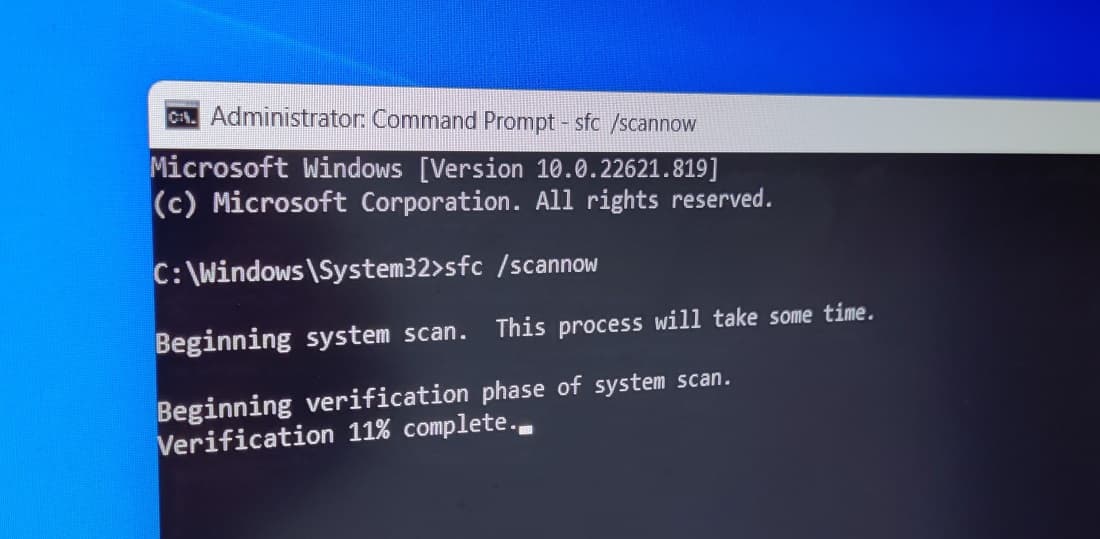
- Wait until the scan reaches 100%.
- Restart your PC when it finishes.
If SFC reports that it could not repair some files, run DISM:
DISM /Online /Cleanup-Image /RestoreHealthAfter DISM finishes, run sfc /scannow once more and restart Windows.
Then open the Start menu and test Search again.
Quick Insight: This fix is more relevant when Search problems appeared alongside other Windows issues, such as broken Settings pages, Start menu glitches, or errors after a major update.
6. Re-register Windows Search Components
If Start menu Search still doesn’t work after repairing Windows system files, the Search component itself may have a problem. Re-registering the built-in Windows app packages can refresh their registration without reinstalling Windows.
- Open Start and search for PowerShell.
- Right-click Windows PowerShell and select Run as administrator.
- Copy and run the following command:
Get-AppxPackage -AllUsers | ForEach-Object { Add-AppxPackage -DisableDevelopmentMode -Register "$($_.InstallLocation)\AppXManifest.xml" }

- Wait for PowerShell to finish. You may see some red error messages for packages that cannot be registered; these do not necessarily mean the operation failed.
- Restart your PC.
- Open the Start menu and test Search again.
This command re-registers Windows’ built-in app packages, including components used by the Start menu and other parts of the Windows interface.
If Search is still not working, the problem may be specific to your Windows user account.
7. Test Search With a New Windows User Account
Sometimes Start menu Search works normally in a new Windows account but not in your existing profile. This can happen when settings or user-profile data become corrupted.
Create a temporary local account and use it to test Search.
- Open Settings with Win + I.
- Go to Accounts > Other users.
- Click Add account.
- When Microsoft asks for an email address, select I don’t have this person’s sign-in information.


- Select Add a user without a Microsoft account.
- Enter a temporary username and password, then finish creating the account.


- Sign out of your current account and sign in to the new account.
- Open the Start menu and try searching for an app or setting.
If Search works normally in the new account, the problem is likely limited to your original Windows profile rather than Windows Search itself.
8. Check for Another Windows Update or Uninstall a Recent Update
If Start menu Search stopped working shortly after installing a Windows update, the update may be related to the problem. Microsoft sometimes releases a follow-up update that fixes issues introduced by an earlier update.
First, check whether another update is available.
- Open Settings with Win + I.
- Go to Windows Update.
- Click Check for updates.
- Install any available updates and restart your PC.
- Test Start menu Search again.


Uninstall a Recent Windows Update
If Search stopped working immediately after a recent update and no newer update fixes the problem, you can consider removing the latest quality update.
- Open Settings > Windows Update > Update history.
- Scroll down and select Uninstall updates.
- Find the most recently installed quality update.
- Click Uninstall next to it.
- Follow the instructions and restart your PC.
Only consider uninstalling an update if the Search problem started after that update. Windows doesn’t allow you to remove every update, and security or feature updates may have different uninstall options.
After restarting, check whether Start menu Search works normally
9. Repair Windows 11 Without Removing Your Files
If Start menu Search still isn’t working after trying the previous fixes, Windows itself may have a deeper component problem. Before considering a clean installation, you can repair Windows 11 while keeping your personal files, apps, and settings.
On supported Windows 11 versions, you can use the Fix problems using Windows Update recovery option.
- Open Settings with Win + I.
- Go to System > Recovery.
- Look for Fix problems using Windows Update.
- Click Reinstall now.
- Follow the instructions on screen and let Windows complete the repair.
- Restart your PC if prompted.
- Open the Start menu and test Search again.


This option reinstalls the current version of Windows using Windows Update while preserving your apps, files, and settings. Keep your PC connected to power and the internet during the process.
If you don’t see Fix problems using Windows Update on your PC, the option may not be available for your particular Windows 11 installation. In that case, you can use Windows 11 installation media as the final repair option.
If Start Menu Search Still Doesn’t Work
If Start menu Search is still not working after trying all nine fixes, the problem may be deeper than a temporary Search or indexing issue. At this point, make sure Windows is fully updated and that your important files are backed up.
If Search works correctly in a new user account, moving to a fresh Windows profile may solve the problem. If it doesn’t work for any account, you may need to consider a Windows 11 repair installation or, as a last resort, Reset this PC.
Before choosing a reset or clean installation, back up your important files and make sure you have access to your Microsoft account and any software licenses you may need to set up Windows again.
Frequently Asked Questions
It can happen because of a Windows Search service problem, corrupted search index, damaged system files, or an issue caused by a recent Windows update.
An update can sometimes affect Windows components or services used by Search. Install pending updates or, if appropriate, uninstall the recent update can help.
Open services.msc, find Windows Search, right-click it, and select Restart.
No. Rebuilding the index only recreates Windows’ search database. Your files and folders remain unchanged.
If basic fixes don’t help, the problem may involve a damaged Windows component or user profile. Try a new Windows user account or an in-place Windows repair as more advanced troubleshooting options.