Windows updates bring security improvements and the latest bug fixes that help keep your PC running smoothly. Recently, Microsoft released Windows 11 KB5127648 with several new features and resolve issues causing Microsoft Teams and the new Outlook to crash or fail to launch. However, sometimes an update doesn’t go as planned. You may notice Windows 11 KB5127648 may get stuck downloading at 0%, stop progressing at 99%, or keep retrying without completing the download. This issue mostly happens because of a poor internet connection, corrupted update files, or a problem with Windows Update services. In some cases, insufficient free disk space or conflicts with background services (such as the Windows Update service or third-party antivirus software) could be the reason. In this guide, we’ll show you how to fix Windows 11 KB5127648 download problems, starting with basic checks and moving on to clearing temporary update files, resetting Windows Update components, and other practical solutions.
Why Windows 11 KB5122880 stuck downloading?
Windows Update first downloads the required files from Microsoft servers before installing them. If something interrupts this process, KB5127648 may remain at the same percentage or fail to download completely. It could be slow internet, corrupted Windows Update cache, damaged system files, insufficient free disk space, or conflicts with background services.
Common causes include:
- Unstable internet connection: Connection drops or network interruptions can prevent Windows Update from downloading all the required files.
- Corrupted update files: A previous incomplete download may cause Windows Update to get stuck when it tries again.
- Windows Update service issues: If the services responsible for downloading updates aren’t working properly, the download may stop progressing.
- Insufficient disk space: Windows needs free space to download, unpack, and prepare update files.
- Temporary Windows glitches: A pending restart or a temporary system problem can sometimes interrupt the update process.
Start with basic checks, and move on to Windows Update repairs only if the download remains stuck.
1. Wait a Little Longer and Restart Your PC
If Windows 11 KB5127648 appears stuck at a certain percentage, don’t assume the download has failed right away. Windows Update may take longer to process files, especially on a slow internet connection or a PC with limited resources.
Give the download some time and check whether the percentage changes. If it stays unchanged for a long time, restart your PC and try downloading the update again.
Here’s what to do:
- Open Settings by pressing Windows + I.
- Select Windows Update.
- Check the download status of KB5127648.
- If it hasn’t progressed for a long time, save your open work and restart your PC.
- After Windows starts, return to Settings > Windows Update and check whether the download resumes.
2. Check Your Internet Connection and Free Up Disk Space
Windows Update needs a stable internet connection to download KB5127648. If your connection keeps dropping or is very slow, the download may stall or repeatedly fail to make progress. Also, insufficient free space on your Windows drive can prevent the update files from downloading and preparing correctly.
Here’s what you can do:
- Check your internet connection: Open a browser and visit a few websites. If pages load slowly or fail to open, restart your router or switch to another network if possible.
- Temporarily disconnect your VPN or proxy: If you’re using one, disconnect it and try downloading the update again.
- Check available disk space: Open File Explorer, select This PC, and check the free space on your Windows drive, usually C:.
- Remove unnecessary temporary files: Press Windows + I, go to System > Storage > Temporary files, and review the items Windows identifies. Avoid selecting Downloads if you want to keep those files.
- Try Windows Update again: Return to Settings > Windows Update and check whether KB5127648 continues downloading.


If your connection is stable and your Windows drive has enough free space, but the download remains stuck, continue to the next fix.
3. Run the Windows Update Troubleshooter
If your internet connection works and you have enough free space, the problem may be with Windows Update itself. Windows 11 includes a built-in troubleshooter that can detect common update-related problems and try to resolve them automatically.
- Press Windows + I to open Settings.
- Go to System > Troubleshoot > Other troubleshooters.
- Find Windows Update and click Run.
- Follow the instructions in the troubleshooter or the Get Help app if it opens.


- Apply any recommended fixes and restart your PC if prompted.
- Open Settings > Windows Update and check whether KB5127648 downloads and installs without any problems.
The troubleshooter may fix issues with update services or settings, but it won’t resolve every cause of a stalled download.
4. Switch to Google DNS
If your internet connection works but Windows 11 KB5127648 still won’t download, your current DNS server may struggle to resolve some addresses. Let’s switch to Google DNS and see whether DNS configuration is causing the problem.
Google’s public DNS addresses are 8.8.8.8 and 8.8.4.4. Here’s how to configure them in Windows 11:
- Press Windows + I to open Settings.
- Go to Network & internet and select your active connection, such as Wi-Fi or Ethernet.
- Open the connection’s hardware or network properties and find DNS server assignment.
- Click Edit, change the setting to Manual, and enable IPv4.
- Enter
8.8.8.8as the Preferred DNS and8.8.4.4as the Alternate DNS. - Save the changes, then reopen Windows Update and try downloading KB5127648 again.

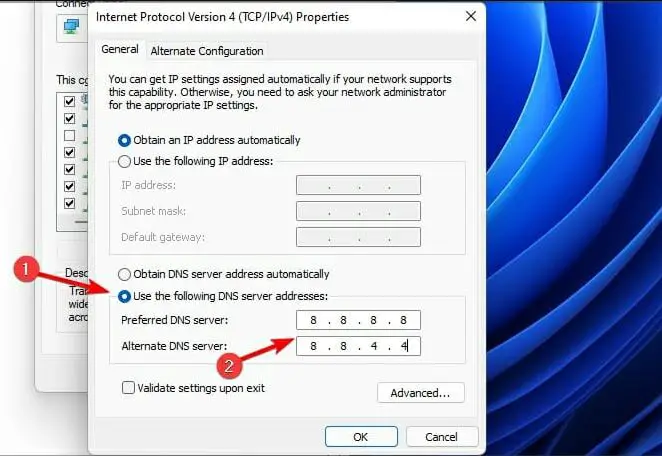
The exact labels may vary slightly depending on your Windows 11 version and connection type. If switching DNS doesn’t help, restore your previous DNS settings and move on to the next fix.
5. Restart the Windows Update Service
Windows Update relies on background services to download update files and manage the update process. If one of these services stops responding, KB5127648 may stay stuck at the same percentage even when your internet connection works properly.
Restarting the Windows Update service can help clear a temporary service issue without resetting all Windows Update components.
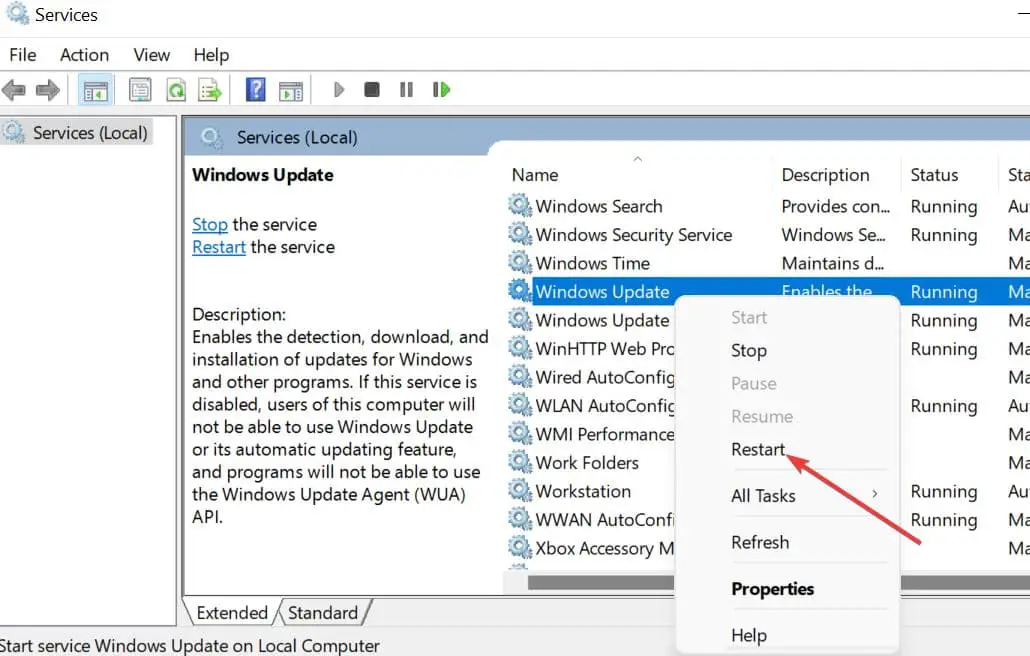
- Press Windows + R, type
services.msc, and press Enter. - In the Services window, find Windows Update.
- Right-click it and select Restart. If Restart isn’t available, select Stop, wait a few seconds, and then select Start.
- Close the Services window.

- Restart your PC if needed, then open Settings > Windows Update and check the download status.
Make Sure Windows Update Service is Running
6. Clear the Windows Update Download Cache
Sometimes, Windows Update gets stuck because previously downloaded files are incomplete or corrupted. Windows stores temporary update downloads in the SoftwareDistribution folder. Clearing the contents of its Download subfolder allows Windows to fetch fresh copies from Microsoft.
- Press Windows + R, type
services.msc, and press Enter. - Find Windows Update, right-click it, and select Stop.


- Open File Explorer and navigate to:
C:\Windows\SoftwareDistribution\Download - Open the Downloads folder and delete its contents. Approve administrator permission if prompted.

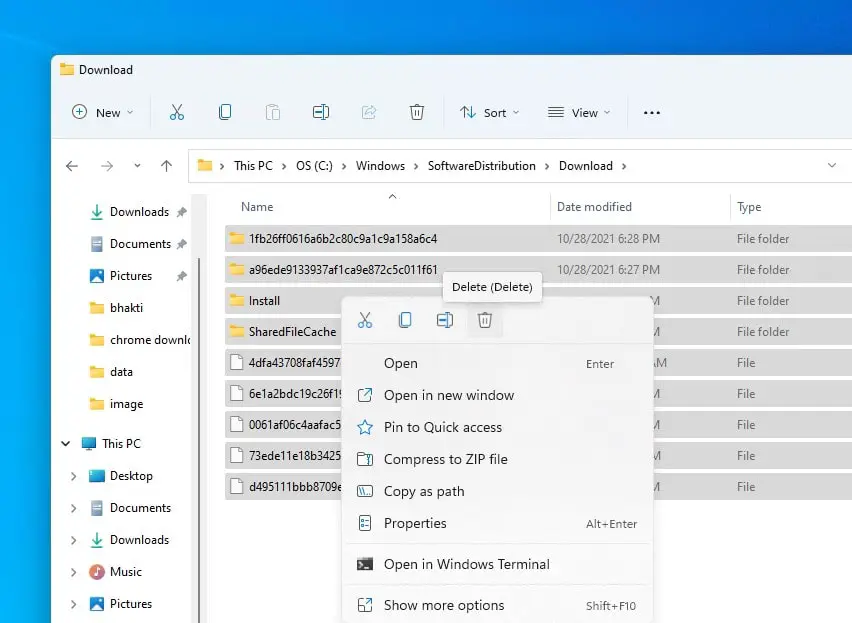
- If some files are in use, skip those files rather than forcing their deletion.
- Return to Services, right-click Windows Update, and select Start.
- Restart your PC, open Settings > Windows Update, and try downloading KB5127648 again.
Note: Delete only the contents of the Download folder, not the entire SoftwareDistribution folder. This removes temporary update downloads, not your personal documents or installed applications.
7. Reset Windows Update Components
If clearing the download cache doesn’t help, other Windows Update components may be preventing KB5127648 from downloading correctly. Resetting these components rebuilds the update cache and restarts the services involved in the process.
This method is more advanced than clearing the download folder, so follow the commands carefully.
- Open Start, type
cmd, and select Run as administrator. - Enter each command below separately, pressing Enter after each one:
net stop wuauserv, net stop bits, net stop cryptsvc - Rename the Windows Update cache folder:
ren C:\Windows\SoftwareDistribution SoftwareDistribution.old - Rename the catalog cache folder:
ren C:\Windows\System32\catroot2 catroot2.old - Restart the services by running these commands individually:
net start cryptsvc, net start bits, net start wuauserv


- Restart your PC and open Settings > Windows Update.
- Check whether KB5127648 starts downloading normally.
Important: If you can’t stop a service or rename a folder, don’t force the operation. If a folder named SoftwareDistribution.old or catroot2.old already exists, resolve that naming conflict before proceeding rather than deleting it blindly.
8. Repair Windows System Files Using DISM and SFC
Windows Update depends on system components to download, prepare, and service updates. If these components are damaged, downloads or the transition to installation may not work correctly. Windows includes two repair tools: DISM, which checks and repairs the Windows component store, and System File Checker (SFC), which scans protected system files for corruption.
To run both tools:
- Open Start, type
cmd, and select Run as administrator. - Run this command first:
DISM /Online /Cleanup-Image /RestoreHealth - Wait for DISM to finish. The process may take several minutes, and the progress indicator can pause temporarily.
- Next, run:
sfc /scannow - Wait until the scan reaches 100%, then review the results.
- Restart your PC and check Windows Update again.


DISM may need an internet connection to download required files from Microsoft servers. If it reports that the source files could not be found, you may need a compatible Windows repair source.
These tools are especially useful if Windows Update keeps behaving abnormally after you clear its cache and restart its services.
9. Check the Update Error Code
If Windows 11 KB5127648 is still stuck downloading, check whether Windows Update displays an error code. The code can help distinguish a download problem from an issue with update services or system components.
Here’s where to look:
- Open Settings > Windows Update.
- Check the message displayed beside KB5127648.
- If the update has failed, open Update history and find the relevant entry.
- Write down any error code shown and search for that exact code in Microsoft’s documentation.
Some common codes can point you toward the next troubleshooting step:
| Error code | What to investigate |
|---|---|
0x80240034 | An update download or installation did not complete. Retry the download and check the connection. |
0x80070002 | Required files may be missing or inaccessible. Clear the download cache. |
0x8007000D | Data may be invalid or corrupted. Clear cached files and run DISM and SFC. |
0x80070005 | Access was denied. Check for software conflicts or permission-related issues. |
0x800F081F | Required source files could not be found during a repair or servicing operation. Check the repair source and Windows version. |
These codes can have different causes and aren’t necessarily specific to KB5127648. Use the suggested actions as starting points rather than guaranteed fixes.
You can also check Microsoft’s Windows release health dashboard for known issues affecting your Windows version.
What If KB5127648 Still Won’t Download?
If you’ve tried the fixes above and the download remains stuck, check whether Microsoft has documented a known issue with the update or made a newer cumulative update available for your Windows version.
You can search the Microsoft Update Catalog for KB5127648 to check the available packages. However, downloading a package manually is mainly useful when you need to bypass the normal Windows Update download process; it won’t resolve every underlying service or system problem.


Before trying more extensive repairs, note any error code and back up important files if you plan to use Windows recovery options. You generally don’t need to reset or reinstall Windows just because one cumulative update is taking too long to download.

Frequently Asked Questions
An unstable internet connection, a Windows Update service problem, corrupted cached files, or insufficient disk space may be affecting the download. Check your connection first, then restart your PC and try the Windows Update troubleshooter.
Windows Update may still be processing downloaded files, so the percentage doesn’t always reflect ongoing activity accurately. Give it some time before restarting your PC. If it stays unchanged for a long time, restart the Windows Update service and clear the download cache.
No. Deleting the contents of C:\Windows\SoftwareDistribution\Download removes temporary update files, not your personal documents, photos, or installed applications. Windows can download the required update files again.
Check the Microsoft Update Catalog for an applicable package. Make sure it matches your installed Windows 11 version and system architecture. Manual installation may bypass a download problem, but it won’t necessarily fix damaged Windows components or other underlying issues.
Not immediately. A slow connection or background processing can make progress appear stalled. Check your internet connection and give the download time to progress. If it stays stuck, use the troubleshooting steps in this guide instead of repeatedly interrupting the update.