


The latest windows 11 comes with a number of new features and improvements, and it’s available as a free upgrade for compatible devices. If your device meets windows 11 minimum system requirements you can go ahead and upgrade your device and enjoy the latest operating system. Well over time it could malfunction, become infected with malware or display a black screen with a cursor or blue screen error. A number of users report, Laptop freezes after windows 11 update or upgrade, or black screen at startup. There are different ways to fix windows 11 problems, and here in this post, we discuss how to repair windows 11 and windows 10 using command prompt.
What is a command prompt?
Command Prompt, also known as cmd.exe or cmd is a windows utility that let you execute entered commands. It can automate tasks, troubleshoot issues, and perform all sorts of functions.
- You can press the Windows key + R, type cmd and press enter key to open the command prompt on your computer.
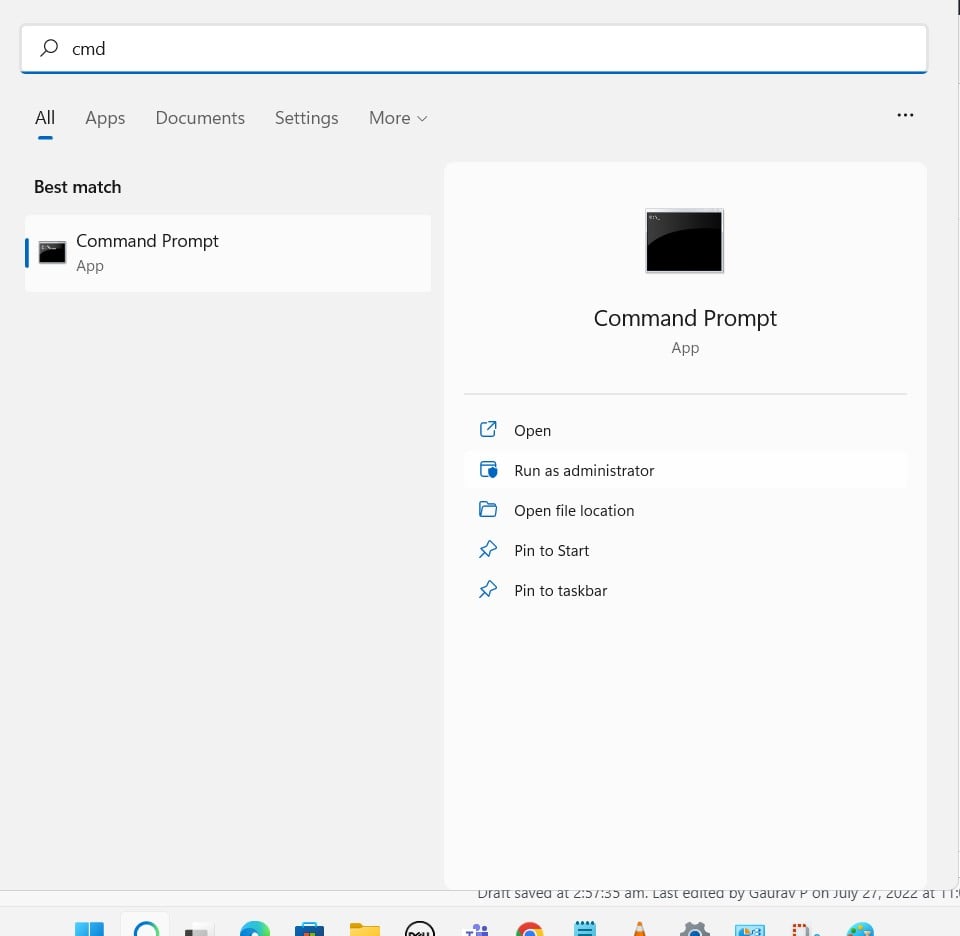
- Also, you can press windows key + S, type cmd, Right click on the command prompt, and select run as administrator.

Repair Windows 11 Using Command Prompt
You can perform different commands to perform certain tasks. such as ipconfig command to display IP address, subnet mask, default gateway and DNS address. Again Shutdown command Lets you shut down or restart your computer. Or Defrag command let you Defragments the hard drive, reorganizing the files to make data retrieval faster and more efficient and the Driverquery command Gives you a list of all the drivers installed. Here in this post, we discuss 5 useful commands that help you fix different problems on your windows 11 or 10 PC. Let’s start
Integrity check with SFC utility
The SFC (System File Checker), a utility somewhat awkwardly called “System File Checker” by Microsoft, to check the operating for corrupted or missing system files. The tool scans the Windows 11 installation folder and detects missing or corrupted components. If it finds one or more incorrect entries, it replaces the affected files with an undamaged version if possible.
It’s the easiest and fastest technique to assess the integrity of your computer, detect problems with installations and updates, and find replacements for missing or corrupted files where possible.
- First, open the command line with administrator rights. To do this, Search for cmd, right-click on the command prompt and select run as administrator.
- Type the command sfc /scannow and confirm with the Enter key.
- After that, Windows 11 will start the system file search – wait for the process to complete.
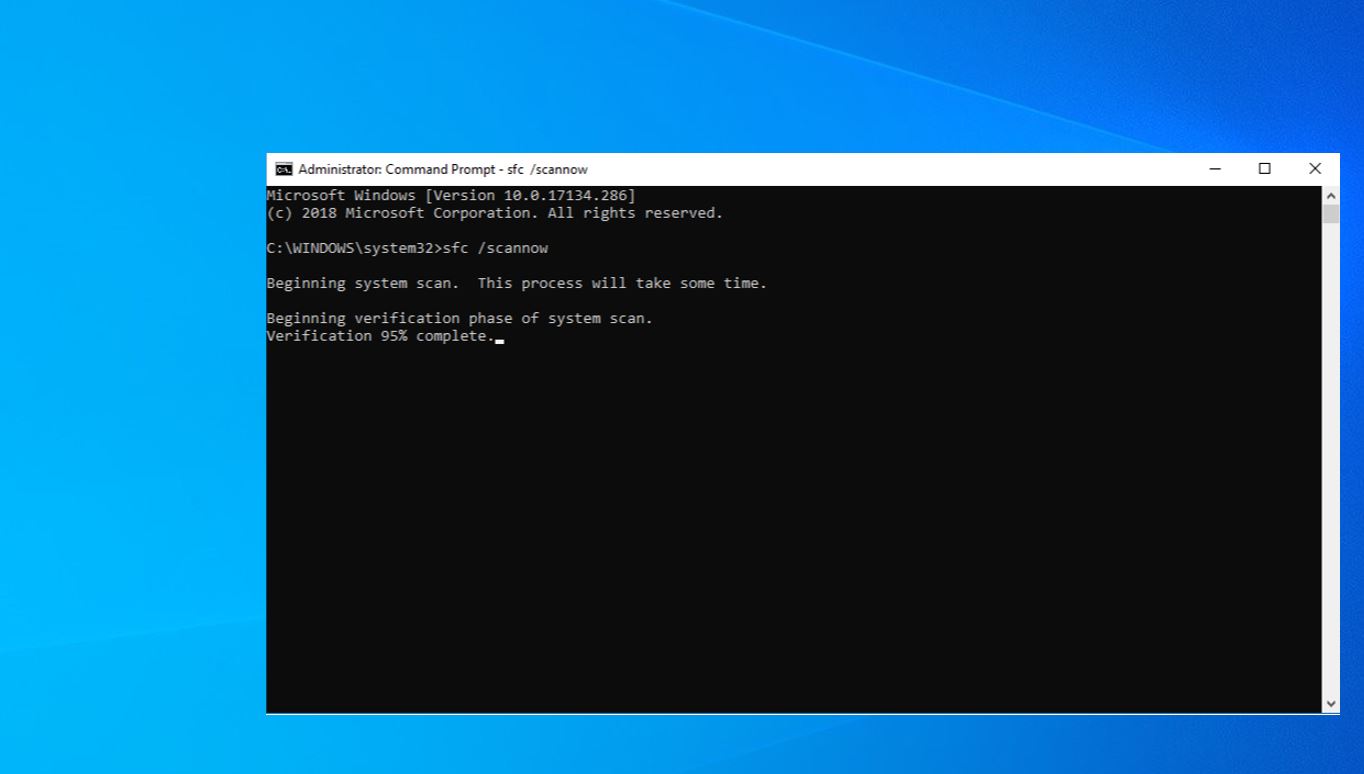

If the program reports “Windows Resource Protection did not find any integrity violations”, everything is fine. Otherwise, SFC will show you which files have been recovered. In this case, restart SFC. If the repair was successful, no more integrity errors should be found now.
This is a very useful command you must run to fix blue screen or black screen problems when Windows 11 freezes or run very slow or windows update fails to install and more.
Repair Windows 11 with DISM
DISM (Deployment Image Servicing and Management) is a command line tool and closely related to SFC. DISM commands actual job is to check and mount image files. As an additional feature, the command can also check and repair the system files within what is known as the Windows 11 component store.
In addition, if due to some reason, SFC command doesn’t work, or SFC scan results, the system file checker found corrupt files but was unable to fix them in such case you can run the Deployment Image Servicing and Management (DISM) command to repair the underlying Windows system image.
The Deployment Image Servicing and Management (DISM) tool can be used to scan and repair potential issues with the .wim store in Windows that may impact system files.
To run DISM, first open command prompt as administrator,
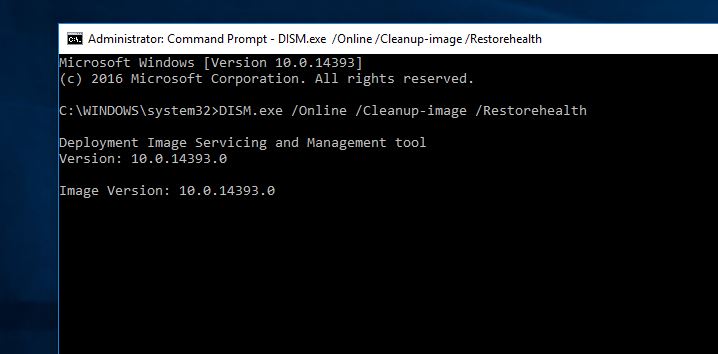
- First run command dism /online /cleanup-image /scanhealth and press enter key, to determine any corruptions inside the local Windows 11 image.
- Next, run the command dism /online /cleanup-image /checkhealth that does a more advanced scan to find out whether the image has any problems.
- If there are problems with the system image run the command dism /online /cleanup-image /restorehealth to automatically scan and repair common issues.

Fix disk errors with Chkdsk
Chkdsk (Checkdisk) is one of the oldies among the repair tools in Windows 11. The utility, available as early as MS-DOS in the late 1980s, detects and fixes a number of file system errors on hard drives and SSD drives.
chkdsk is a command line tool checks the file system and file system metadata of a volume for logical and physical errors. Or It verifies the file system integrity of a volume and attempts to fix logical file system errors.
This utility is very useful, especially when you get disk drive errors, high disk usage problems or windows stuck check disk drive errors at startup.
- Open command prompt as administrator,
- Type command chkdsk C: followed by Enter to launch the tool in read-only mode.
This command chkdsk c: command only search for problems within the file system on drive C: and then displays them to you. Changes to the relevant drive – in our example C: – are not made in read-only mode. By appending the two parameters /f (file system error correction) and /r (sector error correction) you start an error check with a subsequent repair attempt. The full command for this is
chkdsk C: /f /r
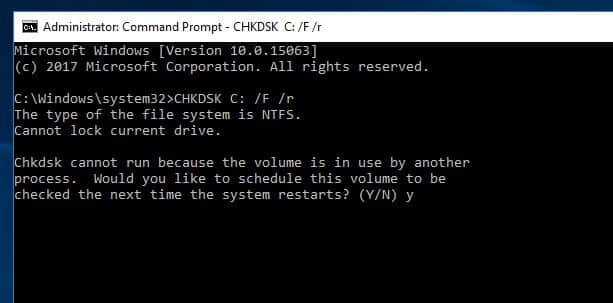

If the disk to be checked is the Windows 11 system drive, a reboot is required, during which Chkdsk will run automatically.
Edit partitions using diskpart
The drive and partition manager Diskpart is one of the most complex and at the same time riskiest command line tools in Windows 11. It supports experienced users in managing hard drives and SSDs without a double bottom. Many of the functions are also available to you in the Windows tool “Create and format hard disk partitions” in a graphical and therefore less error-prone form.
The diskpart command interpreter helps you manage your computer’s drives (disks, partitions, volumes, or virtual hard disks). You can use this utility to perform simple disk-related tasks, such as creating and deleting partitions and volumes, and complex tasks, such as creating, maintaining, and managing fault-tolerant volumes.
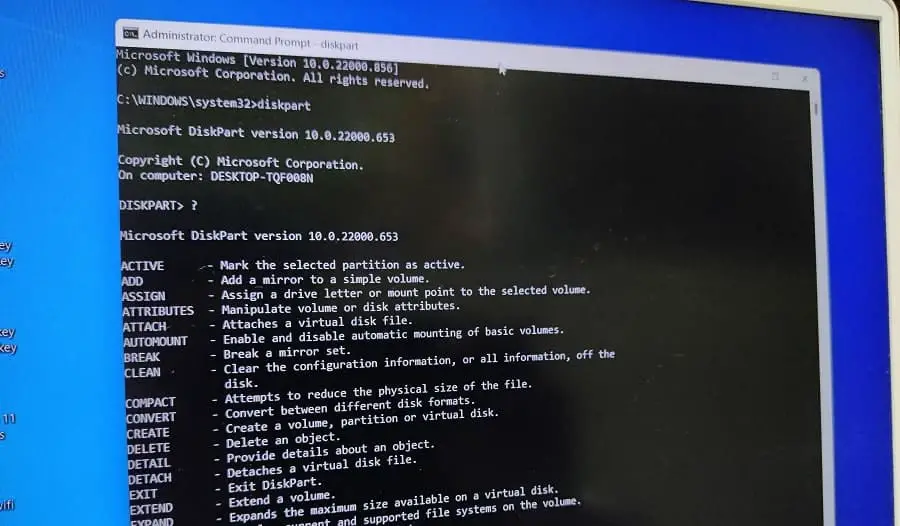
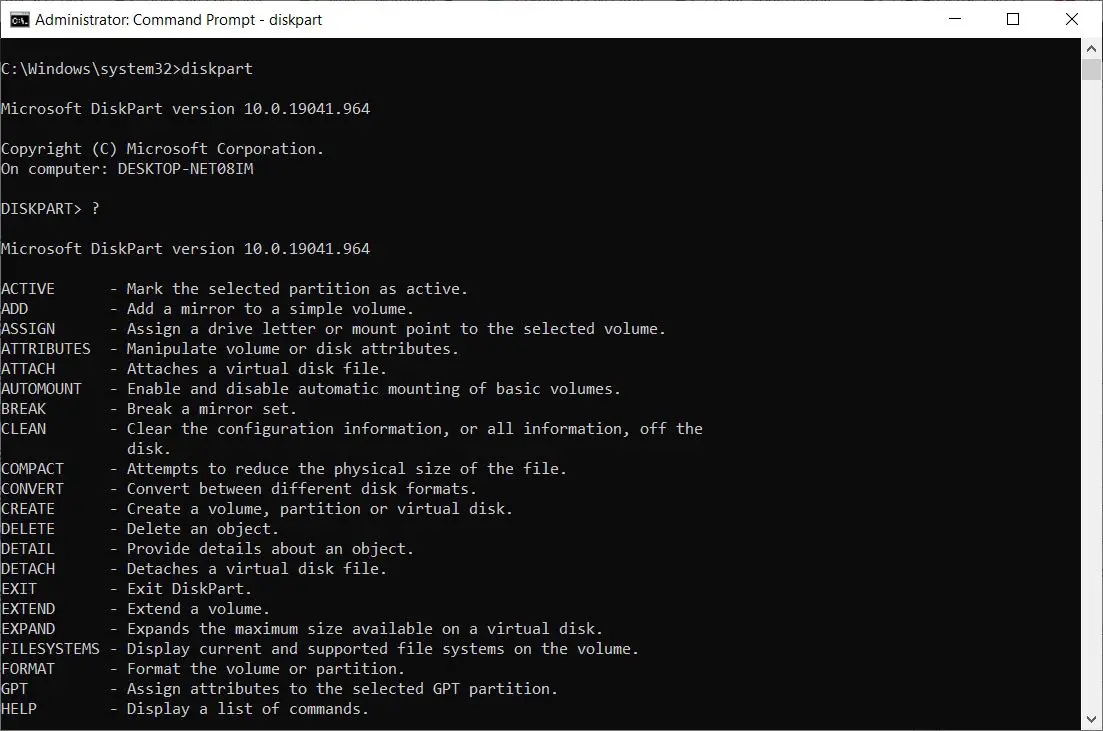
Open the command prompt as administrator, type diskpart and Enter key takes you to the Diskpart command line. This provides you with a hodgepodge of commands related to disk management – you can call up an overview by entering a question mark (?) and pressing Enter.

Start Driver Verifier
Driver Verifier Manager is designed to detect problems related to broken device drivers. Driver Verifier monitors Windows kernel-mode drivers and graphics drivers to detect illegal function calls or actions that might corrupt the system.
Driver verifier manager is very useful tool to identify problematic drivers, you can also use it to diagnose driver issues with blue screen of death or anything you thing there is a driver problem.
Open the command prompt as administrator and type verifier followed by the Enter key.
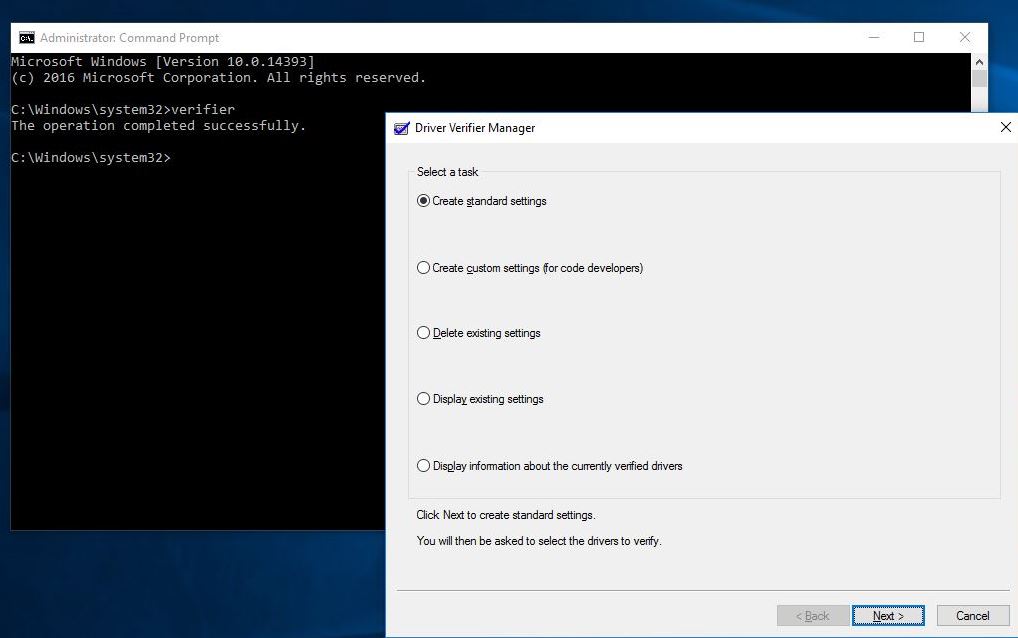

In the following, the driver check assistant reports with a number of by no means self-explanatory check functions. Windows 11 restarts with “Create default settings” followed by “Automatically select all drivers installed on this computer”. It tests the existing drivers. A message about a faulty driver may already be displayed. Otherwise, launch the Driver Verifier tool again and go to “View information about verified drivers”.

Also read:
- How To Disable driver signature enforcement windows 10
- Windows 10 Photos app not working File system error -2147219196
- Windows 11 Laptop battery drains quickly? 7 ways to Improve Battery Life
- Windows 11 privacy settings you should change now (protect your privacy)
- Windows 10 High CPU usage and 100% disk usage after Windows update


