Microsoft has introduced Windows 11, the successor to Windows 10, as a modern, more secure, and visually refreshed version of the world’s most popular desktop operating system. It is offered as a free upgrade for eligible Windows 10 PCs that meet the new hardware requirements. However With Windows 11, Microsoft has become much stricter about hardware requirements than it was with Windows 10. This time, you don’t just need a 64‑bit CPU and some RAM – your PC must also support TPM 2.0, Secure Boot, and be on Microsoft’s list of supported processors. These tighter requirements are designed to improve security, reliability, and performance, but they also mean that many older PCs that run Windows 10 perfectly well are not officially eligible for Windows 11.
Let’s take a look at
- What Microsoft officially recommends for Windows 11 system requirements
- How to check if your PC is compatible (TPM 2.0, Secure Boot, CPU, RAM, storage)
- How to upgrade from Windows 10 to Windows 11 for free on supported devices
- How to clean install Windows 11 on a new or existing PC
Contents
Windows 11 hardware and system requirements
Windows 11 has stricter hardware requirements than Windows 10. This is mainly to improve security, reliability, and performance on modern PCs. To install Windows 11 on your computer, here are the system requirements Microsoft officially recommends.
- At least 4GB of system memory (RAM).
- At least 64GB of available storage. More space is recommended for updates, apps and personal files.
- One of the officially approved processors (CPUs) is currently listed on three lists: AMD, Intel, and Qualcomm.
- A graphics processor that is compatible with DirectX 12 and Windows Display Driver Model (WDDM) 2.0 or greater.
- A monitor or display with at least 720 dots per inch resolution.
- TPM – Trusted Platform Module (TPM) version 2.0
- System firmware, UEFI, with Secure Boot capability enabled.
If your computer meets or exceeds these requirements, then you should have no issue installing the new OS
Tip: You can usually enable TPM 2.0 and Secure Boot from your PC’s UEFI/BIOS settings if they are supported but currently disabled. Here is a dedicated article explain how to enable TPM and Secure Boot on your PC.
How to check if your PC supports Windows 11
Before you try to upgrade, you should check if your current PC is officially compatible with Windows 11.
Use the PC Health Check app
Microsoft offers a free PC Health Check tool that quickly tells you whether your device meets the Windows 11 requirements.
- Download the PC Health Check app from Microsoft’s official website.
- Install and open the app.
- Click the Check now button under the Windows 11 section.
- The tool will show whether your PC meets the requirements or not, and highlight which component fails if it doesn’t.

Manually verify key requirements
If you prefer, you can manually check the most important points:
CPU support:
- Find your processor model in Settings > System > About, then compare it with the official supported CPU lists for Intel, AMD or Qualcomm on Microsoft’s site.
TPM 2.0:
- Press Windows key + R, type
tpm.mscand press Enter. - In the TPM Management window, check the Status and Specification Version on the right. It should say TPM is ready for use and Specification Version: 2.0.
Secure Boot:
- Go to Settings > System > About > Advanced system settings > Startup and Recovery > UEFI firmware settings, or restart into the firmware/BIOS menu.
- In UEFI settings, confirm that Secure Boot is present and enabled (often found under Security or Boot settings).
If your PC fails on CPU, TPM 2.0 or Secure Boot, it will not be officially supported for Windows 11. There are unofficial workarounds, but they are not recommended for production systems.
Is Windows 11 a free upgrade?
Yes, Windows 11 is a free upgrade for eligible Windows 10 PCs.
- If your computer is running a genuine, activated copy of Windows 10 and meets the system requirements, you do not need to buy a new license.
- The upgrade is delivered via Windows Update, similar to a feature update.
If you do not have a genuine Windows 10 license:
- You would need to purchase a Windows 10 / Windows 11 license or a new PC that comes with Windows 11 pre‑installed.
- Once activated, eligible devices can upgrade to the latest version of Windows 11.
How to upgrade Windows 10 to Windows 11
As of early 2026, most compatible Windows 10 PC users can upgrade to Windows 11 using one of the following methods.
Upgrade via Windows Update
This is the easiest way to upgrade on a supported device.
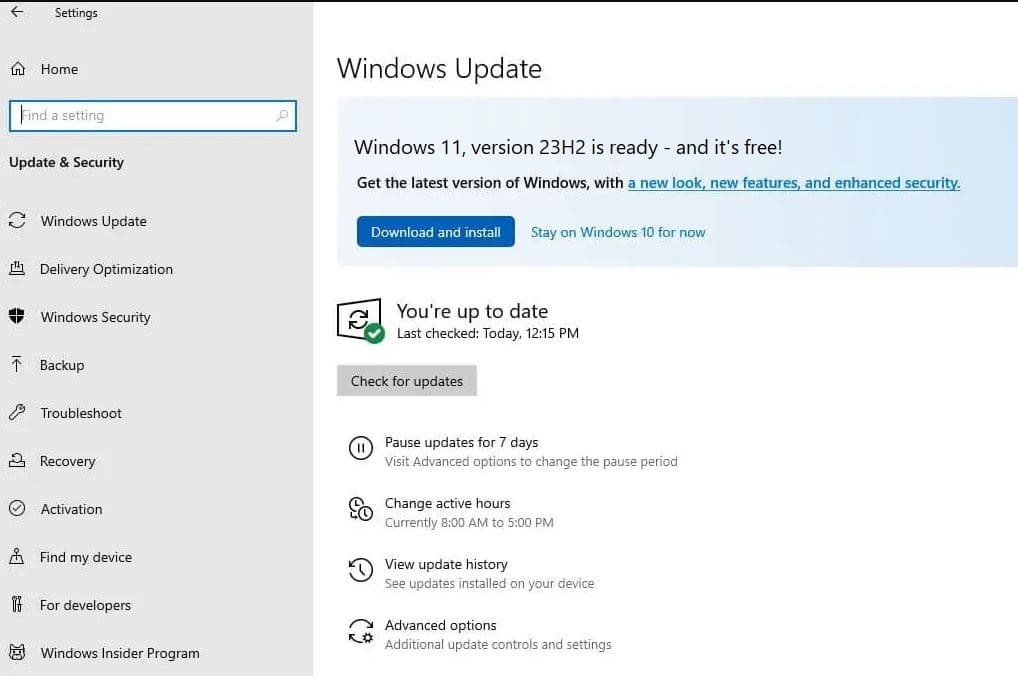
- Press Windows key + I to open Settings.
- Go to Update & Security > Windows Update (or Settings > Windows Update on newer builds).
- Click Check for updates.
- If your PC is compatible, you should see an option like Upgrade to Windows 11 or Windows 11, version 25H2 is ready.
- Click Download and install and follow the on‑screen instructions.
Use the Windows 11 Installation Assistant
If Windows Update does not show the upgrade, but your PC is compatible, you can use Microsoft’s official Windows 11 Installation Assistant.
- Visit Microsoft’s Download Windows 11 page.
- Download the Windows 11 Installation Assistant.
- Run the tool and accept the license terms.
- The Assistant will:
- Check compatibility.
- Download the latest Windows 11 build.
- Guide you through the upgrade process.
This keeps your apps and files while moving you to Windows 11.
Create installation media (USB/DVD)
If you want more control, or need to upgrade multiple PCs, you can create installation media.
- Go to Microsoft’s Download Windows 11 page.
- Download the Media Creation Tool (if available) or a Windows 11 ISO.
- Use the tool to create a bootable USB drive:
- Choose language, edition and architecture (64‑bit).
- Write to a USB flash drive (8 GB or larger recommended).
You can then either:
- Run
setup.exefrom the USB in Windows 10 to perform an in‑place upgrade, or - Boot from the USB to perform a clean install (see next section).
How to clean install Windows 11
A clean install wipes your system partition and installs a fresh copy of Windows 11. This is often the best option if:
- You want a completely fresh start.
- Your current Windows install is unstable or full of junk.
- You’re installing Windows 11 on a new SSD or new PC build.
Back up your data
- Save documents, pictures, videos and any important files to an external drive or cloud storage.
- Export browser favourites and email if needed.
Create a bootable Windows 11 USB
- Use Microsoft’s Media Creation Tool or download the Windows 11 ISO.
- Use the tool, Rufus or similar to make a bootable USB drive.
Boot from the USB
- Insert the USB into your PC.
- Restart and enter the boot menu or UEFI/BIOS (usually by pressing F2, F12, Del or Esc depending on your manufacturer).
- Select the USB drive as the boot device.
Start the Windows 11 setup
- Choose your language and keyboard layout.
- Click Install now.
- If prompted, enter your product key, or sign in with your Microsoft account on first boot to activate later.
Choose Custom install (fresh)
- Select Custom: Install Windows only (advanced).
- On the drive/partition screen, select the partition where Windows is currently installed.
- Delete or format that partition if you want a completely clean setup (be careful – this erases data).
- Select the empty/unallocated space and click Next.
Complete setup and first boot
- Windows will copy files, install features and reboot several times.
- On first boot, choose your region and keyboard layout.
- Sign in with a Microsoft account (required for Home edition, strongly encouraged for Pro).
- Choose privacy and sync settings.
After installation, install drivers (if not automatically detected), run Windows Update, and reinstall your apps.
If you experience a problem installing or upgrading Windows 11, check this troubleshooting guide.
What’s new in Windows 11? (short overview)
This article focuses on requirements and installation, but here’s a brief summary of what you get once Windows 11 is installed. Compared to Windows 10, Windows 11 offers:
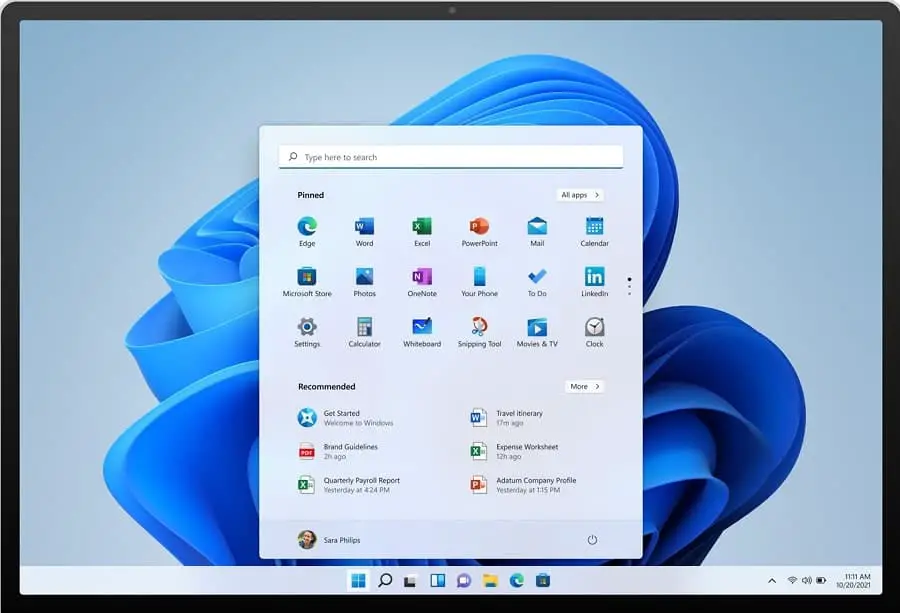
- A new design with a centred Start menu and taskbar, rounded corners and updated icons.
- Snap layouts and Snap groups for easier window management and multitasking.
- A Widgets board for quick access to weather, news, calendar, stocks and more.
- A modern Settings app that’s easier to navigate.
- A redesigned Microsoft Store with more apps, including Win32 titles.
- A modernised File Explorer with tabs and better OneDrive integration.
- Integrated Microsoft Teams (Chat) on the taskbar for quick calls and messages.
- AI features like Windows Copilot and AI‑powered tools across apps such as Paint, Photos and Clipchamp (introduced in later updates, now standard).
- Gaming improvements with Auto HDR, DirectStorage and a built‑in Xbox app.
- A stronger security baseline using TPM 2.0, Secure Boot, virtualization‑based security and support for passkeys.
You can read these features in detail on our dedicated article, What’s new on Windows 11 version 25H2.
Should you upgrade to Windows 11 now?
As of January 2026, Windows 11 is mature and stable. Several feature updates (22H2, 23H2, 24H2 and 25H2) have improved performance, fixed early bugs and added important features like Copilot, AI apps and File Explorer enhancements.
Some points to consider:
- Windows 10 support: Microsoft end support for Windows 10 with security updates on October 14, 2025. After that, staying on Windows 10 will become less secure over time.
- Stability: Most early issues with Windows 11 have been resolved through cumulative and feature updates.
- Features and security: New features (especially AI and modern apps) arrive on Windows 11 first, and security improvements are designed around its newer hardware requirements.
If your PC meets the system requirements and you rely on your computer for work or study, it’s usually a good idea to upgrade to Windows 11 now or in the near future, so you can:
- Get used to the new interface before Windows 10 support ends.
- Take advantage of new productivity and security features.
- Receive ongoing feature and security updates.
If you have very old or critical legacy apps or hardware that only officially support Windows 10, test them carefully on a non‑production machine before fully switching.
Frequently Asked Questions
Q: What are the minimum system requirements for Windows 11?
A: Windows 11 requires a compatible 64‑bit CPU with at least 2 cores and 1 GHz, 4 GB RAM, 64 GB storage, UEFI firmware with Secure Boot, TPM 2.0, a DirectX 12 compatible GPU with WDDM 2.0 driver, and a display of at least 9 inches with 720p resolution.
Q: How do I check if my PC can run Windows 11?
A: The easiest way is to use Microsoft’s PC Health Check app, which tells you if your hardware meets Windows 11 requirements. You can also manually check for TPM 2.0, Secure Boot, a supported CPU, 4 GB RAM and at least 64 GB storage in your system settings and UEFI/BIOS.
Q: Is Windows 11 a free upgrade from Windows 10?
A: Yes. If you have a genuine, activated copy of Windows 10 on compatible hardware, Windows 11 is available as a free upgrade via Windows Update or Microsoft’s Installation Assistant. You only need to buy a license if your current Windows is not genuine or you are building a new PC without a license.
Q: Do I need TPM 2.0 and Secure Boot to install Windows 11?
A: For an officially supported installation, yes. Microsoft requires TPM 2.0 and Secure Boot as part of the Windows 11 security baseline. Some unofficial workarounds exist, but they are not recommended and may block future updates or cause stability issues.
Q: What is the best way to upgrade from Windows 10 to Windows 11?
A: The recommended method is to upgrade via Windows Update: go to Settings > Windows Update, check for updates, and choose Download and install if Windows 11 is offered. This keeps your files and apps. For more control, you can use the Windows 11 Installation Assistant or a bootable USB created from the official ISO.