


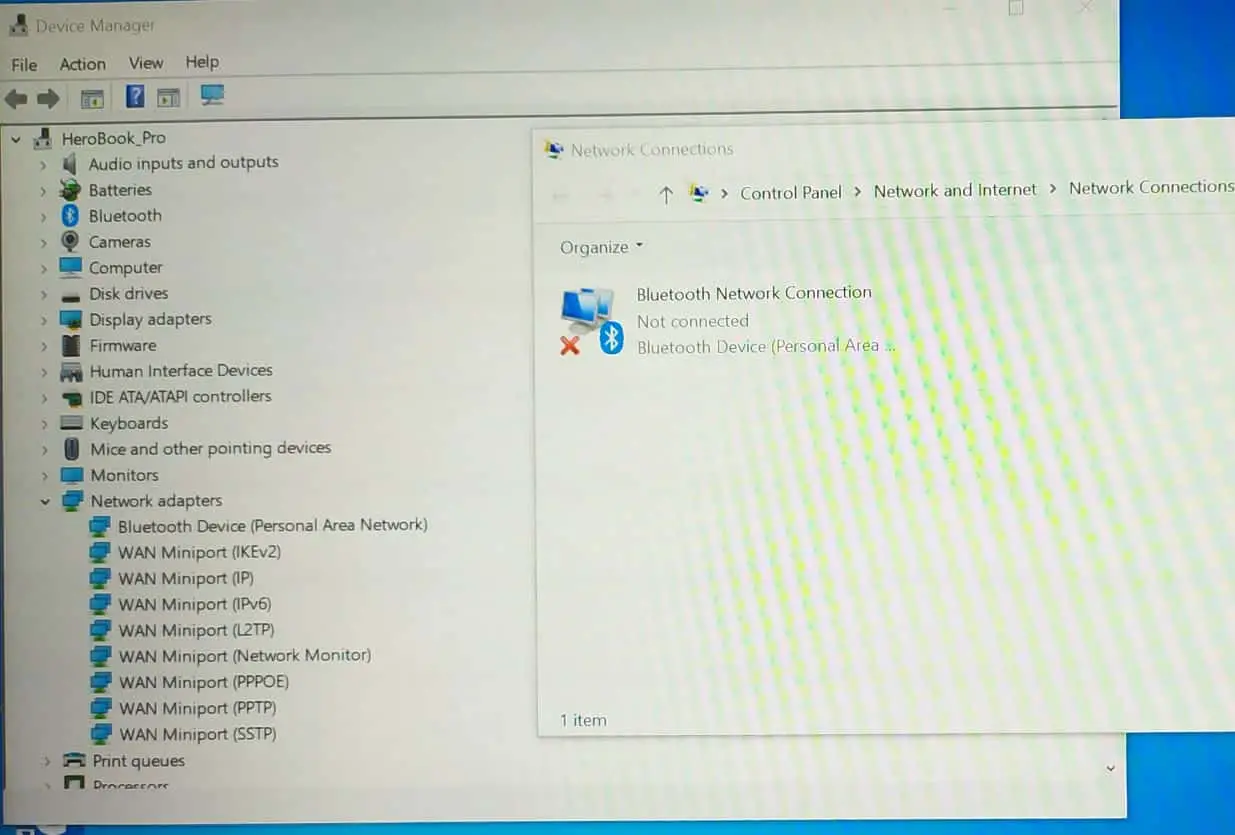
Did the Network adapter Missing after the Windows update or the Network adapter not show in the device manager on Windows 10 computer? This is because the network driver is not installed or an older network card driver is installed on your computer. This is a serious issue because you won’t be able to access the Internet until the issue is resolved. Here in this post we have useful solutions apply to Get Back Missing Network Adapter from Device Manager in Windows 10/8/7
Network Adapter Missing in Windows 10
If your PC fails to recognize the network adapter, you won’t be able to see it in the Device Manager, reboot your computer and check the network adapter status.
Also, if you have connected an Ethernet cable, you should unplug it and plug it in again.
Start your computer in clean boot state that helps fix if any third-party service interruption causing the issue.
Open the command prompt as administrator, type command netcfg -d and press the enter key. Close the command prompt and reboot your computer to let the changes take effect on your computer.
In addition, try turning off your VPN or antivirus and check the power settings.
Show Hidden Drivers in Windows 10
The network adapter is missing because Device Manager doesn’t display it. Here is how you can make the network adapter visible:
- Press Windows key + R, type devmgmt.msc and click ok
- This will open device manager, click on view then show hidden devices.
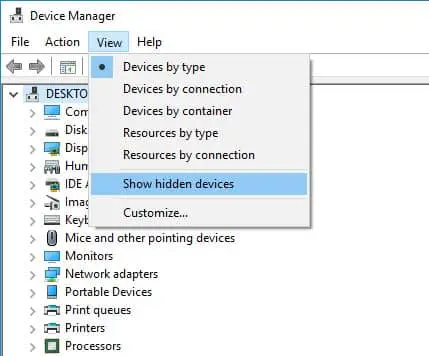

- Now expand the network adapters list and check if the network adapter is now visible.
- If the adapter is still missing then click on Action then scan for hardware changes.
- This will scan and install the build-in network adapter driver and fix the problem for you.
Run network troubleshooter
Windows 10 has build in troubleshooter that is known to fix various issues, Let’s run the dedicated troubleshooter for network adapters that automatically detect and fix problems related to the network and internet.
- Press Windows key + I to open settings,
- Go to Network & Internet then click on network troubleshooter,
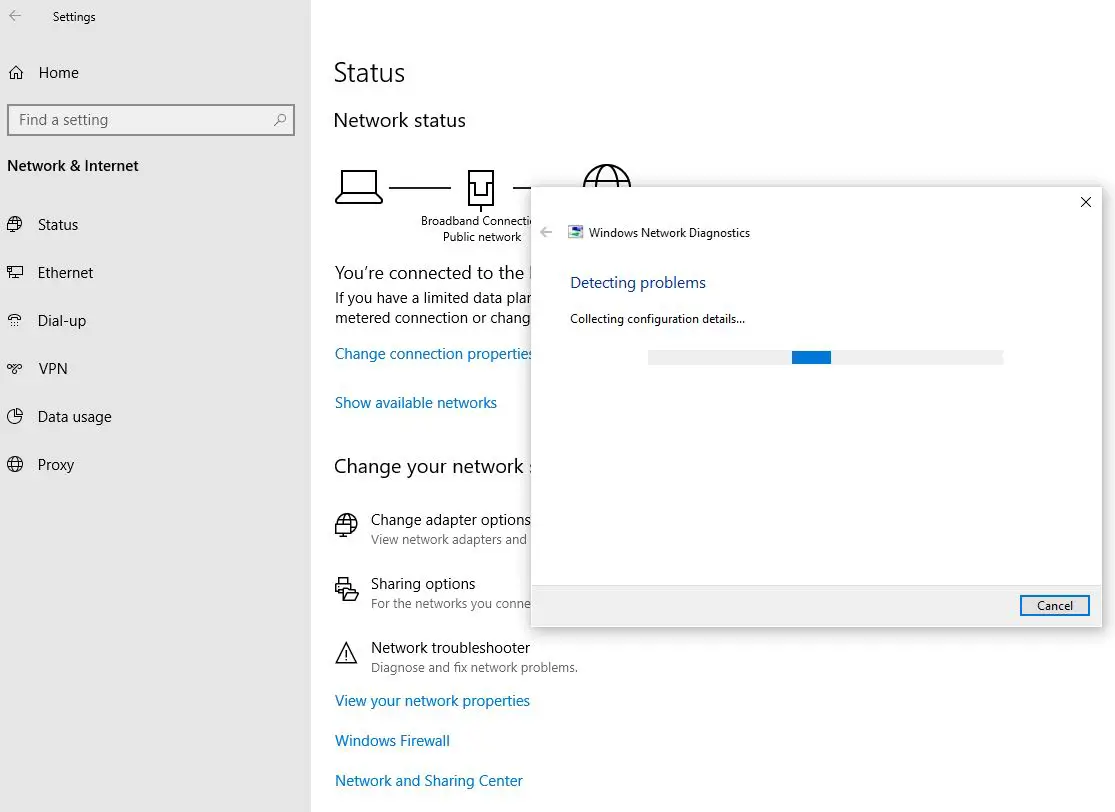

- This will automatically diagnose network adapter status, check installed river if it’s older outdated, and try to fix network problems,
- Follow on-screen instructions to complete the process, once done reboot your computer,
- Now check if the network adapter is back and the internet working on windows 10.
Install latest network adapter driver
We have already discussed before, missing or corrupted drivers may be the root of this issue. Uninstall the old network adapter, then download and install the latest network driver from the manufacturer’s site probably the most working solution for this problem.
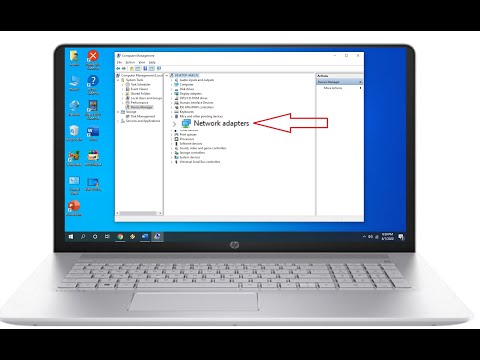
- Press Windows key + X and select device manager, this will display all installed device driver list.
- Locate and expand network adapters, right-click on the problematic network adapter and select the Uninstall device option.
- Click uninstall again if prompt for confirmation and follow on-screen instructions to completely remove the driver and restart your computer.
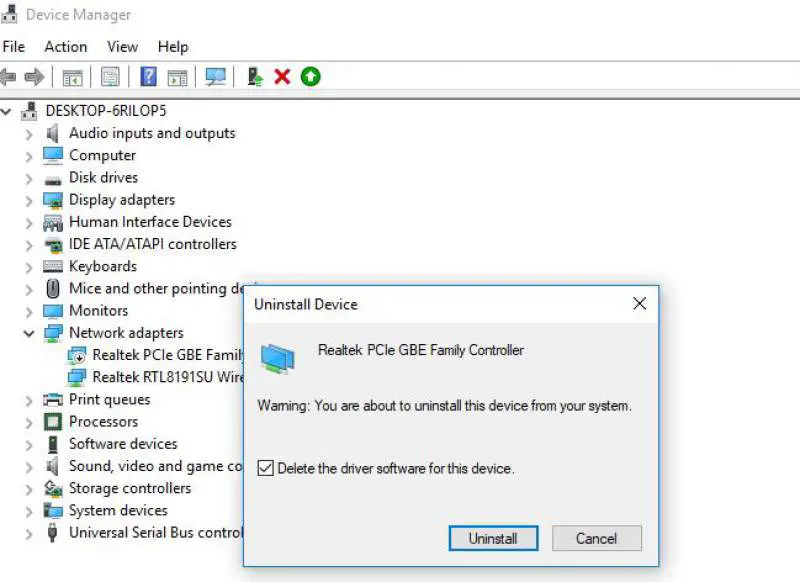

- After you complete the steps, Windows 10 should automatically detect and reinstall the driver again, fixing the network problem.
In case the driver isn’t visible under Network adapters, you will find it under Other devices or Unknown devices. It will have a yellow icon next to it. Right-click on the driver and select Update driver from the list Restart your device.
Add legacy network device
If the above solutions fail to fix the problem, then try to Add the legacy network device following the steps below.
- Open device manager using devmgmt.msc
- Click on the action then add legacy hardware, and then click Next.
- Now select the radio button, install the driver that i manually select from a list, and click next
- Here scroll down until locate the network adapter select it and click next,
- Now select the manufacturer of your laptop or computer for example Intel, and select the model
- And finally click on next to install the network adapter driver on your computer, reboot your PC and check the status.
Reset the network adapter
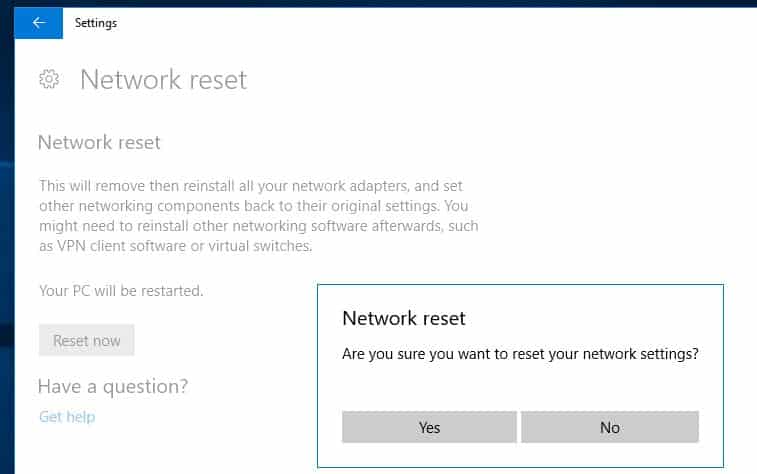
Also, you can give Network Reset a try, this will make all network settings go back to their default settings without interfering with your data.
- Press Windows key + X and select settings,
- Go to network & Internet then click on status,
- Under the Advanced network settings, click on the Network reset.
- Select Reset now, and click Yes.
After you complete the steps, the computer will restart automatically, and on reboot, you should now be able to connect to the internet.

Automate WWAN AutoConfig
some users report changing the WWAN AutoConfig service to automatic help them, fix the problem.
- Press Windows key + R, type services.msc and click ok,
- This will open the windows services console, scroll down find the “WWAN AutoConfig” service.
- Now double click on “WWAN AutoConfig” service to open its properties,
- Check and make sure the “WWAN AutoConfig service status is running, if it’s stopped click on start next to services status.
- Click apply then ok, close the services window and reboot your computer.
- Now check if you can discover the missing adapter on your computer.
In addition, if the problem started only after a recent windows update or any specific change then you can perform a system restore to revert back previous working state and get back the missing network adapter working state.
Also read:


