



Reset this PC option on windows 10 PC is very helpful especially while troubleshooting critical errors or performance issues with your computer. Maybe your PC has corrupted system files and the DISM or SFC tool fails to fix them in such cause reset Windows 10 without losing data is very helpful. You can usually fix most major problems with windows 10 PC by performing a factory reset, especially if a driver issue or other software bug is causing problems on your Laptop. Here is a quick guide on how to reset your Windows 10 PC without losing personal files or app data.
Reset Windows 10 PC without losing data
If you’re experiencing stability of performance issues Here is how to restore Windows 10 to factory settings without losing files and apps.
Note:
- Using the refresh tool will remove all the apps that don’t come standard with the operating system. This means that apps not included by your manufacturers, such as drivers, support apps, and other apps will be removed too.
- Also back up or note down your windows and office product key, Digital license, digitally downloaded content and various other digital entitlement for certain applications.
- It’s recommended to back up your important data to an external source. You can use Windows backup utility via Control Panel or apps such as Google backup and sync, third party backup and recovery.
Reset windows 10 PC via settings
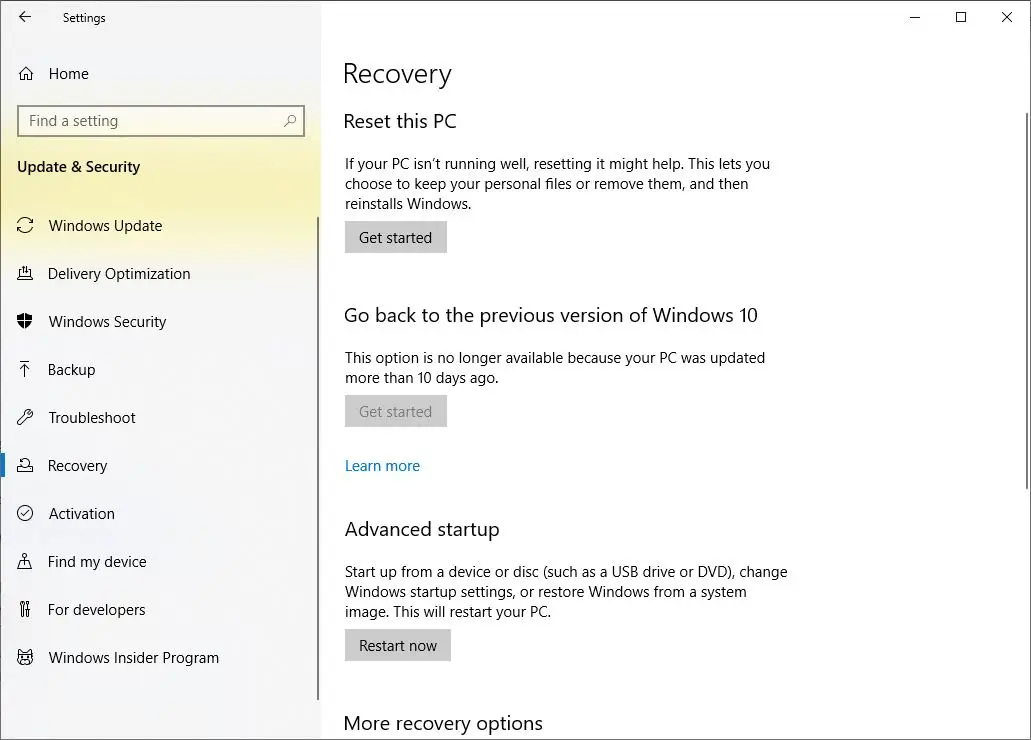
- Open the Settings app using the keyboard shortcut Windows + I,
- Click on “Update and Security” then “Recovery”.
- Here Under “Reset this PC”, the option Click on Get started as shown image below.

Afterward, you have the possibility to choose from two options. Microsoft describes the option as follows: Keep your files or remove everything
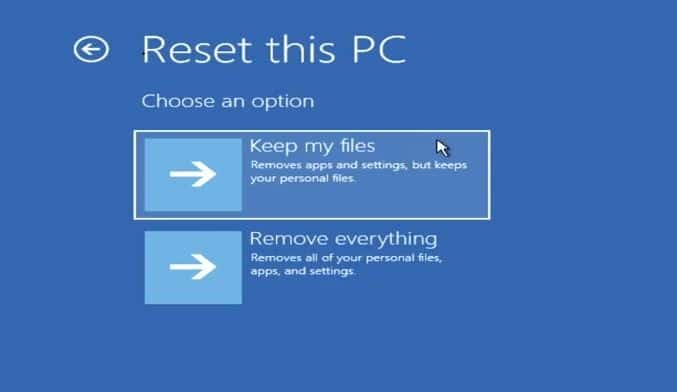
- If you do not want to lose your files and data, select the Keep my files option where Windows remove your apps and settings but keep your personal files and data intact.
- And if you want to remove everything and start afresh, select the Remove everything option. Well, Windows will ask you if you want to remove all files from all drives or only the drive where Windows is installed. You will also be asked if you want to clean the drives too.
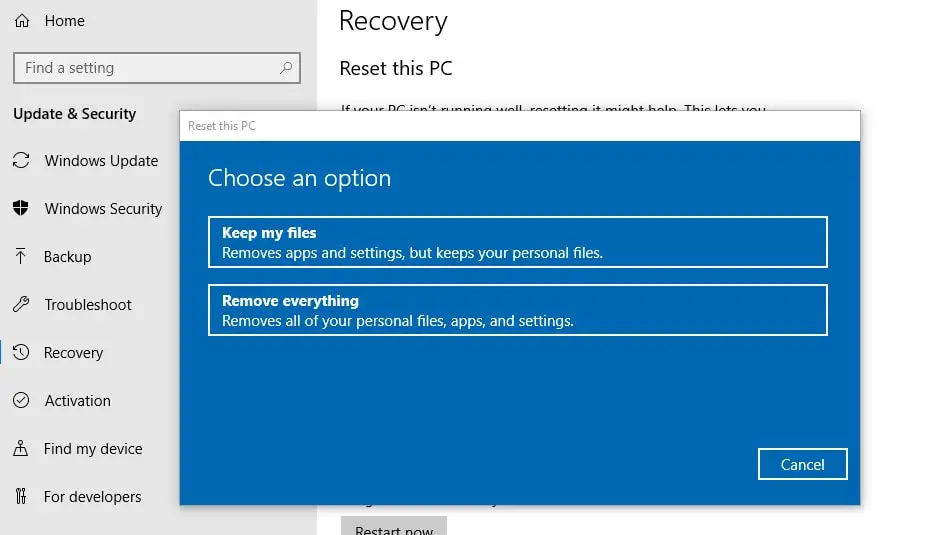

- Here in this post, we are explaining reset windows 10 without losing data and apps that cause us to need to select the “Keep my files” option.
- Next, you need to select between Local reinstall: This way Windows 10 Resets and reinstalls using Windows recovery Files on your PC. And cloud reinstall Downloads a fresh copy of Windows 11 from the Microsoft server.
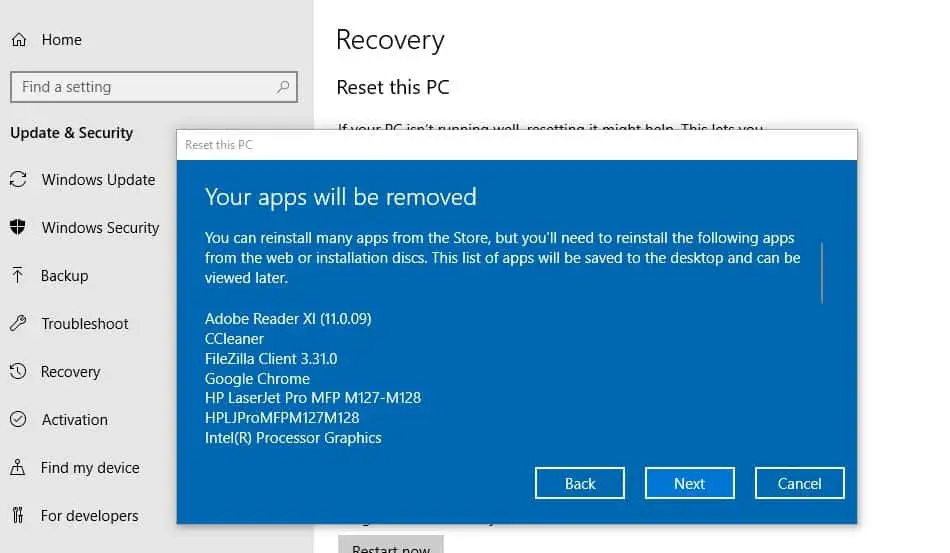
- The next screen will display the list of third-party apps you have installed that will be removed during the reset process. It’s better to note down all installed apps, you can install them later.

- When you click on the next window will Display Ready to Reset this PC.
Read the notes carefully, Reset will Remove all apps and programs (which you manually installed after windows 10 installation or upgrade). Default, prebuilt apps will keep there.
Also, this will change windows settings back to their default settings, and Reinstall windows without removing your Personal files.
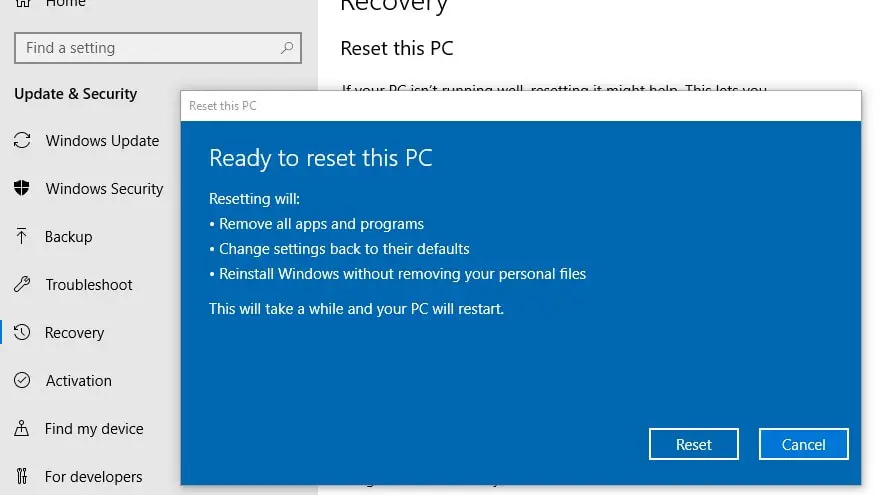

When you click on Reset this will Restart windows.
If you select Cloud Download, it’ll first download the latest copy of Windows 10 from Microsoft, which may consume about 4GB of data. The whole process will take about 20-30 minutes.
You just sit back and relax, let Windows do its things, after some time, you’ll be presented with a nice clean install or fresh install of Windows 10.
Windows 10 factory reset from boot options
Your PC isn’t working well and you can’t open the Settings app to reset this PC? Don’t worry you can also reset Windows 10 from the sign-in screen. To perform this you need installation media if you don’t have here how to make Windows 10 bootable USB.
- Boot your PC/Laptop from installation media,
- Skip the first screen then next click on Repair Your Computer,
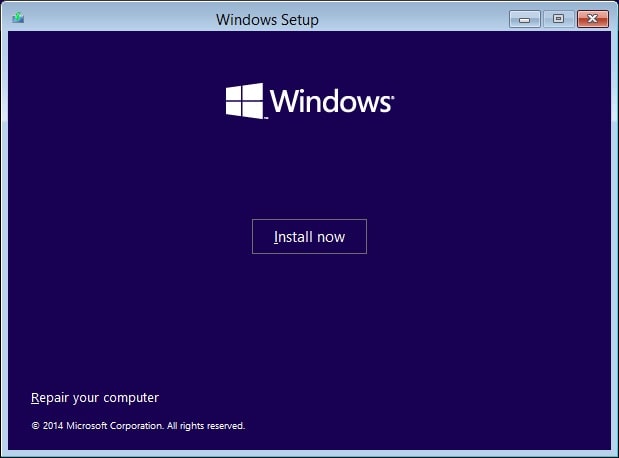

Next, you need to click on Troubleshoot, then reset this PC,
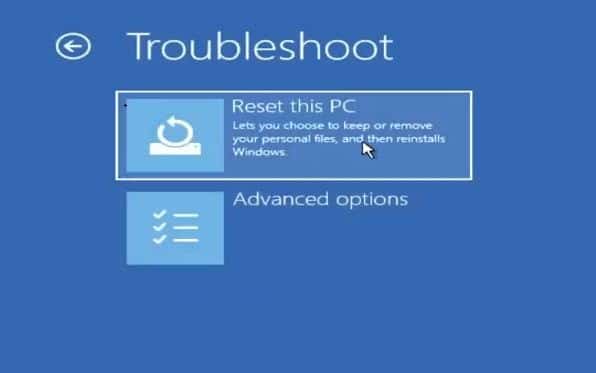

Next, choose the option Keep my files and follow on-screen instructions to reset Windows 10 to factory default.

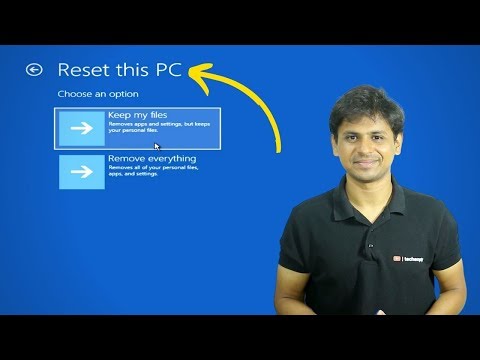
That’s all once the process completes windows will restart with a fresh installation. Here a video tutorial explains “Reset Your Windows 10 Computer Without Losing Data”
Also read:


