


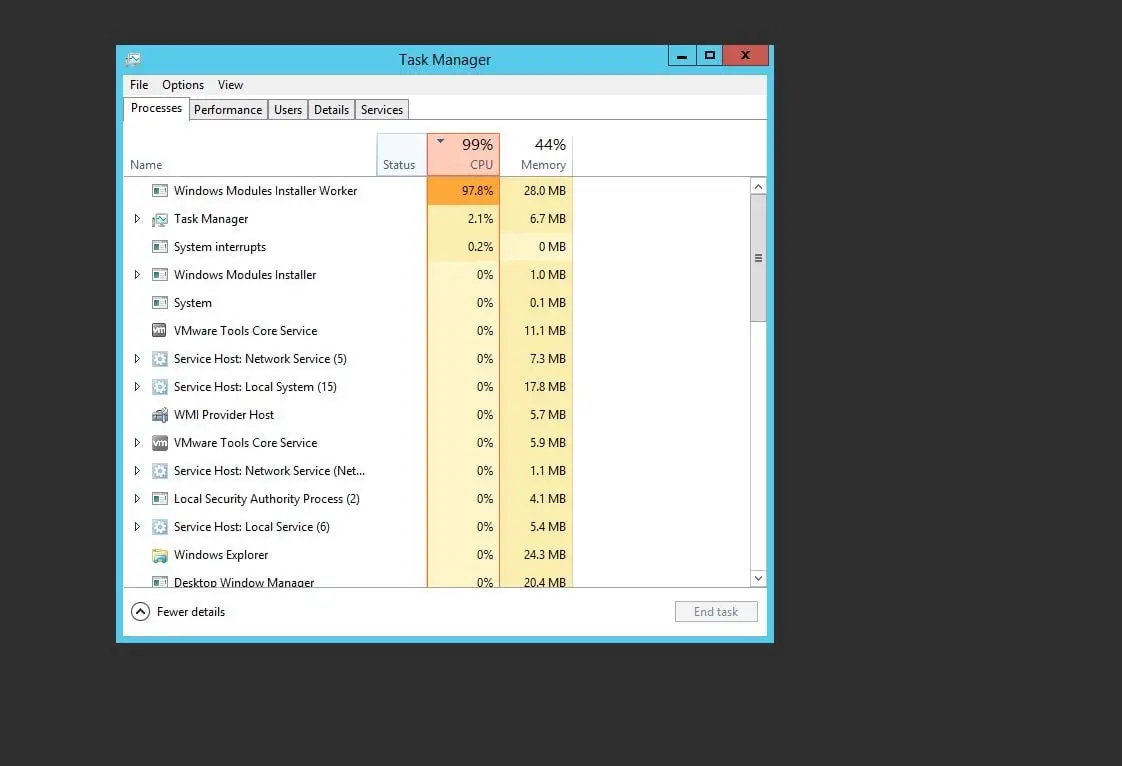
Windows Modules Installer Worker, also known as TiWorker.exe, is a legitimate process in Microsoft Windows responsible for regularly check for available Windows updates and install them for you. It ensures that your Windows PC experience remains secure, stable, and up to date. Well, this process may consume High Disk or CPU resources when looking for and installing updates and typically, it stops consuming resources post-update. However, at times you may notice “Windows Module installer worker” is constantly running with very High CPU or 100 Disk usage and slow down the PC performance. Let’s explore the reason behind Windows Modules Installer Worker High CPU or Disk usage and solutions to fix it.
Windows Modules Installer Worker High CPU
This is an essential process help keep Windows up-to-date, ensuring that you have all the latest features, as well as performance and security upgrades and patches. Its primary job is to automatically check for any Windows updates, Download and install them to make your PC run seamlessly at all times.
It prepares your Windows 11 computer for installation and checks frequently for new updates.
Usually, the Windows modules installer worker terminate all the resource that is necessary for Windows Update once the update is finished. But sometimes due to technical reasons, these resources will keep on running in the background, Which Causes High System Resource usage and your computer gets slow down.
Conflicts between updates or corrupted update files to Incomplete or Failed Updates, or third-party applications or security software can disrupt Windows modules installer worker leading to High Disk usage. Again Virus malware infection, Misconfigured Windows Update Settings, problems with disk drivers or bad sectors can lead High Disk usage on Windows 11.
Check for Pending Updates
It may be due to Incomplete or pending updates Windows modules installer worker continuously running on the background can lead to resource consumption. This most probably occurs when the Windows update stuck at 0 percent or any other point.
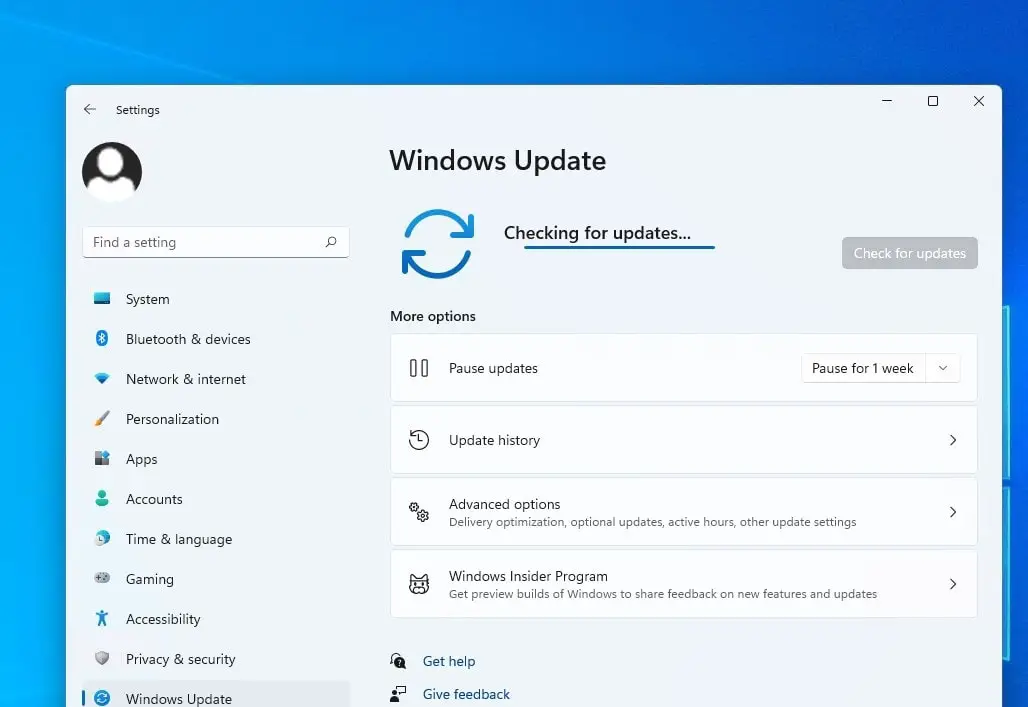
Let’s check and install Windows 11 updates
- Press the Windows key + X and select settings from the context menu,
- Navigate Windows Updates and hit the check for updates button,
- If new updates are available or pending allow them to download and install on your computer,
- Once done you need to reboot your PC to apply them.

Run Windows Update Troubleshooter
The Windows Update Troubleshooter is a built-in tool designed to identify and resolve issues related to Windows updates. When TiWorker.exe high CPU usage, it could be due to underlying problems with the update process. Running the troubleshooter can help pinpoint these issues and provide potential solutions.
Running the Windows Update Troubleshooter helps ensure that the update process is functioning as intended, which can fix high CPU usage by TiWorker.exe.
- Press Windows key + I to open settings,
- Go to system then Troubleshoot and click on other troubleshooters,
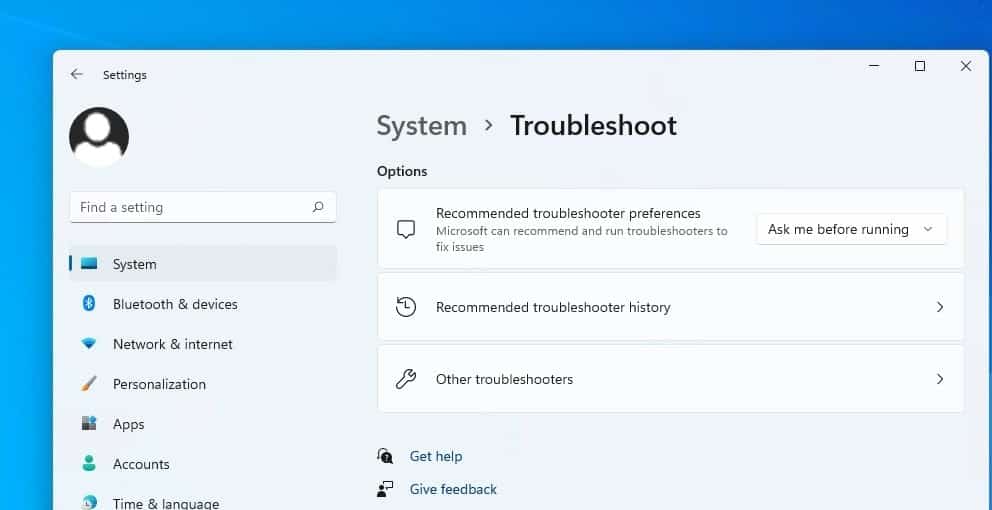

- This will display a list of troubleshooters available to fix Windows 11 problems automatically,
- Scroll down to locate Windows update then click on Run
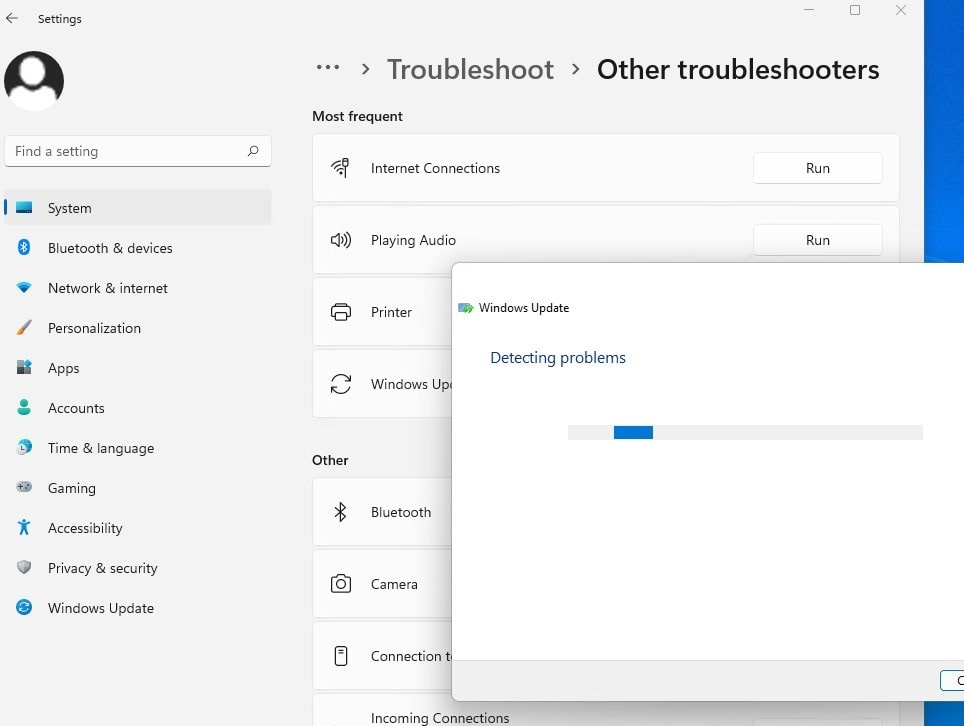

- This will automatically scan for and detect problems within your system, which can take a few minutes to complete.
Let Windows check and fix any buggy update stuck or causing High CPU usage problems itself for you. Once done reboot your system and check if the problem is resolved.
Restart Windows Modules Installer Worker
Restarting the Windows Modules Installer Worker (TiWorker.exe) and Windows update service can help fix high CPU usage by resetting its activities and potentially resolving any temporary issues that might be causing High Disk or CPU usage on Windows 11.
Restarting the service potentially resolves any glitches or issues that might have contributed to high CPU usage.
- Press the Windows key + R, type services.msc and click ok to open the Windows service console,
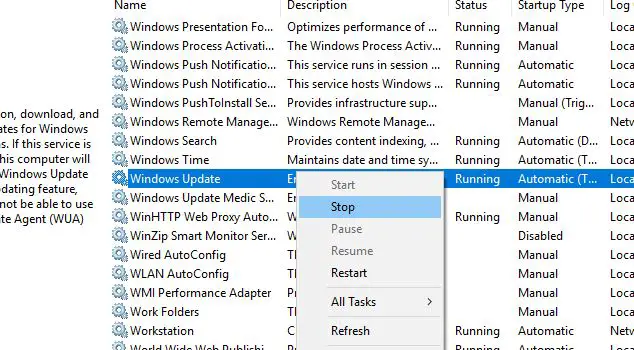
- Scroll down to locate the Windows update service, right-click on it and select the Stop option.
- Now locate the Windows modules installer worker process right click on it select stop.
- Wait for a few minutes, then right-click on both services and select Start.
Perform a Clean Boot
Some third-party applications can interfere with Windows updates. Perform a clean boot to start Windows with minimal services and startup programs. This can help identify if any third-party software is causing the issue.
- Press Windows + R type “msconfig” and press Enter to open the System Configuration utility.
- In the “General” tab, select “Selective startup” and uncheck “Load startup items.”
- Go to the “Services” tab, check “Hide all Microsoft services,” and then click “Disable all.”
- Click “OK” and restart your computer.
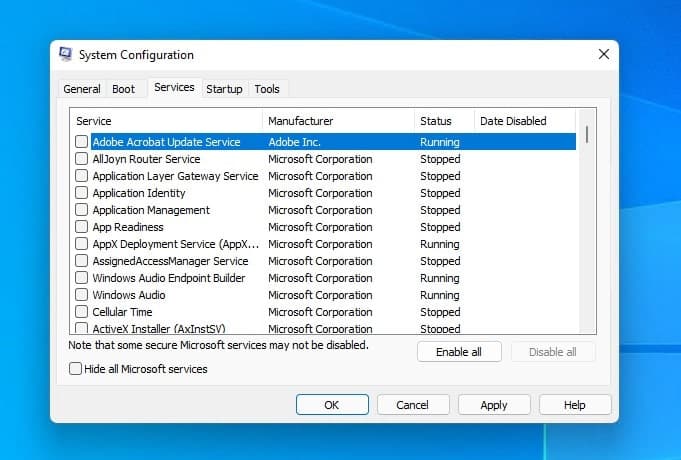

After the restart, check if the high CPU usage issue persists. If not, gradually enable startup items and services to identify the culprit.
Reset Windows Update Components
By default, windows update files are downloaded and stored in the SoftwareDistribution folder. A single corruption on this folder causes different problems installing Windows updates, cause updates stuck checking results Windows modules installer worker high CPU usage. Let’s clear the Windows update folder and force Windows update to download fresh new files from the Microsoft server.
Don’t worry Windows automatically generates a new folder with the same name when a new Windows update appears. So, there is no risk in deleting update cache files.
Stop Windows update service:
- Press the Windows key + R, type services.msc and click ok to open the Windows service console,
- Scroll down to locate Windows update service, right-click on it select stop,

Clear Windows update cache
- Next press the Windows key + E to open File Explorer,
- Neviate C:\Windows\SoftwareDistribution\Download
- Here delete all files and folders inside the download folder, to do so press ctrl + A to select all then hit the del key.
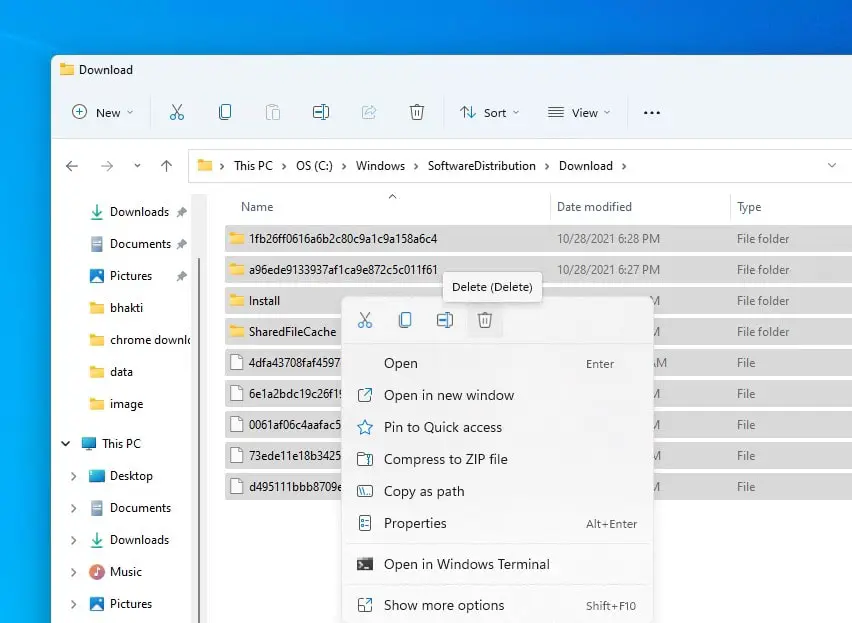

Restart the Windows update service
- Again open the Windows service console using services.msc
- Locate the Windows update service, right-click on it select Start or Restart.
Now restart Windows to take a fresh start, then check there is no more High CPU usage.
Decrease TiWorker process priority
Lowering the priority of the TiWorker.exe process can be an effective strategy to mitigate high CPU usage and prevent it from dominating system resources. This balances system performance reduces disruptions, and prioritizes essential tasks.
- Press Ctrl + Shift + Esc simultaneously to open the Task Manager, then click More Details.
- Next move to the Details tab scroll down to locate TiWorker.exe process right click on it and Set the priority to Low.
- Now see how your computer acts with this setting, If TiWorker.exe high CPU usage issue is not eliminated continue to the next solution.
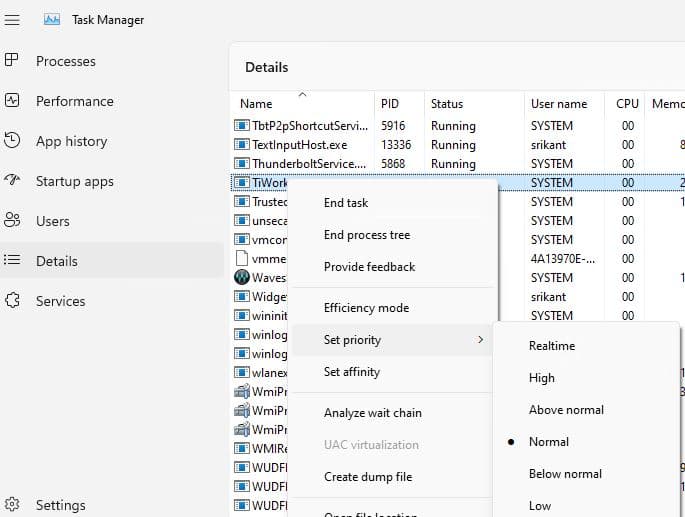

Checking the System Maintenance
The system maintenance will take you into a number of steps that will remove unused files, and shortcuts and perform task maintenance. You can not only fix Windows modules installer worker High Cpu usage but also you can remove the other unwanted files.
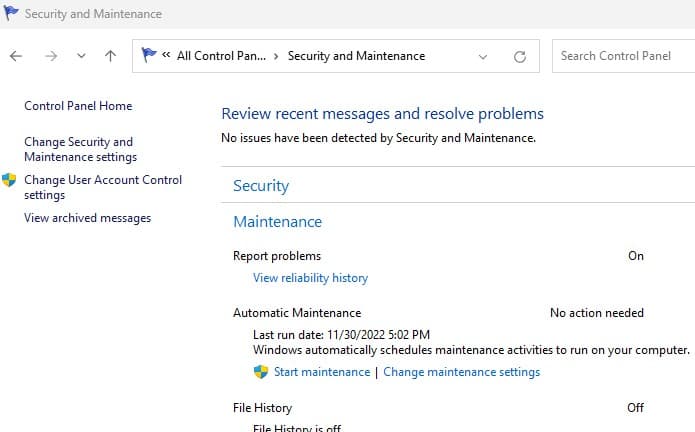
This is an alternative solution to the above problem. To clear the TiWorker.exe “problem” (which isn’t really a problem) run Automatic Maintenance
- Press the Windows key + S and search for the control panel app
- Navigate Security and Maintenance then expand the maintenance section and click on Start Maintenance.
- This process can take some time so make sure that you have something else to do before you start the process.

Repair Corrupt System Files
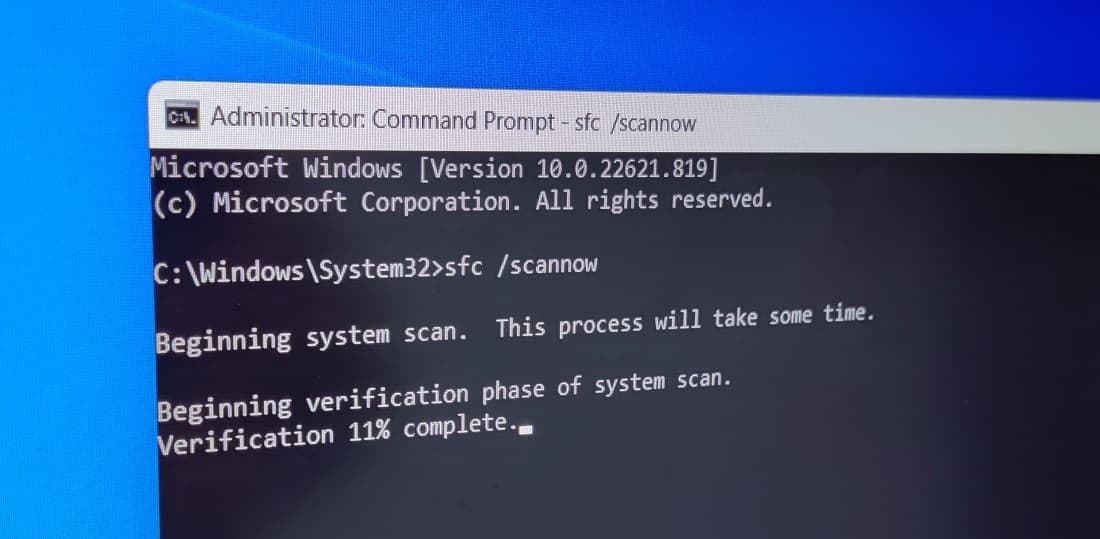
This is also an alternate method to fix the Windows 11 High CPU usage problem. Corrupted system files are also responsible for different problems on the Windows computer. If due to some reason, TiWorker.exe or the files it needs for its operation are corrupted or missing may cause the Windows modules installer worker unresponsive.
To check and make sure missing damaged system files not causing the issue Run the Windows SFC utility by the following below.
- First, open the command prompt as administrator
- Then type sfc /scannow and hit the enter key.
- The SFC utility will start scanning for missing corrupted system files.
- If you find the system file checker utility Restore them from a compressed folder located on %WinDir%\System32\dllcache.
- Wait until 100% complete the scanning process
- After that Restart windows and check the High System resource usage problem is resolved.

Run DISM Command
If the System file checker Results Windows Resource Protection Found Corrupt Files but is unable to fix them. This means the utility is unable to repair missing damaged system files. That causes you need to run the DISM command Dism /Online /Cleanup-Image /RestoreHealth which Repairs the System image and Enables SFC to do its job.
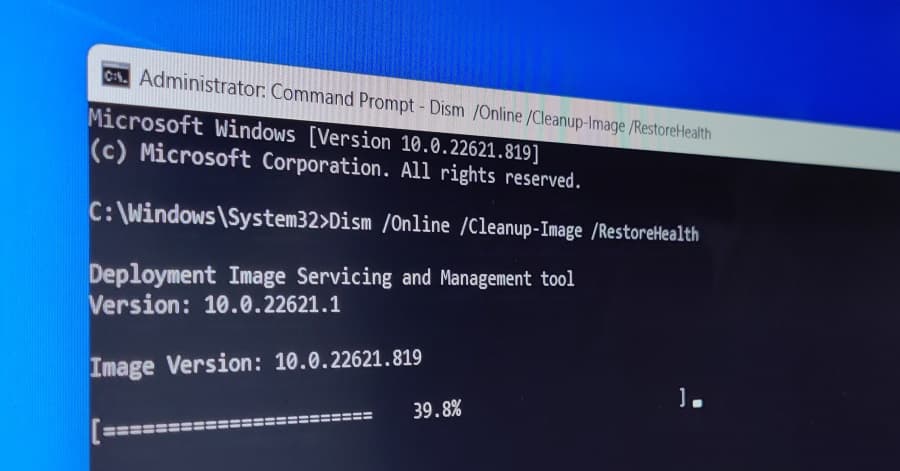

After Run the DISM command Again Run Sfc /scannow command to repair missing system files. After That Check and fix Disk Drive errors by running the Check Disk Command line. Now restart Windows and Check, There is no more 100% CPU usage or High Disk Usage by the Windows modules installer worker.
In addition, Disk errors can impact overall system performance. Run the built-in “chkdsk” utility to scan and repair disk errors.
Check for Malware or Virus Infections
Malware or viruses can disguise themselves as legitimate system processes, including TiWorker.exe, leading to increased CPU usage as they perform malicious activities. The first thing we recommend Perform a full system scan to detect and remove any potential malware infections.
Also Install a Free System optimizer like Ccleaner to Clean up junk, Temp, Cache, System errors, Memory Dump files, And Fix missing broken registry Errors.
Turn off Automatic updates for Windows 11
Windows Modules Installer Worker is a core component of Windows Update. And few users report, disabling Windows 11 automatic updates help them fix Windows Modules Installer Worker High CPU problem on their computer.
- Press the Window key +I to open the Windows 11 Settings,
- Navigate Windows Update in the left sidebar, and next to the pause updates option select pause for 1 week
Also, you can enable metered connection to prevent download and install Windows updates automatically.
In addition, you can disable the Windows update and its related services to disable automatic updates for Windows 11.
- Press Windows key + R, type services.msc and click ok
- Scroll down to locate Windows update service right click on it select properties,
- Change startup type disabled and stop the service next to service status.
Note: As we set Windows Update to Disable, windows didn’t download and install the latest updates.
Outdated or incompatible device drivers can contribute to performance problems. Ensure that your drivers are up to date, especially for critical components like graphics and network adapters.
- High CPU or 100 Disk Usage after Windows 10 update (7 working solutions)
- Windows resource protection could not start the repair service windows 10
- What is MsMpEng.exe or Antimalware Service Executable in Windows 11
- Solved: Ntoskrnl.exe High CPU usage on Windows 10 Version 23H2
- 5 Best Cybersecurity Tips to Protect Your Windows PC From hackers
- How to Download the Official Windows 11 ISO from Microsoft


%20constantly%20running%20with%20very%20high%20CPU%20usage%20or%20100%20Disk%20usage%20on%20your%20computer?%20Here%20is%20how%20to%20fix%20it)