


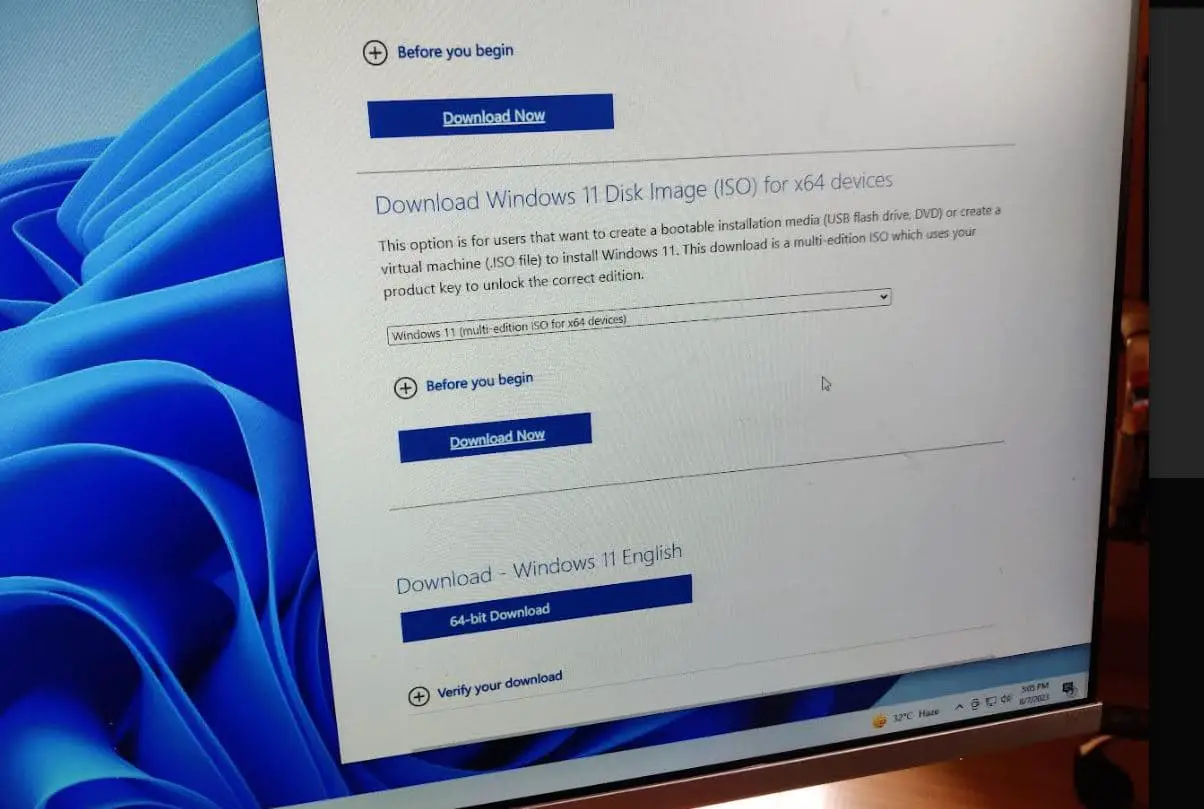
With the release of Windows 11 version 23H2, Microsoft also published Windows 11 iso files for download on their server. Windows 11 is available as a free upgrade for compatible devices only, you can download it from settings. The latest release brings plenty of new features and improvements, include AI-powered Copilot, Support for Passkeys, Built-in Cloud Backup Tool, Enhanced File Explorer and more. Also, you can Downlaod Windows 11 23H2 ISO Image and create installation media to install Windows 11 on a new device or troubleshoot startup problems. Here are different ways to get Download Windows 11 ISO File (64 Bit) Direct from Microsoft.
Windows 11 iso download
Here is the summary information about Windows 11 Version 23H2:
- Name: Windows 11 Version 23H2 (OS build 22631)
- Complete Build: 11.0.22631.2115
- Date of availability: October 31, 2023
- Channel: Semi-Annual
- Size: It’s around 6.2 GB (slightly different language-wise, available 64-bit only)
- Price: This update is free for compatible devices running Windows 10 version 2004 and later
As of today 31/October/2023 Windows 11 version 23H2 OS build 22631.2115 is the latest release from Microsoft. Here is the Direct download link
This Windows 11 ISO file contains all the Editions listed below:
- Windows 11 Home
- Windows 11 Pro
- Windows 11 Pro Education
- Windows 11 Pro for Workstations
- Windows 11 Enterprise
- Windows 11 Education
- Windows 11 Mixed Reality
Windows 11 ISO File download from Microsoft
Follow the instructions below to officially download Windows 11 version 23H2 ISO or any other edition from the Microsoft server for your devices:
- Open your favorite browser and visit the official Windows 11 download page.
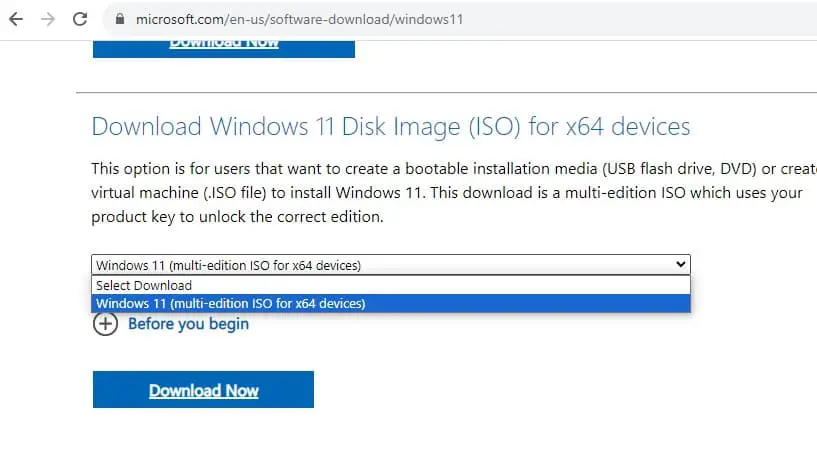
- Scroll down to locate the Download Windows 11 ISO section, from the drop-down, click on Windows 11 and hit Download.

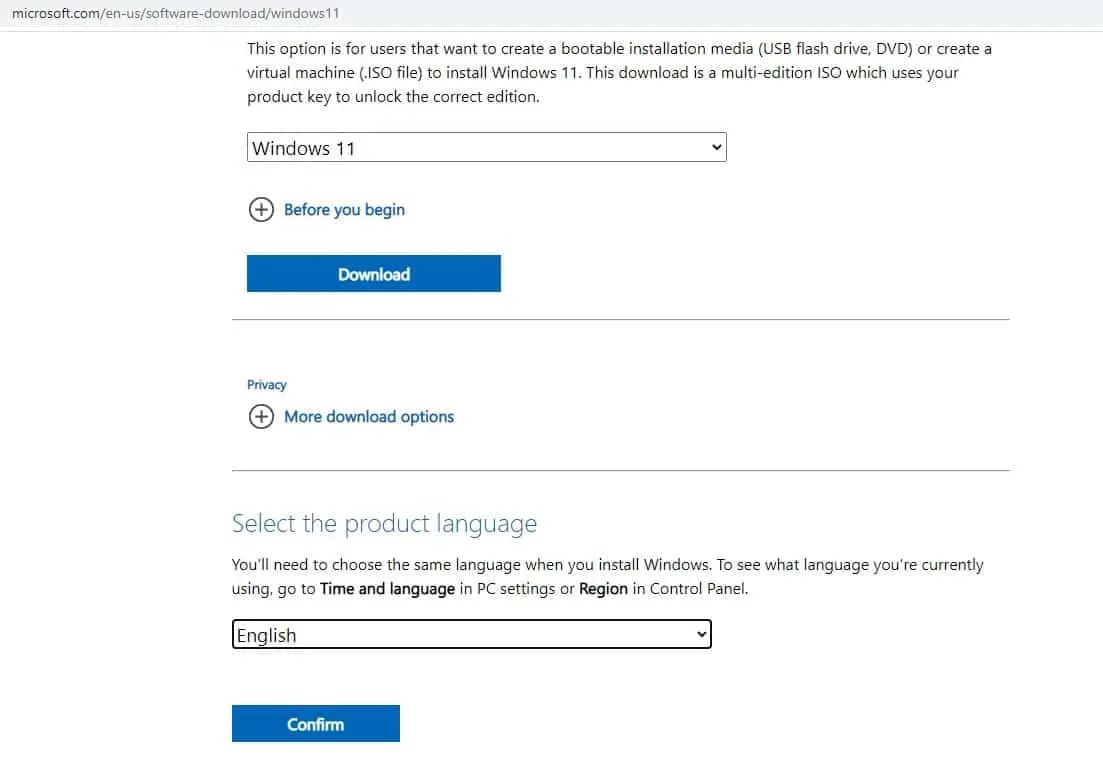
- Under Select the product language, choose your preferred language then click on Confirm.

- And finally, Click on 64-bit download to begin the process.
Note: You only see one tab to download the 64-bit Windows 11 as there will no longer be a 32-bit option.
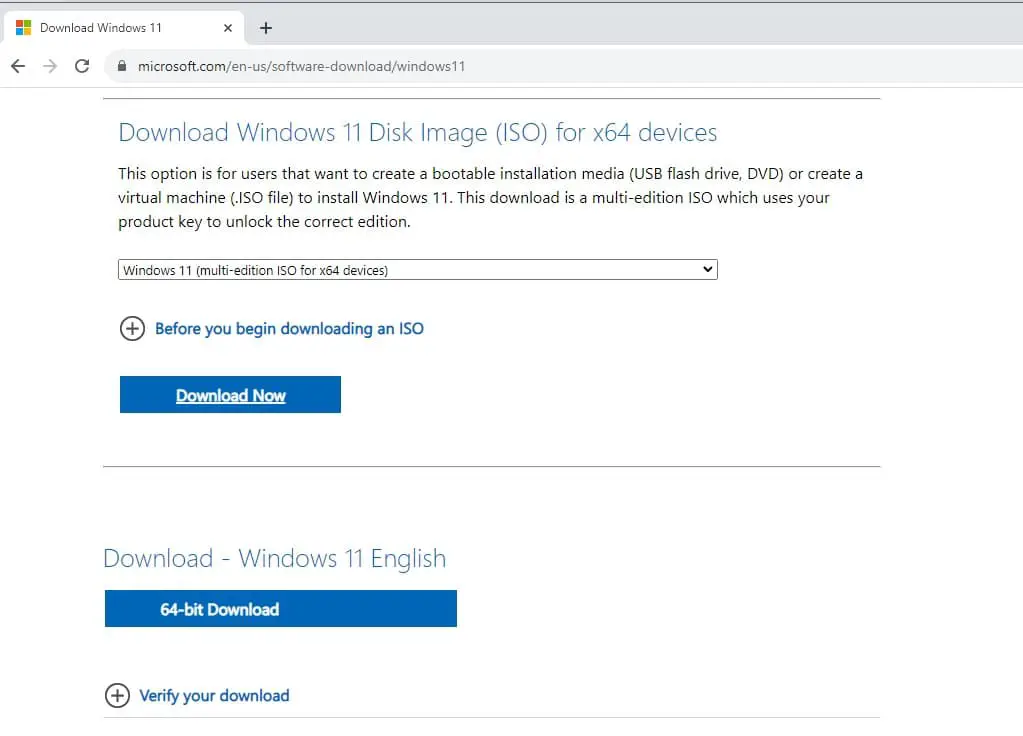

The size of the Windows 11 ISO file is around 6.2 GB, But it could be slightly lower or higher depending on the language pack you have selected. And the download time depends on your Internet speed.
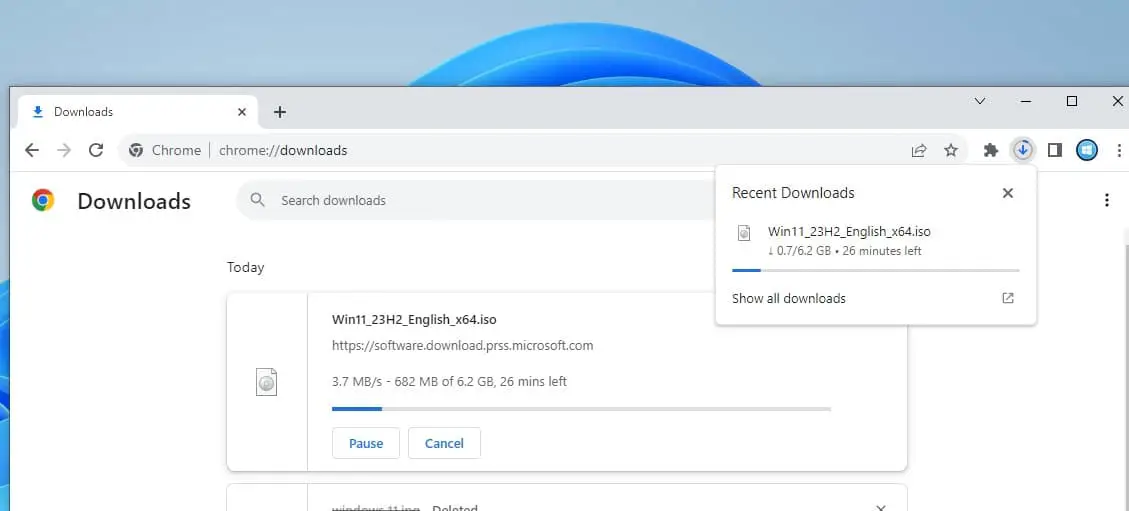

Use Media Creation Tool to download Windows 11 iso
Also, you can use Microsoft’s Media Creation Tool to create bootable devices or Downlaod Windows 10 ISO files.
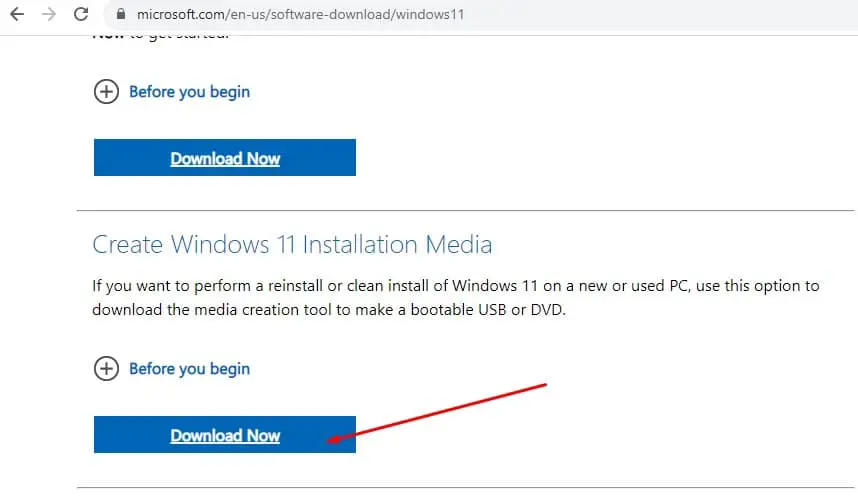
- First, visit the Windows 11 download page here, and click Download now next to Create Windows 11 Installation Media.

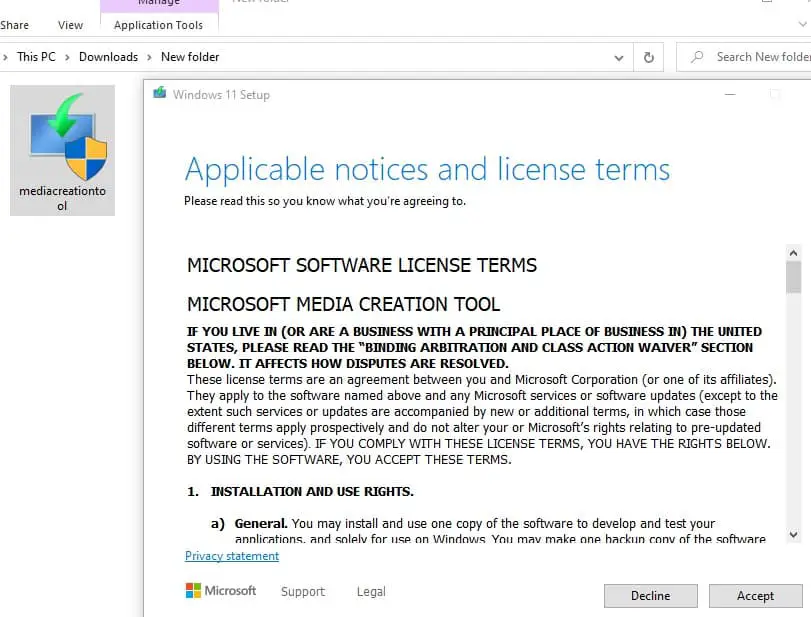
- Locate the mediacreationtool, Right click on it select Run as administrator,
- Click yes if UAC prompts for permission then Accept the license agreement

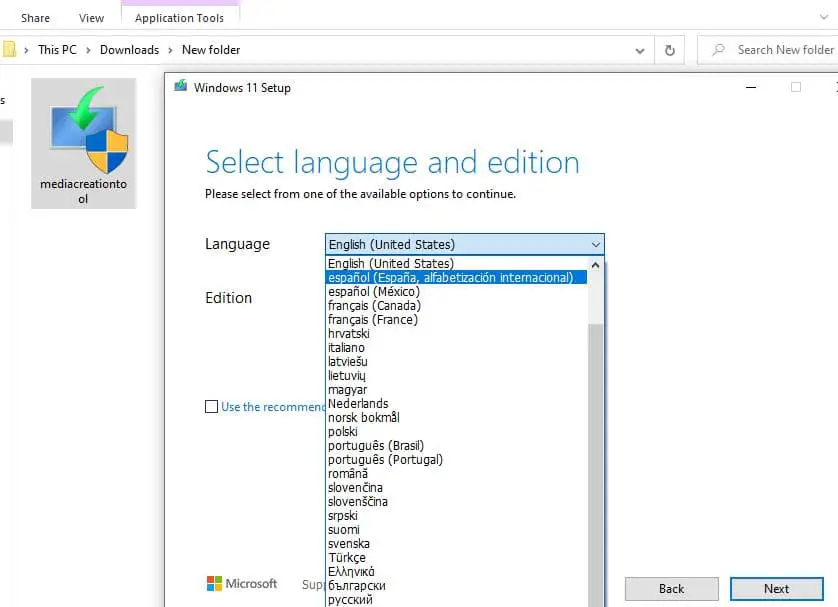
- Uncheck “Use the recommended option” to select your preferred language then click next.

- On the next window choose between create installation Media or Download Windows 10 ISO file.
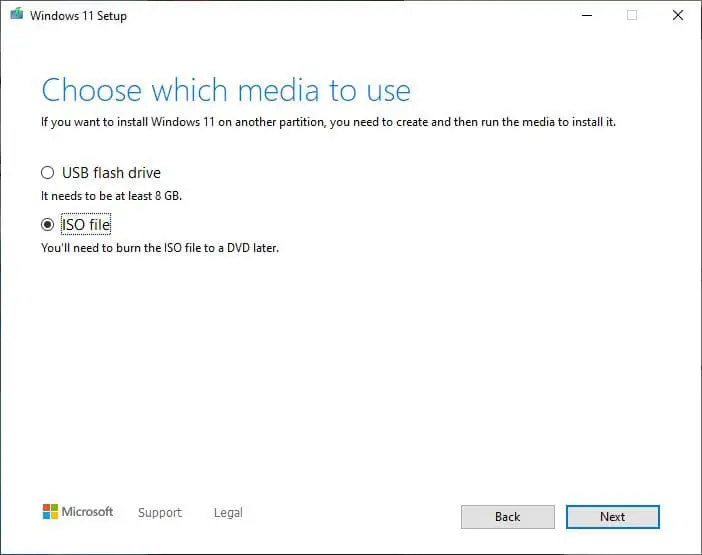
- Select the ISO file option and click next.

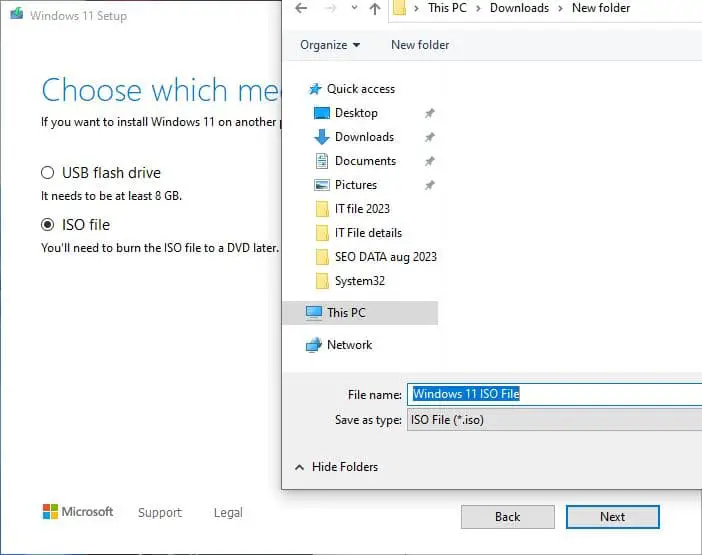
- Select a location to save the Windows 11 ISO file, name it, and click save to start the Windows 11 iso download.
- It may take some time depending on internet speed and hardware configuration.
Once the download finishes, You can create Windows 11 installation media using third-party tools such as Rufus Create bootable USB drives the easy way.
Create Windows 11 installation media
To create Windows 11 bootable USB drive you need at least 8 or 16GB flash drive. Make sure the flash drive is empty or backup all data to a different device and format the flash drive.
There are a number of third-party tools available, to help you create Windows 11 installation media, we are using a program called Rufus.
- First, plug your USB flash drive into the computer.
- Then visit the company’s official website to download Rufus, It’s a small program download instantly.
- Double-click on it to install and run Rufus on your PC.
- Select your USB drive using the Device dropdown.
- Under Boot Selection select Disk or ISO image and then click on the text that reads SELECT and pick the ISO file you downloaded in the previous step.
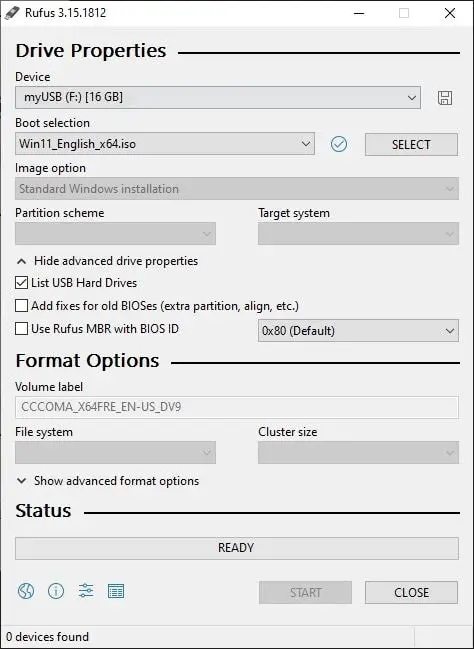

- Click Start when you’re sure all of the options are set, and wait while the program does its job.
Once the Windows 11 bootable drive is created, You can plug it into another PC and use it to install Windows 11 by opening the drive and double-clicking the setup.exe file.
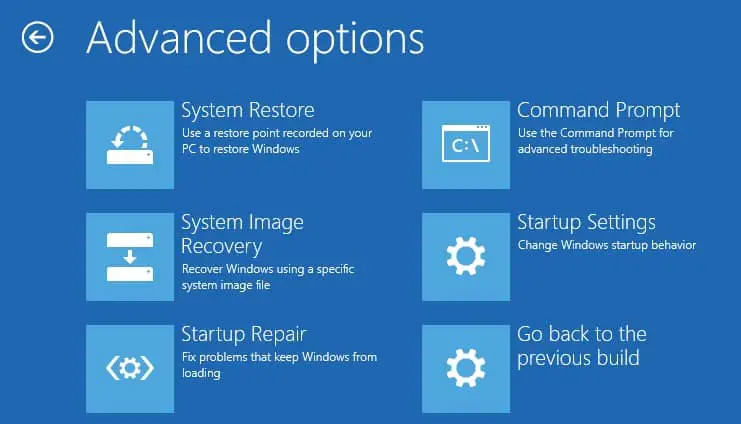
Again bootable USB drive is also excellent for troubleshooting tasks, such as removing malware, deleting a stubborn file, removing problematic Windows updates, or diagnosing when Windows 11 no longer boots.

Also read:
- Windows Update won’t download or failed to install on Windows 10 (Solved)
- Why is my computer running so slow? Reasons with Easy Solutions
- Fix the Disk structure is corrupted and unreadable Windows 10
- Solved: Windows 10 brightness slider not working or Grayed out
- Windows 10 can’t detect Network Proxy Settings? Here 5 working solutions


)