Windows 11 installation media (bootable USB Drive) lets you install, reinstall, or perform a clean install of Windows 11. It can also be useful when Windows won’t start normally or when you need to install Windows 11 on another compatible PC. Microsoft currently provides the official Media Creation Tool to create a bootable USB drive or download a Windows 11 ISO. You can also use the third-party utility Rufus to create Windows 11 installation media and access additional options, including bypassing some Windows 11 hardware requirements during installation. In this guide, we’ll show you how to create Windows 11 installation media using Microsoft’s official tool and Rufus, whether you need it for a standard installation, clean install, or Windows repair.
What You Need Before Creating Windows 11 Installation Media
Before creating the Windows 11 installation media, prepare the following:
- A working Windows PC with a stable internet connection.
- A USB flash drive with at least 8 GB of storage for a bootable installer.
- The USB drive should not contain important files because creating the installation media will erase it.
- A genuine Windows 11 ISO if you plan to create the USB with Rufus.
- Another PC can be useful if the computer you’re repairing cannot start Windows.
For a normal installation, Microsoft’s Media Creation Tool is the simplest option. Rufus is useful if you already have a Windows 11 ISO or need additional options when creating a bootable USB.
Important: Creating installation media and installing Windows are separate steps. Make sure you have backed up important files before starting a clean installation.
1. Create Windows 11 Installation Media With Media Creation Tool
Microsoft’s Media Creation Tool is the easiest way to create a bootable Windows 11 USB drive. It downloads the Windows installation files and automatically prepares the Bootable USB Drive for you.
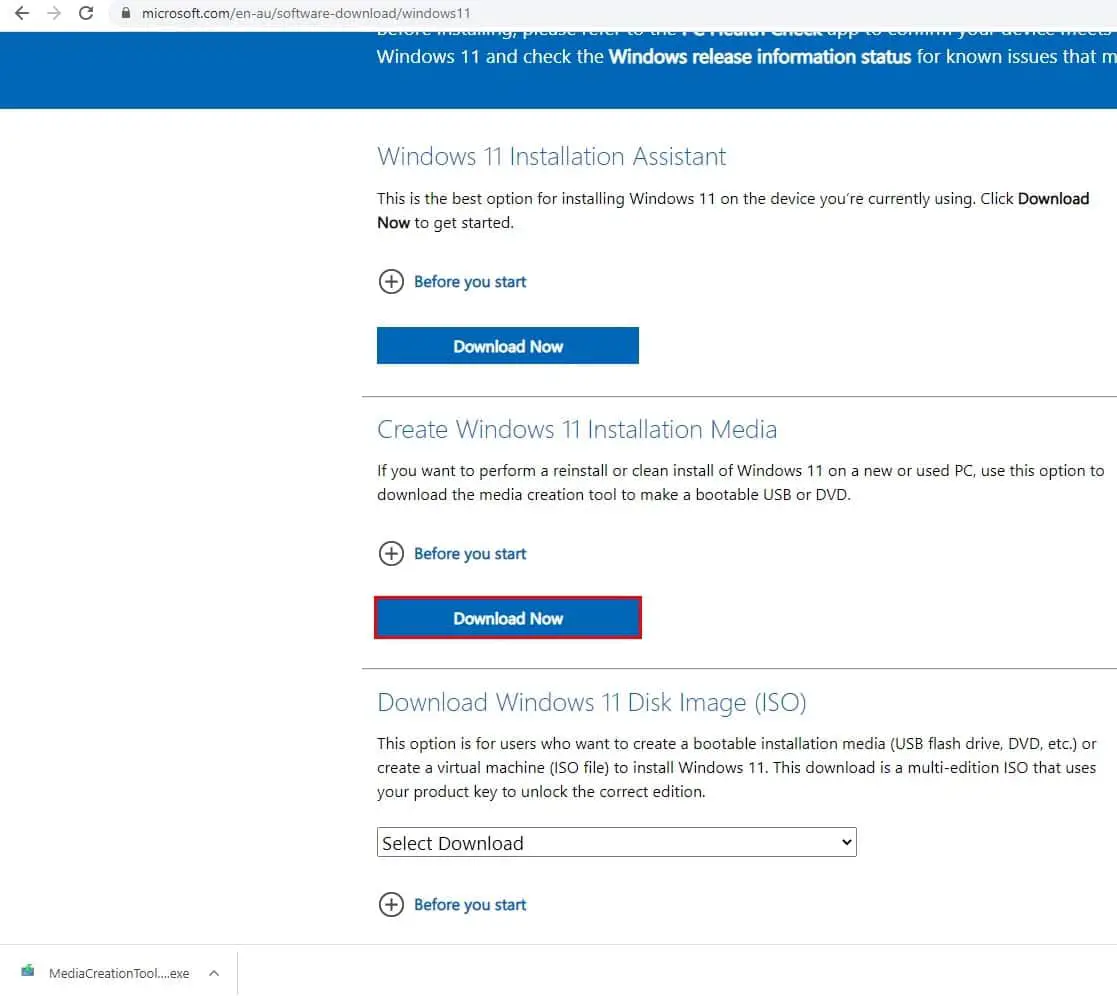
- Open Microsoft’s Windows 11 Download page.
- Under Create Windows 11 Installation Media, click Download Now.
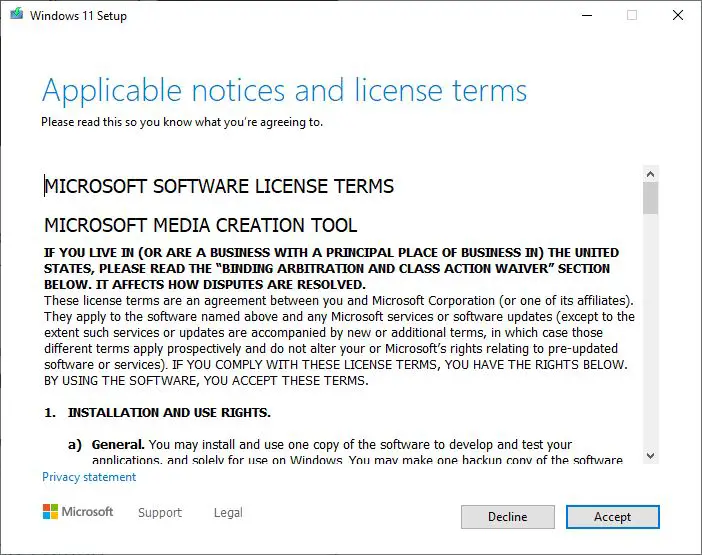
- Run the downloaded MediaCreationTool.exe.

- You must agree to the terms by clicking the Accept button, scroll down, and read the license terms before clicking on Accept.
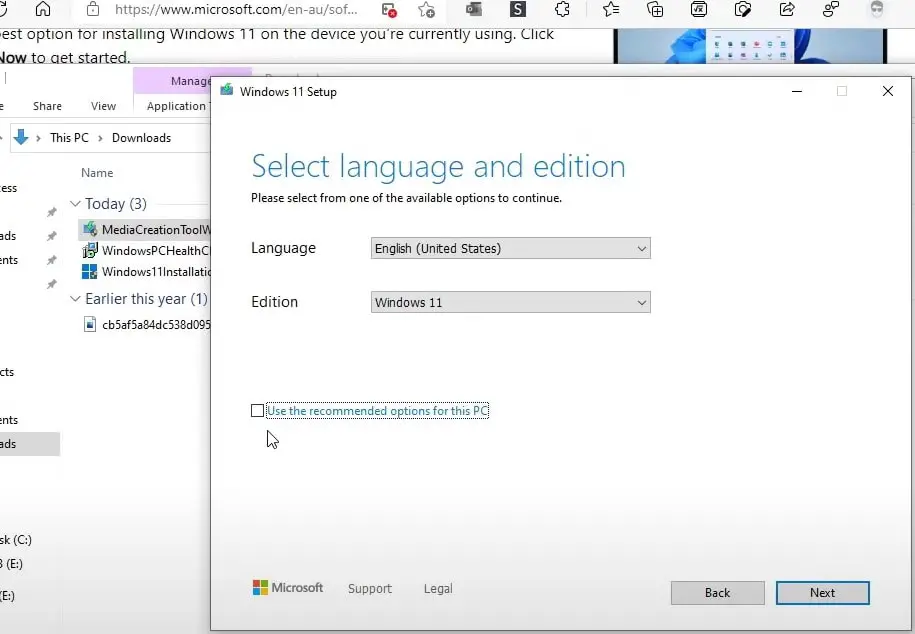
- Confirm the language and Windows 11 edition, or uncheck the recommended options to choose them manually.
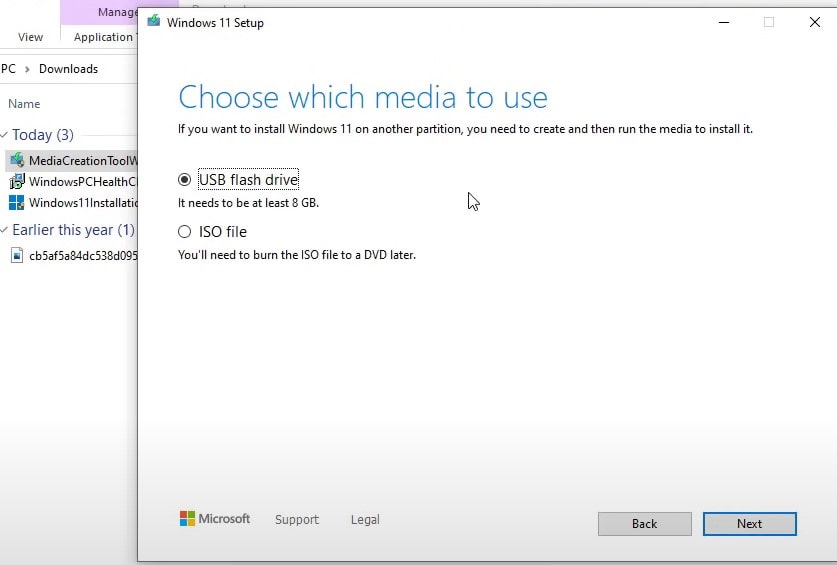
- Select Next, select the USB flash drive as the media to use, choose your USB drive from the available list, and click Next.USB flash drive and click Next.
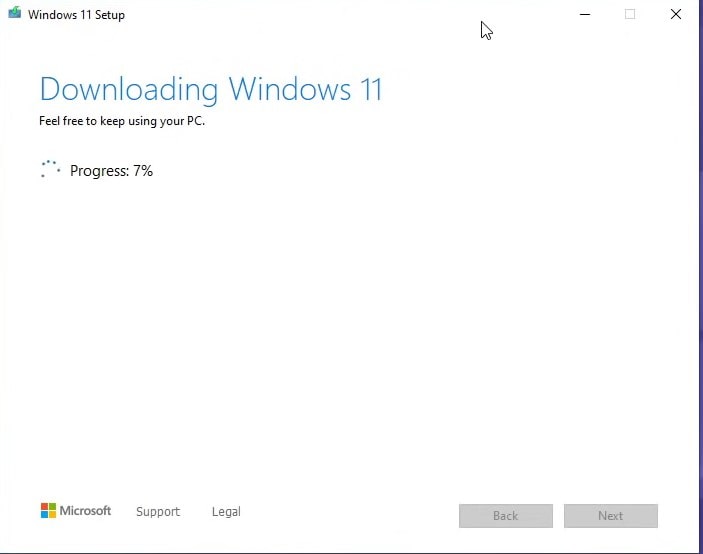
- Wait while the Media Creation Tool downloads the Windows 11 necessary files and creates the installation media. It may take some time, depending on your Internet speed.
The USB drive must have at least 8 GB of space, and its existing contents will be deleted during the process.
When the tool reports that the USB drive is ready, safely remove it and use it to install or reinstall Windows 11.
Quick Insight: Use Microsoft’s Media Creation Tool when you want the simplest official method and don’t need custom installation options.
2. Create Windows 11 Installation Media With Rufus
Rufus is a third-party utility that can create a bootable Windows 11 USB from an ISO file. It is particularly useful when you want more control over how the installation USB is created.
- First, download the latest version of the Rufus tool from its official website.
- Next, locate the installer file, right-click on it, select Run as administrator, and click “Yes” if prompted by UAC.
- Let’s connect your USB flash drive to your computer’s USB port and wait for Rufus to detect it; it should appear under the “Device” section.
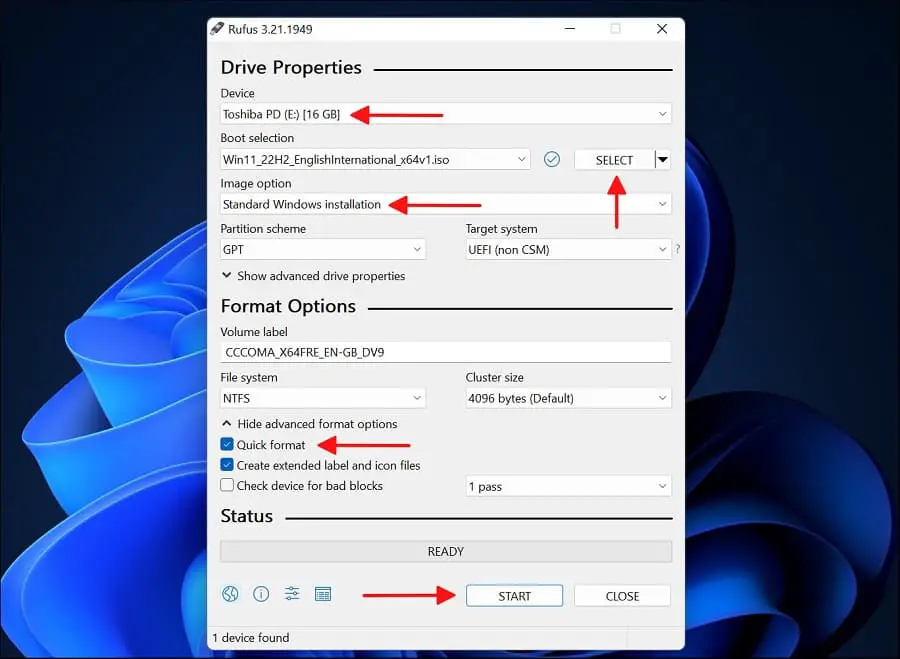
- Now, from the “Boot selection” drop-down, select “Disk or ISO image”, click on Select, then locate the Windows 11 ISO image.
- Download the Windows 11 ISO from Microsoft’s official download page.
- From the “Image” drop-down, select “Standard Windows 11 Installation (TPM 2.0 + Secure Boot)” or “Extended Windows 11 Installation (no TPM / no Secure Boot)” if you want to create a bootable drive for an unsupported system.
- Keep the “Partition scheme (GPT)” and “Target system (UEFI)” options as default.
- Next, enter a name for your USB flash drive under the “Volume label” section.
- Leave the “File system” and “Cluster size” options, as well as any other options, as default.
- Make sure the “Quick format” and “Create extended label and icon files” options are checked.
- Click the “Start” button to initiate the creation process for your Windows 11 bootable USB drive.
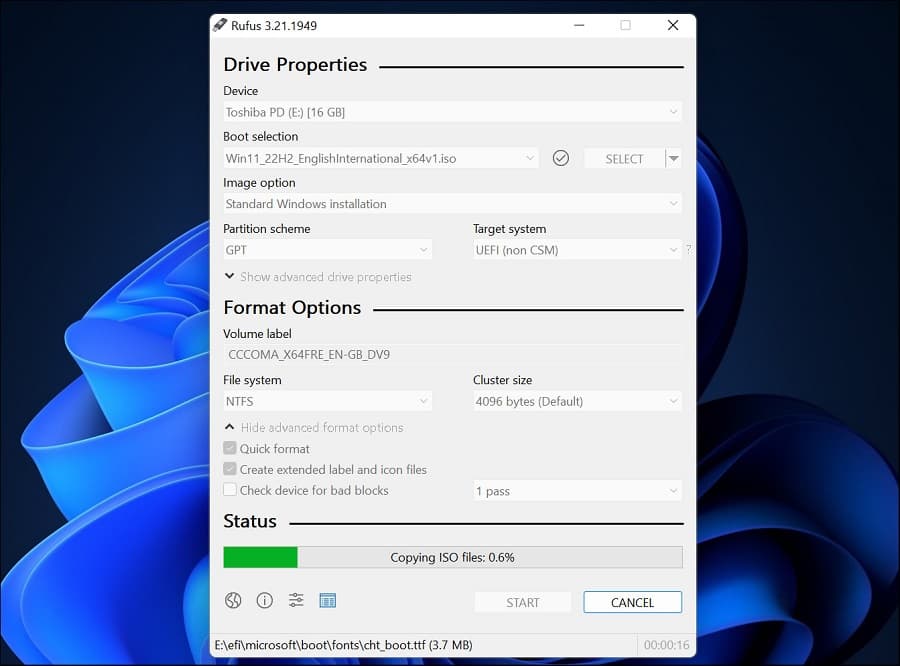
Wait for Rufus to finish creating the bootable USB.
Windows 11 normally requires compatible hardware, including TPM 2.0, Secure Boot capability, 4 GB RAM, and 64 GB storage. Microsoft does not recommend installing Windows 11 on devices that do not meet these requirements. (Microsoft Learn)
3. Download the Windows 11 ISO File
You don’t always need to create a bootable USB immediately. Microsoft also provides the Windows 11 ISO file, which you can save to your PC and later use with Rufus, a virtual machine, or other supported installation methods.
- Open Microsoft’s Windows 11 Download page.
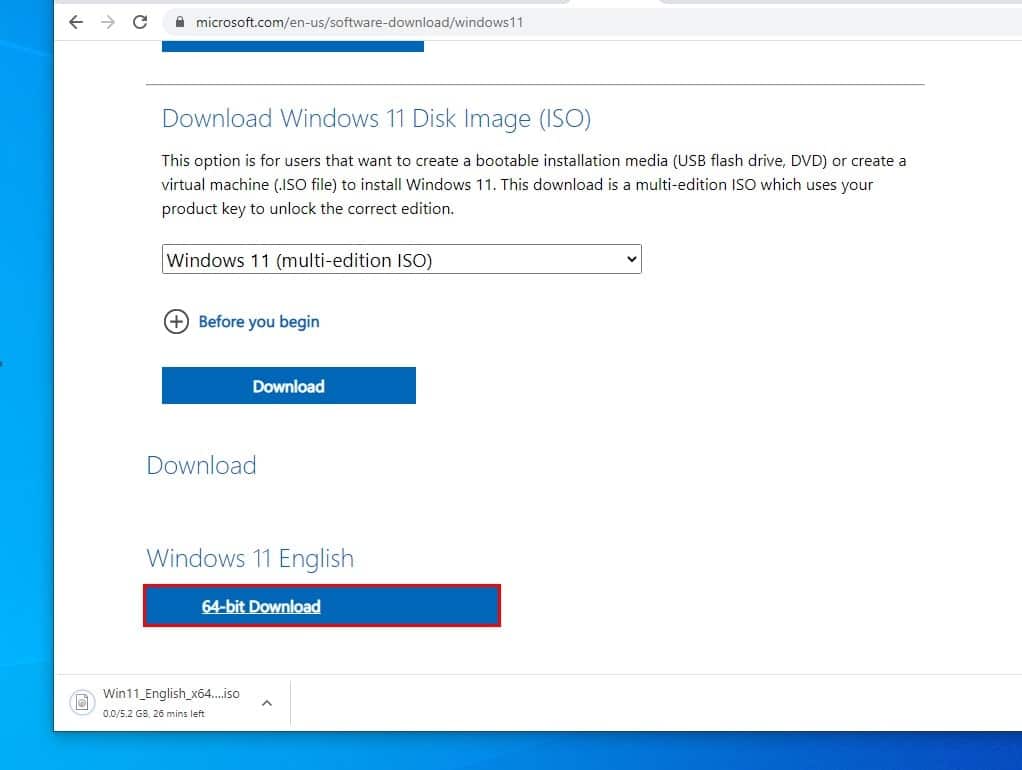
- Find Download Windows 11 Disk Image (ISO).
- Select the Windows 11 ISO from the available options.
- Click Download.
- Choose your language and confirm.
- Click 64-bit Download.
- Save the ISO file to a location with enough free storage.
Once downloaded, you can use Rufus to create a bootable USB drive from the ISO, or mount it directly in Windows to start an upgrade installation.
Quick Insight: Downloading the ISO separately is useful when you want to keep a Windows 11 installation file for later or need to customize the USB with Rufus.
4. Boot Your PC From the Windows 11 Installation USB
After creating the bootable USB, you need to start the target PC from it before Windows Setup can begin.
- Insert the Windows 11 installation USB into the PC.
- Restart the computer.
- Open the Boot Menu during startup. The key varies by manufacturer and is commonly F12, F9, F11, Esc, or F2.
- Select the USB drive from the boot options.
- Press Enter to boot from the USB.
- When Windows Setup appears, select your language, time, and keyboard preferences.
- Click Next → Install now to begin the installation.
If the USB does not appear in the Boot Menu, check the BIOS/UEFI boot settings and make sure the USB was created correctly.
Quick Insight: You normally don’t need to change the permanent boot order. Using the one-time Boot Menu lets you start from the USB while keeping the internal drive as the normal boot device.
5. Use the USB for a Clean Install
A bootable Windows 11 USB can be used to perform a clean installation, which removes the existing Windows installation and installs a fresh copy.
Before starting, back up important files because deleting the existing Windows partitions can permanently remove your data.
- Boot the PC from the Windows 11 installation USB.
- At Windows Setup, click Install now.
- Enter your product key if prompted, or select I don’t have a product key if Windows was previously activated on the PC.
- Select the Windows edition that matches your existing license.
- Choose Custom: Install Windows only.
- Select the partition where you want to install Windows 11.
- For a completely clean installation, delete the existing Windows partitions on that drive and select the resulting Unallocated Space.
- Click Next and allow Windows Setup to create the required partitions automatically.
Important: Deleting partitions permanently removes the data stored on them. Double-check the drive before deleting anything, especially if the PC has multiple SSDs or hard drives.
Quick Insight: A clean install is useful when you want to start fresh or Windows has serious software problems, but it is different from an in-place upgrade, which can preserve your files and applications.
6. Use Windows 11 Installation Media to Repair Windows
A Windows 11 installation USB is not only for installing Windows. You can also use it to access the Windows Recovery Environment (WinRE) when the installed copy of Windows won’t start properly.
- Insert the Windows 11 installation USB.
- Boot the PC from the USB.
- When Windows Setup appears, click Next.
- Select Repair your computer instead of Install now.
- Go to Troubleshoot → Advanced options.
- Choose the recovery tool you need, such as Startup Repair, System Restore, Uninstall Updates, or Command Prompt.
These options can help repair startup problems without immediately reinstalling Windows.
Quick Insight: Keep the Windows 11 installation USB after creating it. It can be useful later for troubleshooting a PC that cannot boot normally.
7. Verify the Windows 11 Installation Media
If the PC does not boot from the USB or Windows Setup fails during installation, the installation media itself may be the problem. Testing the USB before starting a clean installation can save time.
Try these checks:
- Safely eject and reconnect the USB drive.
- Try a different USB port, preferably a direct port on the PC.
- Boot from the USB using the Boot Menu.
- If Setup reports errors or the USB does not boot, recreate the media with Microsoft’s Media Creation Tool or Rufus.
- If possible, use a different USB drive.
If you created the USB with an ISO, make sure you downloaded the ISO from Microsoft’s official Windows 11 download page.
Quick Insight: If a freshly created USB works on another compatible PC but not on your target PC, the problem may be related to the target PC’s boot settings or hardware rather than the installation media.
8. Choose the Correct Partition Scheme in Rufus
If a Windows 11 USB is created with the wrong partition scheme or boot settings, the PC may not recognize it correctly or may refuse to boot from it.
For most modern Windows 11 PCs using UEFI firmware, Rufus should normally be configured for GPT and UEFI.
- Open Rufus and select your USB drive.
- Click Select and choose the Windows 11 ISO.
- Set Partition scheme to GPT.
- Set Target system to UEFI.
- Leave the file system settings at their recommended defaults.
- Click Start to create the bootable USB.
- Boot the target PC and select the USB from the Boot Menu.
Older PCs that use legacy BIOS may require different settings, but Windows 11 is primarily designed for modern UEFI-based systems.
Quick Insight: For a typical Windows 11 installation, use GPT + UEFI when creating the bootable USB with Rufus.
Frequently Asked Questions
Yes. You can download the Windows 11 ISO directly from Microsoft and mount it in Windows to perform an in-place upgrade. You can also use the ISO later with Rufus to create a bootable USB.
Microsoft recommends using a blank USB flash drive with at least 8 GB of space when creating Windows 11 installation media.
Rufus provides options to bypass certain Windows 11 hardware checks when creating installation media. However, Microsoft states that installing Windows 11 on hardware that does not meet its minimum requirements is not recommended and may result in compatibility or support issues.
Yes. Creating bootable installation media normally erases the existing contents of the selected USB drive. Back up any files stored on it before starting.
Yes. Booting from the installation USB and selecting Repair your computer opens Windows Recovery Environment, where you can access tools such as Startup Repair, System Restore, Uninstall Updates, and Command Prompt.