


Finally, Microsoft started rolling out Windows 11 as a free upgrade to eligible Windows 10 Devices. The latest Windows 11 brings an overhaul to the design along with new features and general improvements to the operating system. Microsoft also makes available Windows 11 ISO images for download and use it for different purposes.
Well, Microsoft announced the full rollout of Windows 11 23H2 to all eligible PCs so not everyone will see the new update right away. However, if you are impatient and want to jump on Windows 11 right away then you can use the official Windows 11 Installation Assistant to upgrade your PC. Also using the media creation tool you can create a Windows 11 bootable USB stick for a clean install. Here in this post guide how to download the Windows 11 media creation tool and create a Windows 11 Bootable USB for clean installation.
What Is Windows 11 Media Creation Tool?
The official Windows 11 Media Creation Tool allows you to download Windows 11 ISO or create an installation media (Bootable Device) to perform a clean install or repair a problematic PC.
Previously using the media creation tool you could use it to do an in-place upgrade or to create an installation media. But starting with Windows 11 the media creation tool is just for creating a USB bootable media or downloading the ISO file. This means you can no longer use it to do in-place upgrade.
Basically, the interface for the media creation tool is the same as it was for Windows 10. But it is useful because using this we can download the iso and install Windows 11 even on unsupported or incompatible devices.
How to download the Windows 11 media creation tool
With the Windows 11 rollout, Microsoft also released the media creation tool on an official Windows 11 download page. And you can download the Windows 11 media creation tool from the Microsoft official site.
- First, open your favorite web browser, and open this link
- This will open Microsoft’s official Windows 11 download page.
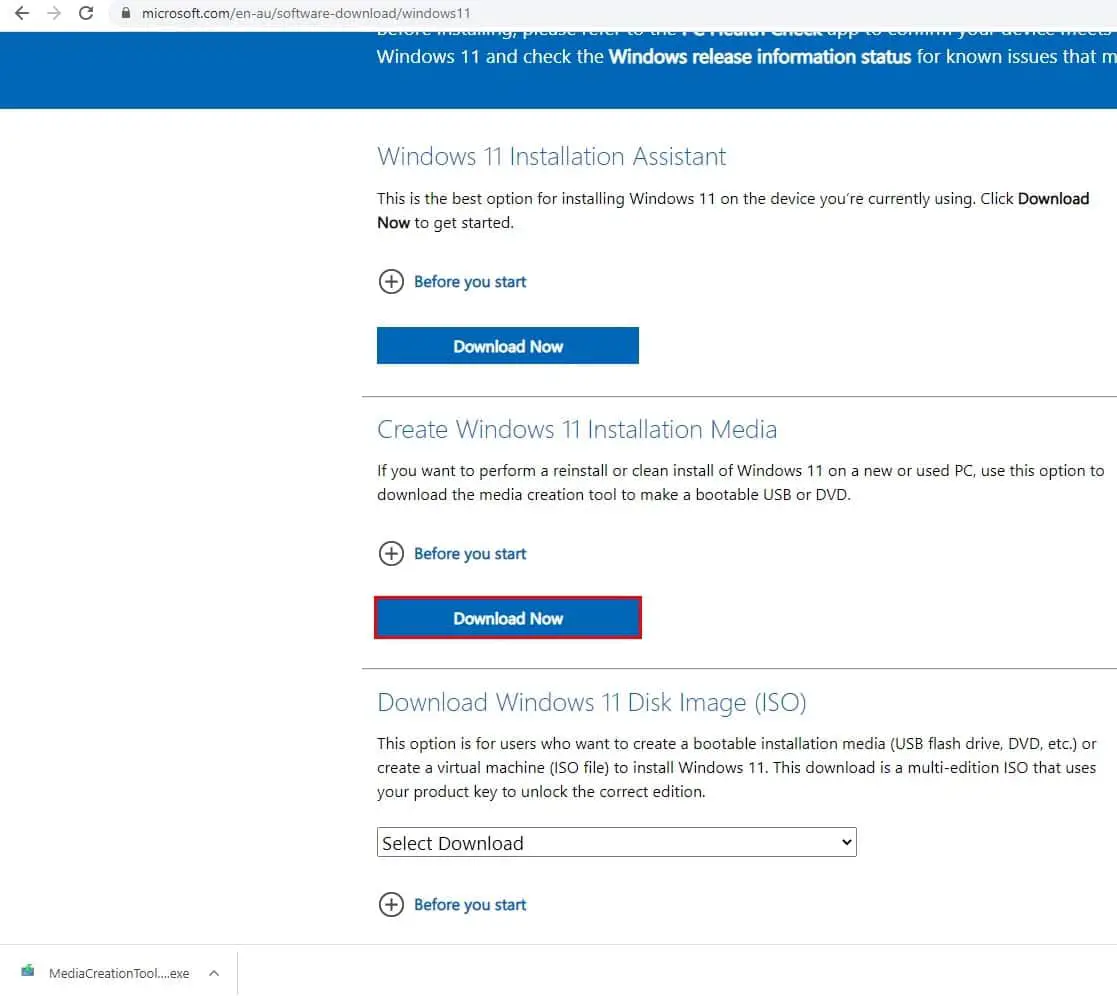
- Here you will get three options to download, Windows 11 Installation Assistant, Create Windows 11 Installation Media and Download Windows 11 Disk Image (ISO).
- you need to click on Download Now next to create Windows 11 installation media to download the media creation tool on your device.

Create a Windows 11 USB flash drive using the media creation tool
Here is how to create Windows 11 installation media (Bootable USB) using the media creation tool.
- First, download the media creation tool and locate it on the download folder,
- Right-click on the media creation tool and select run as administrator,
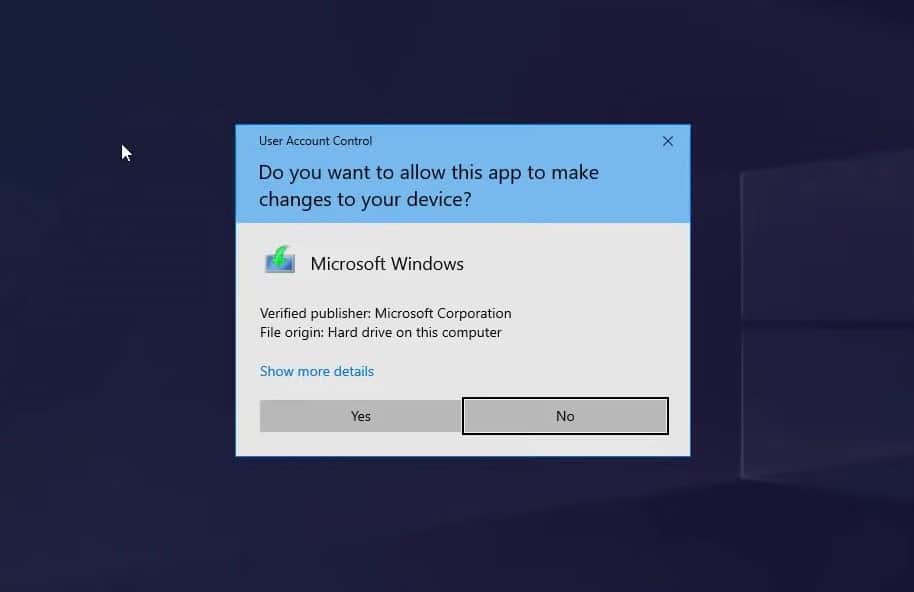
- Click yes if the User account control prompt for permission

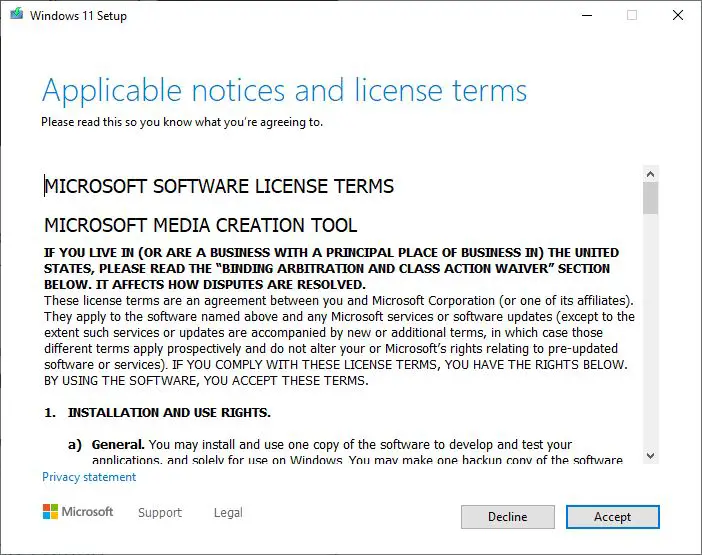
Before go ahead you must read and accept the Microsoft license terms. scroll down and read the license terms before clicking on Accept.

This time media creation tool has been simplified and you’re not going to see the option to upgrade neither you’re going to see the option to choose a 32-bit version because
Windows 11 only comes on 64-bit.
- If you need to change the language just clear the “use the recommended option for this PC” option then select the language right here.
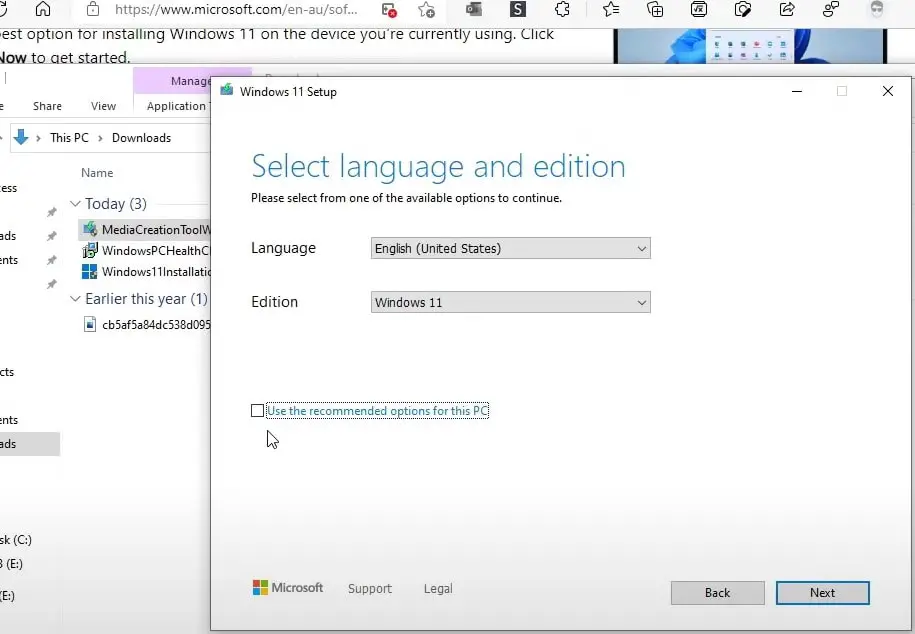

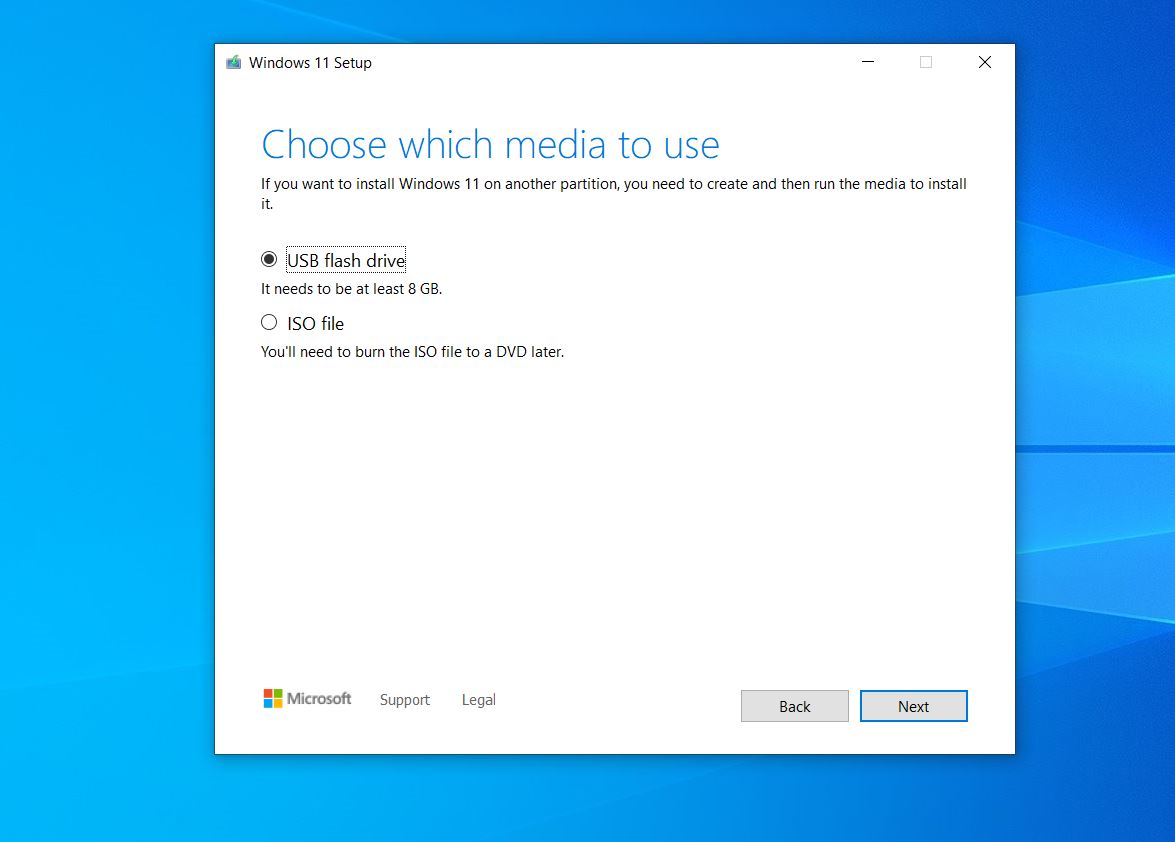
- Then click next It will represent two options USB flash drive and ISO file.
- Because we are creating bootable media select the USB flash drive option
Make sure to connect a USB drive that has at least 8GB of space and click next.
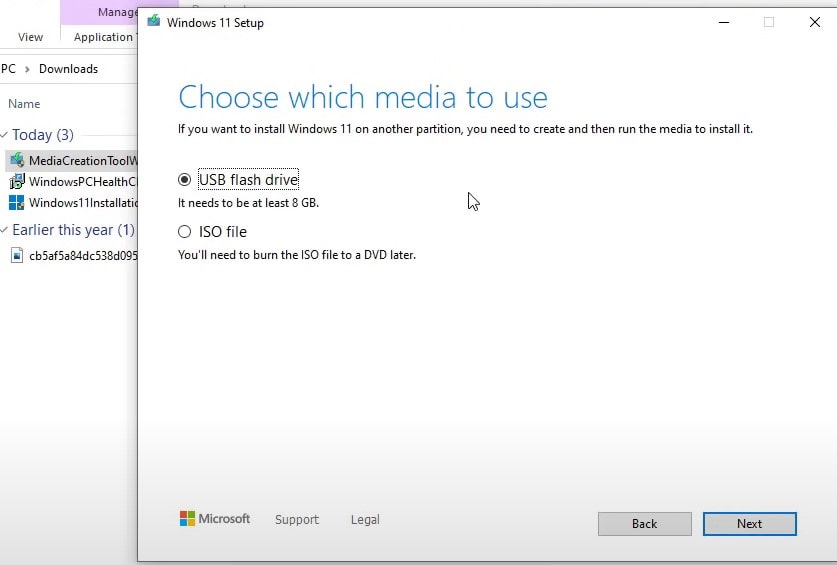

- Then select that USB from the list and if it is not listed make sure to click the refresh option.
Make a Note: Anything on the drive that you select will be erased so make sure you select the right one.
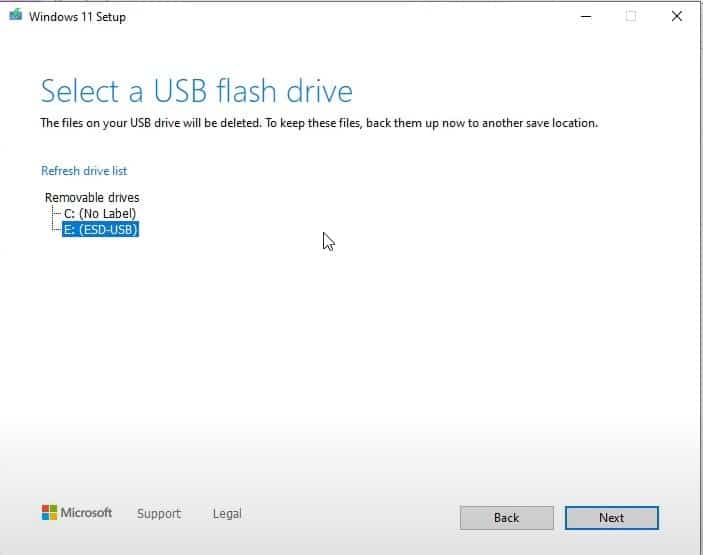

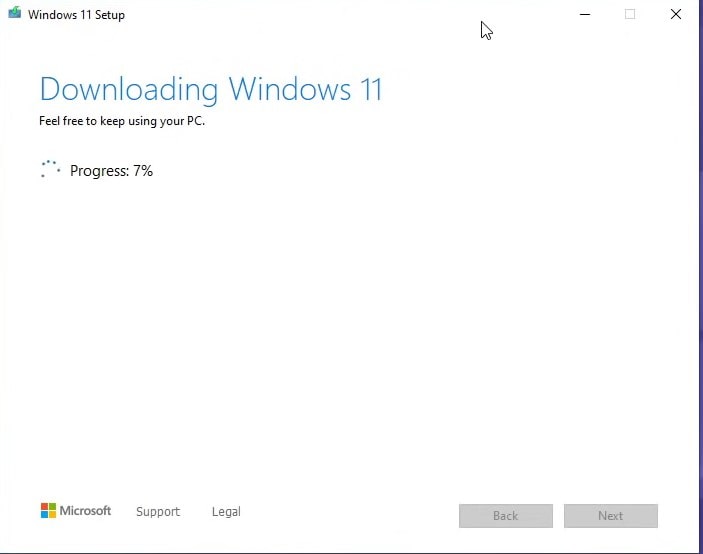

- And the setup will create a USB bootable that you can use to boot your computer and install the new version of Windows 11
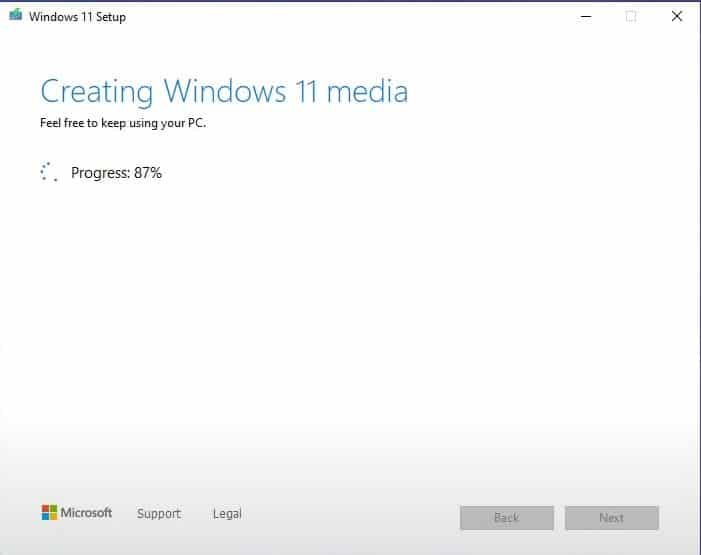

- Once the USB has been created click the finish button.
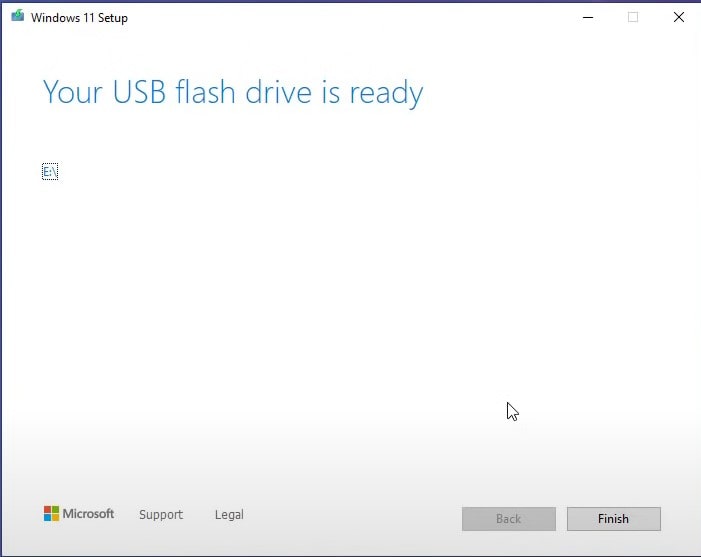

That’s all you can now use the device using UEFI with the USB drive to install Windows 11.
Download Windows 11 using the Media Creation Tool
As discussed before using the Windows 11 media creation tool you can also download Windows 11 ISO images to your local computer. Here is how to do
- First, download the media creation tool from its official site here.
- Locate the Windows 11 media creation tool on the download folder, right-click on it select run as administrator,
- You must accept the software license terms before go ahead, click on Accept to accept the terms.
- Next, you can use the recommended options for this PC or uncheck this option to select a different language.
- On the next screen, you have to select the ISO file so that you will be able to download the Windows 11 ISO file click on next.
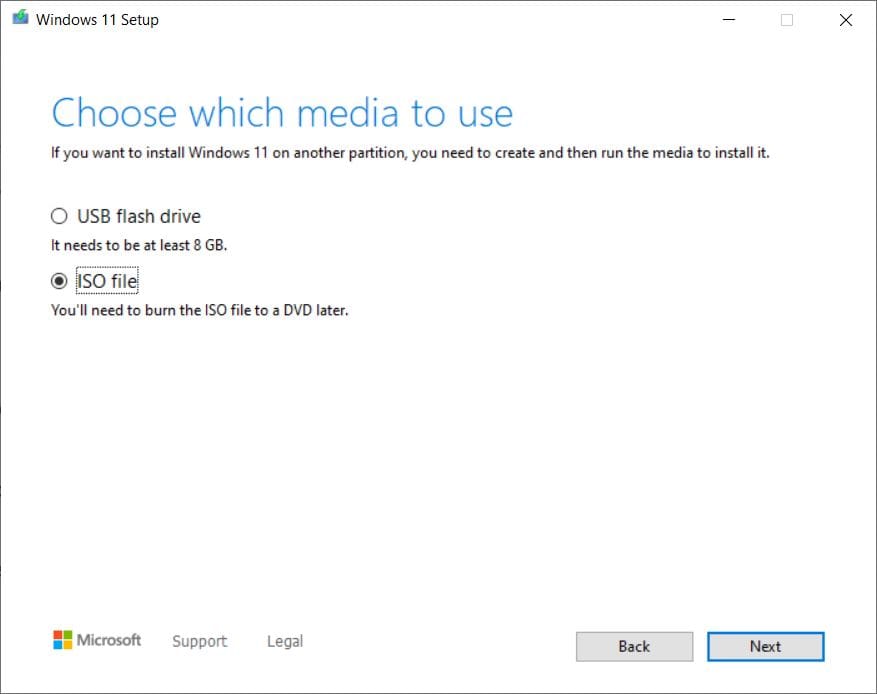

- Now you will be asked where you want Windows 11 ISO to be downloaded, select a location then click on save.
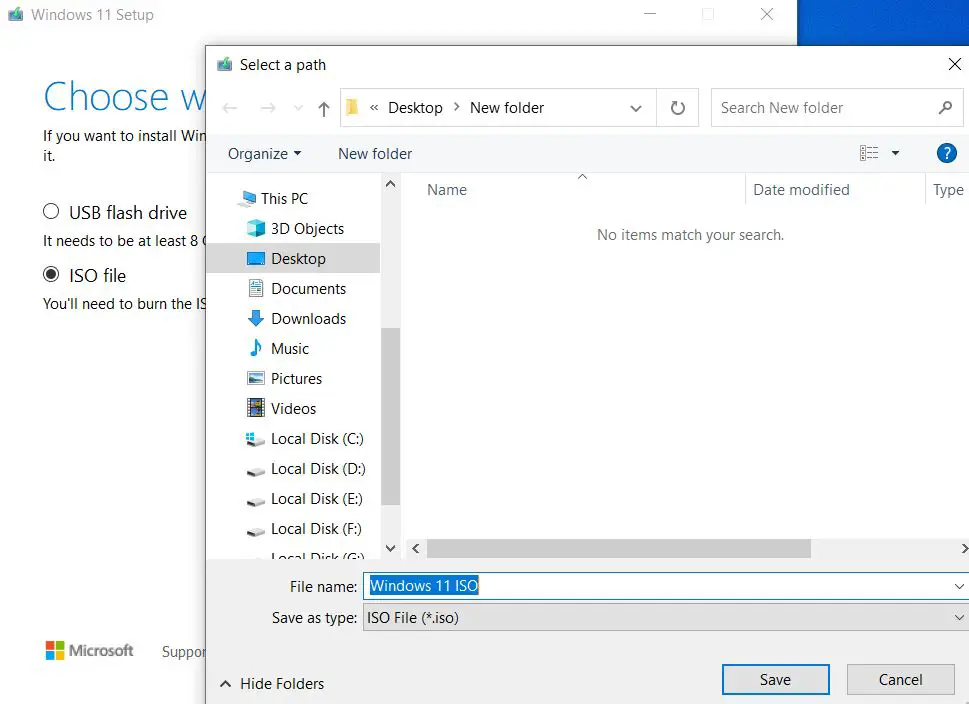

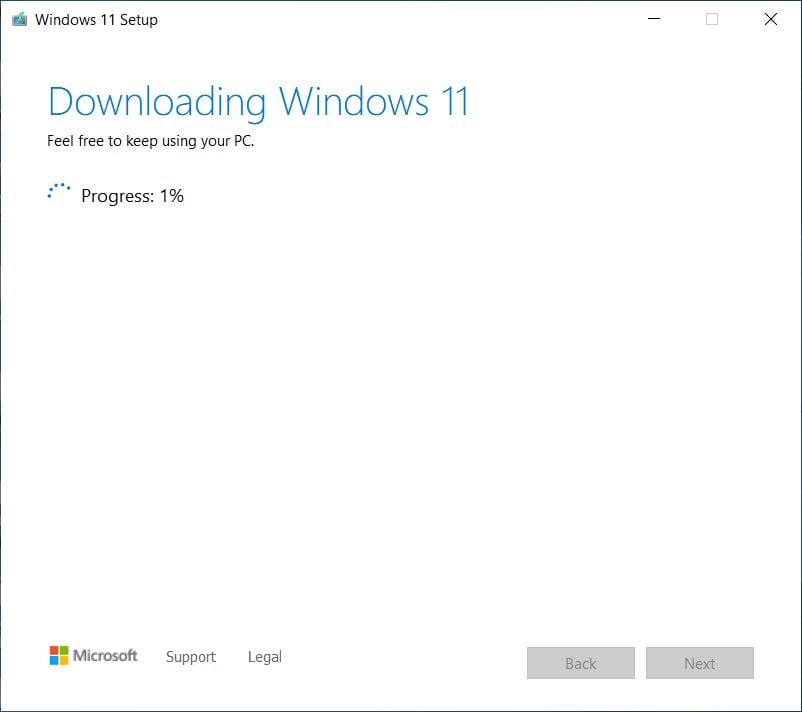

- Once done you are going to have the iso in the location that you selected before.
Now you can use that ISO image to create a bootable USB and perform Windows 11 clean installation.
Also read:
- Windows 11 Snap Layouts not working? 3 working solutions to fix it
- Defined Relationship Between Network Security and Internet Security
- How to make Windows 10 bootable USB From ISO Images (Two official ways)
- 2 working methods to fix This PC can’t run Windows 11
- Solved: Windows 10 Webcam keeps freezing every few minutes


%20or%20download%20the%20latest%20Windows%2011%20ISO%20image%20file)