


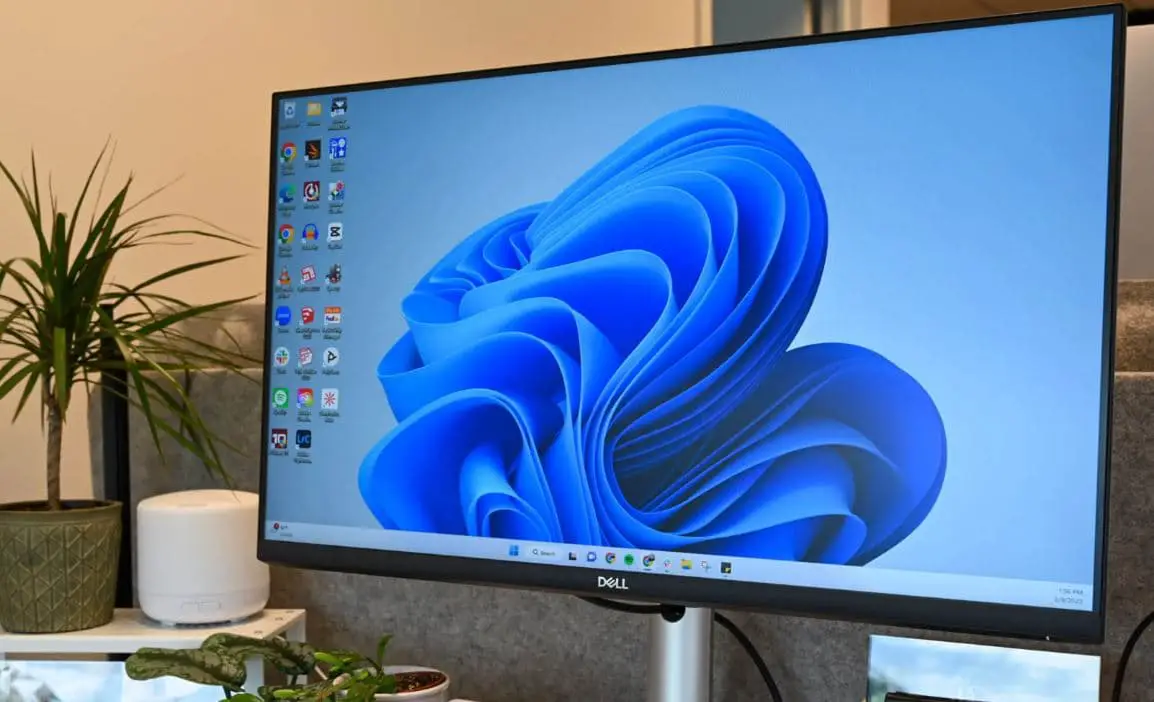
If you have Windows 10 PC or Laptop already and meet the Windows 11 minimum requirements then you can upgrade to Windows 11 23H2 for free. The latest release from Microsoft brings modern aesthetics and a number of new features include a new modern user interface, redesigned start menu and taskbar, Snap Layouts, Widgets, impressive performance advanced security and more. Also, Windows 11 23H2 ISO images are available for download, the OS requires 64-bit processors so the ISO file is not being offered in the 32-bit version. Here this article explores How to download Windows 11 for free or upgrade to Windows 11 from Windows 10.
Check Windows 11 System Requirements
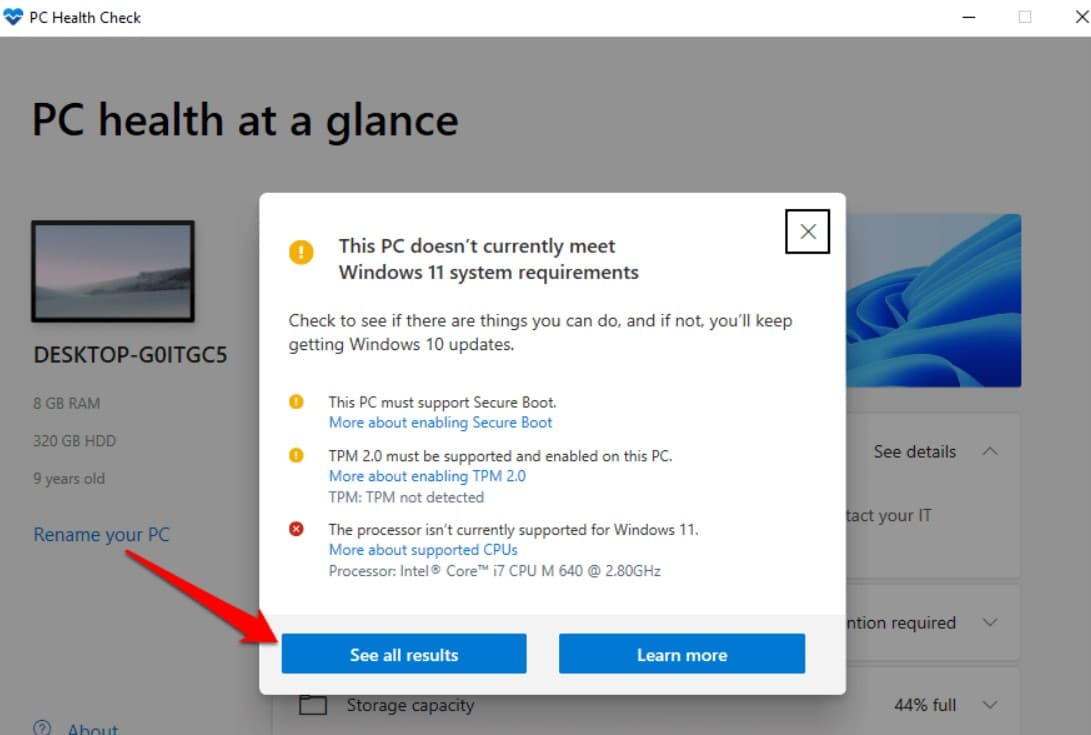
The latest Windows 11 is available as a free upgrade for compatible devices only that meet minimum system requirements, supports Trusted Platform Module (TPM) 2.0 and has the Secure Boot option in your BIOS. Here Microsoft officials recommend the minimum requirement for Windows 11 free upgrade.
- CPU: 1 Gigahertz (GHz) or faster with at least two cores on a compatible 64-bit processor or System on a Chip (SoC).
- RAM: A minimum of 4 GB memory and 64 GB for free storage on the system drive (C drive)
- System Firmware: UEFI, Support Secure Boot
- TPM: Trusted Platform Module (TPM) version 2.0
- GPU: DirectX 12 or later with WDDM 2.0 driver.
- Display: High definition (720p) display that is greater than 9 diagonally, 8 bits per color channel.
Windows 11 Home requires an active internet connection and a Microsoft Account to complete the initial installation.
Also, you can run the PChealth check tool to ensure your PC meets minimum system requirements for Windows 11. This tool will check for compatibility issues and provide suggestions if any requirements are not met.

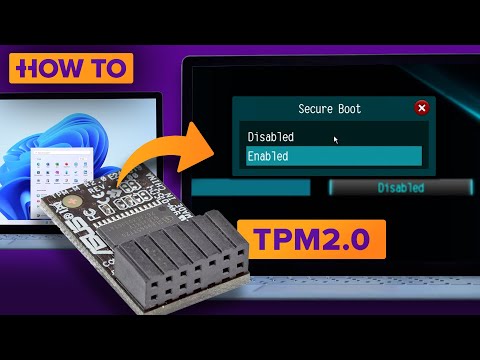
Here is a video explaining how to enable TPM and secure boot on your device for Windows 11 installation.
Here is the workaround if your device doesn’t have TPM 2.0 or does not meet the minimum system requirements. How to install Windows 11 on an unsupported PC.
How to download Windows 11 for free
There are different ways to download Windows 11 or upgrade for free. You can download Windows 11 version 23H2 from the Windows update or use the official Assistant to upgrade to Windows 11 for free. Also, there is Media creation tool to download the official Windows 11 ISO or Make it bootable to install Windows 11 from Scratch.
Note – If you’re still using an older version of Windows 7 or 8.1, you will first need to upgrade to Windows 10, and then you’ll qualify for the Windows 11 free upgrade.
Using windows update
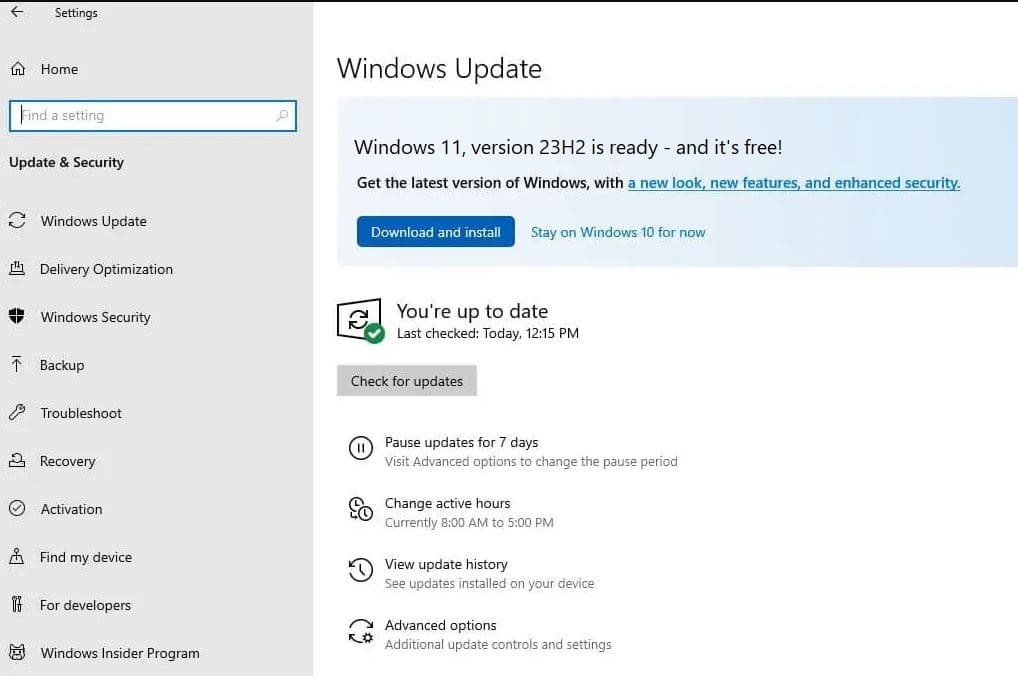
If you have a Windows 10 PC or laptop that meets the minimum system requirement for Windows 11, you can download Windows 11 for free using the Windows update.
- Press Windows key + S, search for Windows update and select the relevant result,
- Ensure the latest Windows updates are installed on your Device,
- If your PC is fully up to date, and meets minimum system requirements, there are good chance it will already pushing the Windows 11 update on you
- All you have to do is click on Download and Install button to get started.

- Make sure your device is connected to a stable internet connection to download Windows 11 files from the Microsoft server.
- Once done, reboot your PC to apply the changes and upgrade your PC to Windows 11 for free.
Using the Installation Assistant
Well if the Windows 11 free upgrade option is not available for your device, you can use the official Installation Assistant to force download Windows 11 on your device.
- First, visit the Windows 11 download page, and look for Windows 11 Installation Assistant.
- Click the blue download now button, to save it on your local device.
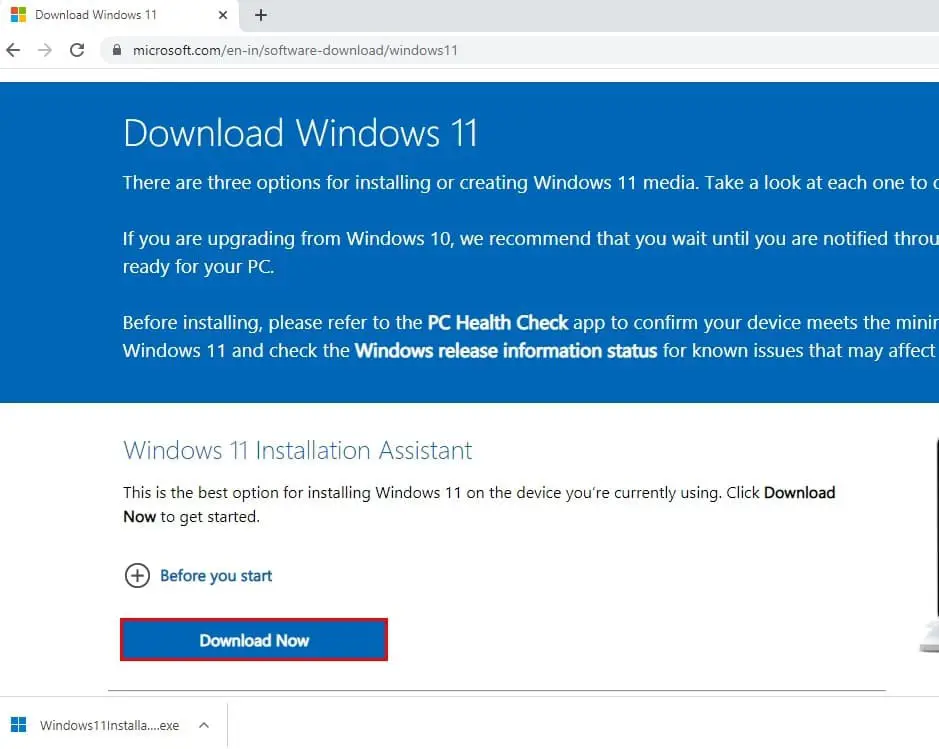

- Now locate the Windows11InstallationAssistant.exe, right-click on it select run as administrator,
- Select Accept and Install to accept the terms and conditions, then begin the Windows 11 update process.
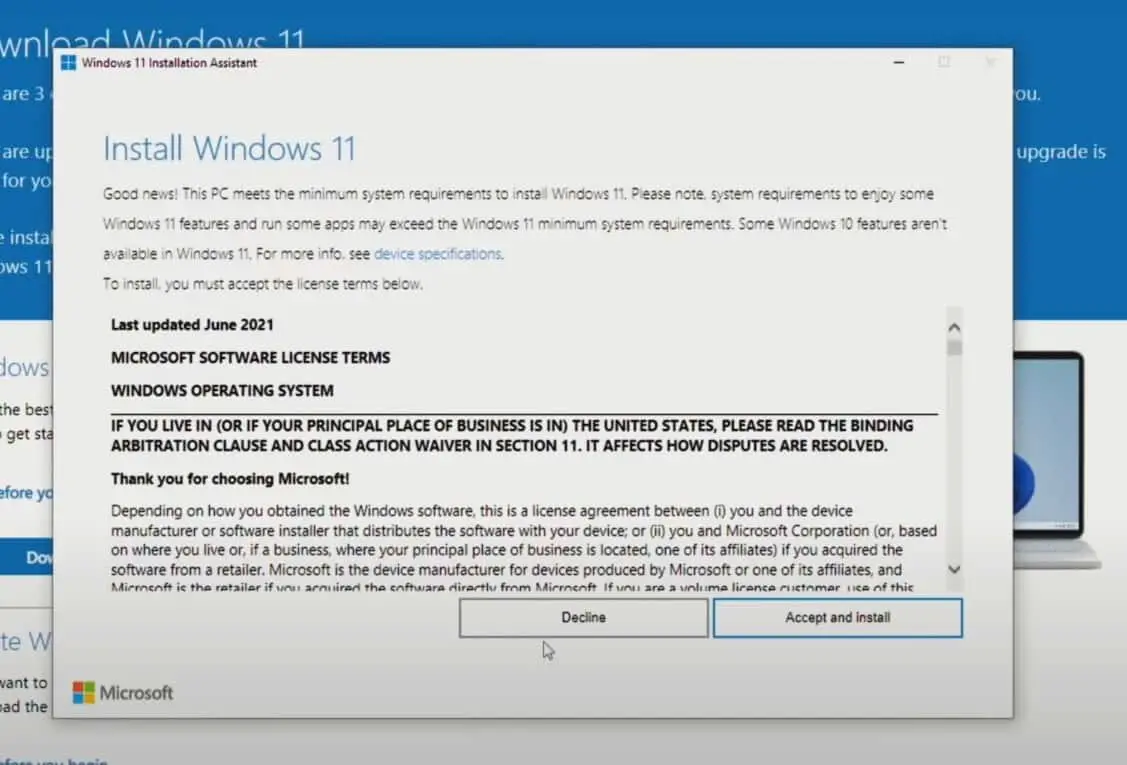

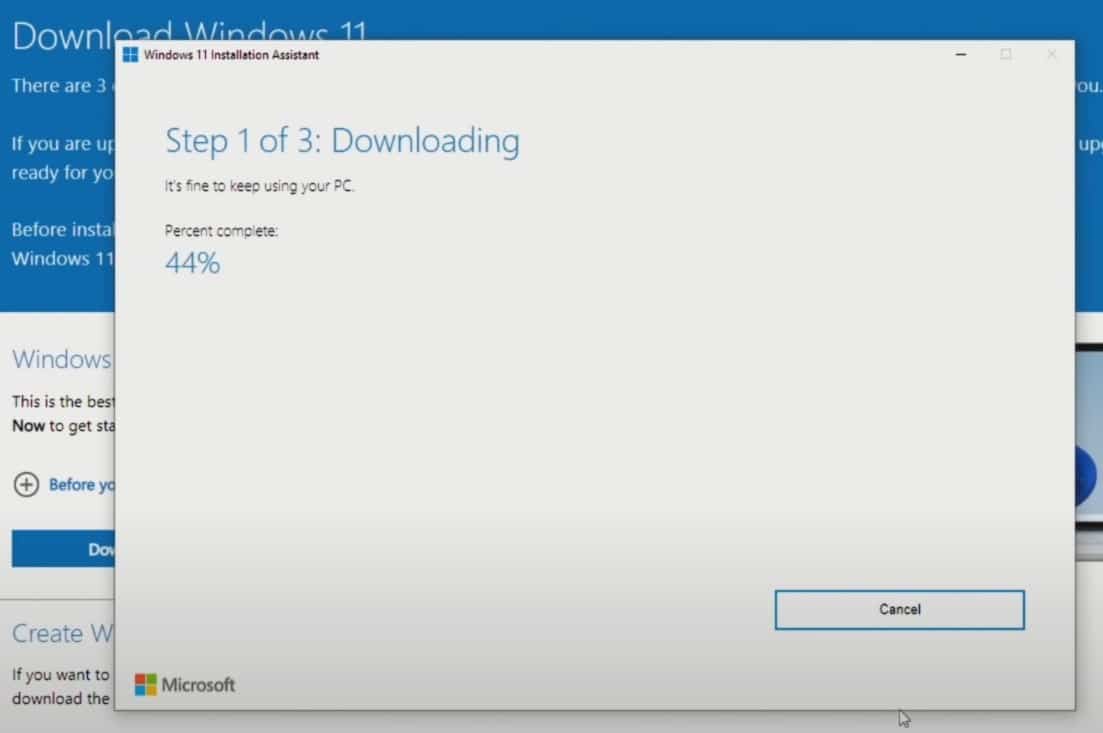
- This will start to download Windows 11 required files from the Microsoft server, it may take some time (depending on your Internet speed)

- When the program is finished installing, you’ll be prompted to restart your computer.
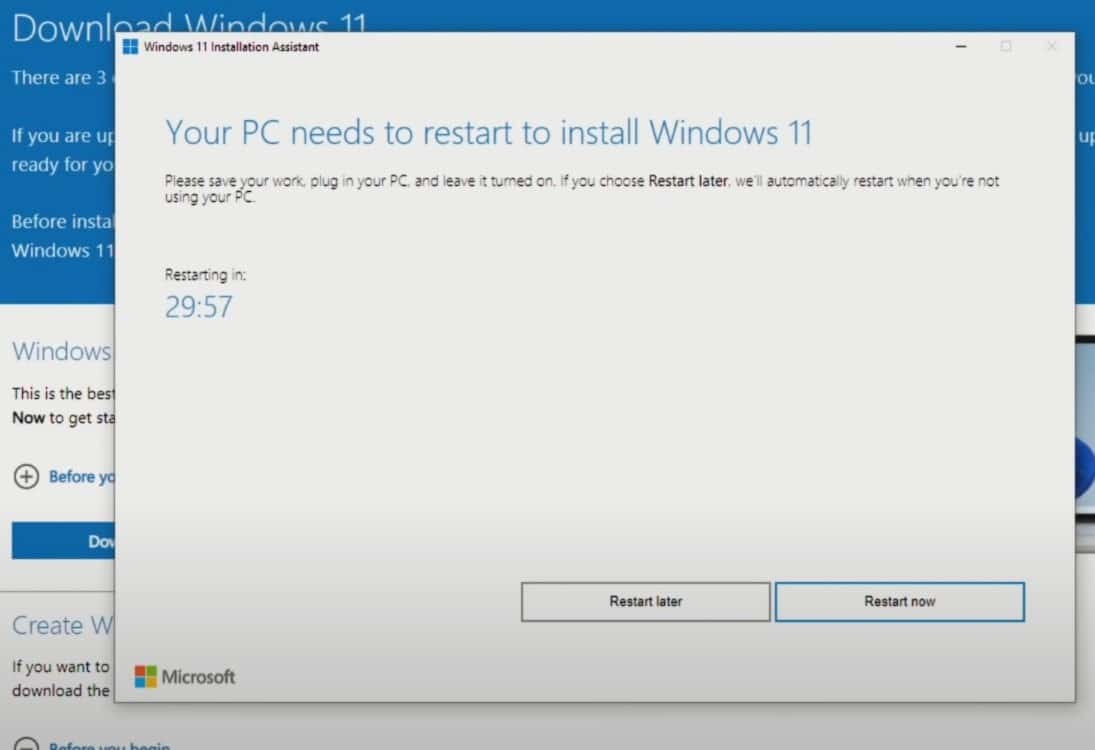

- Your PC might restart several times during the process of finishing the installation, so don’t be alarmed. Just keep your PC on until everything’s done.
Using the Media Creation Tool
If you are looking to Download Windows 11 to perform a clean install from scratch or install Windows 11 on a new PC. You can use the Media Creation Tool to download the Windows 11 ISO file or make it bootable to perform a clean installation or use it for a different purpose.
- First, visit the Microsoft Windows 11 download page, and click download next to the Create Windows 11 Installation Media option.
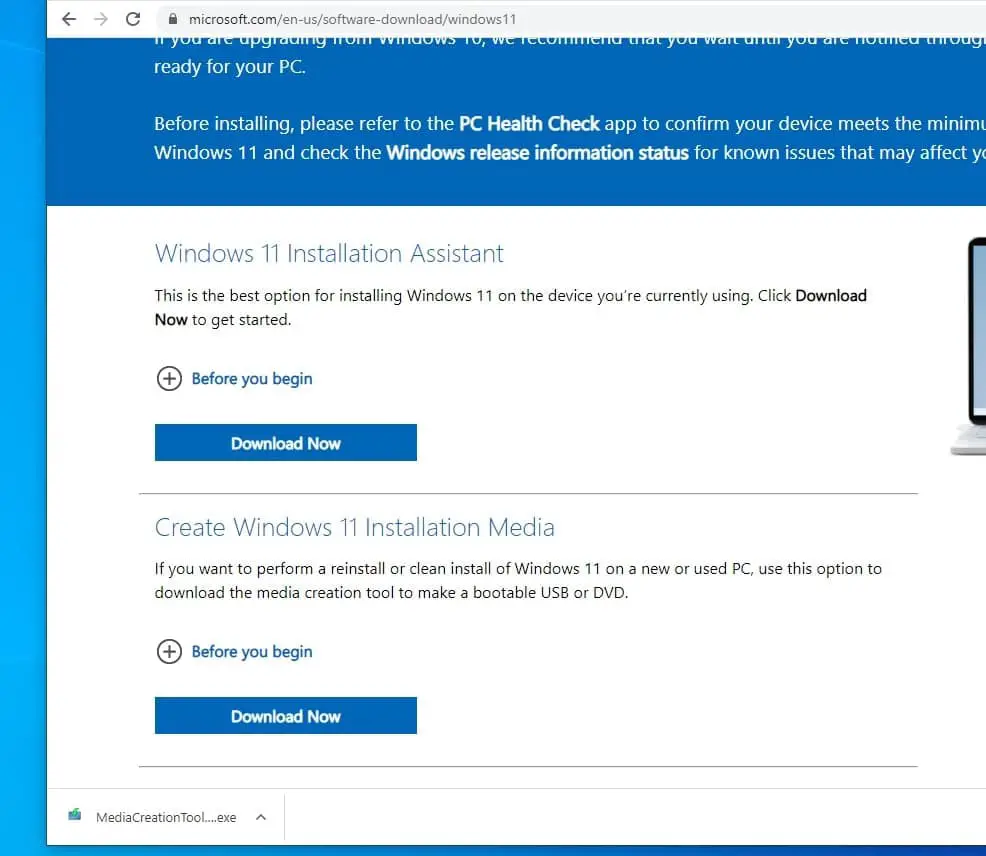

- Locate and right-click on mediacreationtool.exe select run as administrator,
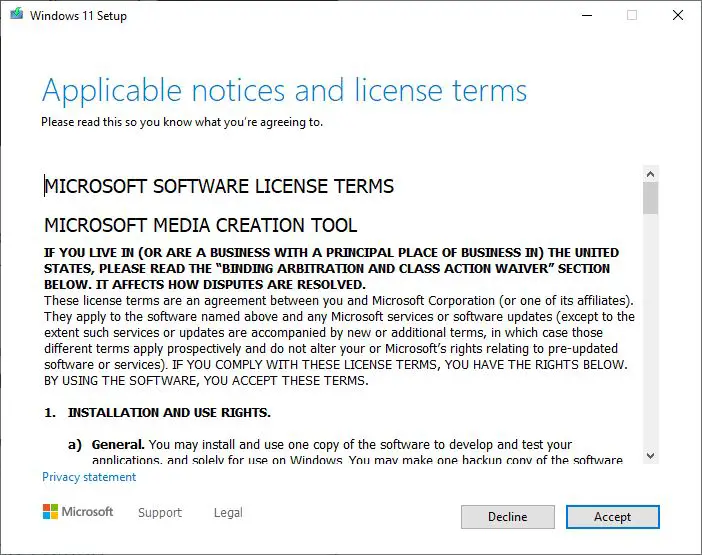
- Accept the Microsoft terms and conditions, and click next.

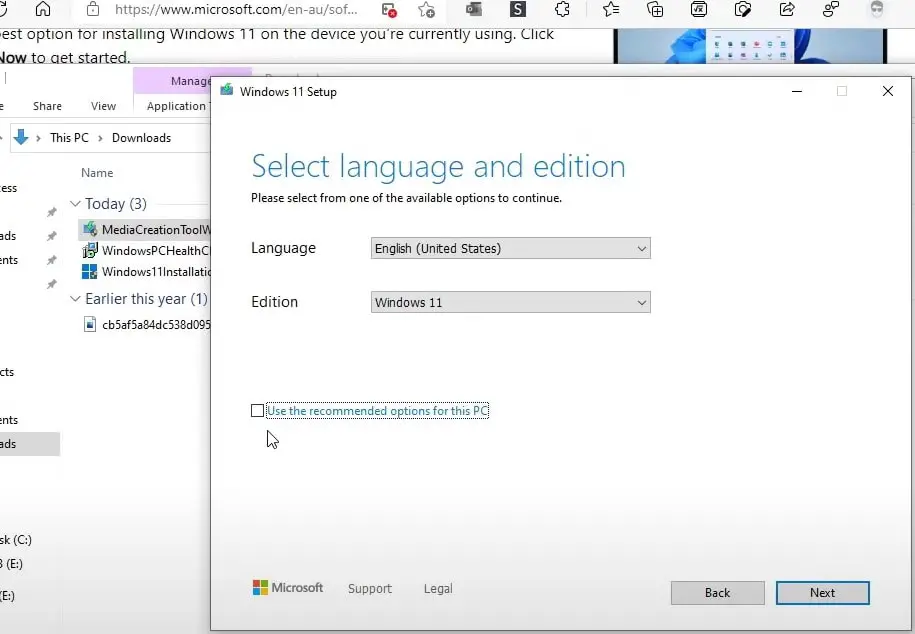
- Next, you need to choose your language and then the Edition of Windows 11 (Or leave it default recommended options)

- From Here you can download the Windows 11 ISO or make it bootable media.
Let’s first see how to download Windows 11 ISO image file.
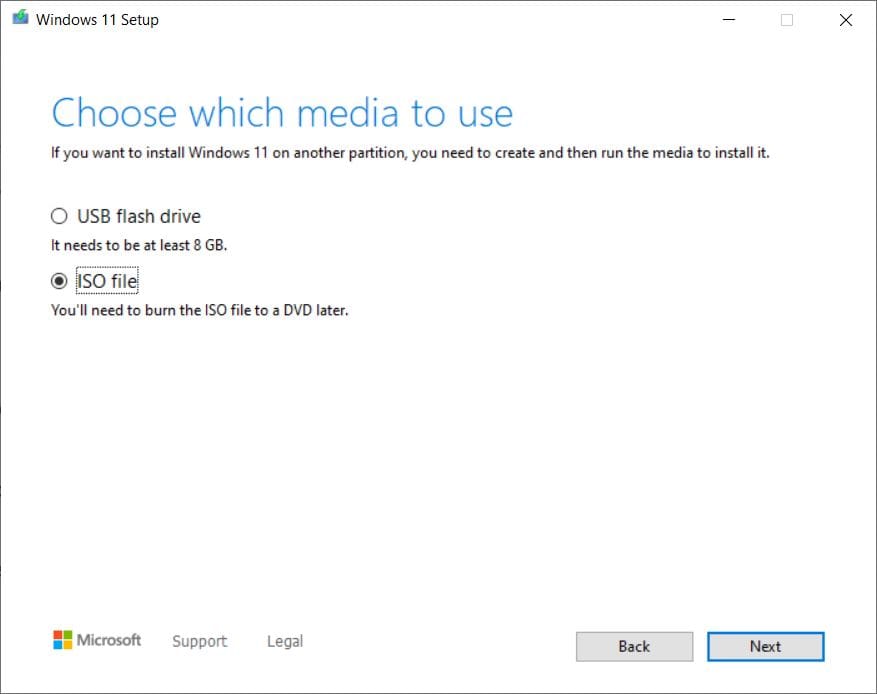

- Select the ISO file option and click next, Now you will be asked where you want Windows 11 ISO to be downloaded, select a location then click on save.
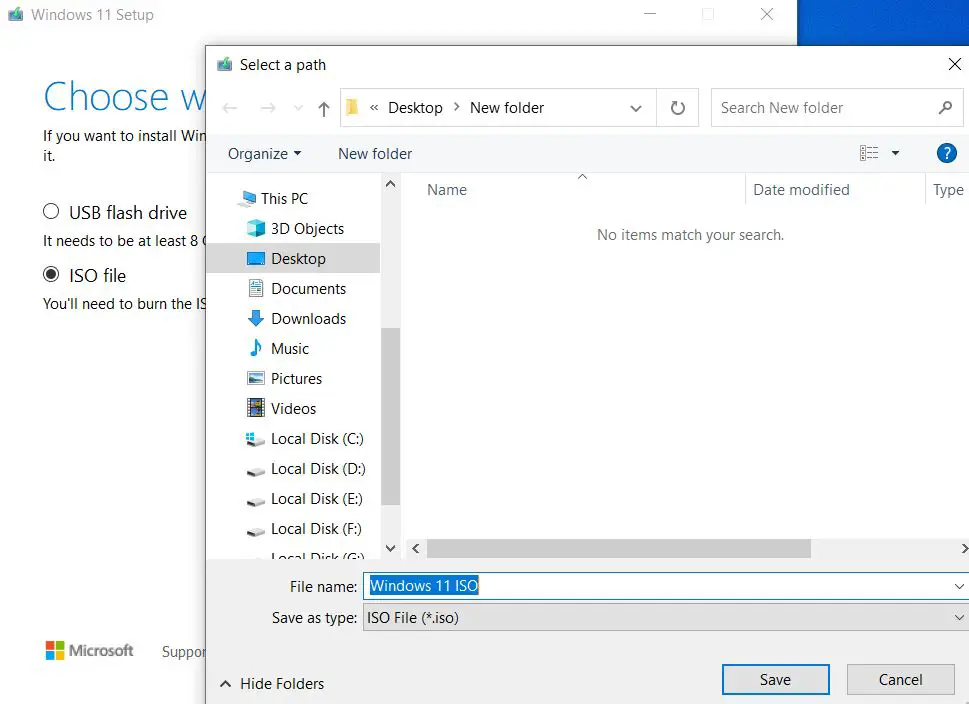

- This will start to Download the Windows 11 ISO image file direct from the Microsoft server.
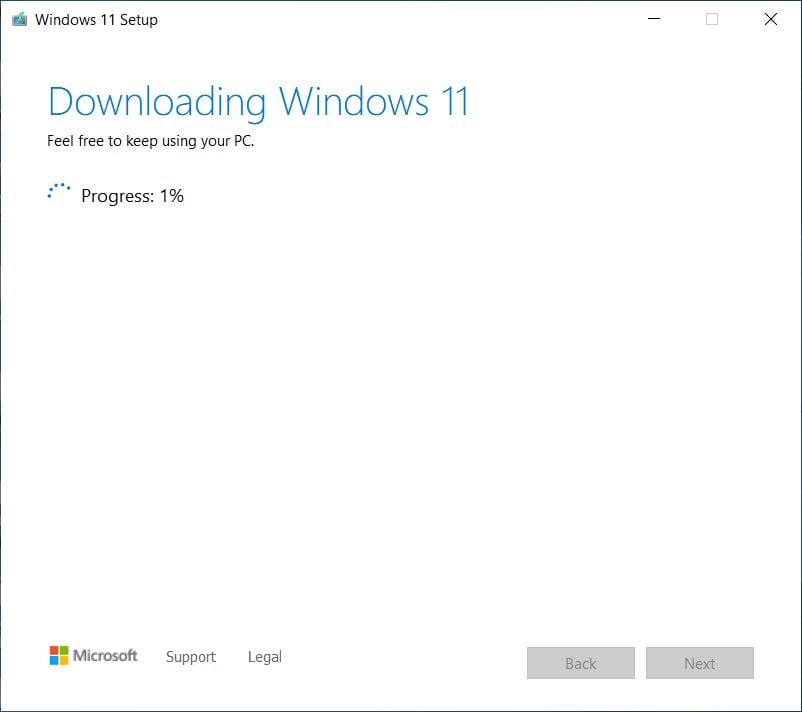

To make bootable Windows 11 media
First, connect a USB drive with at least 8 GB of free space. Also, backup data from that USB drive as it will formate and clear data before creating installation media.
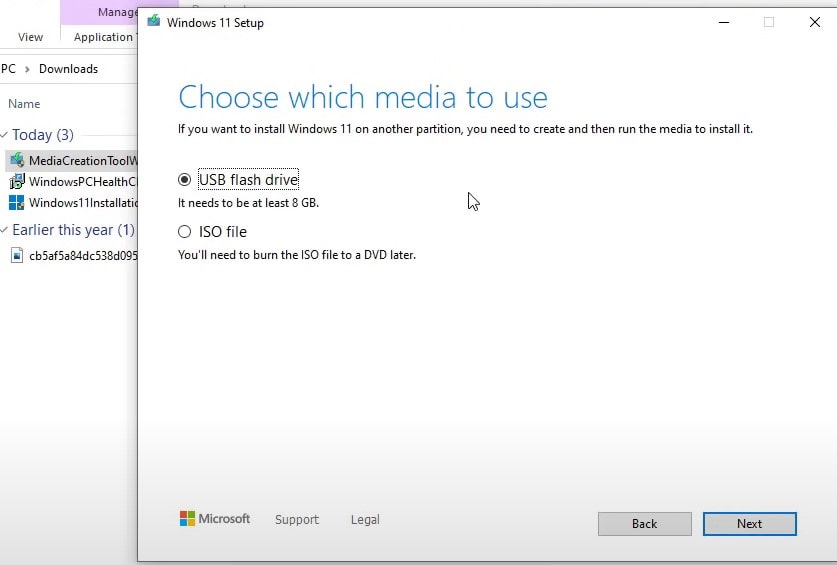
- Select the USB flash drive option and click next.

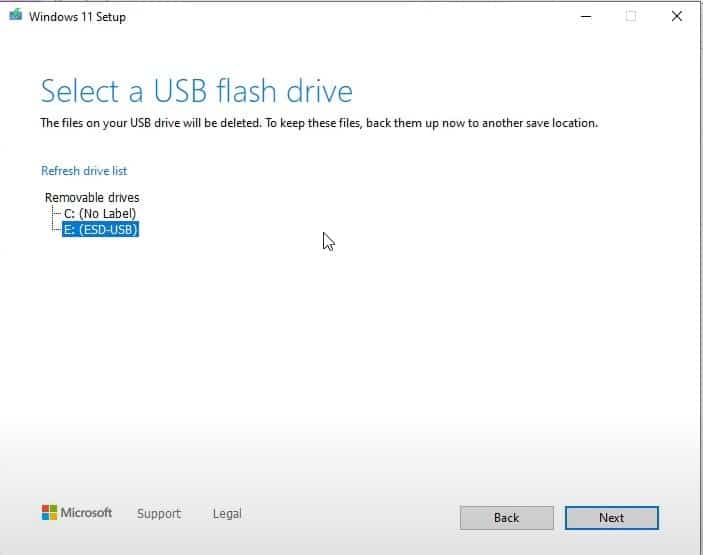
- Select that USB from the list and if it is not listed make sure to click the refresh option and click next.

- This will start downloading Windows 11 installation files, The download time depends on your Internet speed.
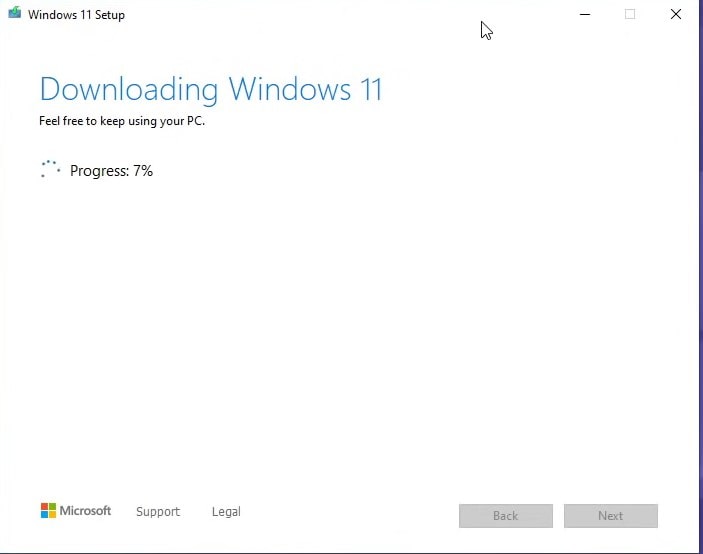

- Next, the setup will create Windows 11 media, Once the USB has been created click the finish button.
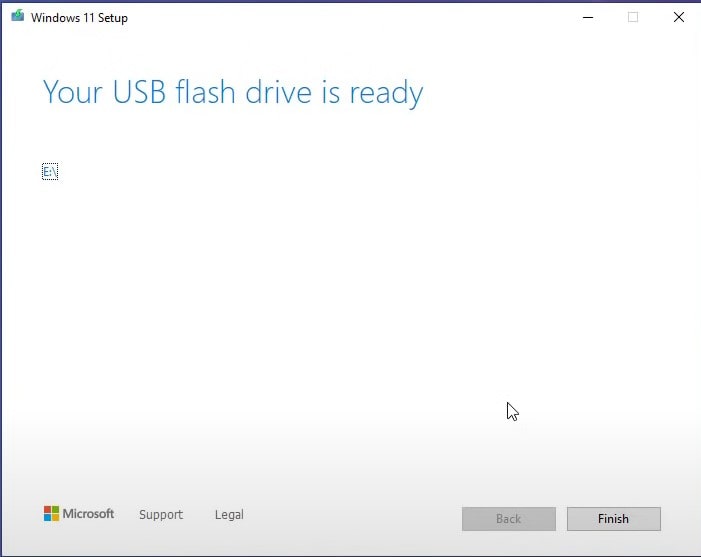

Once the installation media is created, you can reboot your PC and boot to the USB drive to begin upgrading to Windows 11.
Direct download Windows 11 ISO files from Microsoft
Also, you can Download ISO file for Windows 11 version 23H2 to update your devices immediately or perform a clean install. It’s simple and easy to download Windows 11 ISO from Microsoft’s official
First Open your favorite browser and visit the Windows 11 download page.
- Locate the section “Download Windows 11 Disk Image (ISO)”, Select “Windows 11” from the dropdown menu and Click on “Download“
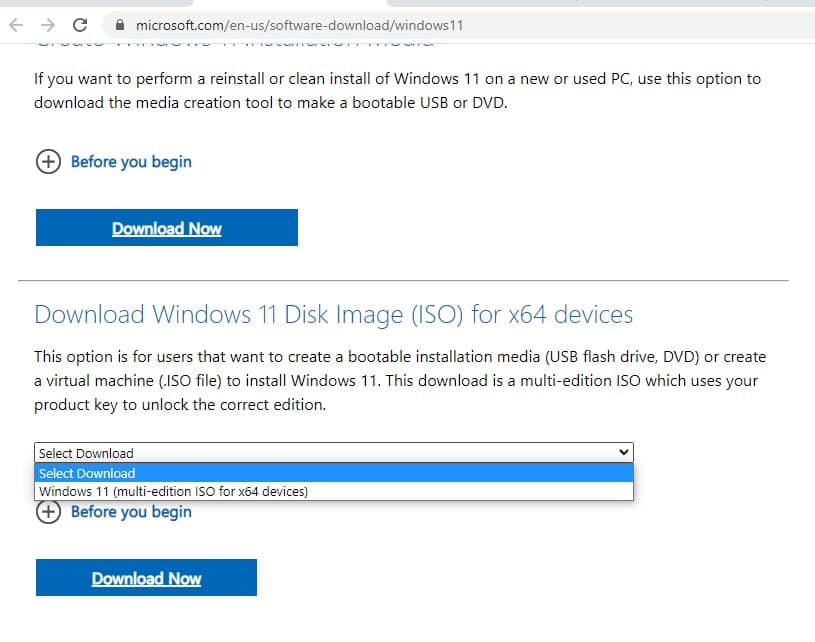

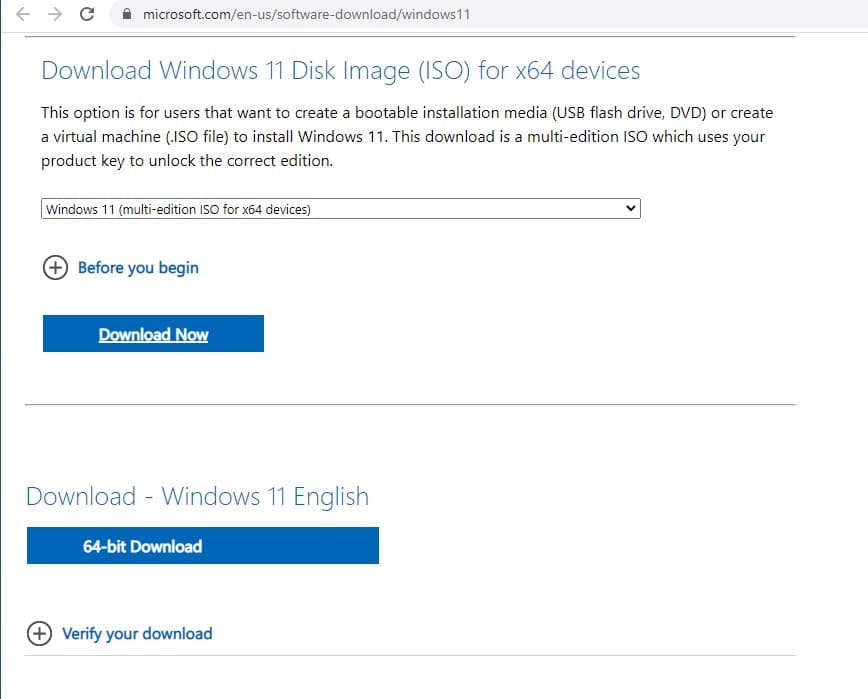
- Next, Select your preferred language and Click on 64-bit download to begin the process.
- The size of the ISO file is 5.1GB, but it could be slightly lower or higher depending on the language pack you select.

If you’re planning to upgrade the existing hardware, make sure that you verify the configuration by visiting Settings > System > About.
Windows 11 23H2 Features
Lastly, what are the features of Windows 11? The latest release introduces a range of new features and enhancements that enhance productivity, aesthetics, and user experience.
Copilot simplifies tasks and offers assistance, Paint gets AI-powered drawing and background removal.
The Photos app gets a background blur feature and better search capabilities, the Snipping Tool adds text extraction and redaction, and Clipchamp assists with video creation.
Notepad now auto-saves sessions, Outlook combines email accounts seamlessly, and File Explorer offers a modernized interface.
There is new Windows Backup app that simplifies transferring files and settings to new PCs, ensuring a seamless transition.
Redesigned Start Menu and Taskbar providing a cleaner and more streamlined look.
There is a new Snap Layouts feature that allows users to quickly organize and snap windows into pre-defined layouts on their screen. Widgets are reintroduced in Windows 11 providing personalized news, weather updates, calendar events, and other information at a glance.
Some other features include compatibility with Android apps, quick access to Microsoft Teams, improved gaming, XBOX integration, and more.
Also read:
- Get Ready your PC for Windows 11 upgrade For FREE
- 5 Reasons Why Windows 11 Update not Showing on Your PC (with Solutions)
- How to Upgrade Windows 7 to Windows 11 for FREE (Without Data loss)
- Download the Latest Windows 10 ISO Images (offline installer)
- How to Upgrade to Windows 11 without Data Loss (Explained 2023)


