


Usually, Windows 11 is marked as lighting fast and more efficient than its predecessor. But few of users report windows 11 is very slow to start or takes longer than the usual time to boot. Buggy system build or unnecessary third-party apps executing during the windows 11 startup usually lead to slow startup time. Again presence of corrupt system files, lack of system resources or virus malware infection also causes windows 11 startup problems. Well if you experience Windows 11 slow boot problem, especially after a windows update, Here we have some tweaks you can apply to make your Windows 11 to help it run faster.
How to Fix a Slow Startup on Windows 11
First, check and make sure if your PC meets the basic Windows 11 system requirements to make your computer run smoothly.
- Processor: 64-bit at 1 gigahertz (GHz) or faster with 2 or more cores
- RAM: 4GB or more
- Storage: 64GB or larger
- Graphics card: DirectX 12 compatible or later with a WDDM 2.X driver
- Display: 9″ with HD Resolution (720p) or grater monitor
- TPM: Trusted Platform Module (TPM) version 2.0
Scan for virus malware infection
There are chances your system is infected with viruses or malware that corrupt your system and slow down Windows 11 boot time along with many other programs. We recommend perform a full system scan with the latest updated antivirus or anti-malware program.
Well, you can always use third-party antivirus software to regularly scan and clean up your system, Alternatively, you can use the built-in Windows defender program as well to scan and remove virus malware infection from your Windows 11.
Disable Apps at Windows 11 Startup
When you start your Windows 11 PC several unwanted programs or software services also start without your knowledge and that impact the boot speed of your PC. So, ensure to turn off unnecessary applications on startup for fast startup speed.
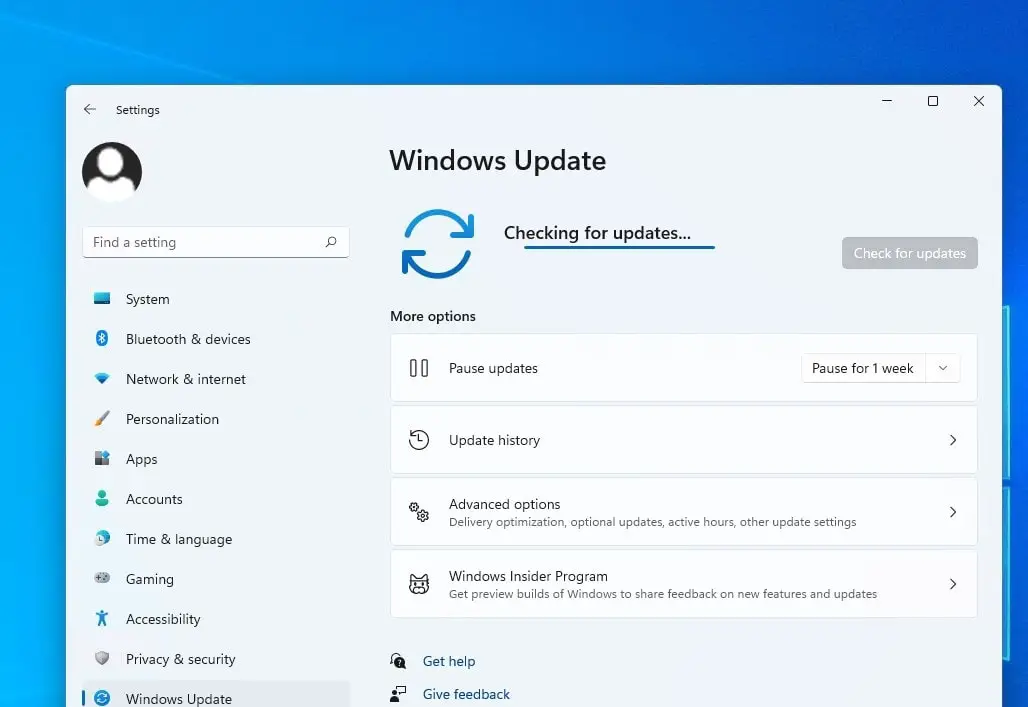
- Press Ctrl + Shift + Esc keys simultaneously to open taskmanager,
- Move to the startup tab, this will display the list of programs or services start with windows boot with its startup impact.
- Right-click on the apps that you want to stay disabled during your computer’s startup and select Disable.

Install the latest Windows Updates
Microsoft regularly releases Windows cumulative updates with security improvements and recent bug fixes to keep the Windows OS fast and efficient. And to get the most from Windows 11 it’s always recommended to update the system build of your computer to the latest one.
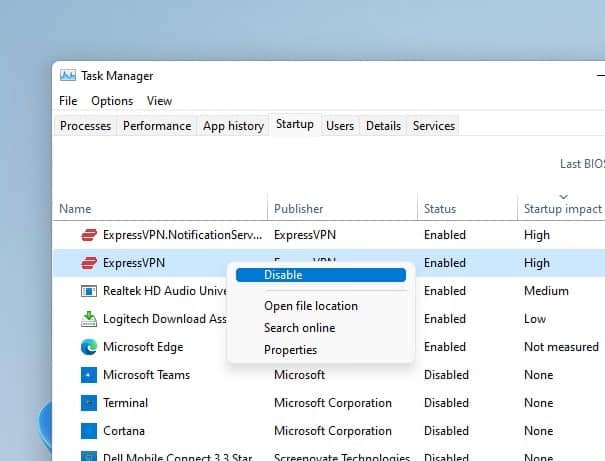
- Press Windows key + X and select settings app, Then click on Check for Updates.
- If new updates are available, you need to click Download Now to begin the update download from the Microsoft server and install it on your computer.
- Once done you need reboot your system to apply them,
- After updating, check how fast or slow the startup is now.

Scan for Corrupt System Files
If due to any reason, windows system files are corrupted that can also slow the machine down or impact windows 11 boot time. You can use the built-in system file checker utility for scanning and fixing corrupt files automatically.
-
- Press Windows key + s, type cmd. Right-click on the command prompt and select run as administrator,
- First, run DISM restore health command to service and prepare Windows images
DISM.exe /Online /Cleanup-Image /Restorehealth
- Next, run the system file checker utility command sfc /scannow that detects and replaces corrupt files with the correct one in the component store of the Windows system image.
- It will take some time. So, have patience while the process is active.
Once done close the command prompt and restart your PC, check if the windows 11 startup time or boot time is faster than the previous time.
Disable the Fast Startup
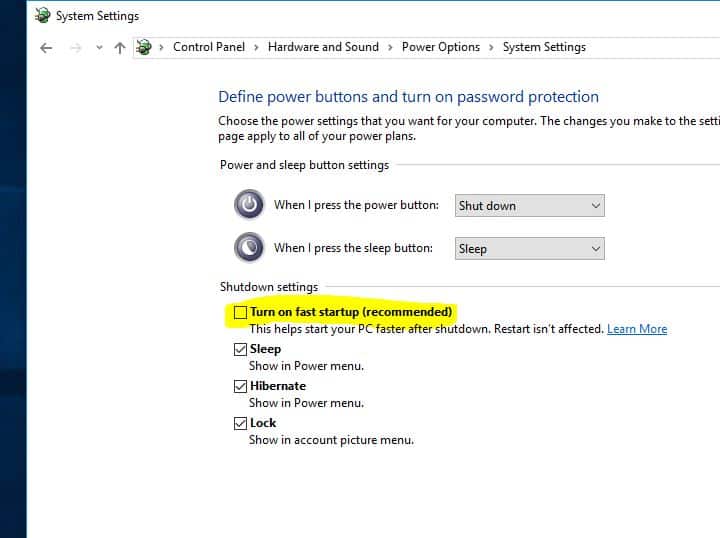
Windows fast startup feature was introduced to boost the bootup time. But sometimes, it can cause a problem of Windows 11 slow startup. A number of users reported disable the fast startup option on windows 11 help them improve the boot time. Therefore, we recommend to turn off Fast Startup following the steps below and check the windows 11 startup time.
- Press Windows key + R, type powercfg.cpl and click ok to open the power options window,
- On the left-hand panel, click on Choose what the Power Button Does.
- Next click on Change Settings That are Currently Unavailable.
- And finally, uncheck the box next to fast startup under shutdown settings,
- Now, click on Save Changes to confirm the changes.
- Reboot your PC and check Now, the slow startup issue of Windows 11 will be fixed for sure.

Update Graphics Drivers
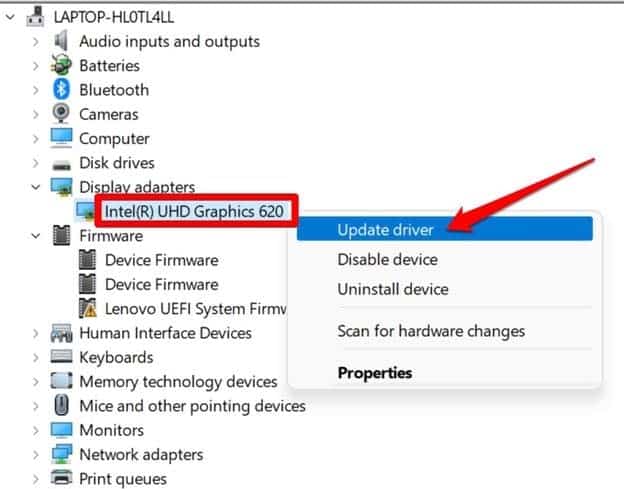
Device drivers play an important role in system performance. If you have older outdated drivers installed on your Windows 11 PC you might experience different problems include blue screen error, windows 11 freezes, or PC takes longer than usual to boot. especially if using an outdated graphics card driver on your Windows 11 can also slow startup and cause numerous gaming problems for you. So here’s you can quickly update your graphics driver:
- Press Windows key + X and select device manager,
- This will display all intalled device driver list, locate and expand display adapters,
- Right-click on the graphics card that you are using, and select the Update driver then Search automatically for drivers.
- This will check windows update for the latest driver updates, If there’s an update, it will automatically download and install the latest driver version.

Perform A Clean boot of Windows 11
Perform a clean boot to start windows 11 without third-party apps or services, that help you determine if any of those programs are responsible for the windows 11 slow startup problem.
- Press Windows key + R, type msconfig and click ok, the System Configuration dialog box will open.
- Move to the services tab, mark the box that reads Hide all Microsoft services box and click on the option Disable All.
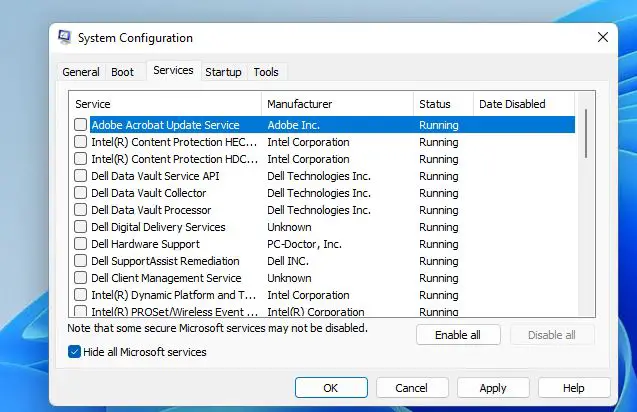

- Next, navigate to the startup tab, then click on open taskmanager.
- Right-click on the apps that you do not want to open during startup, right-click on them and select Disable.
- Exit the Task Manager and restart your PC.
This time your PC start only with essential services. If you notice clean boot improves the boot time you need to repeat this process by enabling each program or service to isolate the one responsible for slow boot times.
Enable storage sense
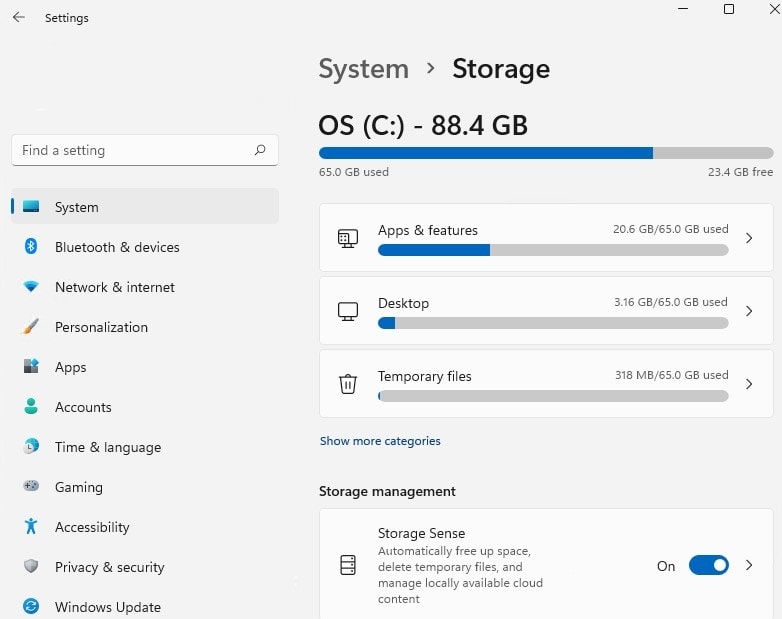
Temporary junk files also slow down the pc performance. Enable the Storage Sense feature that regularly deletes junk files include previous installation files, temporary files from apps and more from your PC and speed up its performance
- Press Windows key + I to open settings and then go to Storage,
- Under Storage management, toggle on the switch next to Storage Sense.

Use SSD Instead of HDD
If you are still using old HDD it’s time to replace the HDD with SSD. SSD means solid-state drivers use advanced technology and it’s much faster than HDD. Here a post explains the real Performance Comparision between HDD and SSD. Well, you can consult with the tech experts of the brand of PC that you use and get an idea about whether SSD can be installed on your computer.
Also read:


