


Microsoft regularly releases Windows 11 updates with the latest bug fixes, security enhancements, and new feature improvements. And is set to download and install essential updates automatically to keep your PC protected, and remove the nasty bugs that help Windows 11 run smoothly and efficiently. Or you can manually install Windows updates from the settings -> Windows update section. But sometimes you may notice Windows updates getting stuck and not completing installation. User report, Windows 11 update is stuck 0% for hours, or the Laptop is stuck on “updates are underway, please keep your computer on”. Here in this article discuss the Windows 11 Update Stuck issue and Find out the solutions to fix the problem.
Windows 11 KB5036893 update is stuck
Multiple reasons cause Windows updates to stuck download or install. Slow internet delaying the download or lack of storage space on the system drive prevents Windows updates apply. Maybe some security software or firewall blocking Windows updates or system files corrupted prevents new updates apply.
Whatever the reason, restarting the BITS and Windows Update service and running the built-in Windows update troubleshooter is very effective in fixing such problems. Make sure you are connected to a stable internet, disable third-party security software, and disconnect VPN before installing Windows updates on your computer.
Wait for the Windows update to complete
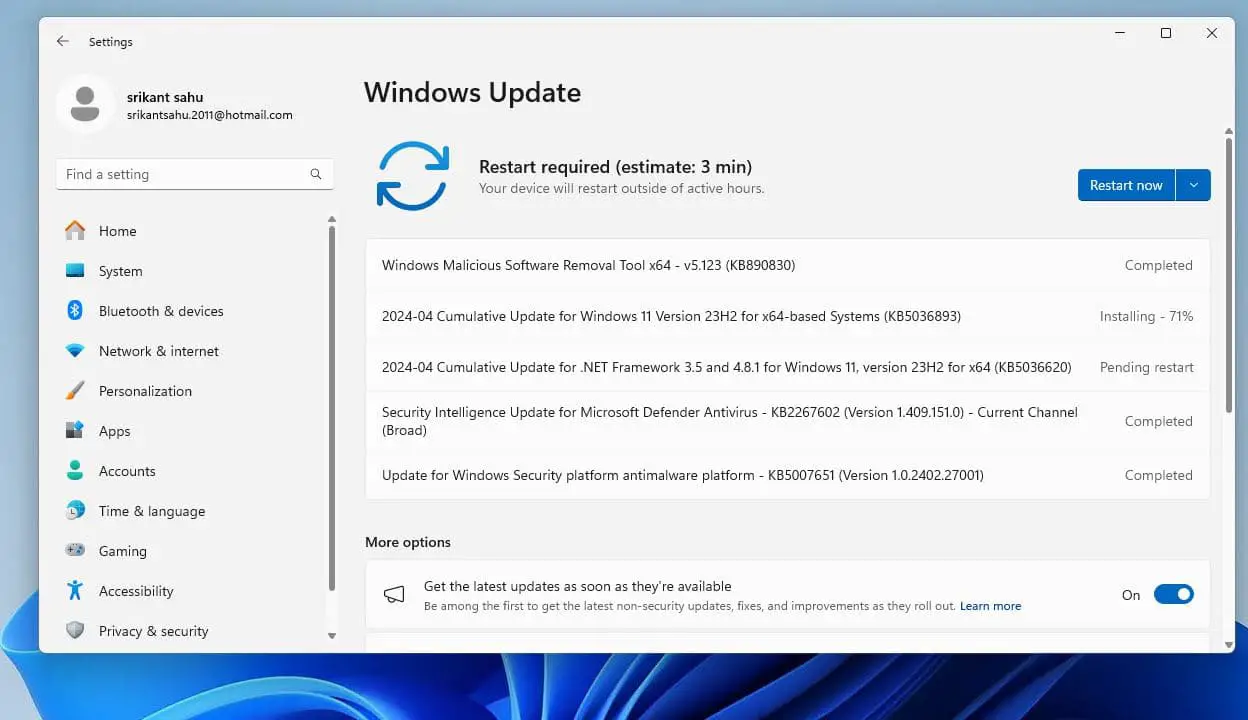
Slow internet speed may lead to Windows 11 update stuck download, therefore we recommend keep your PC plugged in and leave it out of use for hours. Check if this completes the update download and installation process and it’s pending for restart to apply the changes.

The next thing we recommend, disable third-party antivirus or uninstall it from your computer. And disconnect VPN, if configured on your computer before checking for Windows updates.
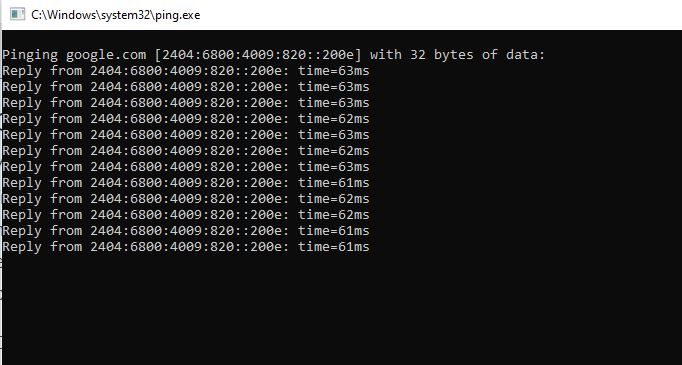
In addition, check your internet speed at fast.com or speedtest.net. Run ping command ping google.com -t and check continuously getting ping replay or it breaks between. If the ping replay breaks you need to troubleshoot the internet connection.
Check Internet connectivity before starting any update, or try restarting your router or modem before downloading any updates again.

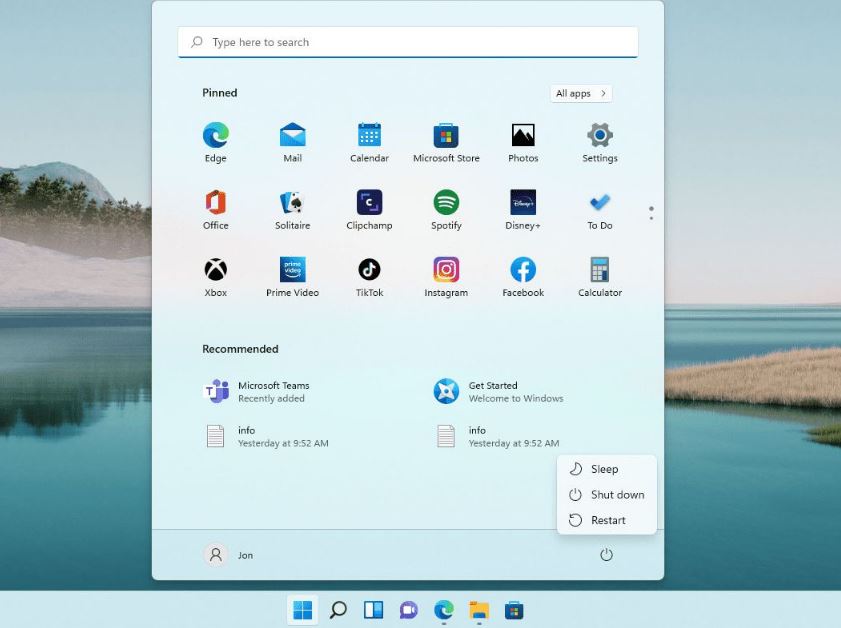
There might be a Windows update searching for driver updates for your external devices and it’s stuck checking or downloading. We recommend Disconnect all unnecessary peripheral devices and reboot your computer.

Run Windows Update troubleshooter
Microsoft offers several built-in troubleshooters on Windows 11 that help diagnose and fix common system problems automatically. Let’s run the Windows update troubleshooter that can help rectify errors while downloading or installing Windows 11 Updates.
- Press the Windows key + X and select settings
- Go to the system then Troubleshoot and select the Other troubleshooters option,
- This will display a list of available troubleshooters
- Now click Run next to Windows Update, to start diagnosing your operating system for update problems.
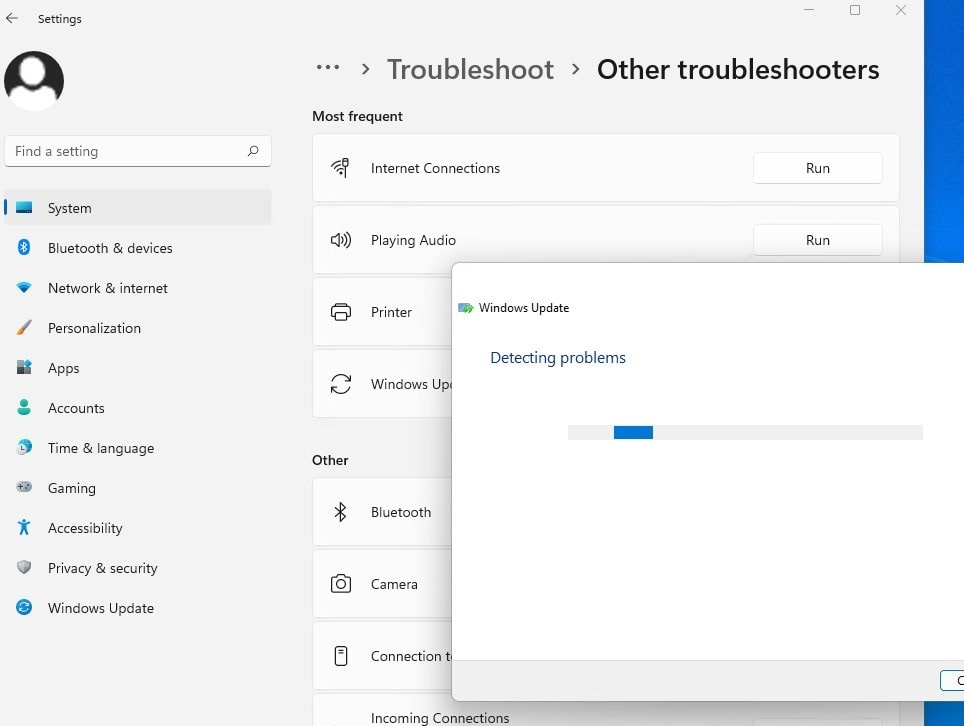

- In case it finds any issue, it will fix the problems automatically.
- Once the diagnosis process is complete, reboot your PC and check if the Windows 11 update stuck problem is fixed.
Restart the Windows update service
Windows updates rely on the Windows update service and BITs service that helps distribute updates, fixes, and other types of releases available from Microsoft Update. If for any reason Windows update service is stuck running or not started it may fail to download Windows updates to your computer.
Make Sure Windows Update Service is Running
- Press Windows key + R, type services.msc and click ok
- Scroll down to locate the Windows update service,
- Right-click on the Windows update service select restart,
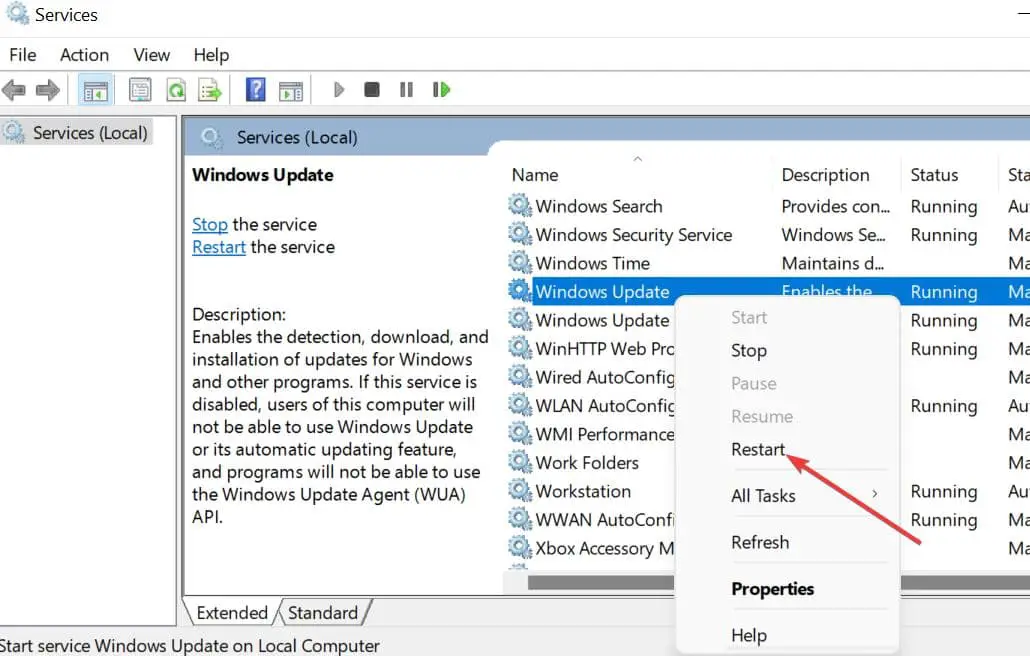

- If the Windows update service not started, double-click on it to open its properties,
- Here change the startup type automatic and start the service next to the service status,
- Click apply and OK to save changes,
- Do the same for background intelligent transfer service (BITs) and Windows Modules Installer service.
- Now try to install Windows updates again and check Windows updates download and installed successfully.
Clear Windows Update Cache
Sometimes you may notice Windows update downloads and installs successfully, but when you restart your PC to apply the changes, the Windows 11 update is stuck restarting. In such cases, we recommend wait 30 -60 minutes to complete the update. But if still Windows 11 update is stuck restarting we recommend pressing the power button and restarting your PC. Follow the steps below to clear the update cache which is probably very effective to bypass such situations.
Note – If Windows updates are stuck install at startup we recommend access advanced options and start Windows 11 safe mode. Then follow the steps below.
- Press Windows key + R, type services.msc and click ok
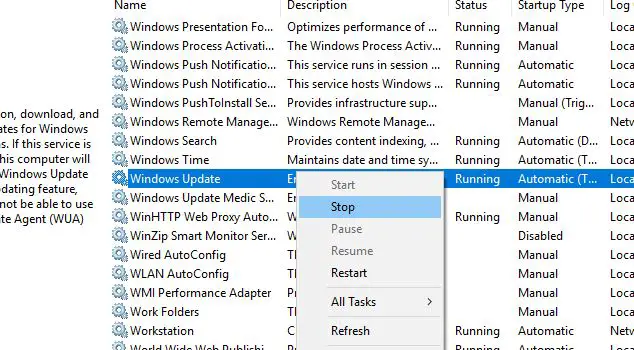
- Here locate the Windows update service, right-click on it select stop, Do the same for BITs service as well.

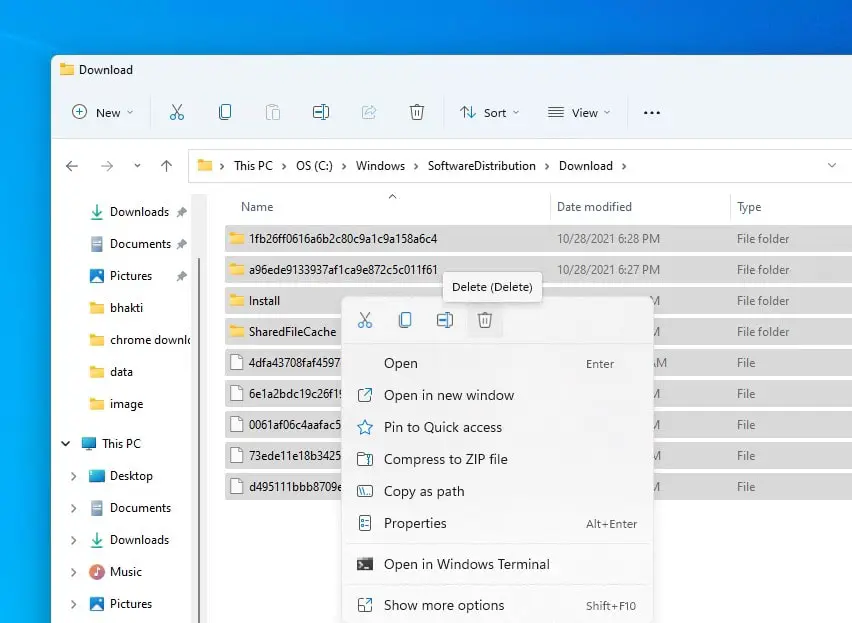
- Now open File Explorer using Windows key + I and navigate, to C:\Windows\SoftwareDistribution\Download
- Here delete all files and folders inside the download folder, press Ctrl + A to select all and hit the Del button.
- Don’t worry about these files, these are temporary cache files, when you delete these files, the next time Windows updates download the fresh ones.
This action also tries fixing the corrupted files by installing fresh updates.

- Again open Windows services and start the Windows update service and its related service BITs.
- Now open settings and navigate Windows update, check for updates again. Check if the problem Windows 11 update is stuck 99% resolved.
Clean boot Windows 11
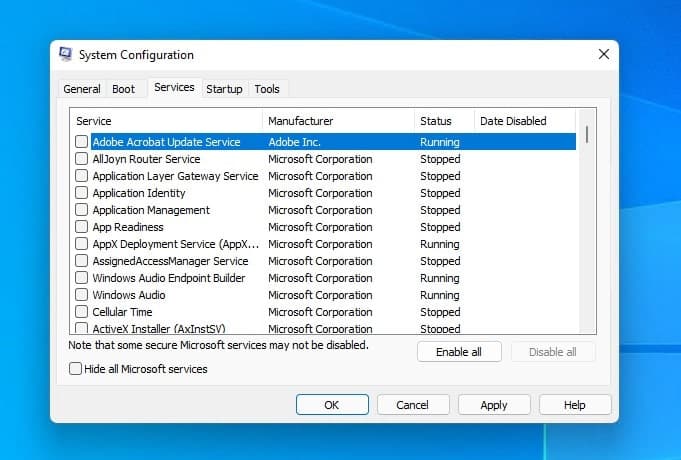
Sometimes third-party services or app conflicts cause Windows 11 updates stuck downloading. Clean boot Windows 11, and try to update again. Clean boot, and start Windows with a minimal set of drivers and startup programs, so that you can determine whether a background program is interfering with Windows update download or installation.
- Press Windows key + R, type msconfig and click ok,
- Move to the services tab, checkmark on Hide all Microsoft services and click Disable all

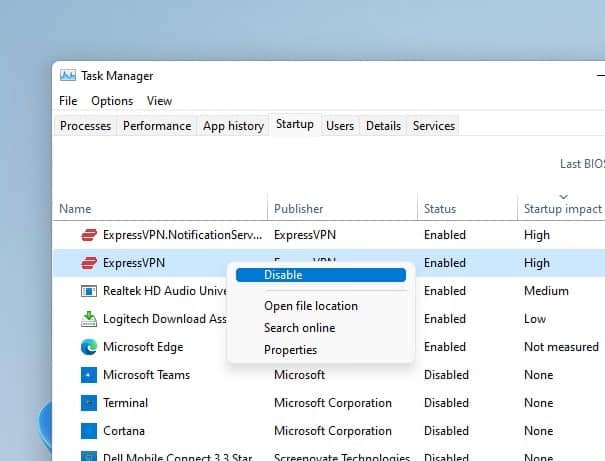
- Now move to the start-up tab and click on Open Task Manager
- Here under the startup tab right-click on any startup program you suspect might be interfering and select disable.

- Close the Taskmanager, click ok to apply the changes and reboot your PC
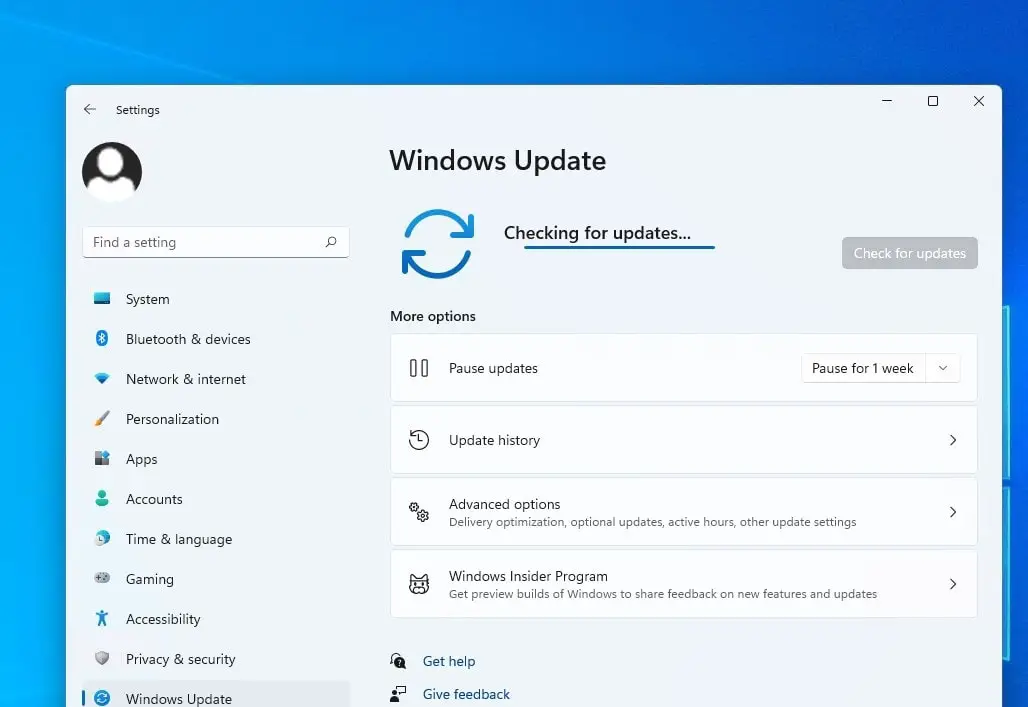
- Now open Windows update and hit the check for updates button.

Repair system files on Windows 11
The above solutions most probably fix Windows update problems, but still, if Windows 11 update is stuck at 0 or restarting there might be problems with system files that prevent apply new Windows updates. Running the system file checker utility scan and repair corrupted Windows files that probably very helpful to fix Windows update problems.
Windows Update component is affected by some type of file corruption and result windows 11 update stuck
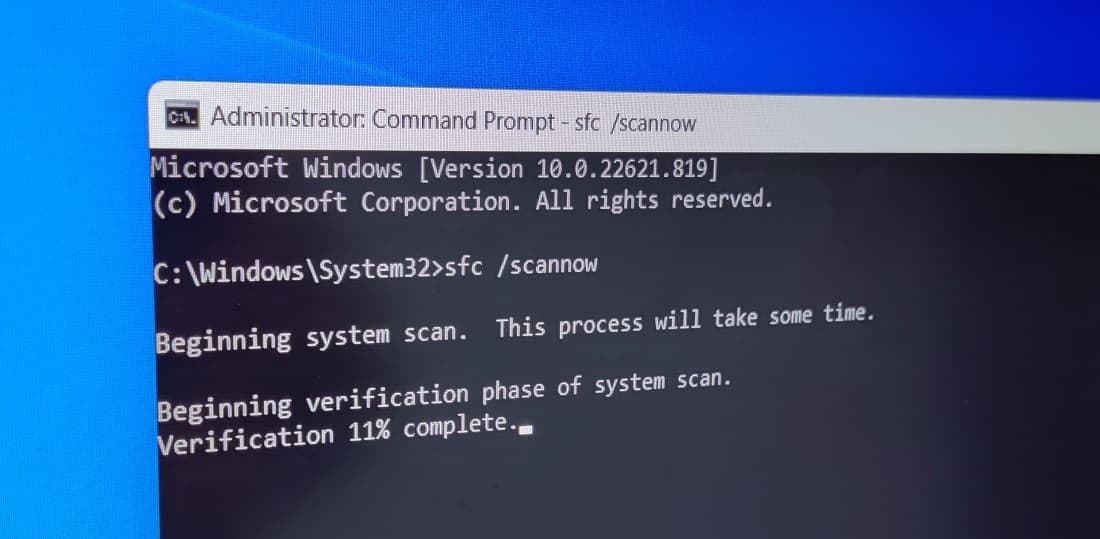
- Press Windows key + S and type cmd, right-click on the command prompt select run as administrator,
- Type sfc /scannow and press enter key to execute the command,
- This will start scanning all protected system files and replace corrupted files with a cached copy that is located in a compressed folder at %WinDir%\System32\dllcache
- Let the scanning complete 100%, once done reboot your PC and try installing Windows updates again.

Note – If sfc scan is unable to repair some files run the DISM restore health command.
DISM /online /cleanup-image /restorehealth
Switch to Google DNS
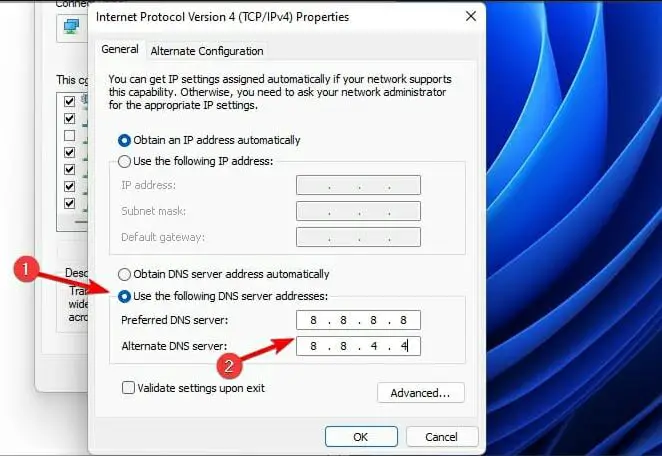
Few users report, that changing the DNS server address helps them fix the problem “Windows 11 update fail to download”. If the above options fail to fix the problem, let’s change the DNS address following the steps below probably helps.
- Press Windows key + R, type ncpa.cpl and click ok,
- This will open the network connection window, right Click on active network adapter select properties,
- Select Internet protocol version 4 (TCP/IPv4) and click on properties,
- Now select the radio button, Use the following DNS server address and set the preferred DNS server 8.8.8.8 and alternate DNS server 8.8.4.4.

- Now try to install Windows 11 updates again on your computer.
Download the Latest Update Manually
If you’re still having trouble installing the update, try downloading and installing Windows updates manually.
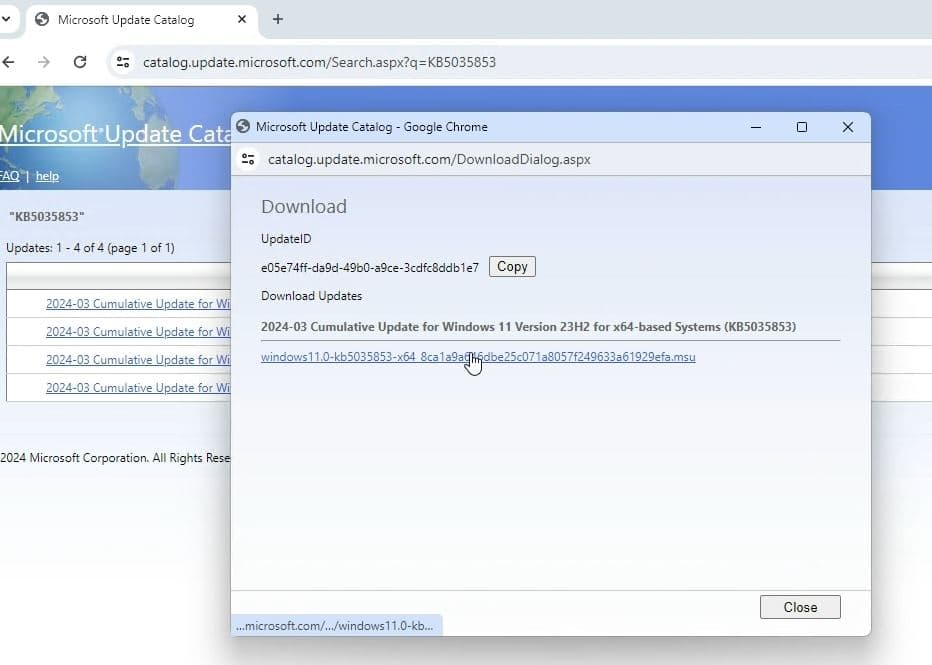
- Go to Microsoft Update Catalogue.
- Type KB number of the security update on the search bar that was unfinished.
- Save it and after downloading, run it as administrator.

![Windows update failed to install [9 Easy Solutions 2024]](https://i.ytimg.com/vi/6XYBkzISlrY/hqdefault.jpg)
Why is the Windows update stuck on 100% downloading?
- It may be slow internet delaying the download or corrupted system files preventing Windows update download and result Windows updates stuck. Running the Windows Update Troubleshooter and flushing the update cache help fix such problems.
How can I fix the Windows Update not working on Windows 11?
- Make sure the Windows update service is running, run the update troubleshooter, free up disk space and most importantly check your device is connected to stable internet to download update files from the Microsoft server.
Why is the Windows Update taking so long?
- Slow internet to large size of update files or slow Windows performance are some common reasons why Windows updates take so long.
What does Windows Update Troubleshooter do?
- Its built-in tool helps users fix common Windows update errors without losing data.
Why are Windows updates not showing?
- Make sure the Windows update service is running and your device is connected to a stable internet connection.
Also read:
- Windows 11 Laptop Stuck on Restarting Screen? 7 solutions to apply
- 6 ways to fix Firefox not working or loading on Windows 11
- uTorrent not working in Windows 11 [7 Quick solutions]
- 7 ways to fix Laptop camera not working after Windows 11 update
- SFC Scannow Not Working or stuck repair In Windows 11 (7 Solutions)
- Solved: Google Chrome Not Downloading Files on Windows 10


