


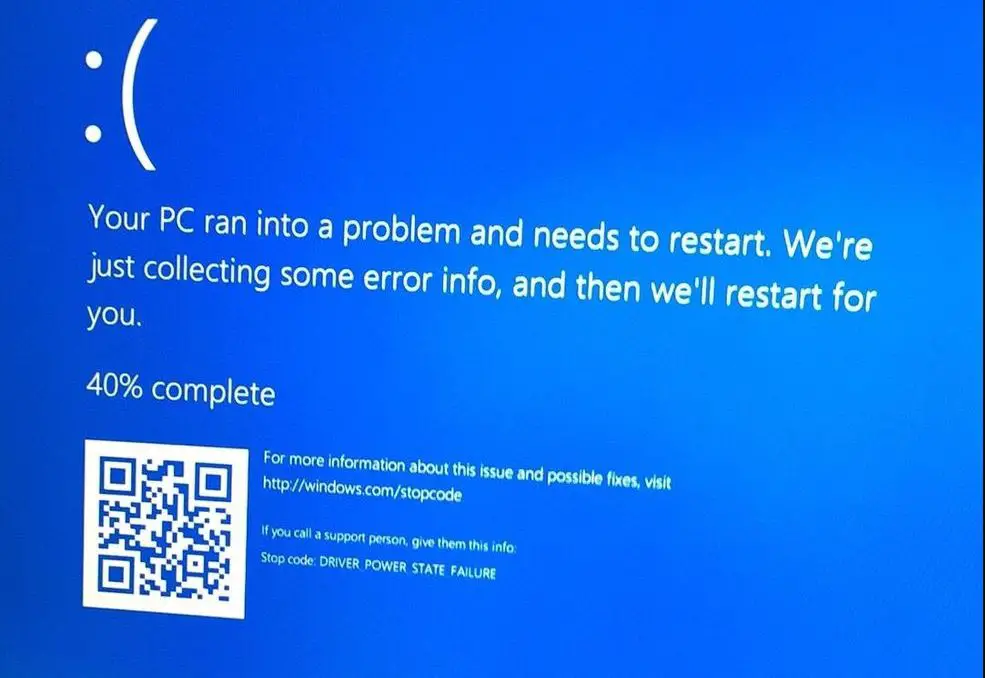
Getting Driver Power State Failure BSOD when restarting Windows 10? Or sometimes after installing the latest Windows updates system frequently restart at startup with Bluescreen Error driver_power_state_failure. Let’s understand why Windows fails to start normally, what mean by this Bluescreen error driver_power_state_failure And steps to fix this Windows 10 Blue screen error.
Windows 10 BSOD Error Driver Power State Failure bug check 0x0000009F is mostly a result of the incompatible driver for any hardware device installed on your Windows PC. So if you recently installed a new hardware device, make sure you’ve got the updated drivers from the manufacturer’s website. Again sometimes corrupted system files, Problems with the system drive, security software also cause this problem. Whatever the reason, we have solutions to determine and fix DRIVER_POWER_STATE_FAILURE BSOD permanently.
Fix Driver Power State Failure BSOD
Whenever you face Blue screen Error on Windows 10 PC, Remove all external devices ( printer, scanner, external HDD etc) and restart Windows. That fixes the problem if any temporary glitch, Or driver conflict causing the problem.
If you are getting Driver Power State Failure on Laptop them forcefully shutdown windows using the Power button. Remove the battery and press and hold the power button for 30 sec. Now insert the battery as usual and turn on laptop check windows started normally.
Perform Startup Repair from Advanced options
As due to Frequent BSOD error windows unable to start normally we need to access advanced options. Where we can run the startup repair tool that scans and fix problems that prevent windows start normally or Boot into safe mode that starts windows with minimum system requirements and allows to perform troubleshooting.
To Access Windows 10 Advanced options
- We need to boot from a Windows installation media, ( if you don’t have check how to create windows 10 Bootable USB/DVD)
- When Windows installation screen prompts skip the first screen and click “repair computer.”
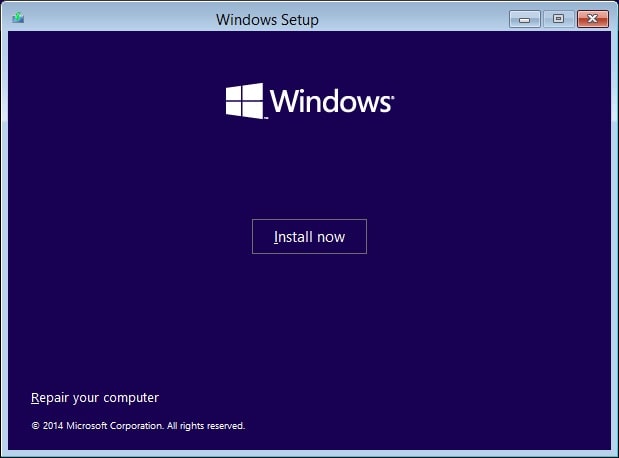

- Next click on continue, then select Troubleshoot and Advanced options.
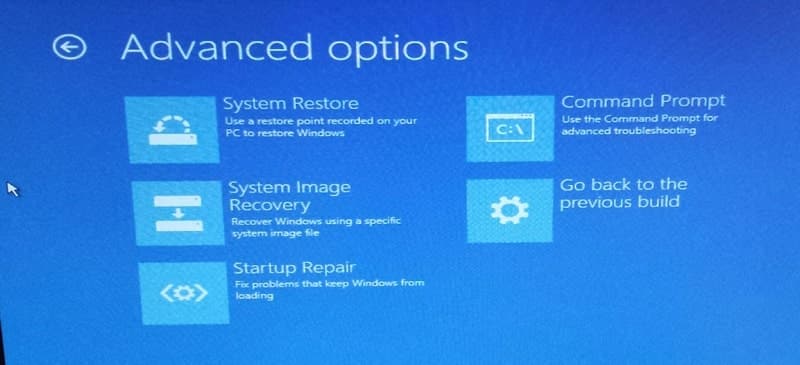

Perform Startup Repair
Here on the advanced options screen click Startup repair. This will restart windows and start to diagnose and repair your system.
Analyze various settings, corrupted incompatible drivers, corrupt boot configuration files and registry settings, disk metadata (master boot record, partition table, or boot sector) problem with windows updates installations etc and automatically attempt to fix them. After completing the repair process, windows restart automatically and start normally.
Boot into safe mode
If nothing wrong with startup settings, and startup repair fails to fix the problem then we have to check and update the device driver. To do this boot into safe mode from advanced options then we go for driver update or reinstallation.
To boot into safe mode from advanced options.
- First access Windows Advanced options following the above steps.
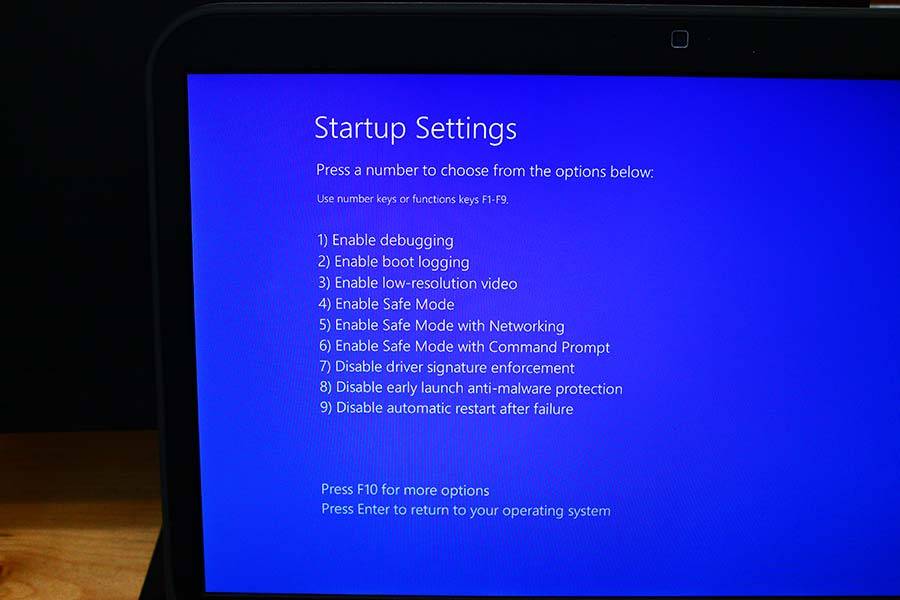
- Then click on startup settings, followed by restart
- Next, from various options click F4 to start windows in safe mode.

Check and update problematic Driver
When windows start in safe mode, run the driver verifier to determine the drivers causing problems and update reinstall the problematic driver to fix the BSOD error.
To run Driver verifier
- Open Command prompt as administrator.
- Type verifier and hit enter key to open the Driver verifier manager window.
- Select “Create standard settings” “Next” button.
- Again select “Automatically select all drivers installed on this computer” and click on the “Finish” button.
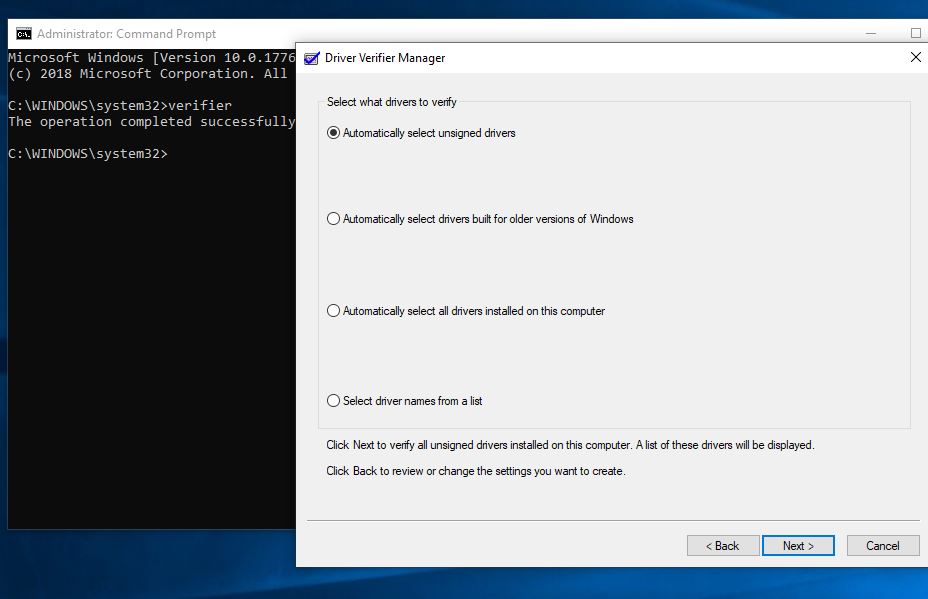

Your computer may ask you to restart to let the Driver Verifier start to run.
It will take a few minutes to complete and will show you the result after it’s completed.
You will know which driver is corrupted and which isn’t. Just replace the corrupted driver with the latest version.
To Update or Re-install Device drivers
- Right click on the Windows 10 Start menu select Device manager.
- Alternatively, you can press Windows + R, type devmgmt.msc and ok to open Device Manager.
- This will display all installed driver list, Here found the problematic driver ( you may notice a yellow triangle mark under driver)
- Here, for example, we take the Display driver.
- Expand display driver, Right click on installed display driver ( or graphics driver ) select uninstall.
- Click yes when asking for confirmation, and restart windows to completely uninstall the driver.
- On next time windows start normally and the system automatically installs the build in display driver on your system.
- Otherwise visit Device manufacturer website, download and save the latest display ( graphics) driver.
- Install the driver with administrative privileges and restart windows to take effect the changes.
Run System File Checker Utility
Again sometimes corrupted system files also cause different Startup errors include frequent blue screen error on Windows 10 computer. Run the build in sfc utility that helps to scan and restore missing system files with correct one.
To run System file checker utility
- Type cmd on start menu search, Right-click on command prompt and select run as administrator.
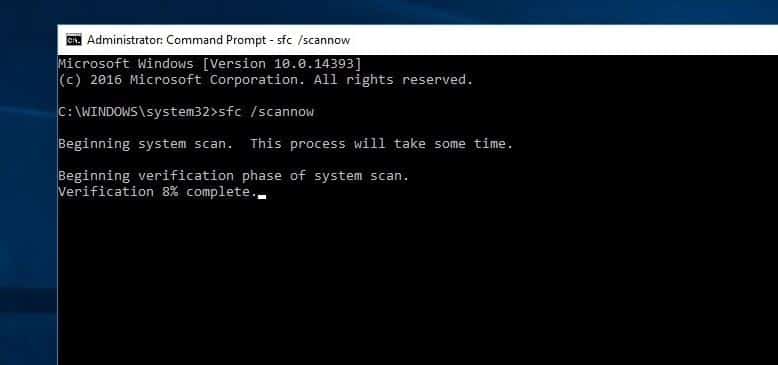
- Here on the command prompt window, type sfc /scannow and press the enter key.
- This will start scanning for missing corrupted system files. If found any, the system file checker utility replaces them with correct ones from a compressed folder located %WinDir%\System32\dllcache.
- Wait until 100% complete the scanning process and restart windows to take effect the changes.

Disable Fast Startup ( optional)
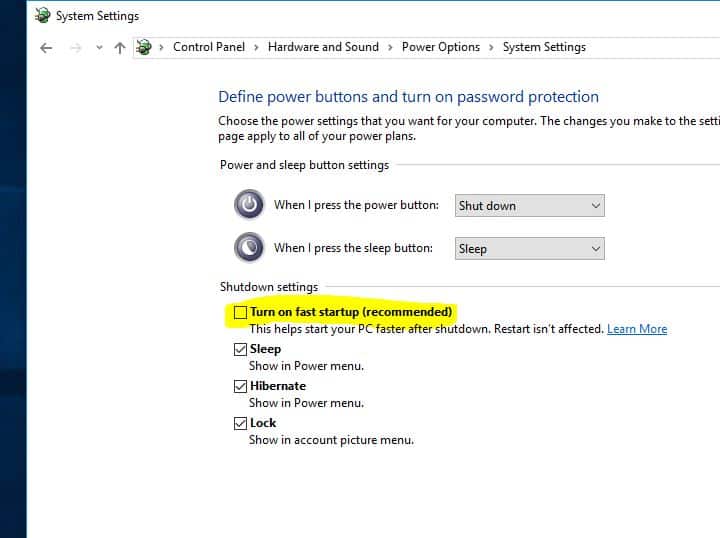
Also, disabling windows 10 fast startup feature help most uses to fix different Blue screen error include driver_power_state_failure.
To Disable Fast startup feature on windows 10
- Open Control panel and click on “Power options” ( small icon view)
- Click “Choose what the power buttons do” on the left side of the window.
- Click “Change settings that are currently unavailable.”
- Under “Shutdown settings” uncheck “Turn on fast startup”.

If all the above solutions fail to fix the problem, still windows 10 causing Driver Power State Failure BSOD error. Its time to utilize the system restore feature, that reverts the changes to a previous working state without effect any data.
Also make sure you regularly install the latest windows update, that contains the bug fixes for various problems.
Did these solutions help to Fix driver_power_state_failure Blue Screen Error on Windows 10? Let us know on comments below, Also Read:


