



VPN or virtual private network helps browse the internet anonymously while encrypting your data. Using VPN has numerous advantages, include bypass Geo-restrictions, Masks your IP address, Provide Safety Through Anonymity, providing a Secure Connection for Remote Work, and more. Most of us who are concerned about internet privacy, use VPN services to protect online activity and encrypt browsing traffic. But sometimes you may experience, You can’t connect to the Internet after you connect to a VPN server. A few users report, VPN is connected but there is no Internet access on Windows 11. This is an odd situation, we want VPN for privacy and security, but it’s causing No Internet access when VPN is connected. If windows 11 internet not working when connected to VPN, try some of the solutions listed below.
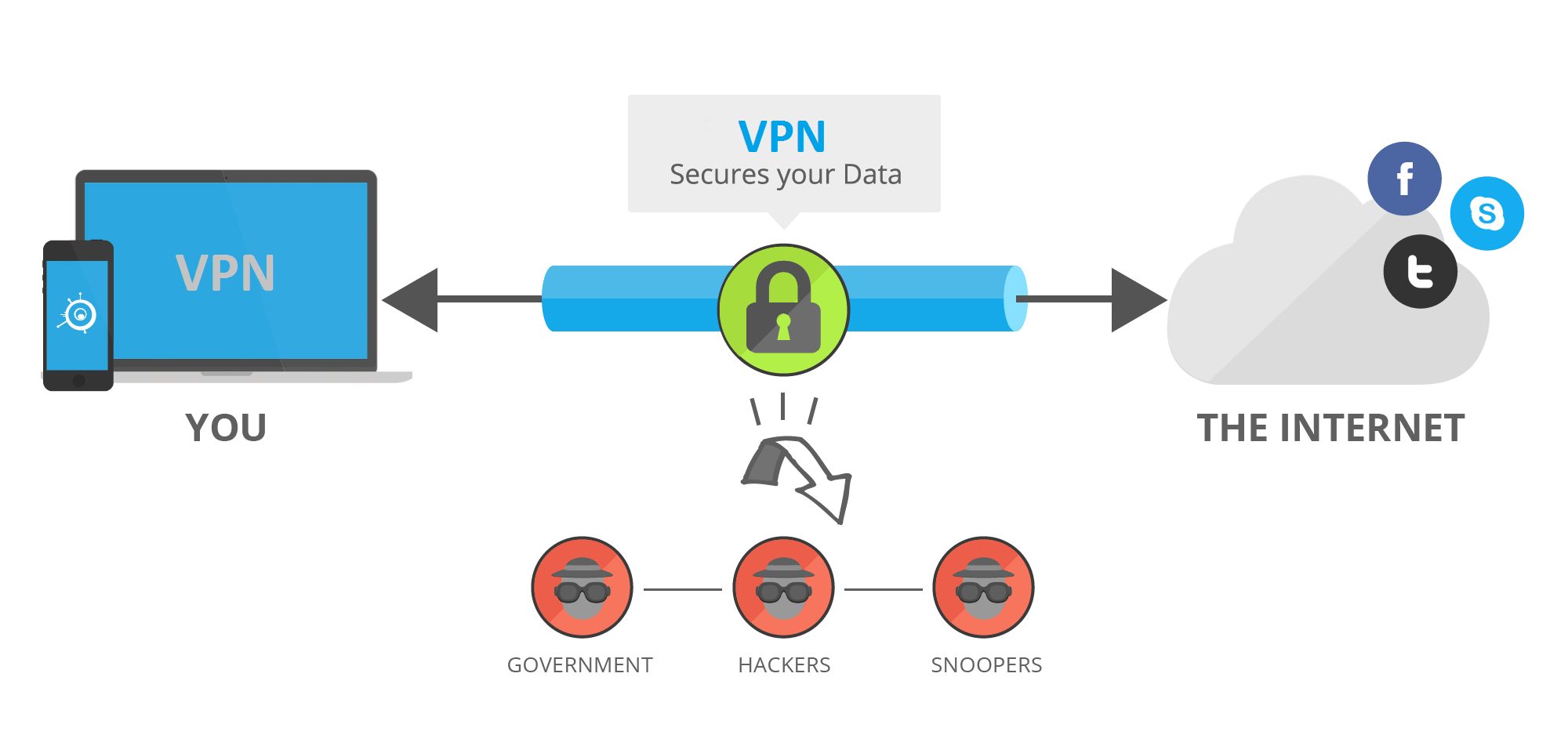
A VPN creates a secure tunnel of communication between your internet connection and the remote network, It secure your online activity by mask your IP address and route the internet traffic through an encrypted tunnel.

Why Internet is not working when VPN is connected?
There are multiple reasons, why VPN stops internet access on your PC. It could be due to issues with the VPN client, your router, or your network connection. Again your DNS settings don’t match your VPN client, or you are connected to a bad VPN server that causes No internet access when connected to VPN.
- Your firewall might be blocking the VPN and you need to open your firewall settings, add the VPN app to its list of allowed apps to restore internet access.
- The VPN client you are using might be outdated, and you need to update or install the latest version of the VPN client to clear vulnerabilities and glitches that might be causing No Internet access.
- Again your VPN settings might be misconfigured, and Restoring the VPN to its default settings probably restores the internet access on windows 11.
Check internet connection
The first thing you need to ensure you have a stable working internet connection. Because sometimes, bad internet could be the reason why you can’t access the Internet with VPN connection.
First, disconnect your VPN connection and then try to access the internet. If the internet works move to the next solution.
It might be slow internet speed causing No internet access with VPN connected, you can check internet speed here at speedtest.net or fast.com.
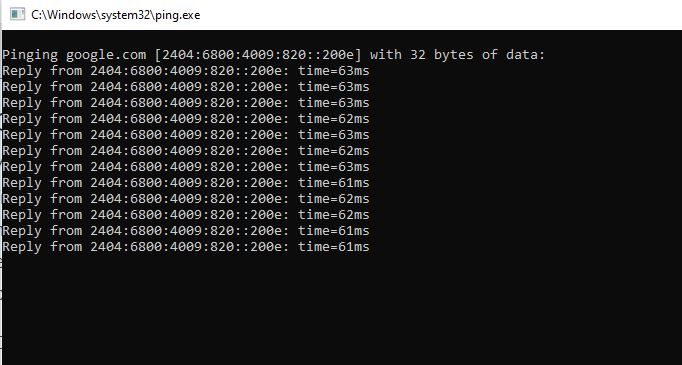
Press Windows key + R, type ping google.com -t and click ok, check it’s getting ping replay continuously. If it breaks between you need to troubleshoot the internet connection.

Sometimes incorrect date and time settings might lead to your VPN blocking the internet. Open Settings > Time & Language > Date & Time and ensure the correct Date and time is set.
And finally, restart your windows 11 Laptop and wifi router that clear temporary glitch that might be causing no internet access with VPN connection. After the system restart open the VPN client and connect to the remote server and check if the internet working without any problem.
Flush DNS Settings
Most of the time DNS Cache Flush can help you get rid of Internet problems on windows 11. Open the command prompt as administrator and run the following command
ipconfig /flushdns
Once the command is executed close the command prompt and try to access the internet with VPN.
Update the VPN client app
Having the older version of VPN app is one of the common reasons why the internet not working when VPN is connected. VPN service providers regularly update the VPN client app with the latest bug fixes, new features, and improvements, And having the latest version installed is important to avoid connection issues.
Open the VPN client app settings and look if a new version is available Or its best to reinstall the VPN software again.
- Press Windows key + R, type appwiz.cpl and click ok to open the programs and features window,
- Right-click on your installed VPN client, then select Uninstall and reboot your PC
- Now visit the VPN service provider’s official site to download the newest version of the software.
- Install the app with admin rights and login with user credentials, now connect to the VPN server and check if there is no problem with the Internet connection.
Change DNS settings
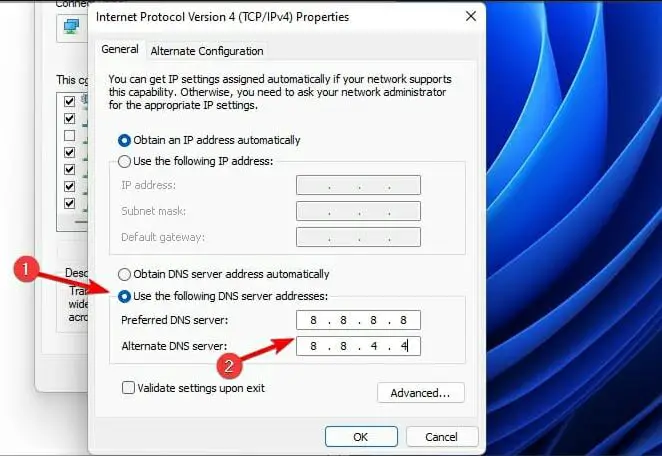
DNS (Domain Name System) is responsible for translating human readable domain names (for example, www.amazon.com) to machine readable IP addresses (for example, 192.0.2.44). And it might be Faulty DNS settings that cause issues connecting to the internet after connecting to a VPN server. Let’s switch to Google DNS which probably restores internet access.
- Press Windows key + R, type ncpa.cpl and click ok
- This will open the network connections window,
- Right-click on the active network adapter (wifi adapter) select properties,
- Select the Internet Protocol Version 4 (TCP/IPv4) option and then click on the Properties button.
- Use the following DNS server address option and set preferred DNS server 8.8.8.8 and alternative DNS server 8.8.4.4
- Save the settings you have done, now disconnect and reconnect to the wifi network, and try to access the internet with VPN connection.

Reset Internet configuration
If the above solutions didn’t fix the problem, you need to reset the internet configuration default. Open the command prompt as administrator and run the following commands one after one.
netsh winsock reset
ipconfig /release
ipconfig /flushdns
ipconfig /renew
netsh interface ipv4 reset
netsh interface ipv6 reset
Once done reboot your computer and check if this help restore the internet access.
Install the latest TAP driver
VPN software depends on TAP adapter to function properly, and an outdated TAP driver can cause no internet access on windows 11 when VPN is connected. Tap Windows Adapter enables VPN providers to facilitate a VPN connection to their servers. And its an essential component to have on your device when you want to use a VPN client. They are completely software-based and do not depend on any hardware.
Adjust your proxy settings
It might be a proxy server that might be blocking internet access when your device is connected to VPN. If the above methods fail to fix the problem, Make sure that your browser is set to an auto-detect proxy or to no proxy.
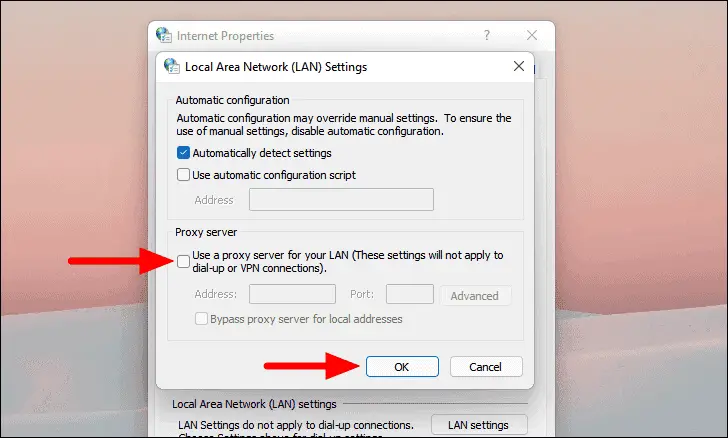
- Press Windows key + R, type inetcpl.cpl and click ok to open internet properties,
- Move to the Connections tab, then click LAN settings,
- Here Uncheck all of the displayed options except automatically detect settings.
- Now click ok then Close your browser, disconnect and reconnect VPN server and check if you can access the internet.

Connect to a different server
It may be the connected VPN server that is down, blocked (some countries block VPN connections), or has other issues, then it might prevent you from getting connected. Most VPN service providers offer more than 10+ different servers, so trying to reconnect to a different one might just get around this problem. If you can access the internet after switching the VPN server location, then most likely there was a temporary issue with the server location you selected originally.
Choose the right VPN Protocol
VPN uses the UDP protocol by default, and it may be blocked in some countries. To ensure the best outcome, open your VPN’s options or settings and select OpenVPN TCP or L2TP or PPTP.
Just like VPN protocols, some ports might also get blocked, causing no internet access when connected to VPN. In such case, we recommend contact your VPN provider, so they can suggest the port that is suitable for your needs
Also read:


