


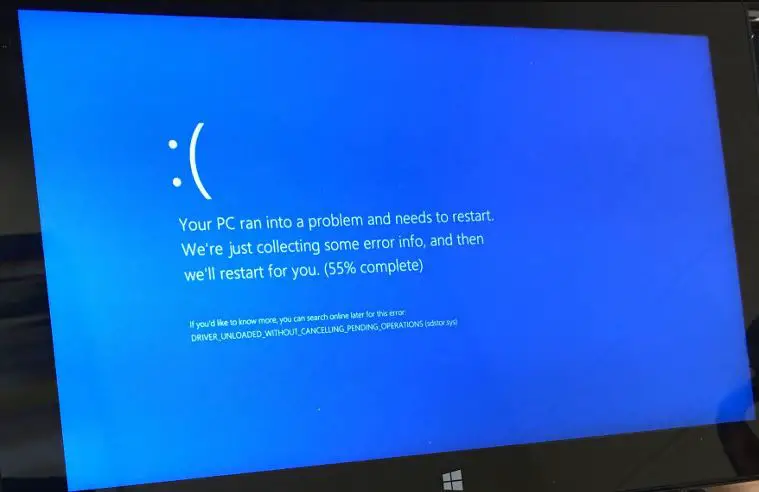
System crashes with Blue screen error after Windows update? You may experience BSOD error after installing a new Hardware device or driver update. Blue screen of death on Windows 10 or 11 usually occurs When Windows detects a malfunction in the system memory or drivers, it crashes itself to save from future damage. You might see a stop error on a blue screen, “Your PC ran into a problem and needs to restart. We’re just collecting some error info, and then we’ll restart for you.” Windows 10 blue screen of death can be caused by both hardware or software problems. This article explores what is Windows Blue Screen of Death error, the reason behind it, and provides information about how to identify and troubleshoot blue screen errors on your computer.
What is the Blue Screen of Death?
The Windows STOP error BSOD, better known as the Blue Screen of Death, is an error screen that appears when Microsoft Windows encounters a fatal system error from which it cannot recover. There is a system crash and the operating system attains a state where it can no longer operate safely.
This is generally the outcome of low-level software (or drivers) crashing or faulty hardware. Outdated, Incompatible Driver (especially the Display/graphics driver), Corrupted system files, Driver conflict after installing new hardware, damaged video card.
- Faulty hardware components, such as RAM, hard drives, or graphics cards
- Outdated, incompatible, or corrupted device drivers
- Incompatible or poorly coded software, including third-party applications and drivers
- Corrupted system files or the Windows registry can lead to critical errors.
Fix Blue Screen of Death Windows 10
Sometimes after a simple restart windows start normally (perform solutions below to avoid this error in the feature), But for some others, the blue Screen occurs frequently at startup. That causes you need to Boot Windows into safe mode. Windows starts with minimum system requirements and allows you to perform troubleshooting steps.
Disconnect non-essential hardware
First of all remove all external devices connected to your computer including secondary monitors, printers, phones, external hard drives and other USB devices (you only need your mouse, keyboard and main monitor) and try to start Windows normally. Check if there is no more BSOD error Then one of your devices causing the issue. Find out the problematic device by attaching them one by one and check the same with another computer.
Perform Startup repair (if unable to boot into safe mode)
If you are getting a Blue screen error Frequently at startup and don’t allow to start windows into safe mode also that causes first need to perform startup repair which is diagnostic and fix if any startup program causes the issue to windows to start normally or in Safe mode. So we recommend performing Startup repair first if Windows fails to start into safe mode.
- Boot your system from Windows 10 installation media,
- Access BIOS setup by pressing the Del key.
- Now move to the boot tab and change the first boot, your installation media (CD/DVD or Removable Device).
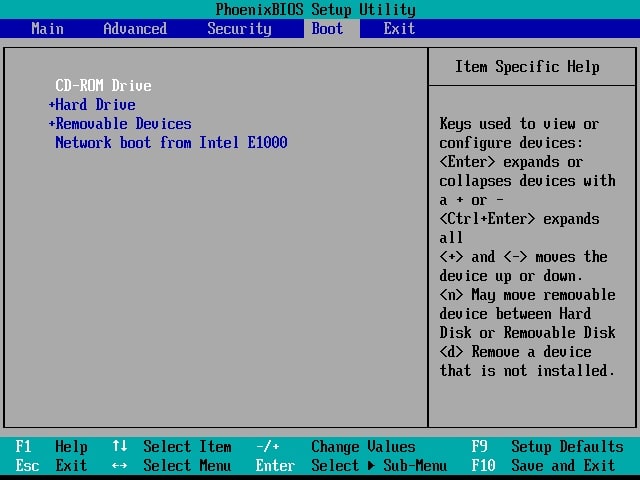

- Press F10 to save this will restart Windows and press any key to boot from installation media.
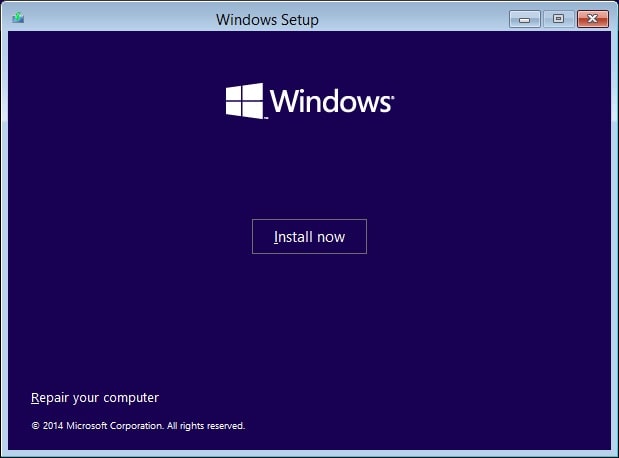
- First Set the language preference, click next and click on the repair Computer option.

- On the next screen, Select Troubleshoot -> Advanced options and click on Startup Repair.
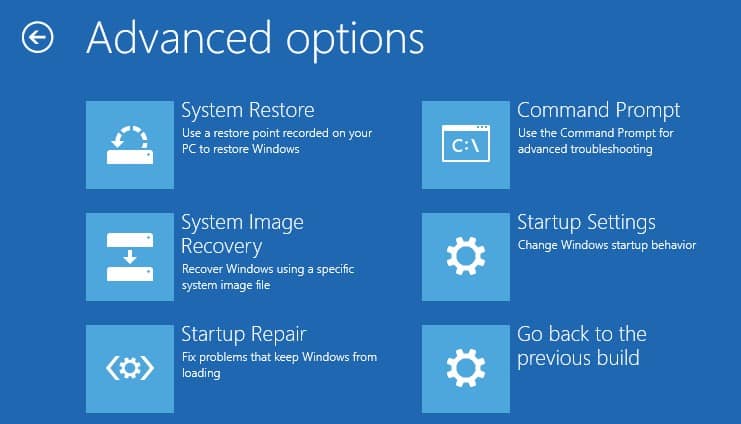

This will analyze the various settings, configuration options, and system files Especially look for :
- Missing/corrupt/incompatible drivers
- Missing/corrupt system files
- Missing/corrupt boot configuration settings
- Corrupt registry settings
- Corrupt disk metadata (master boot record, partition table, or boot sector)
- Problematic update installation
After completing the repair process windows will Restart and start normally.
Start Windows 10 safe mode
If the repair process results in startup repair couldn’t repair your PC or automatic repair couldn’t repair your PC
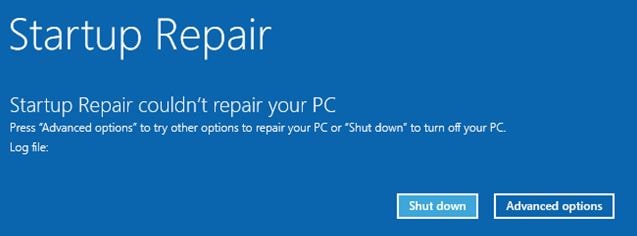

Then click on Advanced options -> Troubleshoot -> Advanced options -> Startup Settings -> Click on Restart -> Then press F4 To access safe mode and F5 To access safe mode with networking.
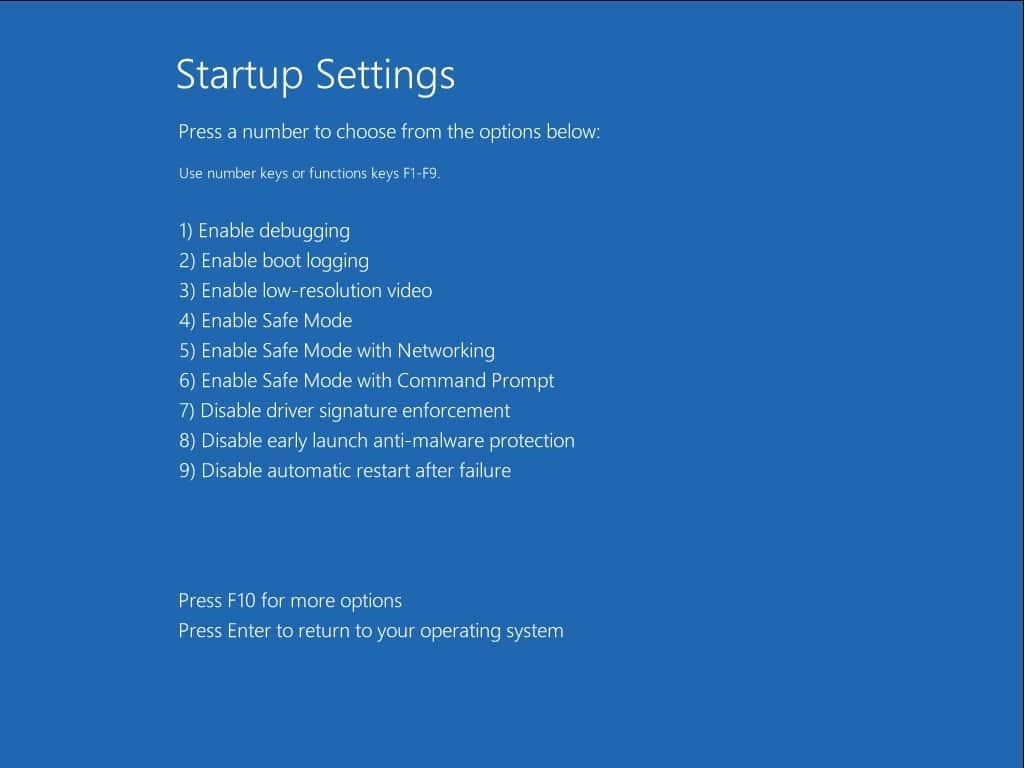

Now on safe mode perform the below troubleshooting steps.
Revert Recent Changes
Now I am sure you are successfully login into Windows 10 (safe mode/normal). The first thing you have to do is If you’ve added new hardware or software to your system recently, remove them to see if the problem is fixed because the newly installed programs or hardware could be incompatible with your operating system, or conflict with your original programs.
If you recently installed new software on your computer, try uninstalling it.
- Open Control Panel
- Select the program(s) recently added and click Uninstall.
Disable the Fast Startup Feature
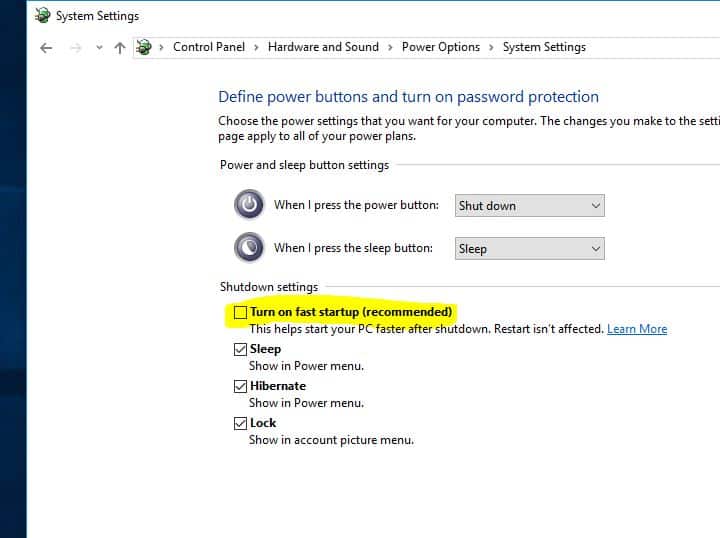
Several Windows users report on the Microsoft forum / Reddit Disable Fast Startup Feature Fix Most of the Blue Screen errors for them. Fast Startup (hybrid Shutdown Feature) Which Reduces startup time and makes Windows start faster. But Sometimes fast Startup features Cause different Problems. So We recommend just disable The Fast Startup feature to prevent feature BSOD error on Windows 10.
- Open Control panel
- Search for and select power options.
- Next, click on Choose What the Power Buttons Do
- Click on Change Settings that are Currently Unavailable.
- Here uncheck Turn on Fast Startup option (recommended)
- Click save and OK to disable the Fast Startup Feature.

Check for Virus/Malware infection
One of the causes of BSOD showing upon your Windows 10 PC is data corruption. Other than regular scenarios, the data on your computer might get corrupted due to some malware.
So, if you experience a blue screen in Windows 10 more than what you can call usual, you should use the best antivirus software to do a full scan of your system. Windows Defender, the default antivirus in Windows 10 can also be a good option to scan your system and repair the blue screen errors.
Re-install Device Drivers
An inaccurately installed or defective driver can lead to system crashes. Download the latest drivers from your PC manufacturer’s website and install them – this may solve BSODs caused by driver issues.
Also If you notice after a recent driver update the problem started then you can perform the rollback driver option to revert the current driver to the previous version.
To Update the display driver
- Press the keyboard shortcut Windows + x and select Device Manager.
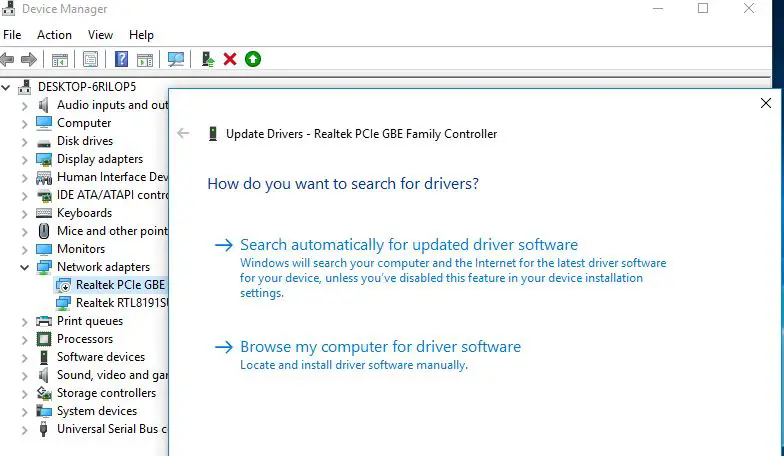
- Expand the display adapter, Right-click on the installed display/Graphics driver, and select update
Follow on-screen instructions to let Windows search and install the latest driver on your computer. (if you are in safe mode you may be not connected to the internet, where Windows is unable to download the latest driver form update database).

Reinstall Driver
That causes simply visit the device manufacturer’s website on a different computer and download the latest available driver for your problematic PC. Now move to the problematic PC open the device manager expand the display adapter, Right-click on the display driver, and select uninstall. Click OK to confirm and restart Windows. On the next start install the latest driver you downloaded from the manufacturer’s website.
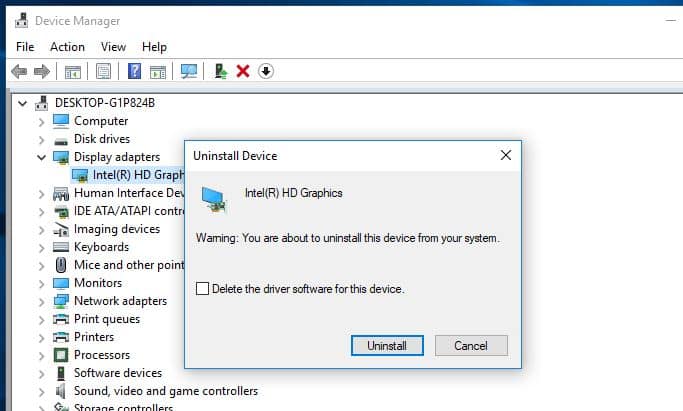

Roll Back driver
If you notice the problem started after a recent driver update, that causes you can roll back the driver by following the steps below.
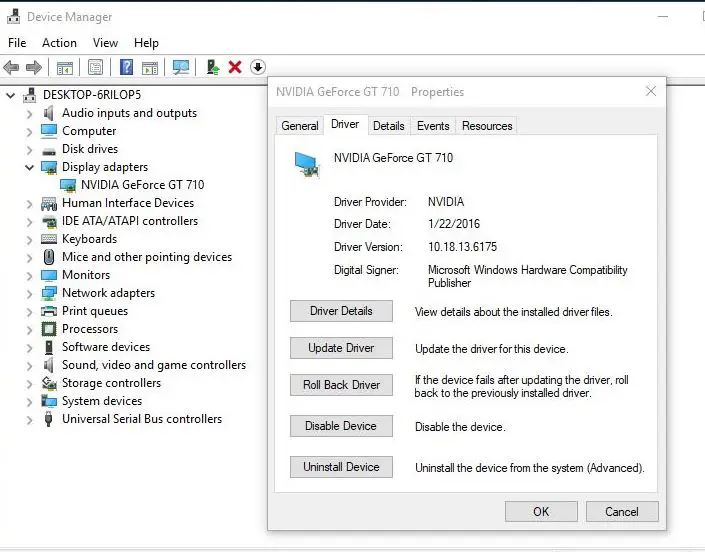
- Open the device manager, Expand the display adapter, and double-click on the installed graphics driver.
- On properties move to the Driver tab, Click on the Rollback driver option, and follow the on-screen instructions.
- This will revert the current driver to the previous version.
- Restart Windows and check there is no more Blue Screen error at startup.

Repair Windows System Files (Run SFC Utility)
Windows has an SFC utility specially designed to scan and detect various problems caused by corrupted, missing system files. While running this tool if you find any system file corruption the SFC utility restores and fixes them for you. So We recommend Running the System file checker utility to make sure corrupted, missing system files not cause a Blue screen error on Windows 10 PC.
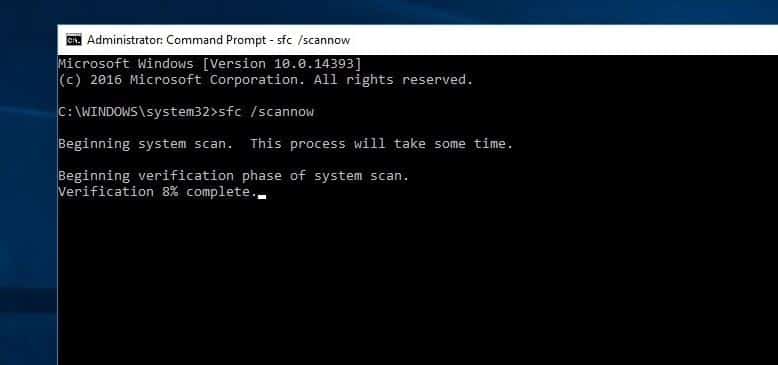
- Open the command prompt as administrator,
- Now type the command sfc /scannow and hit the enter key to execute the same,
The SFC utility will start scanning for missing corrupted system files and If found any the SFC utility restores them from a special folder located on %WinDir%\System32\dllcache. Wait until 100% complete the scanning process after that restart Windows.

Run DISM command
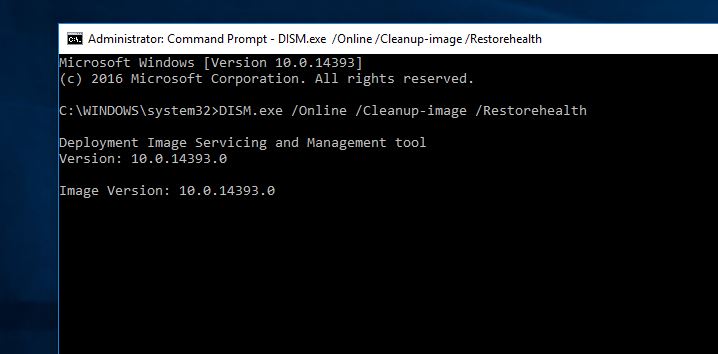
If SFC scan results Windows Resource Protection found corrupt files but was unable to fix some of them. Then Run the DISM command, which repairs the system image and allows SFC to do its job. To do this type the below command on the administrative command prompt. Wait for 100% to complete the process and Again Run SFC / scannow command. Restart Windows and check There is no more BSOD errors.
dism/online/cleanup-image/restorehealth

Check Disk Drive Errors
A problematic HDD Drive like Bad Sector or Disk error may Cause Different Blue Screen Errors include DPC Watchdog Violation Blue Screen Errors. We recommend running the CHKDSK command by adding some extra parameters to force CHKDSK to fix the drive Errors.
- Open the command prompt as administrator,
- then type the command CHKDSK C: /F /R /X and hit the enter key.
- Press the Y key to schedule to run the chkdsk command on the next start.
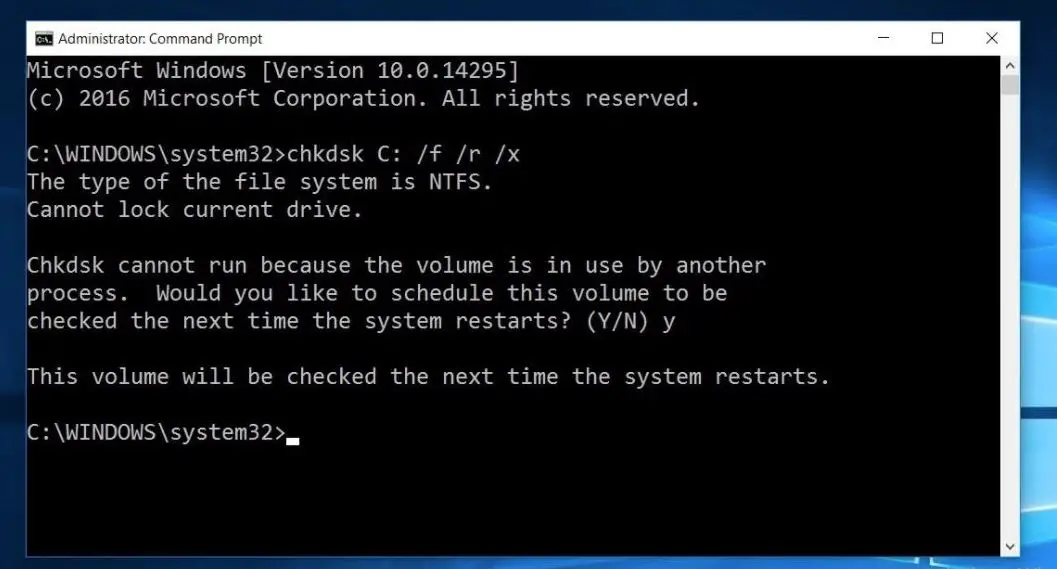

Here CHKDSK command for Check Disk Driver. C: Letter is your Windows Installed drive letter. /F parameter Fixes errors on the disk. /R Locates bad sectors and recovers readable information and /X Forces the volume to dismount first if necessary.
Now close the command prompt and restart Windows this will start the scanning and repairing process for Disk Drive Errors and problems. Wait until 100% complete the scanning process, after that windows restart itself and start normally.
Run Memory Diagnostic Tool
Windows has a memory Diagnostic Tool that checks Memory Errors. We recommend running the memory diagnostic tool to make sure memory-related problems not cause the Blue Screen Error.
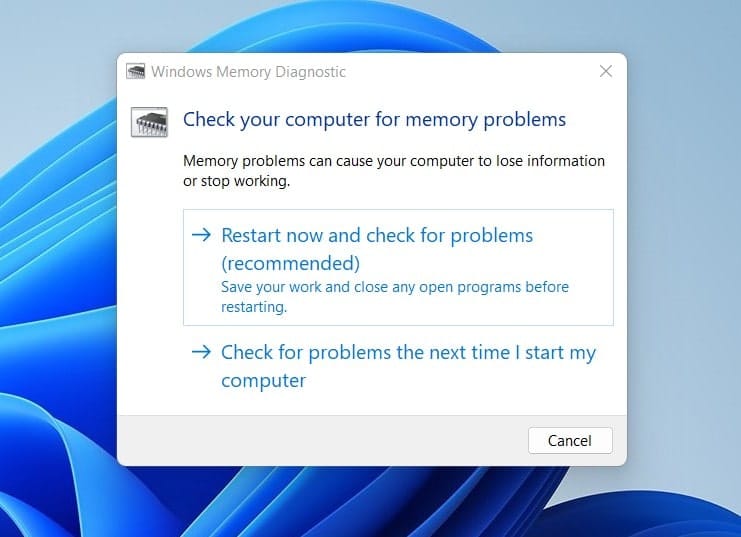

Sometimes some antiviruses like AVG, and Avast is responsible for BSOD error. We recommend to temporarily, remove the installed antivirus/Anti-malware application and check the problem is fixed.
Avoiding the Blue Screen of Death
- Always keep your windows updated and Make Sure your installed drivers are up to date.
- Turn off your computer properly, And Don’t force your PC to shut down.
- Avoid installing pirated Software like Cracks, Activators, Nulled games etc.
- Always use the latest version of the Intel management engine interface and keep it up to date.
- Use disk defragment and disk cleanup regularly, you can use third-party software like Ccleaner to optimize windows and repair corrupted registry entries.
These are some most effective solutions to fix almost every Blue Screen of Death Error (BSOD) on Windows 10 computers. If it’s not some hardware related issue, Then I am sure you should be able to fix Windows 10 BSOD error using the methods and tips mentioned above. Otherwise, you’ll have to approach some stores for the replacement hardware to get things done.
Also Read:
- Fix page fault in a nonpaged area BSOD error
- Fix inaccessible boot device Windows 10 BSOD error
- Fix critical process died Windows 10 Blue Screen Error
- 3 Ways to Fix your Dead Windows 10 Start Menu problems
- Fix Windows 10 Update Error 0x80070002 or 0x80070003
- Fix NMI HARDWARE FAILURE Blue Screen Error on Windows 10


%C2%A0error%20while%20starting%20your%20PC?%20Here%20complete%20solutions%20to%20fix%20different%20Blue%20Screen%20errors%20on%20Windows%2010%20Laptop,%20PC)