Discord screen share no audio

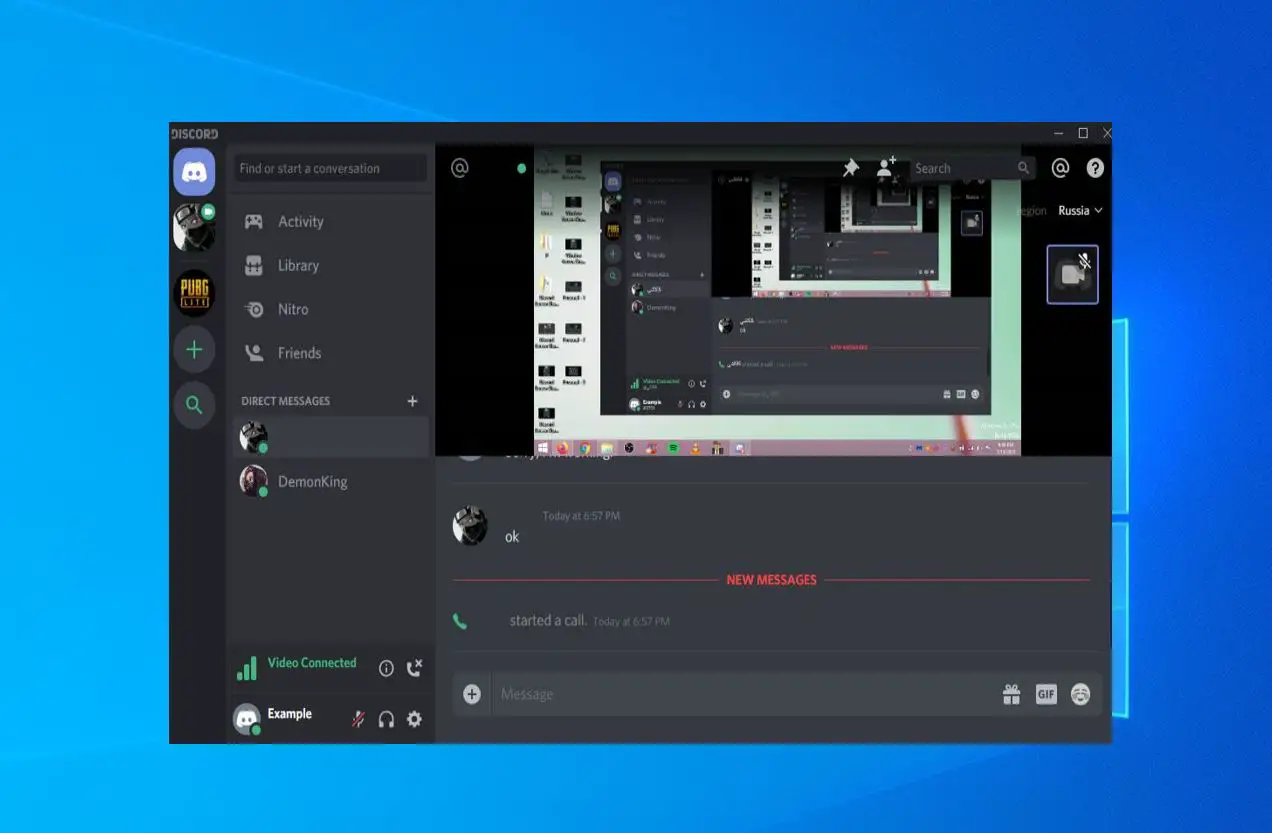
Discord is no doubt one of the most widely used voice-over-internet protocol(VoIP) applications for gaming users, allow chat and share audio, video, and text between other users. While playing a game, you can log in to the Discord App or use Discord screen share audio and communicate in real-time with gamers worldwide. Not only games, but users can also share their screen with anyone, such as applications or even Chrome. However, several users report that the Discord screen share audio isn’t working; friends can see the screen but can’t hear any audio.

This is a common issue on Windows 11 and Windows 10, usually caused by incorrect sound settings, faulty audio drivers, missing permissions, or minor app bugs. In this article, you’ll learn different methods to fix no-audio issues during a Discord screen share.

How To Share Screen on Discord

What causes the Discord Screen Share No Audio issue?

There could be several reasons why Discord Screen Is Sharing but No Audio, such as outdated audio drivers, incompatible apps or games (especially in full screen).

  • Outdated Discord app – older versions may have bugs that break audio while sharing your screen.
  • Faulty, missing, or outdated audio drivers – Windows can’t route sound correctly to Discord.
  • No admin access – some games or apps need Discord to run as administrator to capture sound.
  • Application incompatibility – certain apps (especially older games or DRM-protected video players) don’t share audio well.
  • Wrong Windows sound or privacy settings – microphone or app access disabled in Windows 10/11.
  • Security software interference – antivirus or firewall blocking Discord from capturing audio.

This guide is for Windows 10 and Windows 11 users who can share their screen on Discord but their friends can’t hear any sound, or audio randomly stops working during screen share.

Before you start troubleshooting

  • Make sure your speakers or headset work in other apps (YouTube, games, music player, etc.).
  • Ensure your friends haven’t muted you or turned your volume down in Discord.
  • In Discord, go to User Settings → Voice & Video and confirm the correct Input Device and Output Device are selected.
  • If you’re sharing a specific app (like Chrome or a game), make sure the app is actually playing audio when you start screen sharing.

If everything above looks good and Discord screen share audio is still not working, move on to the fixes below.

Fix 1 – Restart Your PC and Discord App

If this is the first time you are experiencing the Discord share screen no audio issue, then restart your computer. This will fix the temporary glitch and program conflict with the Discord app that causes audio issues.

  • Close the Discord app completely (right-click the Discord icon in the system tray and choose Quit Discord).
  • Restart your Windows 10 or Windows 11 PC.
  • Open Discord again and try screen sharing with audio.

Fix 2 – Temporarily Disable Third-Party Antivirus or Security Software

Security software (especially third‑party antivirus tools) can sometimes interfere with how Discord captures or transmits audio during screen share.

  1. Temporarily disable or turn off your third‑party antivirus or internet security software.
  2. Restart Discord and try sharing your screen with audio.
  • If the issue is resolved while antivirus is disabled, add Discord as an exception in your security software so you don’t have to keep disabling protection.
  • If nothing changes, turn your antivirus back on and proceed to the next fix.

Fix 3 – Run Discord as Administrator

In some cases, the Discord screen share audio not working issue appears because Discord does not have enough permissions to capture audio from certain apps or games.

  1. Close Discord if it’s running.
  2. Go to the Discord installation folder (usually:
    • C:\Users\\<YourUserName>\\AppData\\Local\\Discord or
    • Right‑click the Discord shortcut → Open file location.
  3. Right‑click on Discord.exe and select Run as administrator.
  4. Click Yes when prompted by User Account Control (UAC).
  5. Try screen sharing again and check if the audio is now working.
Run Discord as administrator

If running as admin fixes the problem, you can:

  • Right‑click Discord.exe → Properties → Compatibility → Check “Run this program as an administrator” → Apply.

Fix 4 – Avoid Full Screen Mode While Gaming

Playing games in full screen mode while using Discord screen share can sometimes cause Discord audio problems.

To avoid this:

  1. Change your game’s display mode to Windowed or Borderless Windowed in the game’s settings.
  2. Restart the game if needed.
  3. Start Discord screen share again and see if the audio now works.

Many users find that simply switching away from full screen mode resolves screen share audio issues.

Fix 5 – Check Discord’s Server Status

Sometimes, the issue isn’t on your end. Discord’s own servers may be experiencing problems.

  1. Visit status.discord.com.
  2. Check if there are any ongoing incidents or outages, especially related to Voice or Media services.

If Discord’s servers are down, you’ll need to wait until the issue is resolved on their side.

Discord Server Status

Fix 6 – Check Windows Microphone & App Permissions

If Windows 10 or 11 is blocking microphone or app access, Discord may not be able to share audio properly.

On Windows 11

  1. Press Windows + I to open Settings.
  2. Go to Privacy & security → Microphone.
  3. Make sure Microphone access is On.
  4. Turn on Let apps access your microphone.
  5. Scroll down and ensure Desktop apps (including Discord and your browser) can access the microphone.
Let apps access your microphone

On Windows 10

  1. Press Windows + I to open Settings.
  2. Go to Privacy → Microphone.
  3. Turn on Allow apps to access your microphone.
  4. Scroll down and make sure your apps (e.g., browser, games) have access.

You can also quickly access these settings by pressing Windows key + S, typing “Microphone privacy settings”, and pressing Enter.

After adjusting permissions, restart Discord and test screen share audio again.

Fix 7 – Follow Discord’s Official Suggestions (Especially for Chrome)

Discord provides some official troubleshooting steps for fixing Discord screen share audio not working on Chrome or browsers. Try these:

  1. End your current screen share session in Discord.
  2. Refresh the Discord app by pressing Ctrl + R.
  3. Close your web browser completely.
  4. Reopen the browser and play audio first (for example, start a YouTube video) before starting screen share.
  5. Go back to Discord, enable screen share, select the correct browser tab or window, and see if there is audio.

This can help when the problem occurs only in specific apps, such as Google Chrome or other browsers.

Fix 8 – Update the Discord App to the Latest Version

An outdated Discord client can cause multiple issues, including screen share no sound. Updating often fixes hidden bugs.

  • Press Windows key + R, type %localappdata% and click ok,
  • Open Discord, then double-click Update.exe to update the app.
  • Once the update completes, relaunch Discord and check if audio works during screen share.

Fix 9 – Clear Discord Cache and Roaming Data

Corrupted cache or roaming data can also cause audio problems during screen sharing. Deleting this data forces Discord to recreate fresh files. Several users have also reported that deleting the Discord cache and roaming data helped them resolve the issue and get audio working during screen sharing.

  • Make sure to close the Discord app completely.
  • Press Windows key + R, type %appdata%, and press Enter.
  • In the folder that opens, locate the Discord folder.
  • Delete the Discord folder. Restart Discord and sign in again.
  • Test screen share with audio to see if the issue is resolved.
Clear Discord app cache

Fix 10 – Manually Add Your Game or App to Discord Activity

Normally discord can automatically detect the activity you are performing. But sometimes it fails to recognize what you’re sharing, which can lead to no audio while screen sharing. To fix this, you will need to add your activity.

  • Start the Discord app then click the user settings icon
  • In the left pane, click Registered Games or Game Activity (depending on your Discord version).
  • Now add the application in which the audio is not shared properly while sharing the screen.
  • Once you add the application, check the status of the Discord Screen Share No Audio issue
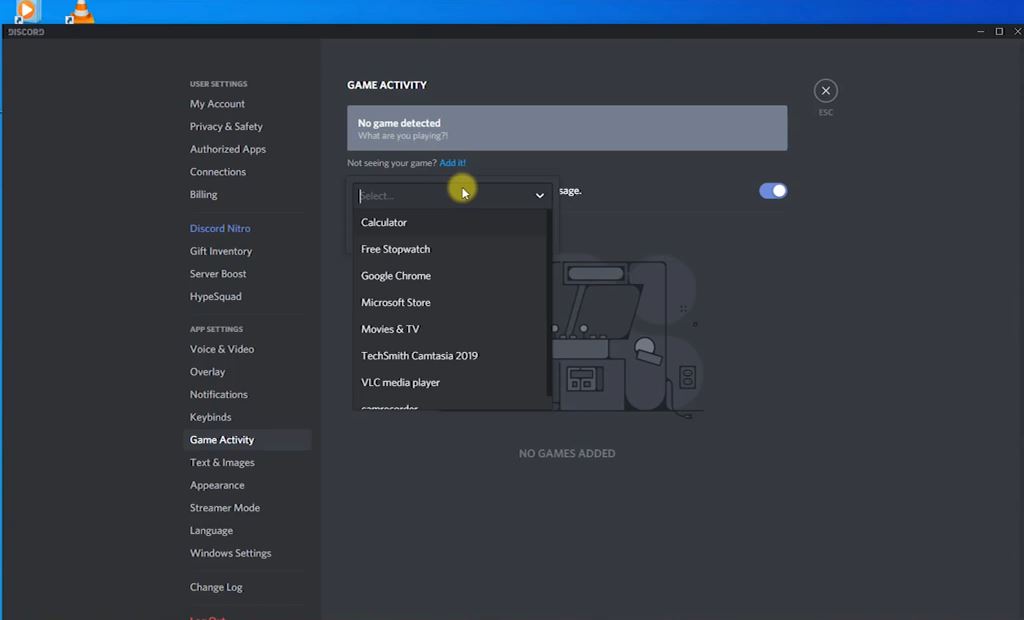
Add your activity to Discord

Fix 11 – Enable “Push to Talk” in Discord

Discord normally auto‑detects audio activity and transmits it over the internet. When this fails, switching to Push to Talk can help stabilize audio.

  1. Launch the Discord application.
  2. Click the User Settings icon at the bottom left.
  3. In the left navigation bar, click Voice & Video.
  4. Under Input Mode, select Push to Talk.
  5. Set a convenient keybind for Push to Talk.
  6. Apply the changes and test screen share with audio while using the keybind.

If audio becomes more reliable with Push to Talk, the issue may be related to background noise detection or sensitivity.

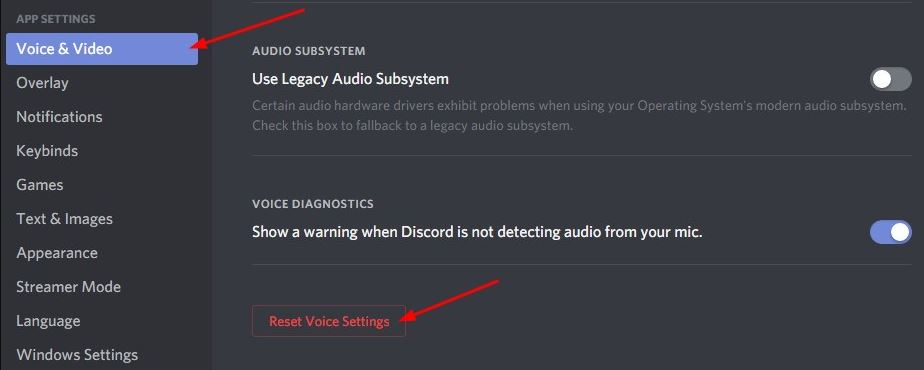
Fix 12 – Reset Voice Settings in Discord

If you’ve changed a lot of audio settings in Discord or something is misconfigured, resetting Voice Settings can quickly fix Discord screen share audio not working problems.

  1. Open the Discord application.
  2. Click User Settings (gear icon) at the bottom left.
  3. In the left pane, click Voice & Video.
  4. Scroll all the way down until you see Reset Voice Settings (in red).
  5. Click Reset Voice Settings and confirm.
  6. Restart Discord and try screen sharing again.
Reset the Voice Settings on Discord

Fix 13 – Reinstall the Discord App

If none of the above methods work, your Discord installation may be corrupted. A clean reinstall often resolves persistent issues like screen share no audio.

  1. Press Windows key + R, type appwiz.cpl, and click OK.
  2. This opens Programs and Features.
  3. Find Discord in the list of installed programs.
  4. Right‑click Discord and choose Uninstall.
  5. Follow the on‑screen instructions and restart your computer.
  6. Go to the official Discord website and download the latest version:
    https://discord.com/download
  7. Install Discord, log in, and test screen share audio again.

Fix 14 – Reinstall or Update Your Audio Drivers

Outdated, faulty, or missing audio drivers are a major cause of audio not playing during screen share.

  1. Press Windows key + X and select Device Manager.
  2. In Device Manager, expand Audio inputs and outputs.
  3. Right‑click your sound device (speakers/headphones) and select Uninstall device.
  4. Confirm the uninstall if prompted, then reboot your PC.
  5. After restart, Windows will usually reinstall the default audio driver automatically.
  6. To ensure you have the latest driver, you can:
    • Open Device Manager again.
    • Click Action → Scan for hardware changes, or
    • Visit your PC or motherboard manufacturer’s website and download the latest audio driver for your device (Windows 10/11).

Once the audio driver is reinstalled/updated, open Discord and test screen share with audio.

Still, need help? you can reach out to Discord directly from here: https://support.discord.com/hc/en-us/requests/new

Did the above solutions help fix the Discord screen share no sound problem? Let us know on the comments below.

Frequently Asked Questions

Why can’t my friends hear my game audio on Discord screen share?

Usually because Discord is capturing the wrong audio device, Windows has blocked microphone or app access, or your audio drivers are outdated. Try updating Discord, checking Voice & Video settings, and reinstalling your audio drivers.

Does Discord screen share support audio from every app?

Not always. Some apps, especially older games or DRM-protected streaming services, don’t send audio correctly to Discord. In these cases, you might only share video, not sound.

How do I share audio from Chrome in Discord?

First, play audio in Chrome (e.g., a YouTube video). Then start screen share and select the Chrome tab or window. Make sure Chrome has permission to use your microphone and sound in Windows privacy settings.

Is Discord screen share audio not working on Windows 11 only?

The issue can appear on both Windows 10 and 11. On Windows 11, double-check microphone and app permissions in Settings → Privacy & security → Microphone

Can antivirus software block Discord screen share audio?

Yes. Some security tools interfere with how Discord captures audio. Temporarily disable your antivirus or add Discord as an exception to see if it fixes the problem.

Also read:

Steve Ballmer
With over 7 years of experience in the IT industry, I have experience in IT support, helpdesk, sysadmin, network admin, and cloud computing. Certified in Microsoft Technologies (MCTS and MCSA) and also Cisco Certified Professional in Routing and Switching.