If your Windows 11 or Windows 10 PC randomly freezes, restarts, shows blue screen errors like MEMORY_MANAGEMENT or IRQL_NOT_LESS_OR_EQUAL, or apps crash for no clear reason, the problem might be with your RAM (memory). Windows includes a built‑in tool called Windows Memory Diagnostic that can test your RAM for errors. It does not repair bad memory chips, but it can tell you if your RAM is faulty, so you know whether to replace it. This article explains what the Windows Memory Diagnostic tool is and when you should use it. You will also learn how to check memory diagnostic results in Windows 11 and what to do if the test detects RAM errors, such as hardware problems detected.
A faulty memory module can cause all kinds of strange, hard‑to‑explain problems, so running a memory test is an important troubleshooting step.
Quick overview
- Tool name: Windows Memory Diagnostic (built into Windows 10/11).
- Purpose: Check RAM (memory) for hardware errors.
- How to start: Press
Windows + R, typemdsched.exe, press Enter. - Results: After restart, view details in Event Viewer → Windows Logs → System → MemoryDiagnostics-Results.
Contents
- 1 What Is the Windows Memory Diagnostic Tool?
- 1.1 When Should You Use Windows Memory Diagnostic to Check RAM for Errors?
- 1.2 How to Run Windows Memory Diagnostic in Windows 11 and 10
- 1.3 How the Windows Memory Diagnostic Test Works
- 1.4 Change Test Options (Basic, Standard, Extended)
- 1.5 Test mix
- 1.6 Cache
- 1.7 Pass count
- 1.8 How to Find Windows Memory Diagnostic Tool Results
- 1.9 What to Do If Windows Memory Diagnostic Detects Errors
- 1.10 Frequently Asked Questions
What Is the Windows Memory Diagnostic Tool?
Windows Memory Diagnostic Tool is a built‑in utility in Windows 11 and Windows 10 that performs tests on your computer’s RAM (Random Access Memory) for hardware problems.
When you run it, your PC will restart, and a special memory test will run before Windows loads. The tool performs several patterns of read/write tests on the memory modules installed in your system and verifies that they return the correct data.
Important points:
- It checks for memory errors, such as bits flipping unexpectedly, stuck bits, and other patterns that indicate faulty RAM.
- It can perform both basic and advanced tests (Standard and Extended).
- It does not repair the RAM. If errors are found, you will likely need to replace the faulty memory module.
The main purpose of the Windows Memory Diagnostic Tool is to help you diagnose problems with your computer’s Random Access Memory (RAM). It checks for errors that can cause system instability, such as freezing, crashing, slow performance, or blue screens, by running various tests on the memory modules after a restart.
When Should You Use Windows Memory Diagnostic to Check RAM for Errors?
You should run a memory test if you notice any of these symptoms on Windows 11 or Windows 10:
- Random blue screen errors (BSOD), especially with messages like:
MEMORY_MANAGEMENTPAGE_FAULT_IN_NONPAGED_AREAIRQL_NOT_LESS_OR_EQUALKMODE_EXCEPTION_NOT_HANDLED
- The PC freezes or hangs for no reason, even after checking the disk and drivers
- Programs crash frequently, especially under load (gaming, video editing, virtual machines)
- Windows setup or updates fail repeatedly with different error codes
- Files or archives become corrupted even after you’ve fixed disk errors with CHKDSK
- You recently installed or upgraded RAM and problems started afterward
Because RAM problems can cause all kinds of strange and inconsistent errors, running the Windows Memory Diagnostic Tool is a key step in rule‑out testing when you’re troubleshooting serious stability issues.
How to Run Windows Memory Diagnostic in Windows 11 and 10
You must restart your PC to run the memory test, so save any open work before you start.
- Press Windows key + R to open the Run dialog, Type: mdsched.exe and press Enter.
- Alternatively, you can press Windows key + S and type Windows Memory Diagnostic.
Click on Windows Memory Diagnostic from the search results.
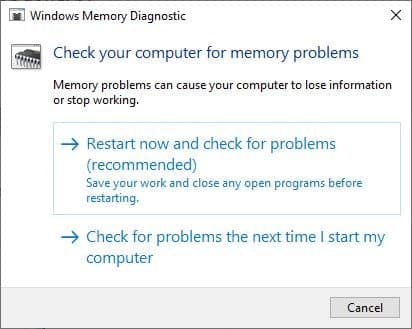
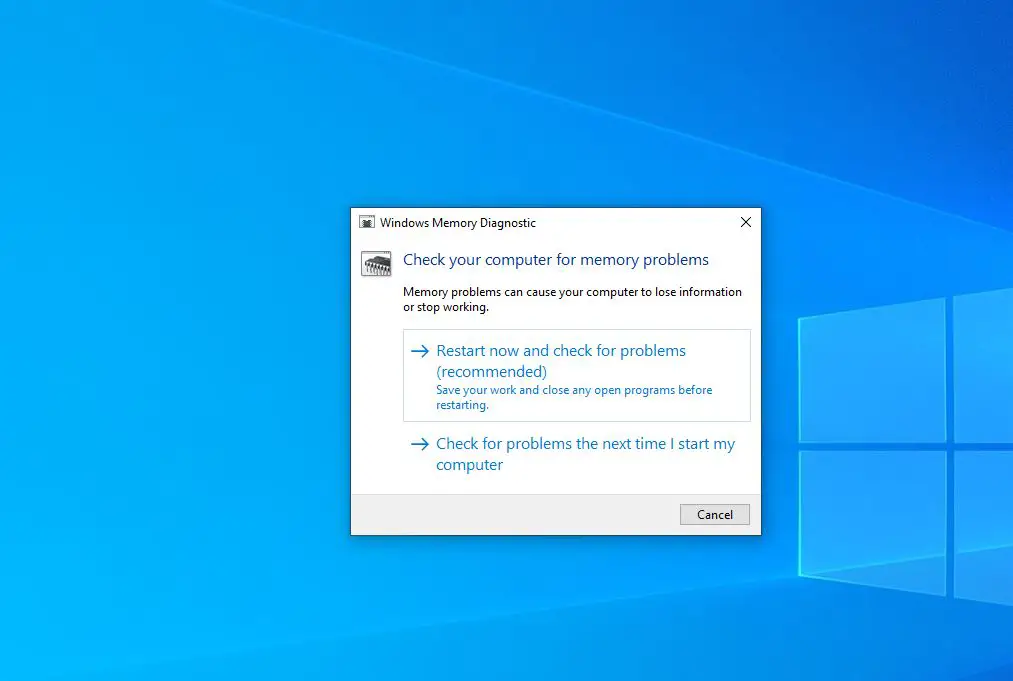
The Windows Memory Diagnostic window will open and you will see two options:
- Restart now and check for problems (recommended)
- Check for problems the next time I start my computer
If you are ready to reboot, click Restart now and check for problems (recommended). Your PC will restart and the memory test will begin automatically.
If you need to finish your work first, choose Check for problems the next time I start my computer. The test will run on the next restart.
How the Windows Memory Diagnostic Test Works
After you choose to restart and check for problems:
- Windows will shut down and reboot.
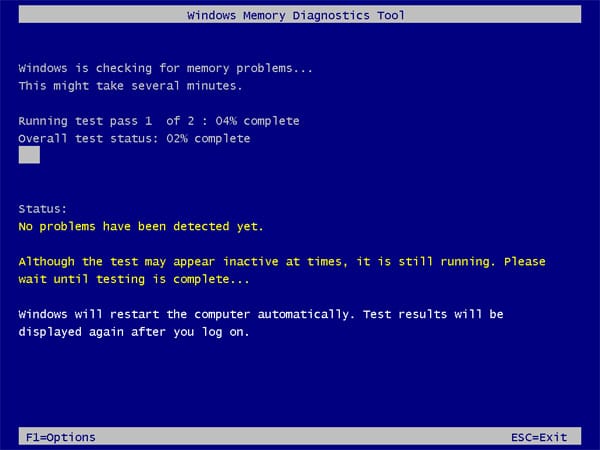
- Instead of loading the desktop, you’ll see the Windows Memory Diagnostic screen.
- The tool will start testing your RAM using the Standard test by default.
On the screen, you will see:
- A progress bar with the percentage completed
- The status of the test (for example, Pass 1 of 2)
- A message saying that test results will be displayed after you log in
Do not turn off your computer while this test is running.
The default Standard test is usually enough for many users, but you can also run an Extended test for deeper diagnosis.
Change Test Options (Basic, Standard, Extended)
If you want more control over the test, you can change the settings before it finishes.
While the Windows Memory Diagnostic screen is visible, press F1 to open the Options menu.
Here you can configure:
Test mix
- Basic
- Quick test with a small number of patterns.
- Useful for a quick check.
- Standard (default)
- Runs more patterns than Basic.
- Good balance between speed and thoroughness.
- Extended
- Runs many more patterns and tests.
- Can detect more subtle memory problems.
- Takes much longer to complete.
Cache
- Default
- On
- Off
Usually, you can leave this on Default unless you’re doing very specific troubleshooting.
Pass count
- The number of times the full set of tests will repeat.
- For deeper testing, you can set this to 2 or more.
After adjusting the settings, press F10 to save and start the test with the new options.
Tip: Use the Extended test with at least 2 passes if you strongly suspect faulty RAM. This can take an hour or more depending on how much RAM you have.
How to Find Windows Memory Diagnostic Tool Results
After the memory test finishes, your PC will restart automatically and boot back into Windows.
Often, you’ll briefly see a notification in the lower‑right corner of the screen (near the clock) that says something like:
“Windows Memory Diagnostic tested the computer’s memory and detected no errors.”
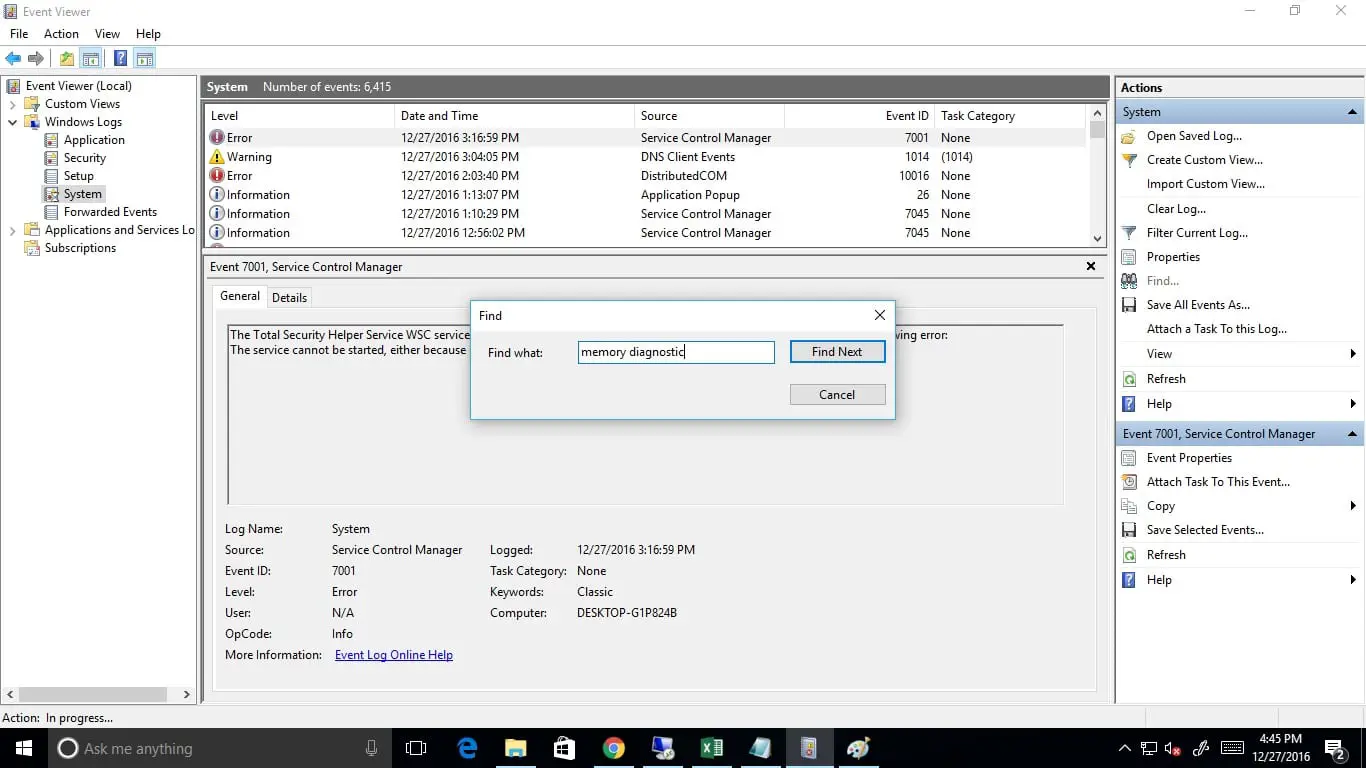
If you miss or don’t see the notification, you can find the full test results in Event Viewer.
View Memory test results in Event Viewer
- Press Windows key + X and select Event Viewer.
(Or press Windows key + R, typeeventvwr.msc, and press Enter.) - In the left pane, expand Windows Logs and click System.
- In the right pane, click Find….
- Type:
MemoryDiagnostics-Resultsand click Find Next.
- Event Viewer will jump to the latest Windows Memory Diagnostic result event.
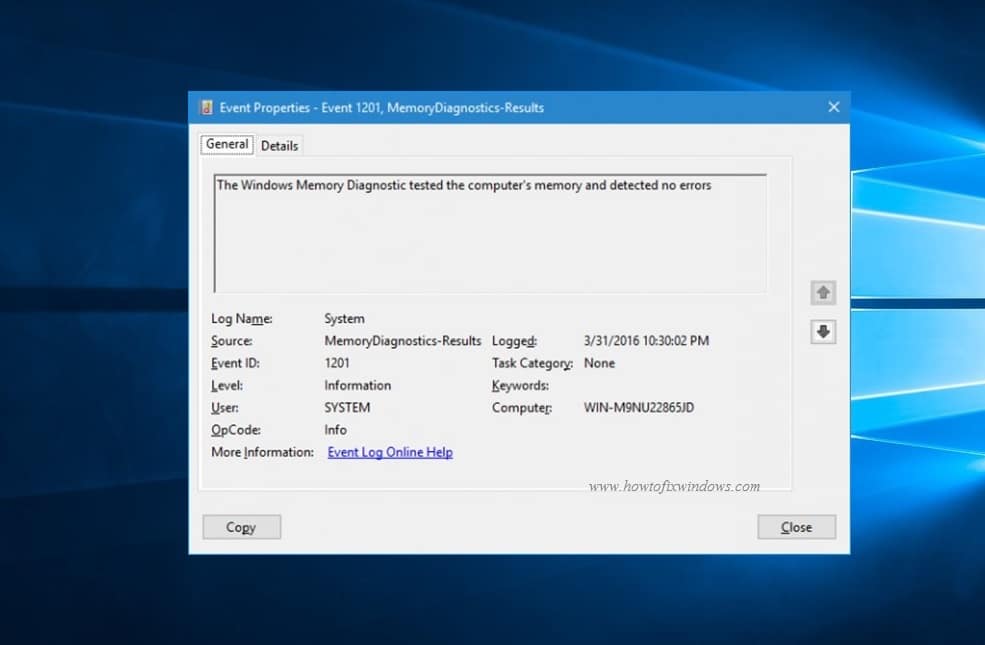
Double‑click the event to open it. Under the General tab, you’ll see a summary such as:
- “The Windows Memory Diagnostic tested the computer’s memory and detected no errors.”
- “The Windows Memory Diagnostic tested the computer’s memory and detected hardware errors.”
This event confirms whether any RAM errors were found during the test.
What to Do If Windows Memory Diagnostic Detects Errors
If the results say that hardware errors were detected, there is a very high chance that one or more of your RAM modules is faulty, or that you have a problem with a memory slot on the motherboard.
Here’s what you should do next:
Back up important data
Memory errors can lead to data corruption, especially if they occur while files are being written to disk. Before doing anything else, back up your important documents, photos and files.
Power down and reseat the RAM
- Turn off the PC completely.
- Unplug the power cable. On laptops, also remove the battery if possible.
- Open the case carefully.
- Locate the RAM sticks. Release the clips and gently remove them.
- Reinsert the sticks firmly into the slots until the clips click back into place.
Sometimes, slightly loose or dusty RAM modules can cause intermittent errors that are fixed by reseating.
Test one RAM stick at a time
If you have more than one RAM stick:
- Remove all but one stick.
- Run Windows Memory Diagnostic again (preferably with the Extended test).
- Note whether errors are reported.
- Move that same stick to another slot and test again.
- Repeat with each stick and each slot.
This helps you identify whether the problem follows a specific RAM module (bad stick) or a specific slot on the motherboard.
Replace faulty RAM
- If errors only appear when a particular stick is installed, that module is likely defective and should be replaced.
- If different sticks fail only in one slot, the memory slot or motherboard may be faulty.
When replacing memory, try to match:
- Type (DDR4, DDR5, etc.)
- Speed and voltage recommended by your motherboard
Consider additional testing
For very thorough testing, some advanced users run tools like MemTest86 from a bootable USB. This can run more patterns and for longer periods than Windows Memory Diagnostic.
However, for most home users, if Windows Memory Diagnostic reports hardware errors and you can reproduce them on a specific RAM module, that is enough proof to replace the RAM.
Frequently Asked Questions
Does Windows Memory Diagnostic really work?
Yes. The Windows Memory Diagnostic Tool performs a series of low‑level tests on your RAM and can detect many types of memory errors. If it reports hardware errors, you should treat that as strong evidence of faulty RAM.
Can I use my computer while the memory test is running?
No. Windows Memory Diagnostic runs in a special environment before Windows loads. While the test is running, you cannot use your PC for other tasks. You must wait for it to complete and reboot.
Does Windows Memory Diagnostic Tool fix RAM problems?
No. The tool can detect RAM errors but it cannot repair the physical hardware. If the test shows hardware errors, the solution is usually to reseat or replace the faulty RAM module (or in some cases, address motherboard issues).