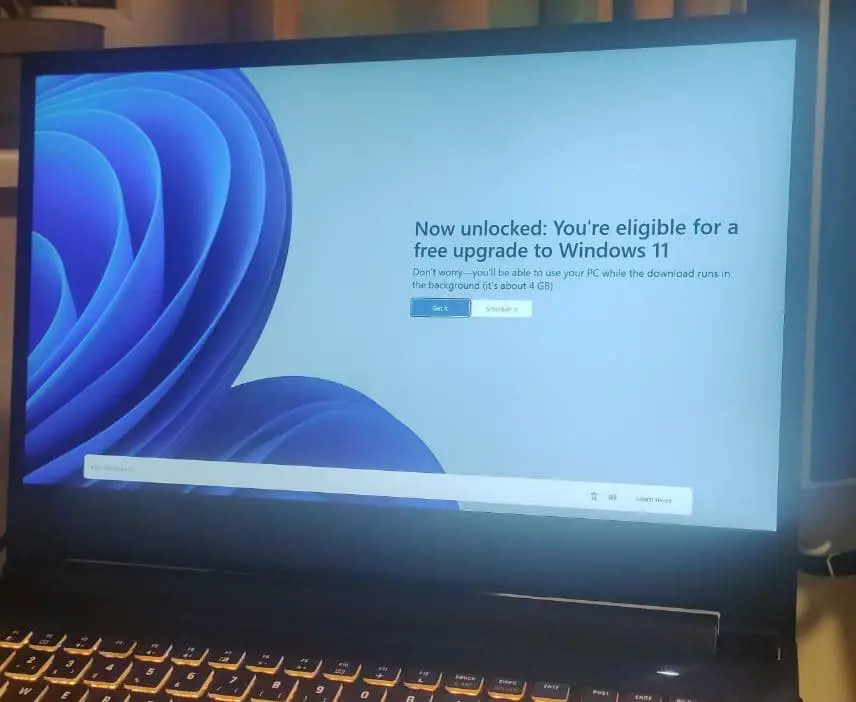
Windows 11 is available as a free upgrade for compatible devices running Windows 10 version 2004 or later. If your computer meets minimum requirements, under Windows update settings you will get a notification to upgrade Windows 11 for free. It only requires stable internet connectivity and free storage space on the system drive (usually its C) to download and install Windows 11 on your computer. However few users report, the Windows 11 23H2 update not showing in Windows 10 on the Windows Update tool. This issue prevents the installation of the new OS on their computer.
Yet you have not received the Windows 11 update notification usually means your computer is not ready for Windows 11. There could be several reasons why this is happening, Unsupported hardware, Broken Windows Update service or Conflict or damaged temporary files are common. In this article, we explore what to do if Windows 11 Update Not Showing Up and learn how to install Windows 11 on unsupported PCs.
Contents
Why Windows 11 update not showing?
To Get the Windows 11 Free upgrade, On your Windows 10 PC Press, the Windows key + I to open settings -> Go to update & security then hit the check for updates button to see whether the Windows 11 update is available. If the Windows 11 update is not showing up on your computer, it’s due to device compatibility issues, Windows update services may be disabled or broken, or system files corrupted on your computer. Again Outdated device drivers can also prevent the Windows 11 update from showing up.
Device compatibility issues
Your device must meet minimum system requirements to get the Windows 11 free upgrade. This time Microsoft noted, the device must have TPM 2.0 enabled and support secure boot to install Windows 11. And your computer may not be compatible that’s the reason why Windows 11 23H2 update not showing on your device.
Here are the minimum system requirements for Windows 11:
- Processor with 1 GHz or faster speed, with 2 or more cores and 64-bit compatibility.
- At least 4 GB of RAM and 64 GB of disk storage space for installation.
- UEFI, Secure Capability.
- Trusted Platform Module 2.0 enabled.
- Compatibility with Direct X 12 or later.
- WDDM 2.0 driver, 9-inch 720p HD display and Internet connectivity.
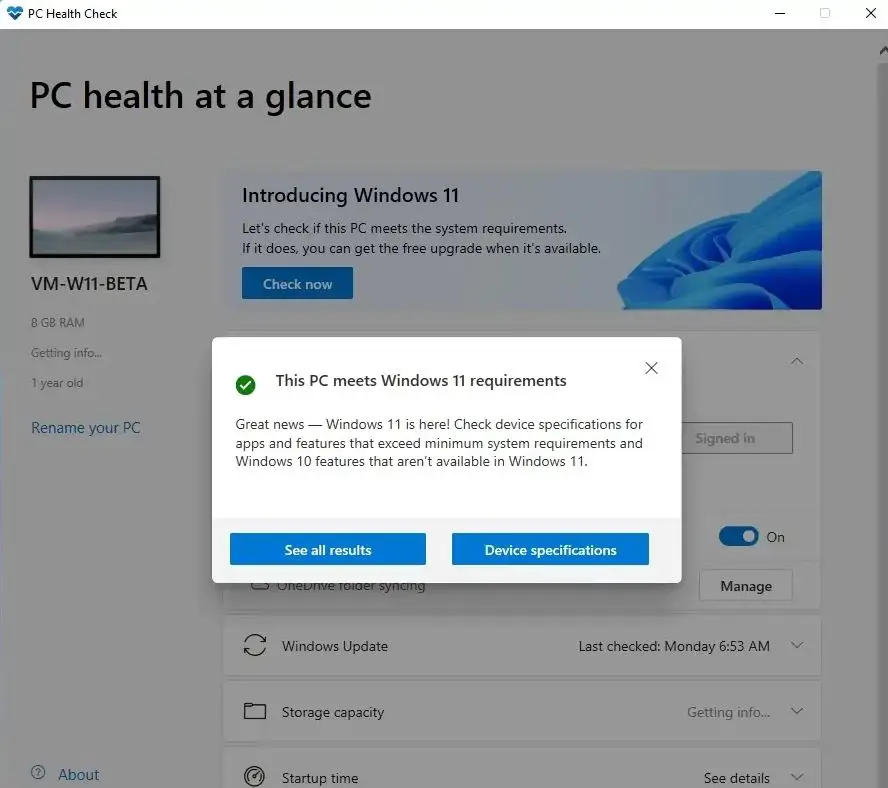
You can download and run the PC health check app to know if your device meets Windows 11 requirements or not.
Windows update not running
Another common reason why the Windows 11 2023 update not showing on your device is the Windows update is not configured properly. For some reason You may pause Windows updates or the Windows update service is stuck or not set to start automatically. And you need to check update configuration.
Check Windows update service:
- Press Windows key + R, type services.msc, and click ok
- On the new window, scroll down to locate Windows update service, right-click on it select restart,
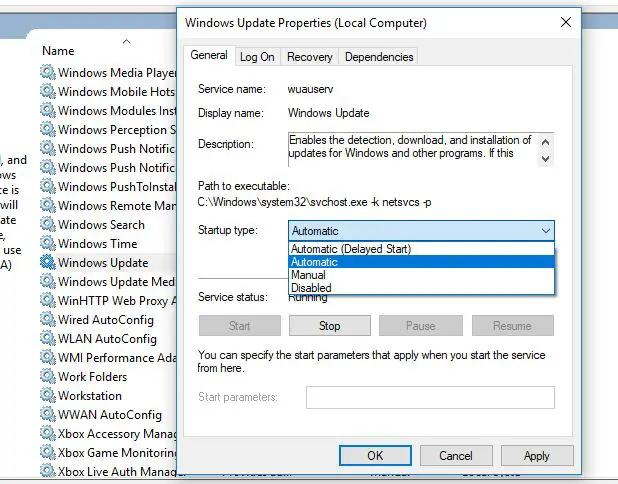
- If the service is not started, right-click on Windows Update select properties,
- Here change the startup type autoamtic and start the service next to service status.
Do the same with its related services, Background Intelligent Transfer Service (BITS) and Cryptographic Services.
Resume Windows Update
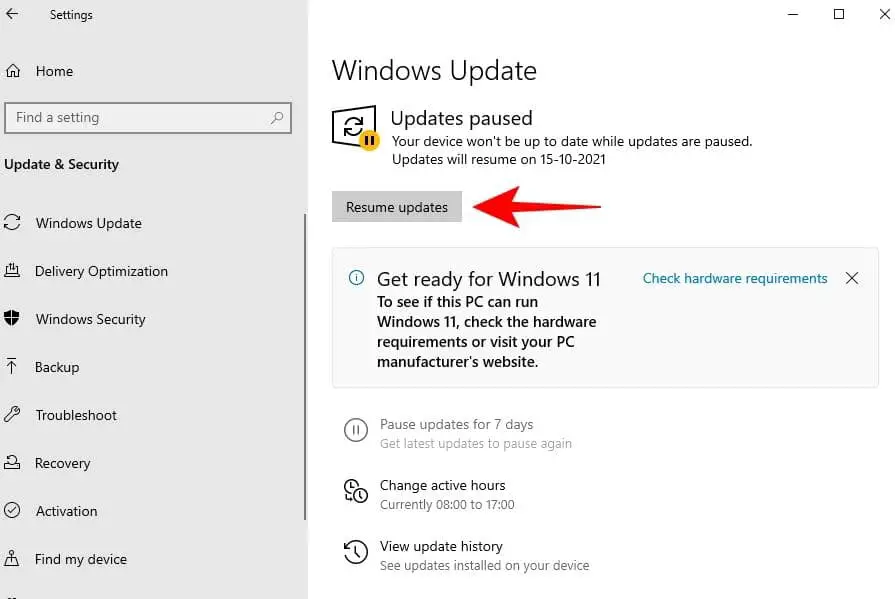
If you have paused updates, you wouldn’t be receiving any, including the one for Windows 11
- Press the Windows key + X and select settings
- Go to Update & Security then Windows Update
- Here check if there is a Resume Updates button on the right.
- If there’s one, click on it to start receiving updates.
Secure Boot and TPM not enabled
Secure boot prevents malicious software from starting whenever you boot your device and Trusted Platform Module (TPM) provides a secure environment for critical security functions, such as encryption and authentication. And latest Windows 11 requires both of these features available and enabled on your device to get the free upgrade.
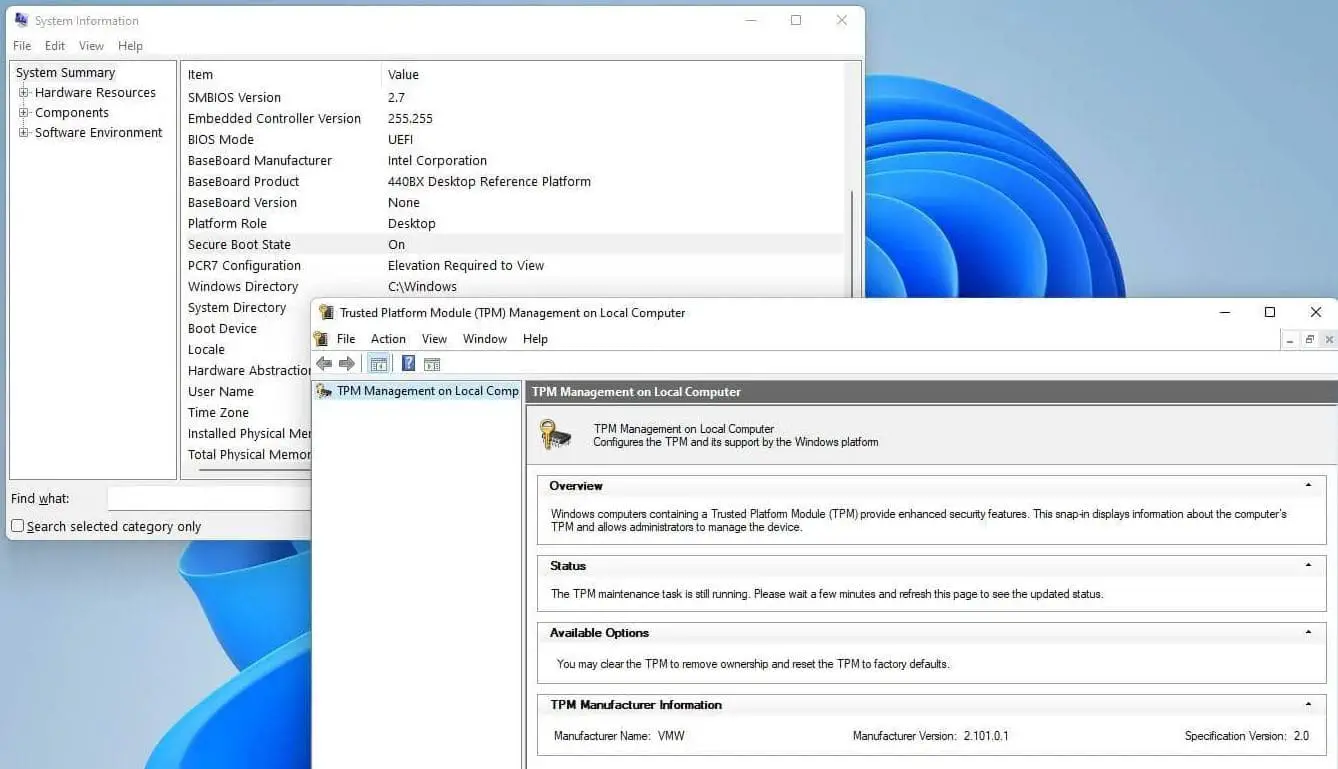
- You can press the Windows key + R, and type msinfo32 to check if your Device supports secure boot.
- Similarly, you can open the TPM management tool using tpm.msc to check TPM status on your computer.
- You can refer video to learn how to Enable TPM 2.0 and Secure Boot for Windows 11.
Not enough storage space
The latest Windows 11 requires a minimum of 64 GB of storage space to install and run. If your computer does not have enough free storage space, the free upgrade may not be offered to you.
You need to check and ensure that system drive usually its C drive has enough space for the Windows 11 update. If the C drive is full or near to full, try to delete any unnecessary files from the downloads, desktop, Documents, or pictures folder or move them to an external hard drive or cloud storage service. Also, uninstall Games or applications from your computer, that you won’t use.
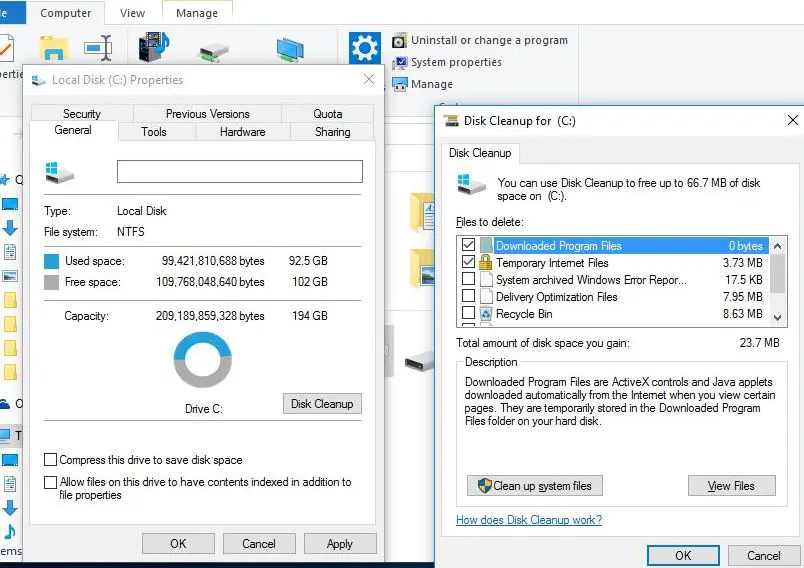
In addition, you can run Disk Cleanup, a built-in utility in Windows that helps free up space by deleting temporary files, system files, and other unnecessary files.
Conflicting temporary files
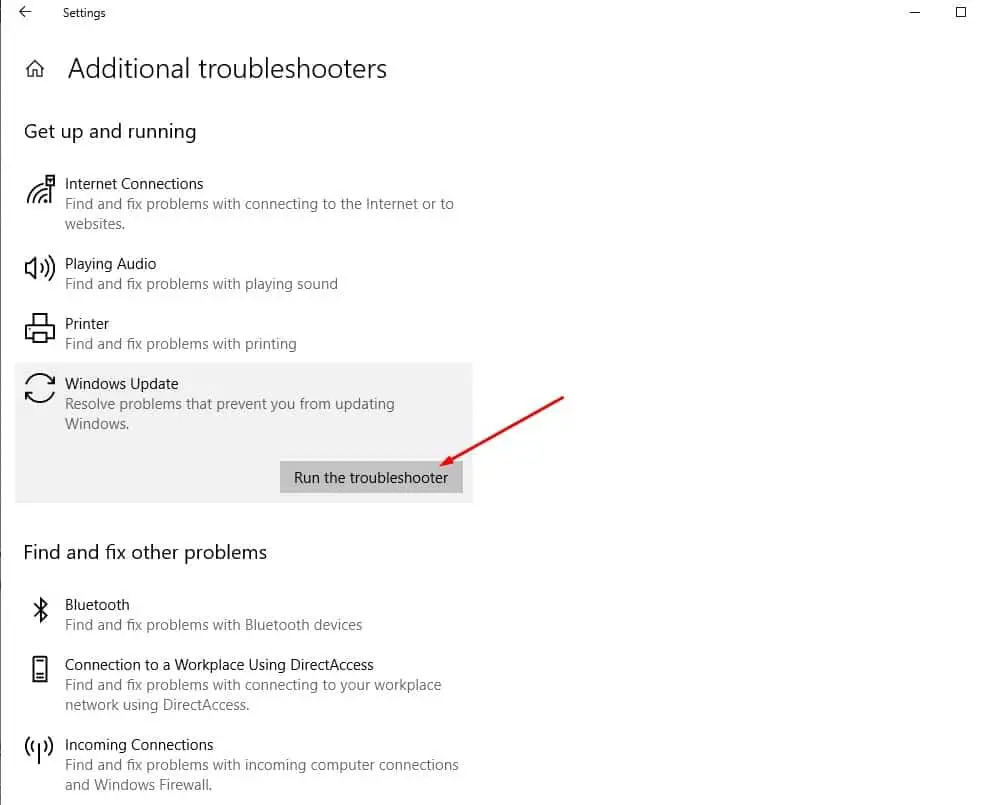
If you previously tried to download Windows 11 and encountered an error, then it could be the reason why you have not yet received the Windows 11 free upgrade. In such situations, you can run the built-in Windows update troubleshooter that automatically diagnoses and fix related problems. Or you can Clear Temporary Files from Interrupted Windows 11 Download.
Run Windows update troubleshooter
- Press the Windows key + X and select settings
- Go to Update & Security the troubleshoot, click on additional troubleshooters,
- Now locate and select Windows update then click Run the troubleshooter.
Clear temporary update files
- Press the Windows key + R, type services.msc and click ok
- Locate the Windows Update service, right-click on it select Stop,
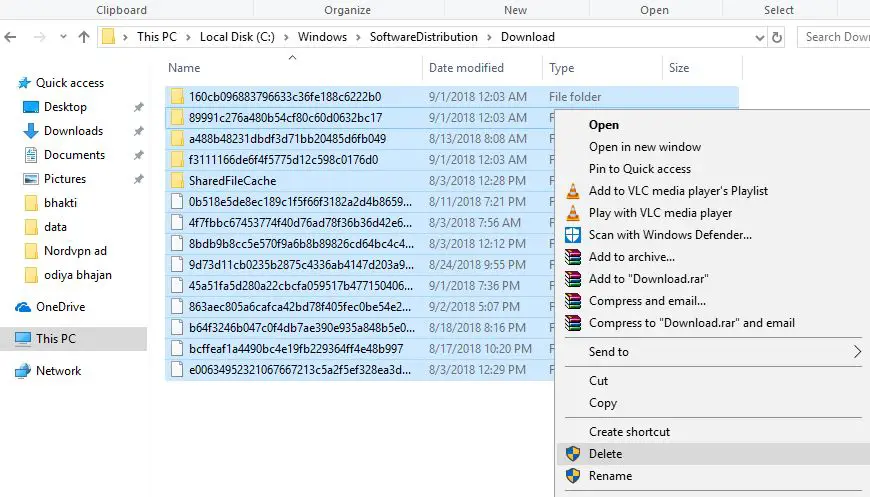
- Now press Windows key + E to open File Explorer and navigate, to C:\Windows\SoftwareDistribution\Downloads
- Here Delete all files and folders inside the download folder,
- Once done restart the Windows update service and reboot your PC
In addition, if you have only local or standard account access, such as work or school laptops, it could be the reason why you don’t have the Windows 11 update yet. In such a case, you can get in touch with the administrator to enquire about the Windows 11 upgrade.
Well if you meet all the basic requirements of Windows 11, but have yet not received the free upgrade notification, you can use the media creation tool or Installation Assistant from Microsoft to manually upgrade to Windows 11 for free. Also, you can refer to this guide to install Windows 11 from scratch using the official ISO.
How to install Windows 11 on an unsupported PC
You need to make some minor changes Windows 10 registry editor to bypass Windows 11 requirements and install it on an unsupported PC.
- Press the Windows key + R, type regedit, and click ok to open the registry editor,
- Now navigate to Computer\HKEY_LOCAL_MACHINE\SYSTEM\Setup
- Right-click on setup -> new key and name it LabConfig.
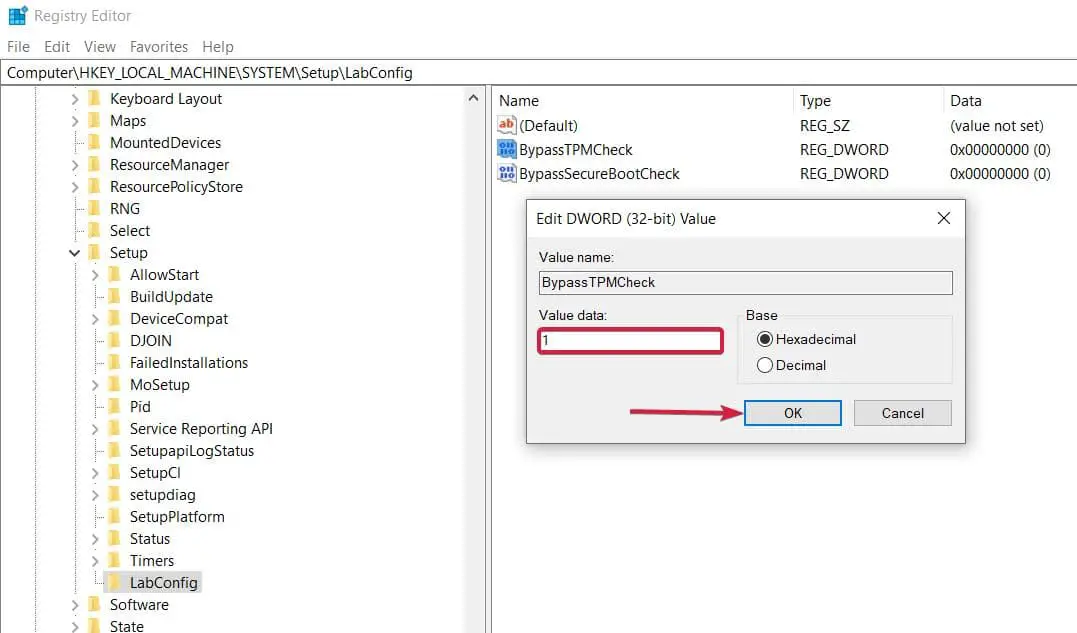
- Now right-click on LabCopnfig select New, then DWORD (32-bit) Value, and name it BypassTPMCheck
- Create another DWORD (32-bit) Value and name it BypassSecureBootCheck
- Set value data 1 for both newly created Dword keys,
Close the registry editor, and reboot your PC. Now run the installer to get Windows 11 installed on your computer.
How to upgrade Windows 11 from Windows 7
- You can directly upgrade to Windows 11 from Windows 7 Because Windows 11 only offer free upgrade for devices running Windows 10 version 2004 and later. You can refer to this article to upgrade from Windows 7 to Windows 11 for free.
How can I check if my device meets the minimum requirements for Windows 11?
- Use the PC Health Check app, which is available for download on Microsoft’s website.
Is Windows 11 a free upgrade?
- If you have a genuine Windows 10 license then Windows 11 upgrade is free for you, but you need to ensure your device meets the minimum system requirements for Windows 11.
What should I do if my device doesn’t meet the minimum requirements for Windows 11?
- If your device doesn’t meet the minimum requirements for Windows 11, you may not be able to install the update. However, you can continue to receive security updates for Windows 10 until its end of support date, which is currently October 14, 2025.
Also read:
- 6 Reasons Why Windows 11 Computer May Run Slowly
- Windows 11 settings you should change now for a better user experience
- How to Fix Windows 11 Problems in Safe Mode: A Beginner’s Guide
- 5 ways to Fix Fingerprint Sensor Not Working in Windows 11
- Solved: Network adapter not working Windows 11 (Error 39)